
Overview
In this lesson, you will build a fun interactive Dare Game using the RGX Kit. By pressing a button, the system will randomly select a challenge from a digital list and display it on the LCD screen. This is exactly how digital board games and randomizer apps work!
Objectives
•
Learn how to store multiple pieces of text in one variable.
•
Use the computer to pick items "at random" from your list.
•
Use a push button to start a software sequence.
Meet the Components
You will use:
•
LCD 1602 Display
•
Push Button
•
RGX Control Board
Hardware Connections
Component | PIN Connection |
Button | PIN 13 |
LCD Display | SCL + SDA PINs |
Use RJ11 Easy-Plug cables to ensure all connections are secure.
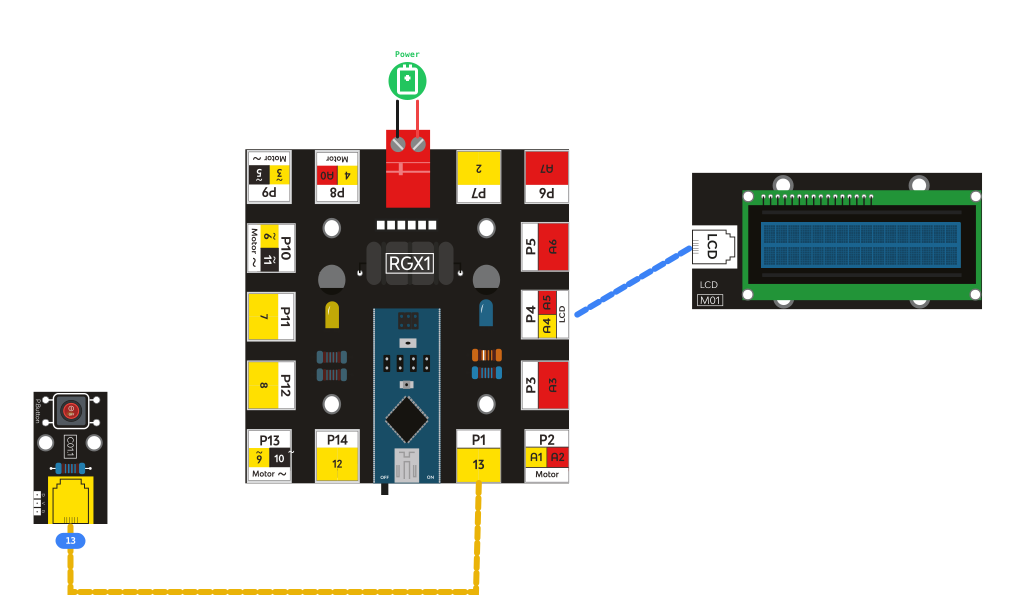
RGX connection
How the System Works
The game stays in WAIT mode until someone presses the button:
Status | Button | LCD Display |
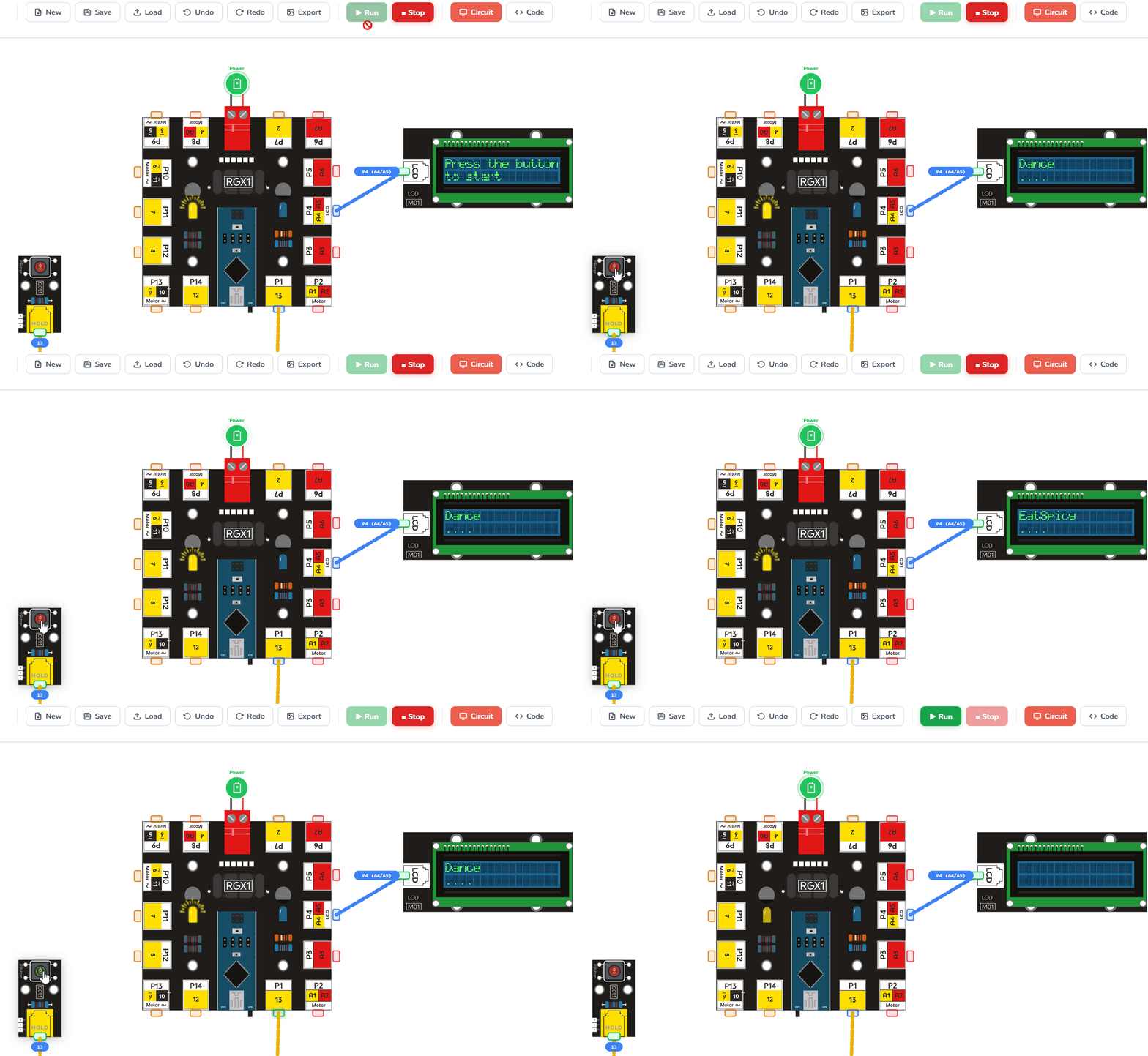
Waiting for Player | Not Pressed | "PRESS THE BUTTON" / "TO START..." |
Game Start | Pressed | Shows random dare from list |
Each press = a new dare chosen.
Coding the System
New Concepts to Master
1. What is an Array (List)?
In programming, an Array (also called a List) is a powerful way to organize data.
What is it? Think of a regular Variable like a single box that holds one thing. An Array is like a chest of drawers.
Why use it? Instead of creating 100 different variables for 100 dares (like dare1, dare2, dare3...), we create one Array called mylist that holds all of them together. This makes our code much shorter and easier to manage.
Indexes: Each drawer has a unique number called an Index.
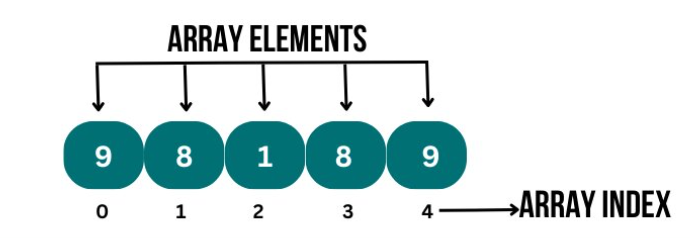
array
Crucial Rule: In programming, we always start counting from 0. So, the first drawer is #0, the second is #1, and so on.
•
Data Types: Arrays can hold many types of information, such as whole numbers (Integers), decimal numbers (Floats), or Text.
•
Our Project: For this Dare Game, we are using an array of Text. Drawer #0 might hold "Dance," and drawer #1 might hold "Run."
2. Random Logic
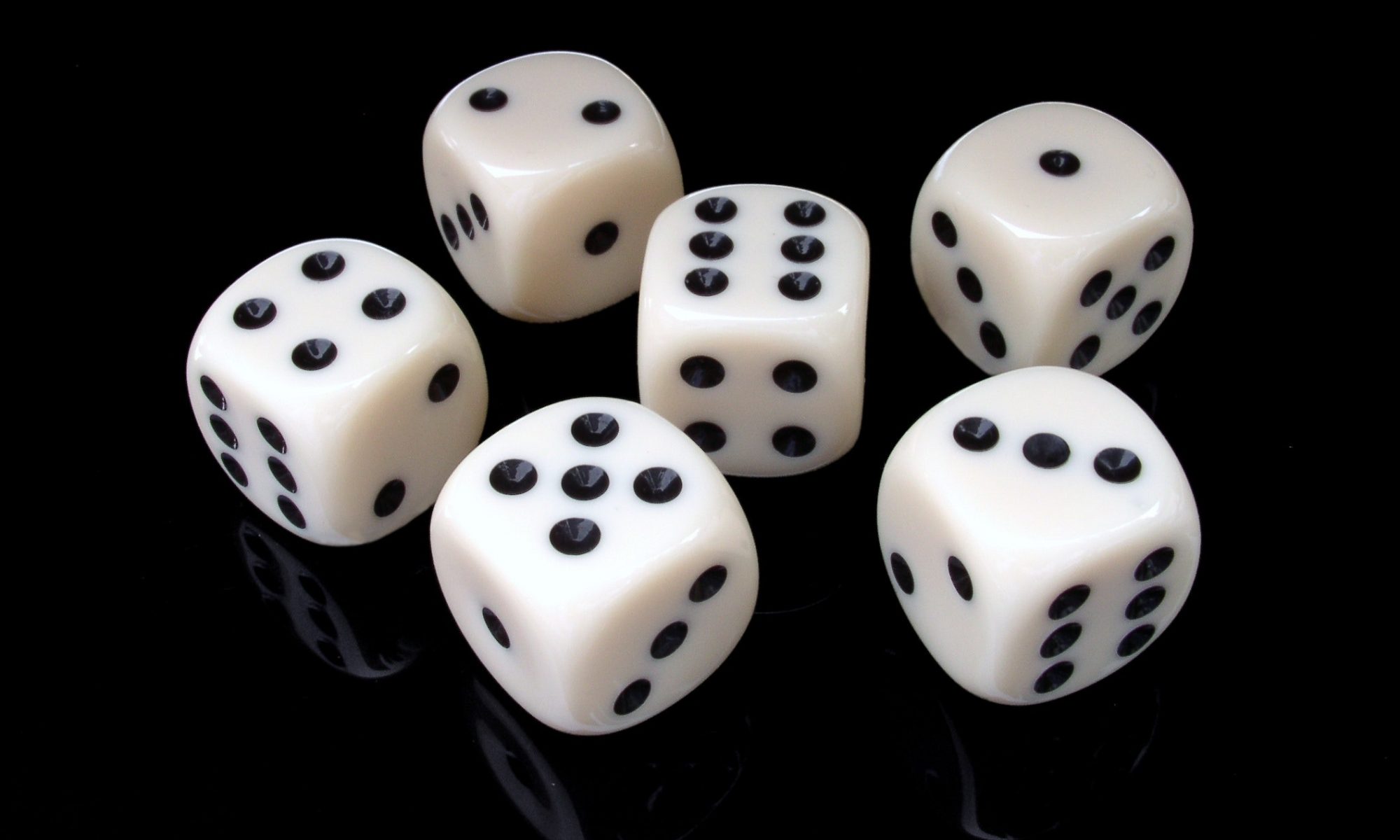
random
Computers are very good at following rules, but we can ask them to act like a pair of dice. The Random Integer block tells the computer to "pick a number blindly" within a range you set (like 0 to 3).
Step 1: Declare Global Variables
Action:
start will store button state (pressed / not pressed)
number will store a random index to pick a dare from the list
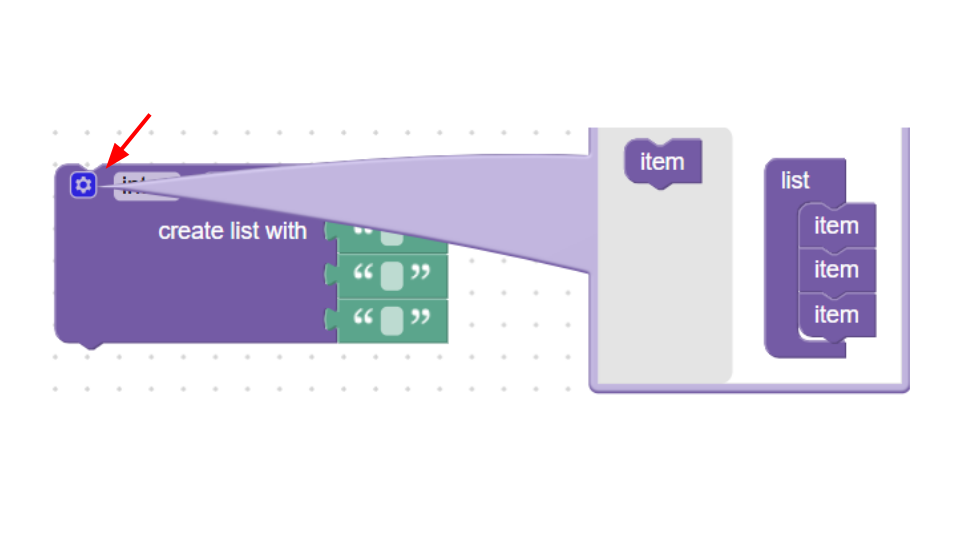
Step 2: Create Dare List
Action:
Stores all dares in a list (array) Easy to access by selecting item number
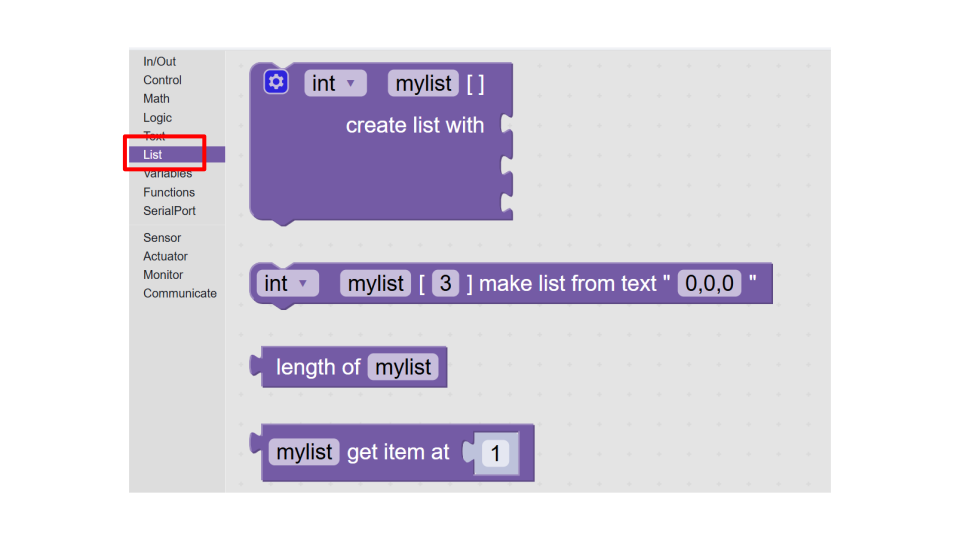
Step 3: LCD & Serial Setup
Action:
Activates the LCD screen for display. Enables the serial monitor for debugging if needed.
Shows instructions on LCD System waits for user input

LCD setup
Step 4: Read Button Input

Read Button
Condition: Start value DigitalRead PIN# 13 If start = HIGH
Action: Detects button press Tells the system to start the game
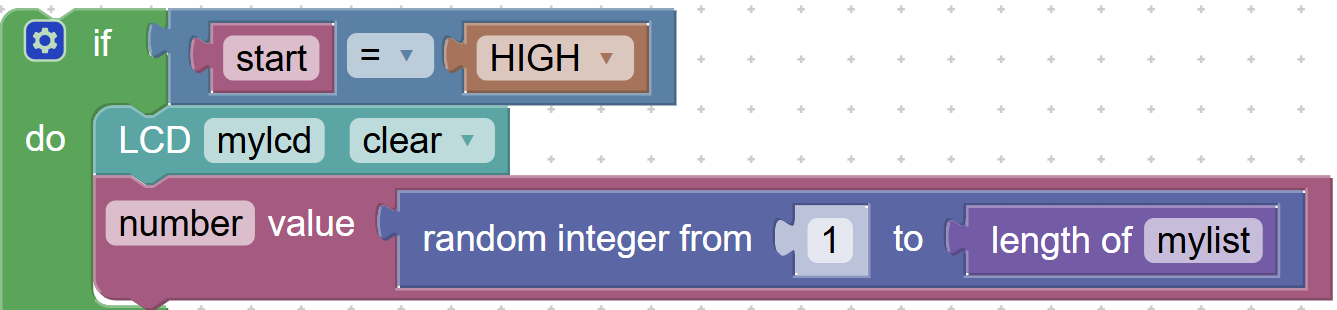
Step 5: Game Reaction (Button Pressed)
Button Pressed
Action: Clears old text, picks a random dare from the list Increases excitement — new dare each round!
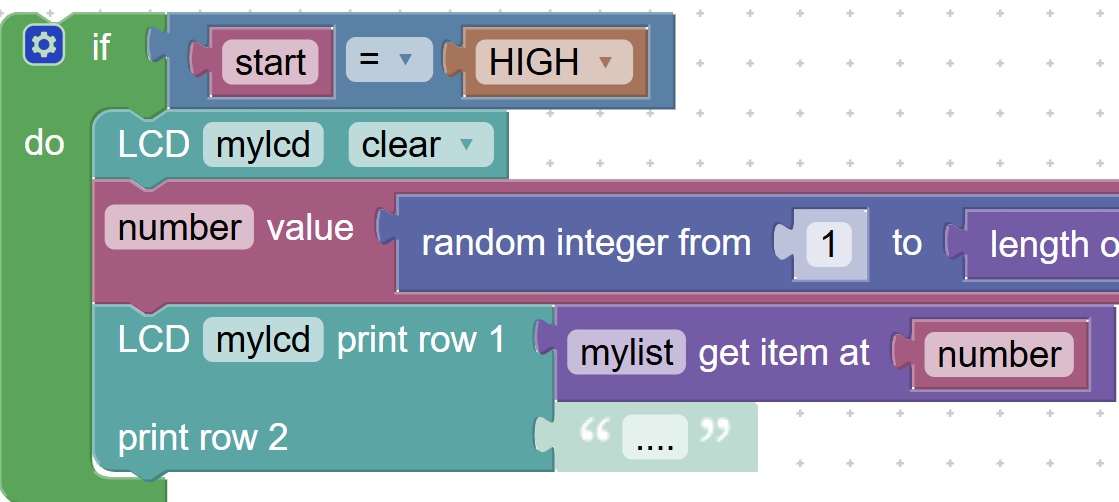
Step 6: Display Selected Dare
Condition: LCD mylcd print line1 orders get item at number Print line2 "..."
Action: Shows the chosen dare on LCD Adds suspense with the “…”
Display Selected Dare
Running the code
Test Your System
1.
Startup: Does the screen show the welcome message?
2.
The Spin: Press the button. Does a dare appear?
3.
Variety: Press it several times. Does the computer pick different dares each time?
If everything reacts correctly → Your Dare Game System works!
Improve & Extend
•
Buzzer Alert: Add a sound effect every time a new dare is chosen.
•
More Dares: Try adding 2 more items to your list. Notice how you don't need to change your "Random" block because it's set to the length of mylist automatically!
•
Timer: Add a delay block after the dare appears to give the player time to read it before they can "spin" again.