Overview
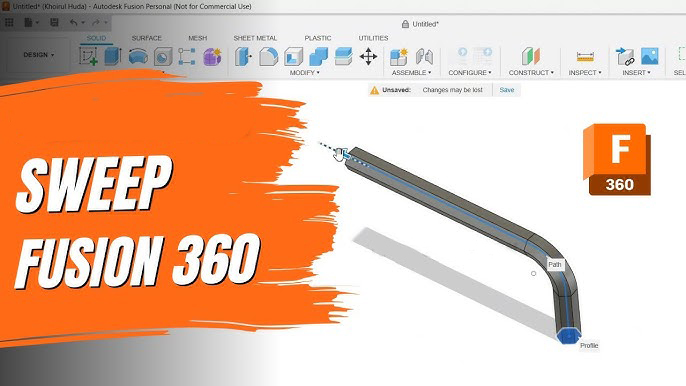
In this lesson, you will learn how to use the Sweep Feature. Sweep is used to create a 3D shape by moving a 2D profile along a path. Instead of extruding a shape in one straight direction, Sweep allows you to follow a curved or angled path. This makes it useful for creating pipes, tubes, rails, grooves, wires, handles and custom channels.
Objectives
By the end of this lesson, you will be able to
•
Understand the difference between a profile and a path.
•
Create a solid body using the Sweep Feature.
•
Use Sweep to create a shape along an angled or curved path.
•
Change Sweep settings such as Distance, Taper Angle, Twist Angle and Orientation.
•
Use Sweep as a Cut operation to remove material from a body.
What is the Sweep Feature?
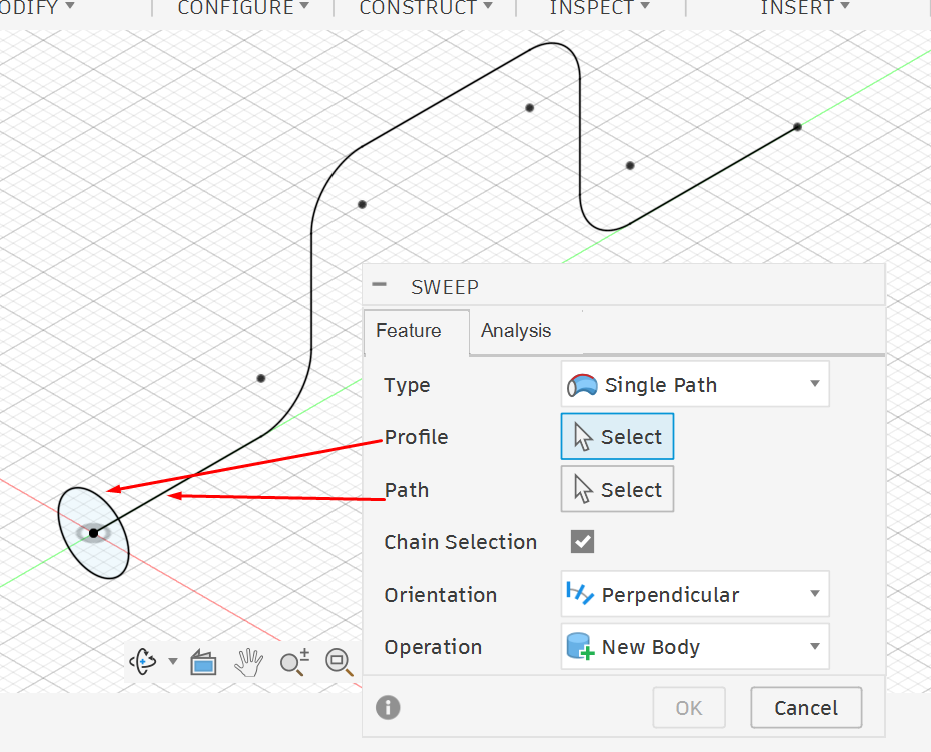
The Sweep Feature creates a 3D form by taking a 2D sketch profile and moving it along a selected path. A Sweep needs two main elements
1. Profile
The profile is the 2D shape that will be moved.
Examples: circle, rectangle, triangle or any closed sketch shape.
2. Path
The path is the line or curve that the profile follows.
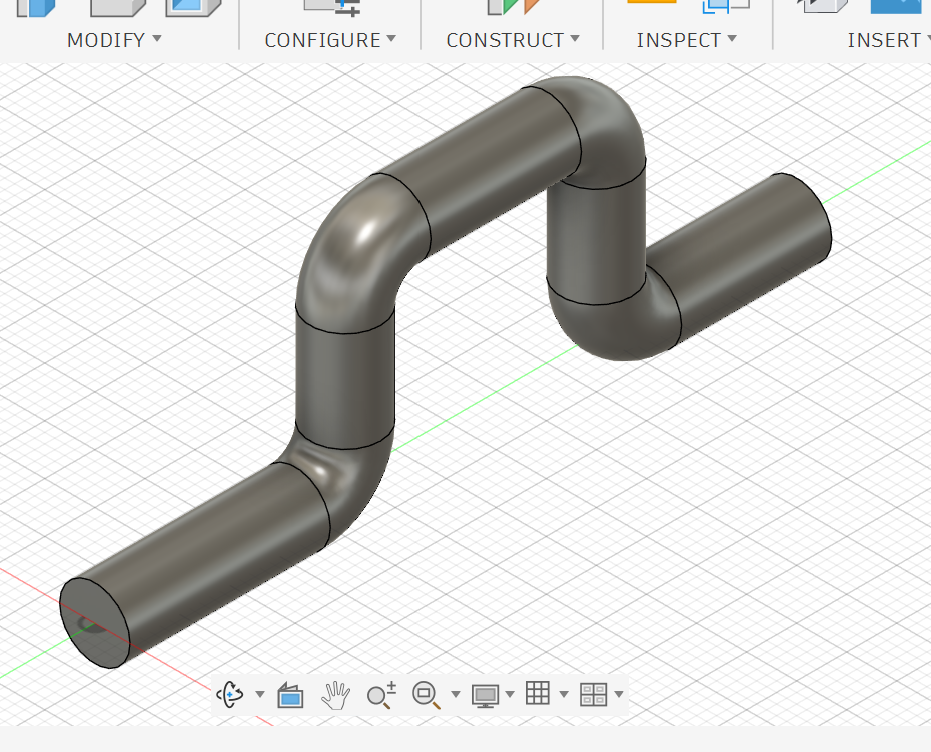
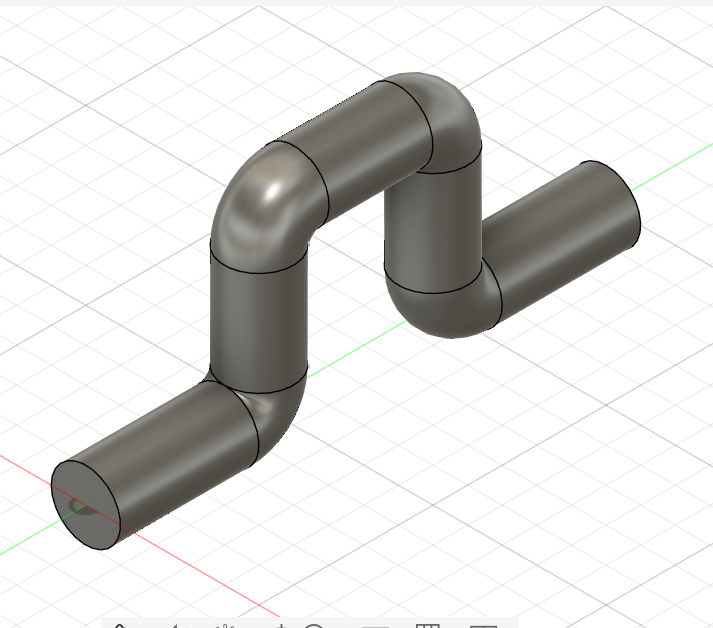
For example, if you sweep a circle along an angled path, Fusion 360 creates a pipe-like shape following that path.
Using Sweep
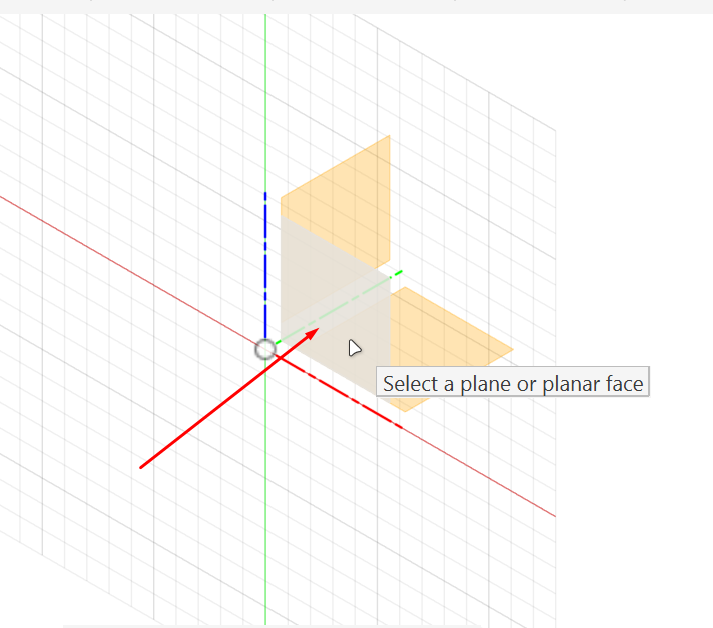
1. Select the Front plane.
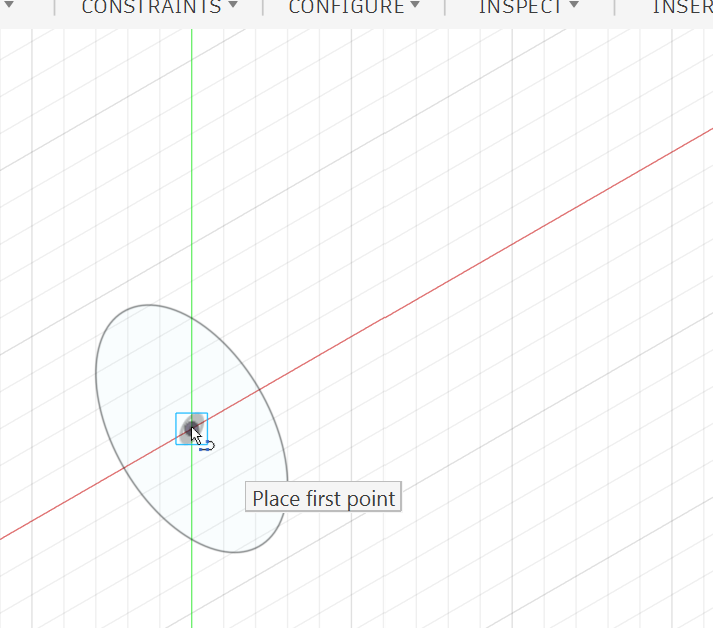
4. Make sure the path starts from or intersects the profile area.
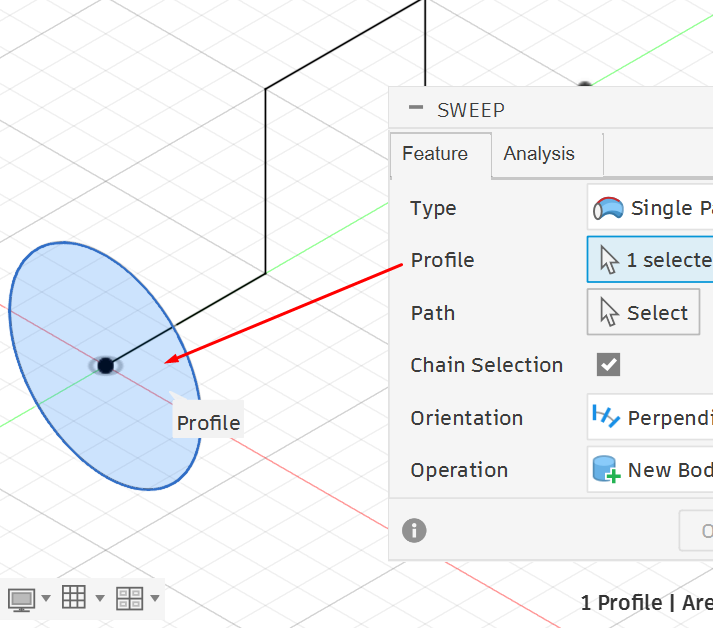
7. Select the Profile.
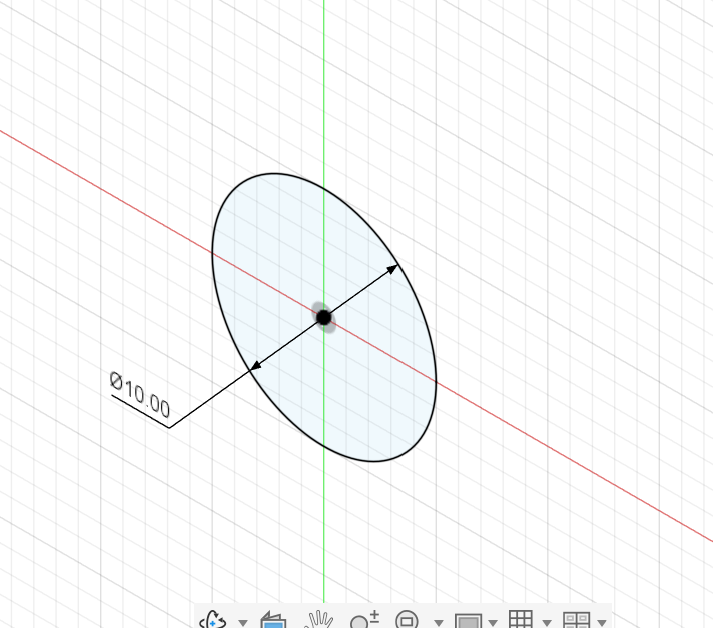
2. Draw a closed profile.
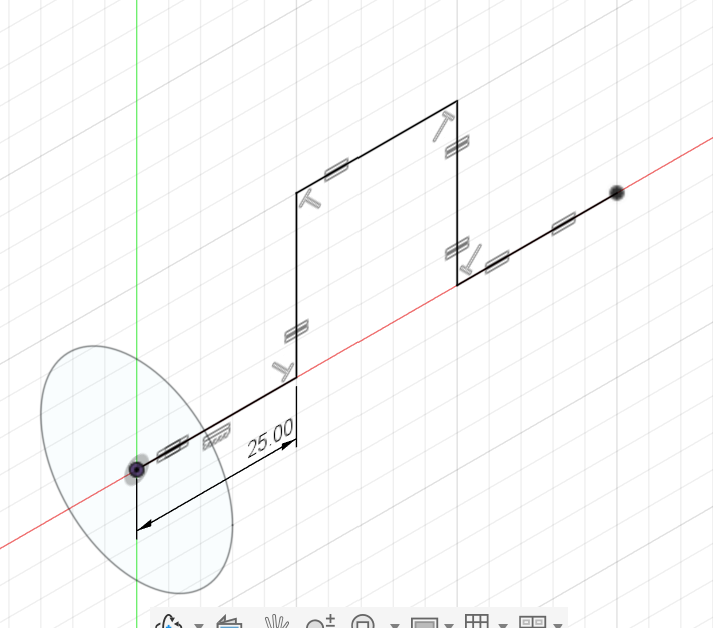
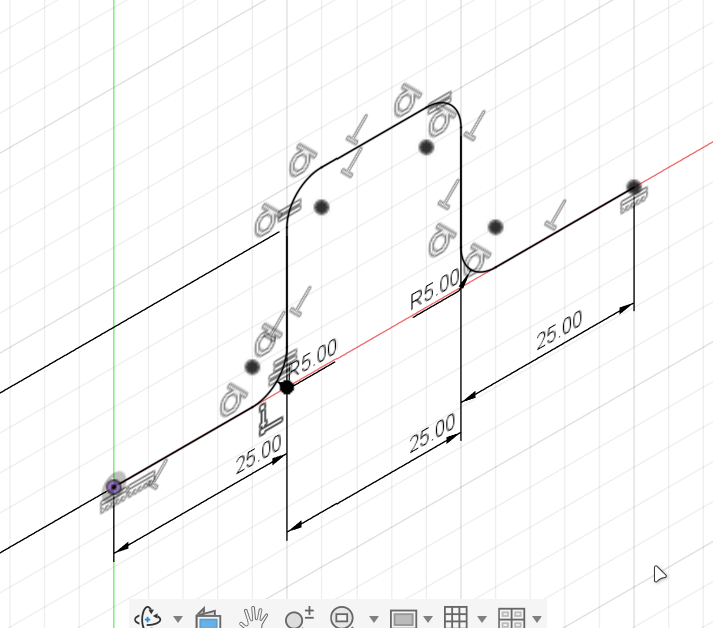
5. Draw the path. The path can have multiple connected segments.
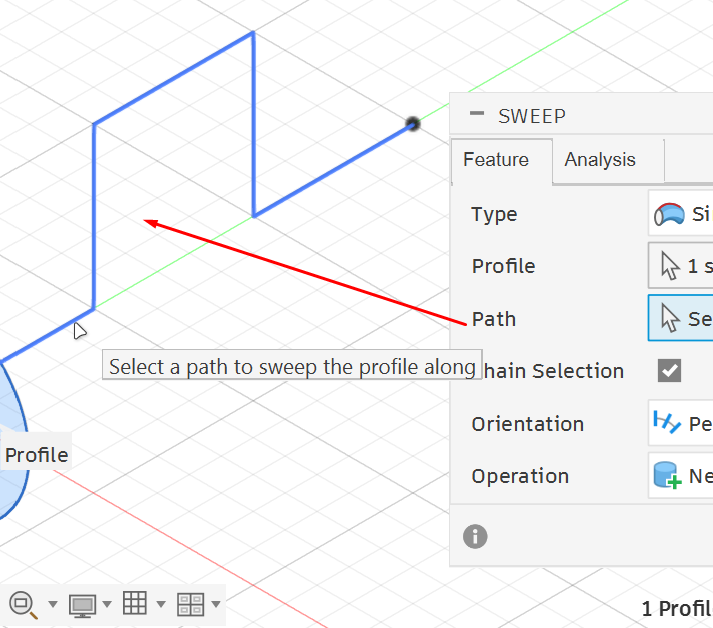
8. Select the Path.
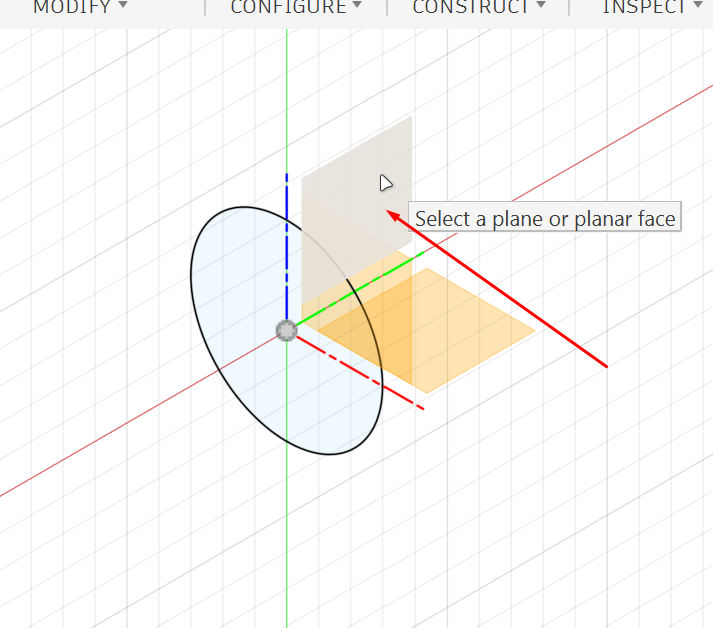
3. Select the Right plane.
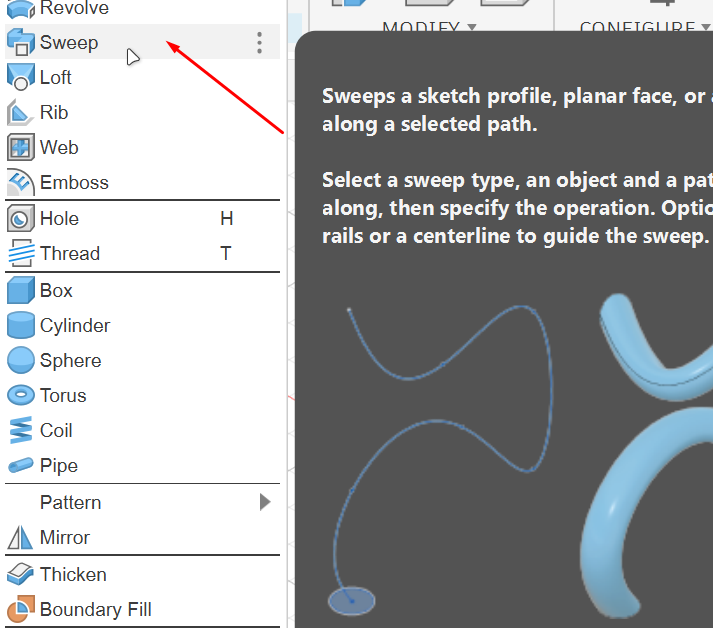
6. Go to Solid workspace. Open Create. Select Sweep.
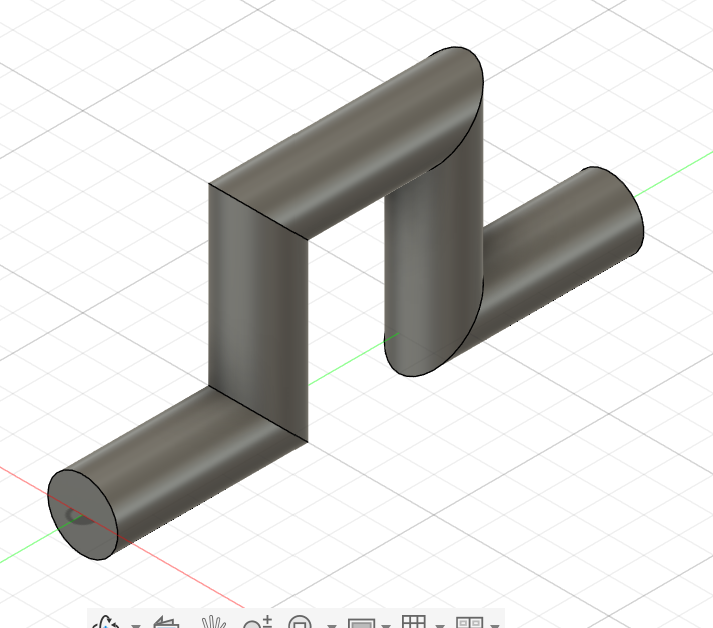
9. Click OK.
You can make the sweep path smooth by adding sketch fillets to the sharp corners of the path. The fillets create rounded transitions, so when the profile is swept along the path, the final shape has smooth bends instead of sharp edges.
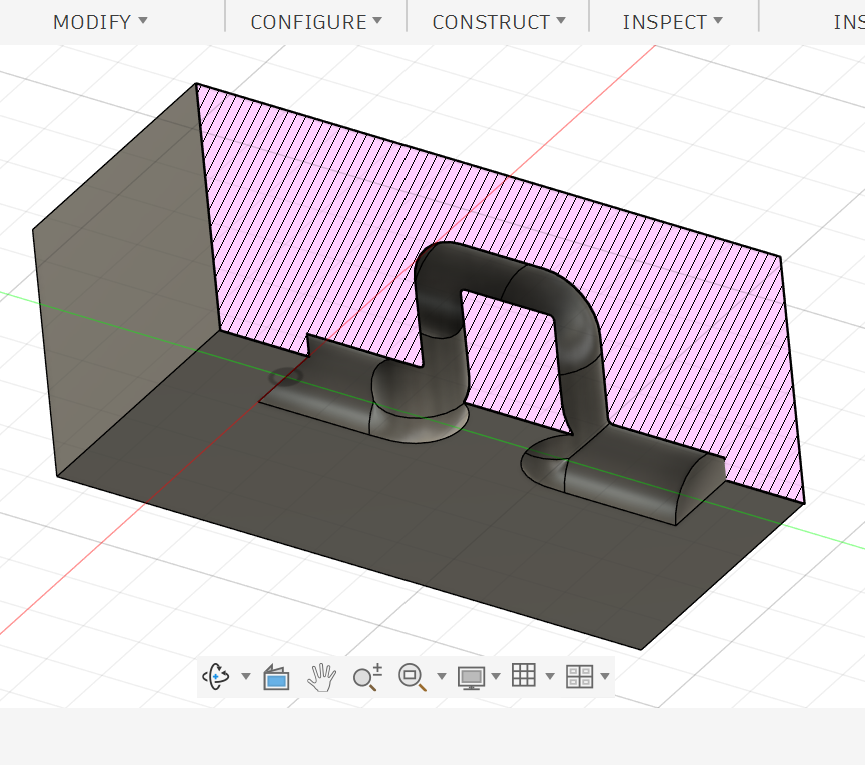
Sweep can also be used to create grooves or channels inside a solid body.
Fusion 360 will remove material along the selected path and create a custom groove.
Important Notes
•
Sweep needs both a closed profile and a path.
•
The profile should be placed at the start of the path.
•
The path should touch or intersect the profile.
•
Use New Body when creating a separate shape.
•
Use Cut when creating a groove or channel.
•
Keep Taper Angle and Twist Angle at
0° for simple models.•
If Sweep gives an error, check that the profile and path are properly connected.
Practice Task
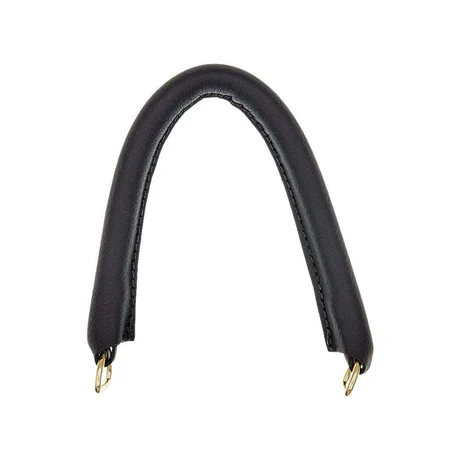
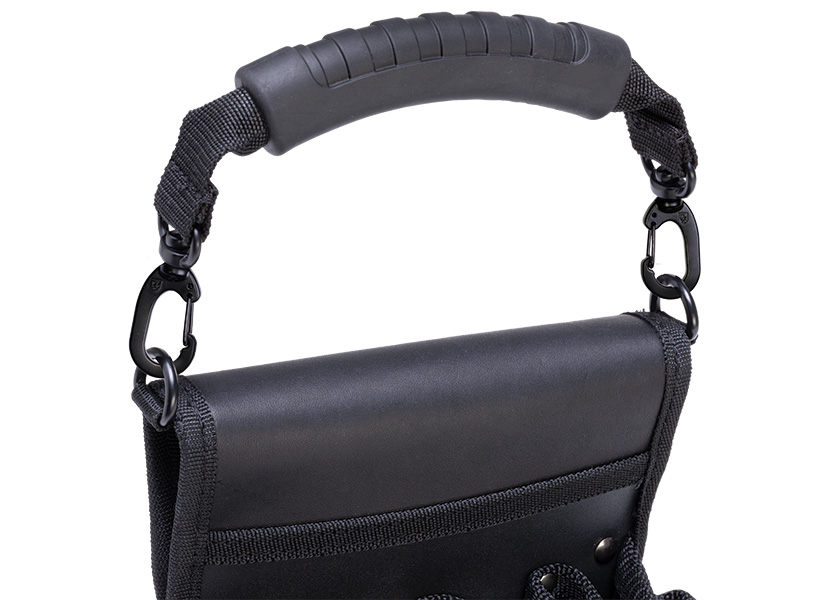
Create a Curved Bag Handle.
Create a simple curved handle using the Sweep Feature. The handle should look like a smooth U-shaped or arc-shaped handle that could be used on a small box, bag or tool case.
Important Note
Check Sweep options such as Orientation, Chain Selection, Taper Angle, and Twist Angle and improve the shape to your liking.
Reflection Questions
1.
What are the two main elements required for the Sweep Feature?
2.
Why is Sweep different from Extrude?
3.
What happens if the profile does not touch or intersect the path?
4.
When should you use New Body instead of Cut?
5.
How does Chain Selection help when using a path made from multiple lines?
6.
Why should you be careful when changing the Taper Angle?
7.
Can you give one real-life object that can be modeled using the Sweep Feature?