Overview
In this lesson, you will learn how to use 3D Sketch to create sketch geometry that moves in more than one plane. Unlike a normal 2D sketch, a 3D sketch allows lines and curves to move along the X, Y and Z directions.
Objectives
By the end of this lesson, you will be able to
•
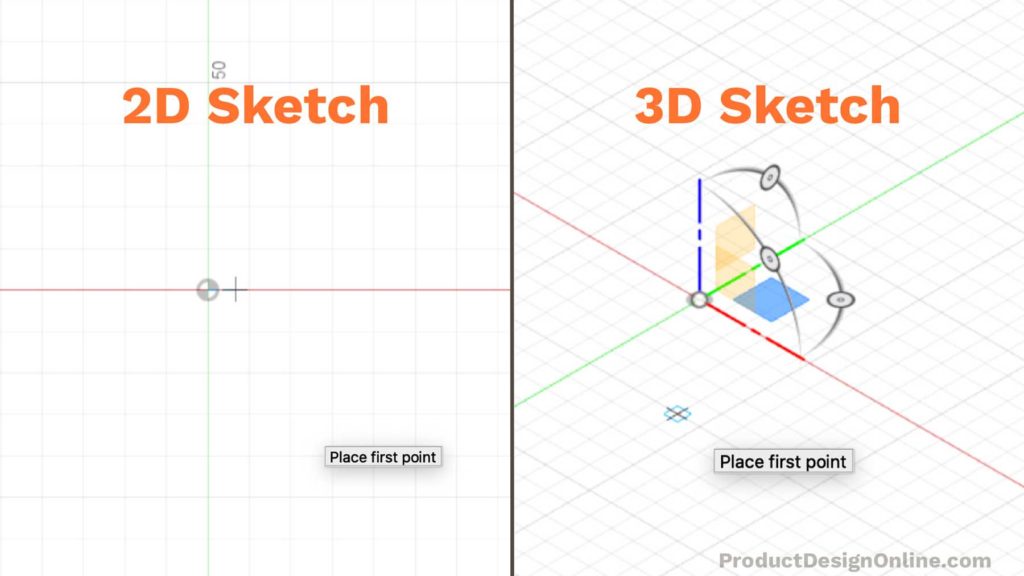
Understand the difference between a 2D sketch and a 3D sketch.
•
Draw sketch lines that move in different directions and planes.
•
Add dimensions to control the size of a 3D sketch.
•
Use a 3D sketch path to create a tube using Sweep.
What is a 3D Sketch?
A normal sketch is usually drawn on one flat plane, such as the top, front or side plane. A 3D Sketch allows the sketch to move outside that single plane.
This is useful when creating objects such as:
•
Metal frames.
•
Pipes.
•
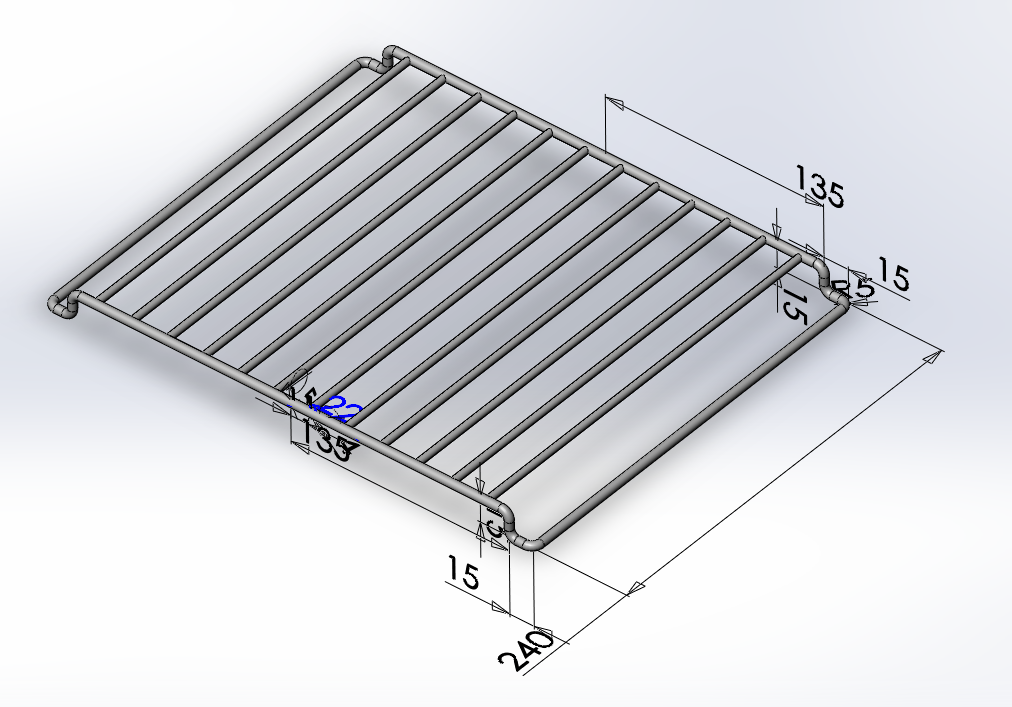
Wire racks.
•
Bent rods.
•
Structures that move in different directions.
Important Setting: Enable 3D Sketch
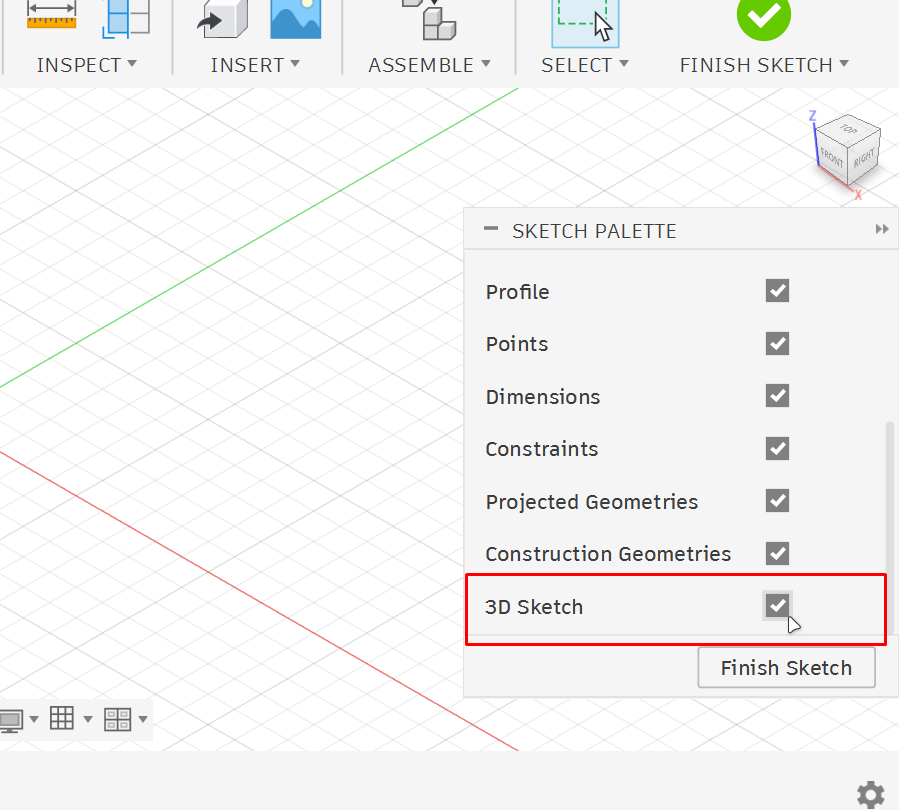
After starting a sketch, open the Sketch Palette on the right side of the screen. Make sure to check:
3D Sketch
Without this option, the sketch will stay flat on one plane. With this option enabled, you can draw lines that move upward, downward, forward and backward in 3D space.
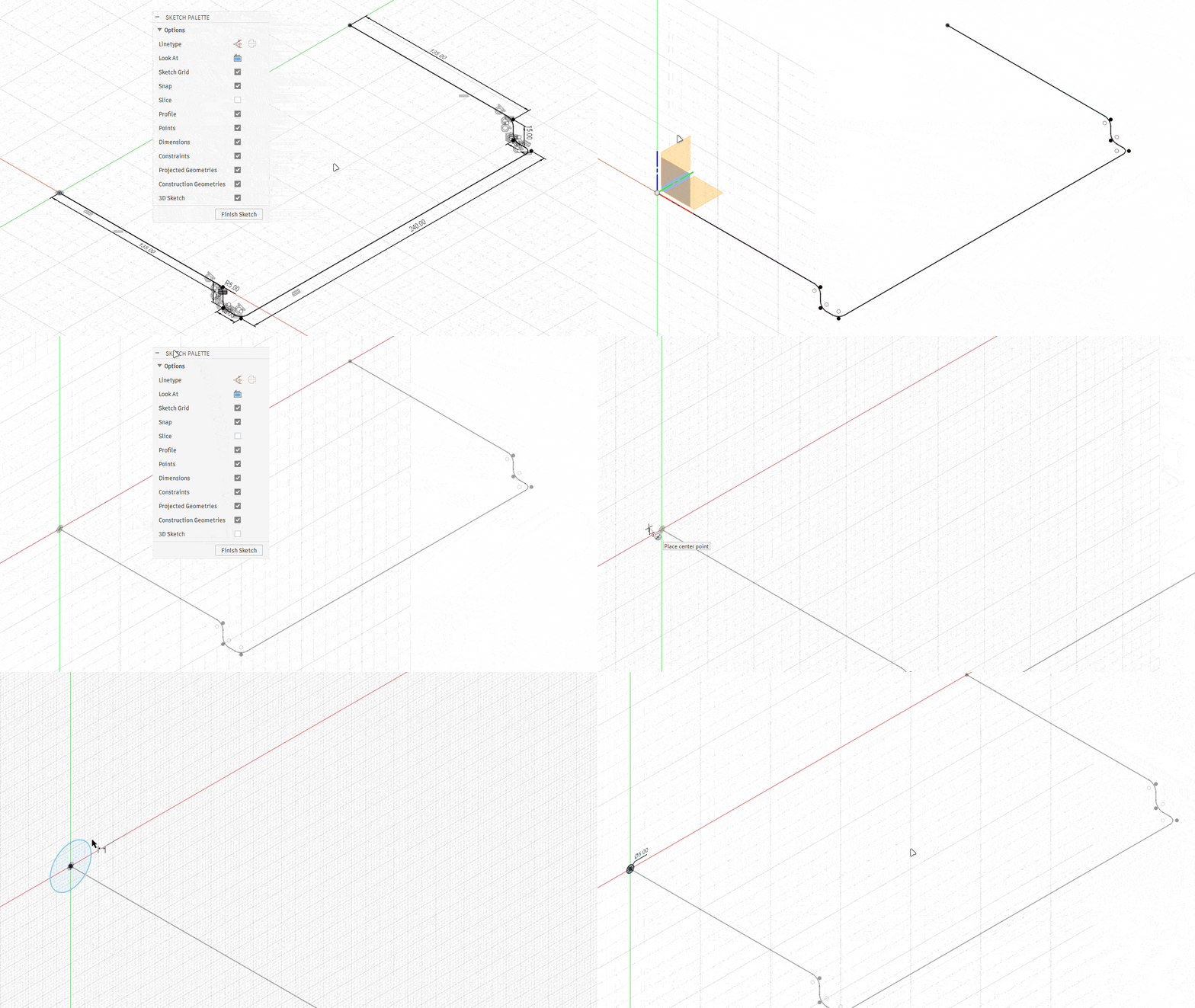
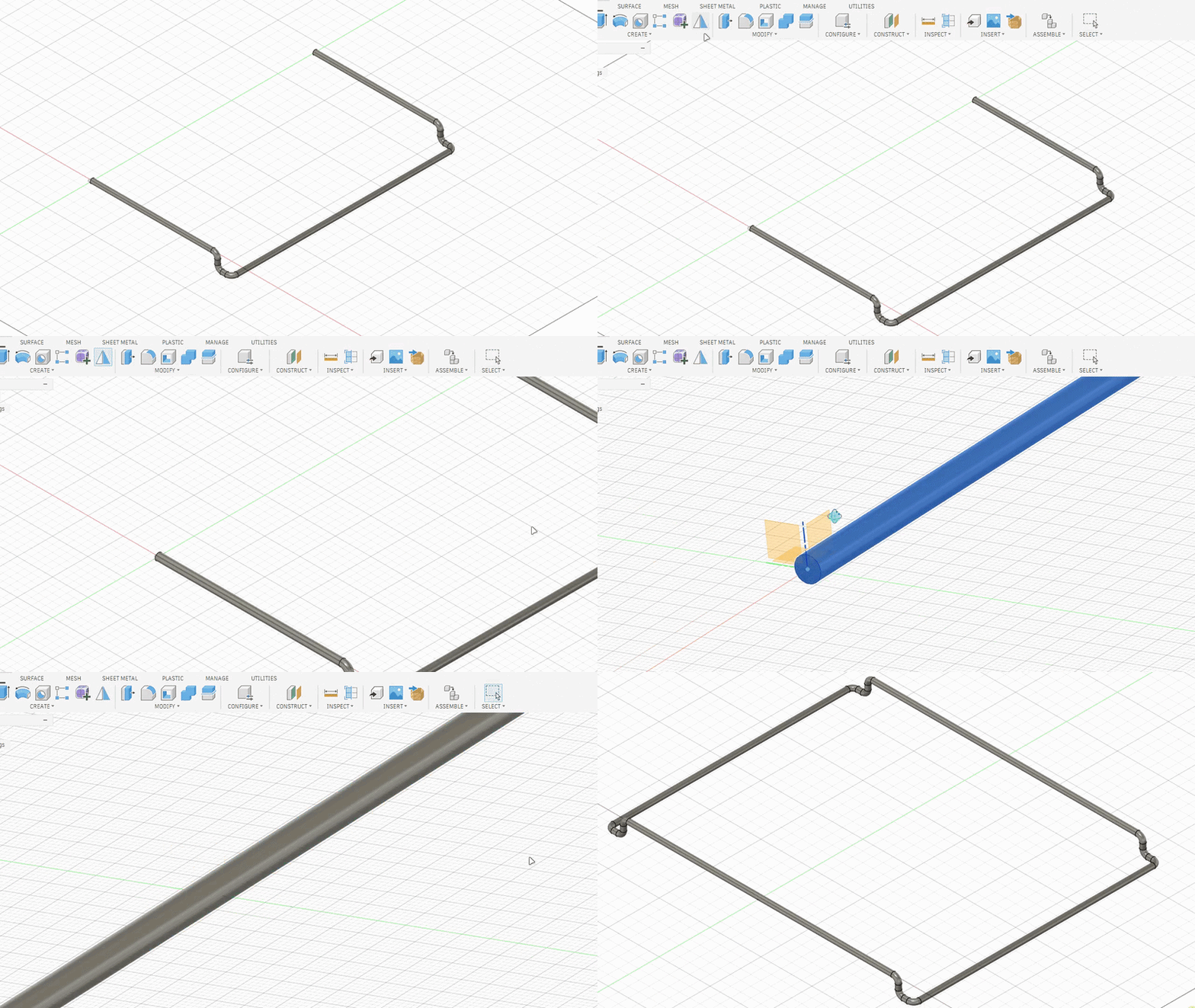
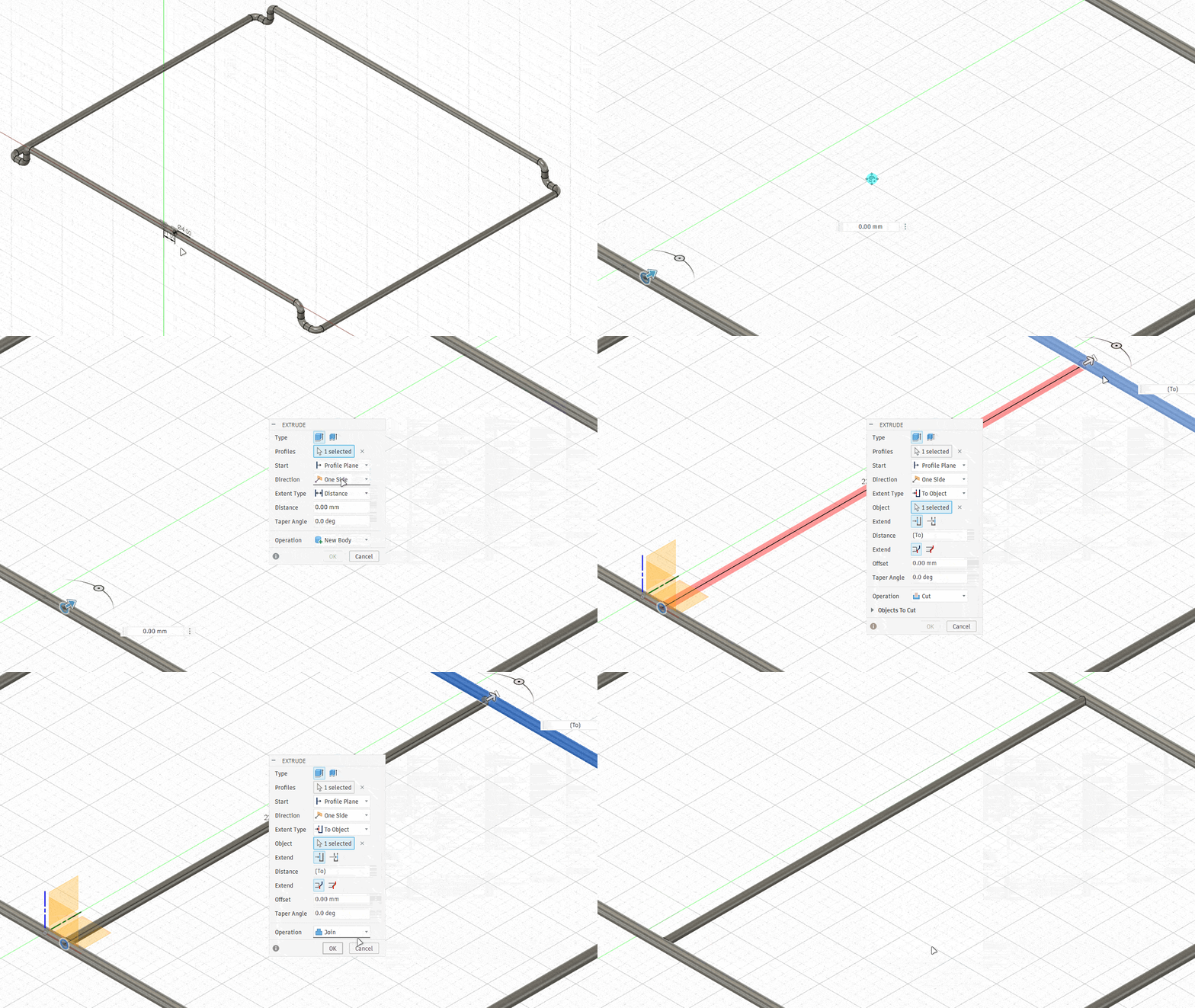
3D Sketch in Action
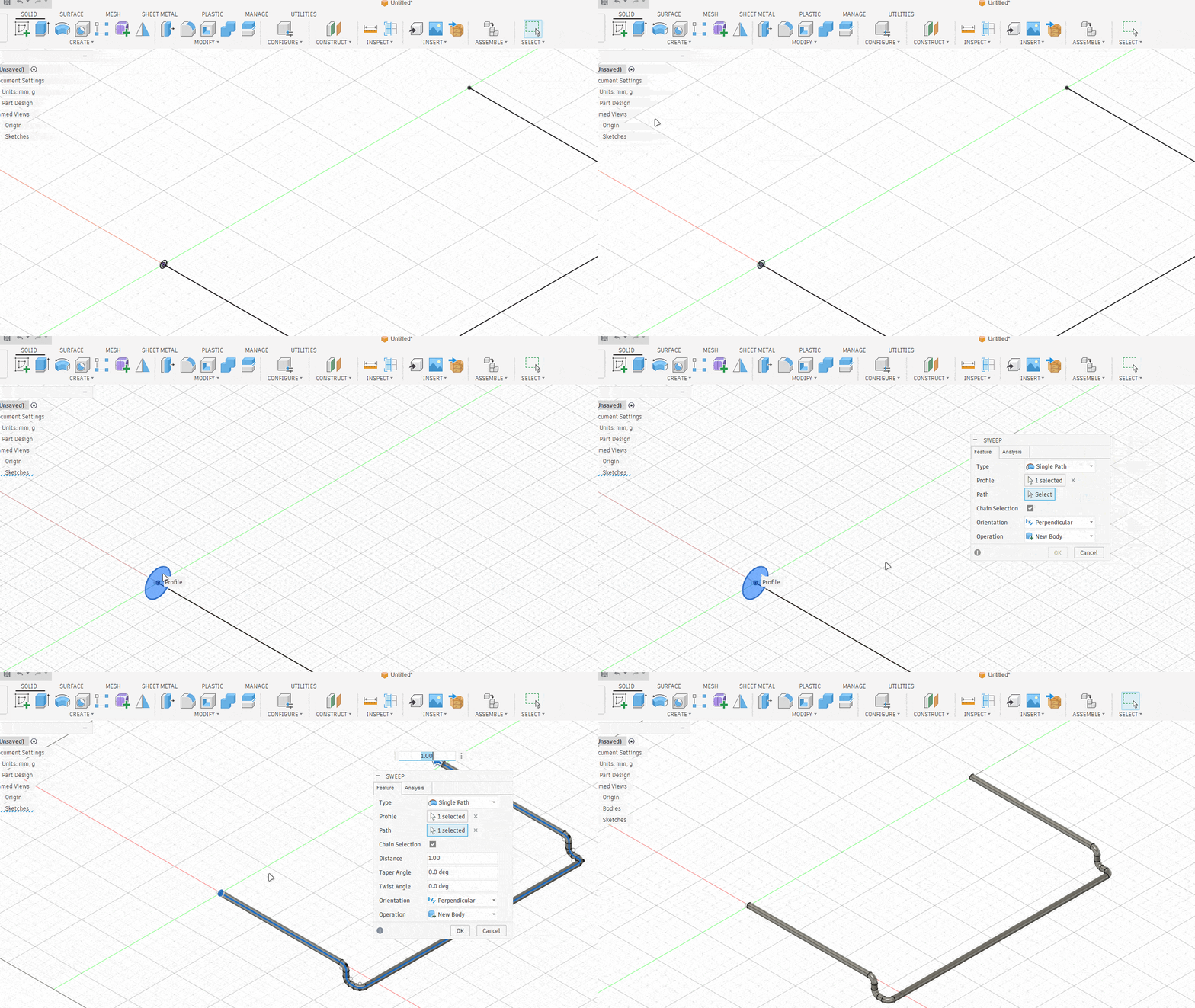
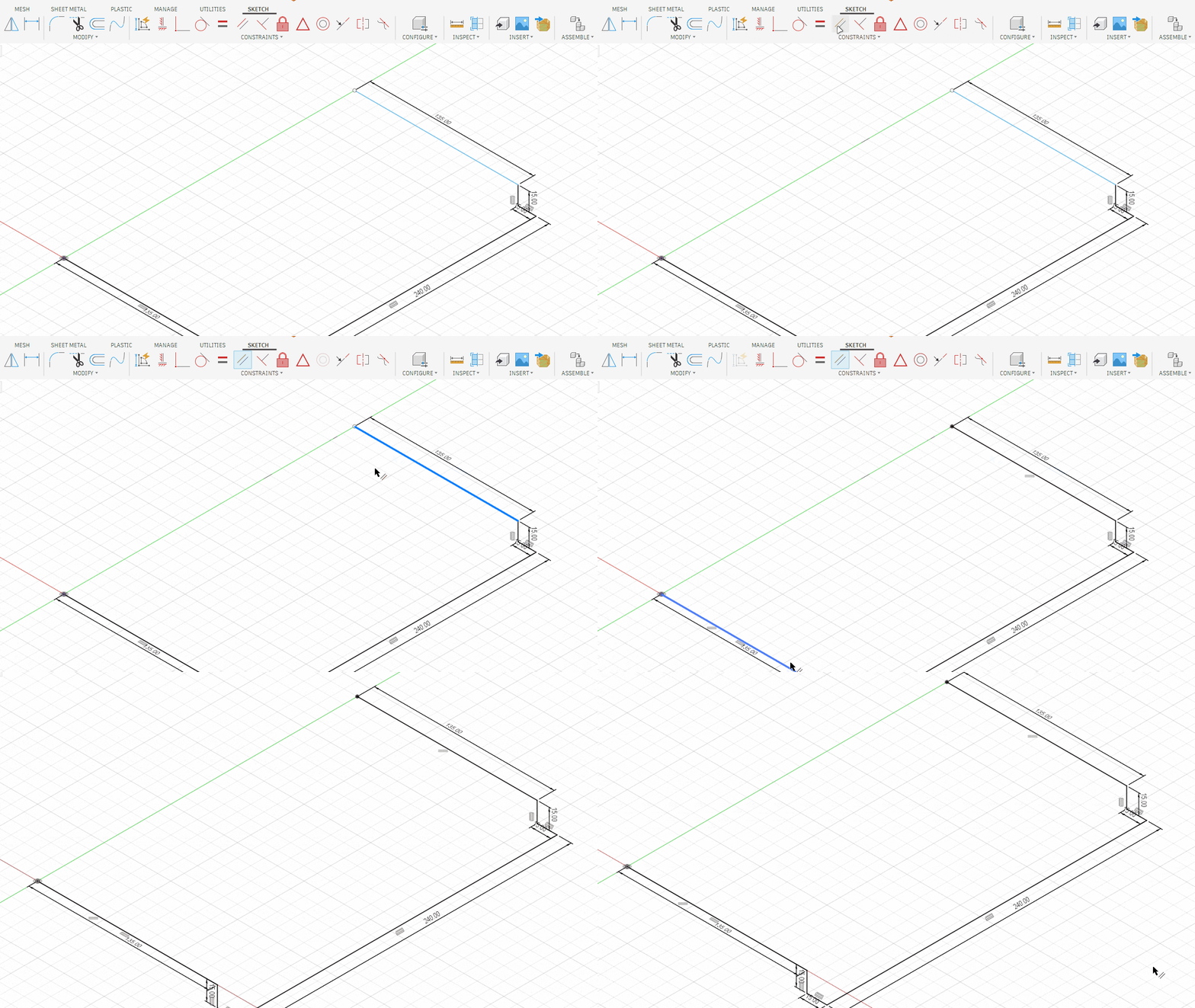
While drawing, pay attention to the direction of each line. Use the colored axes and the ViewCube to control whether the line is moving along X, Y or Z.
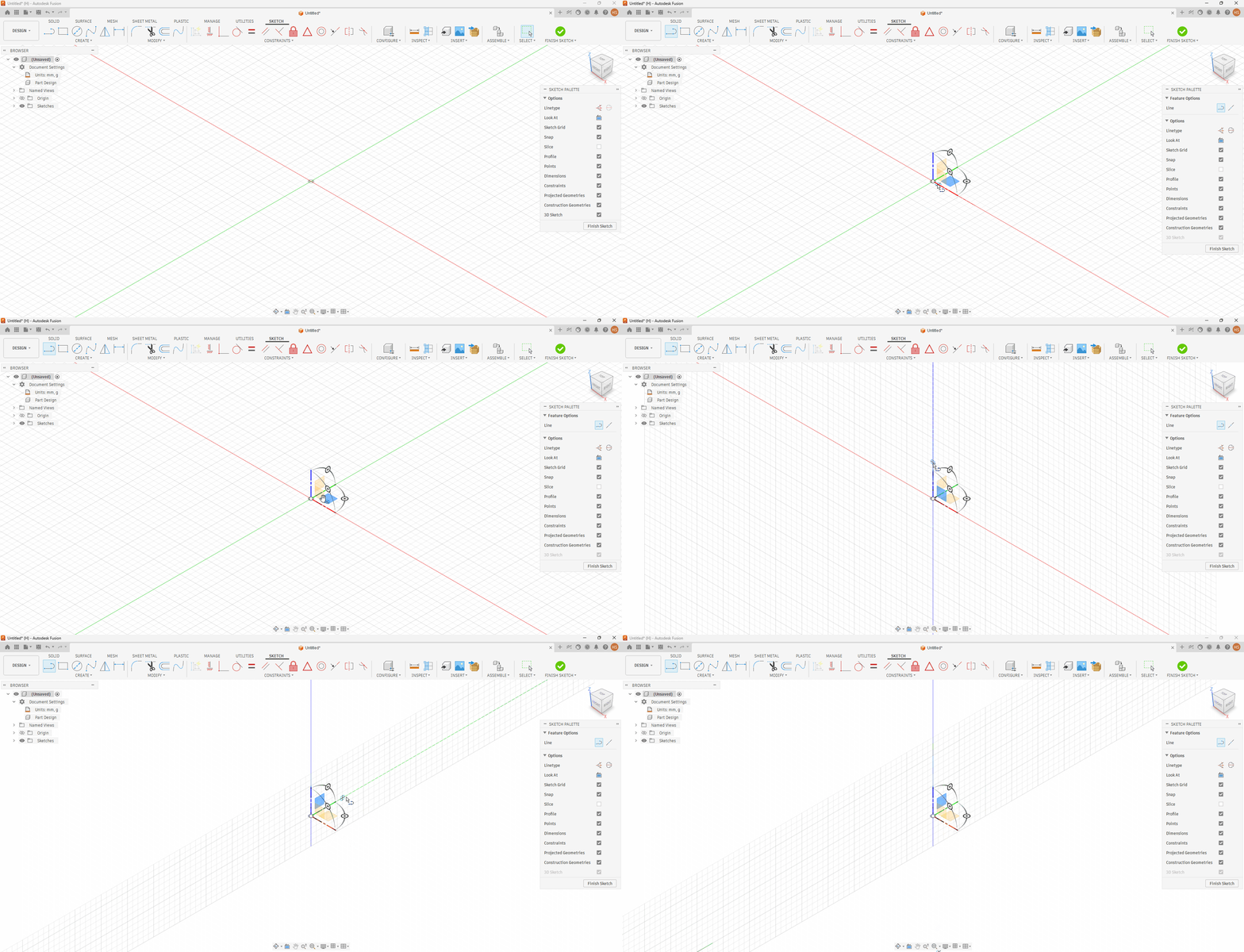
Step 1
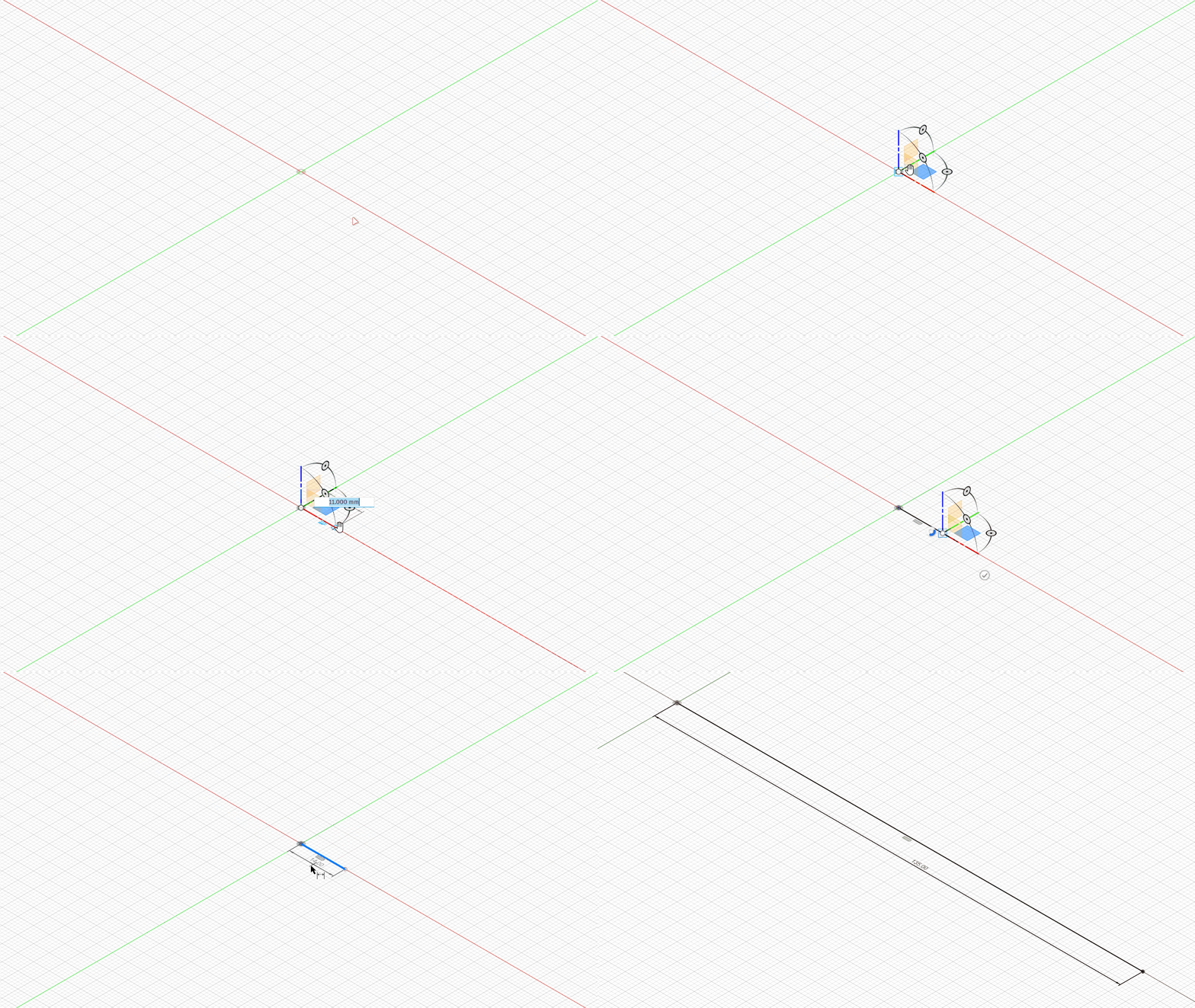
Step 2
Step 3
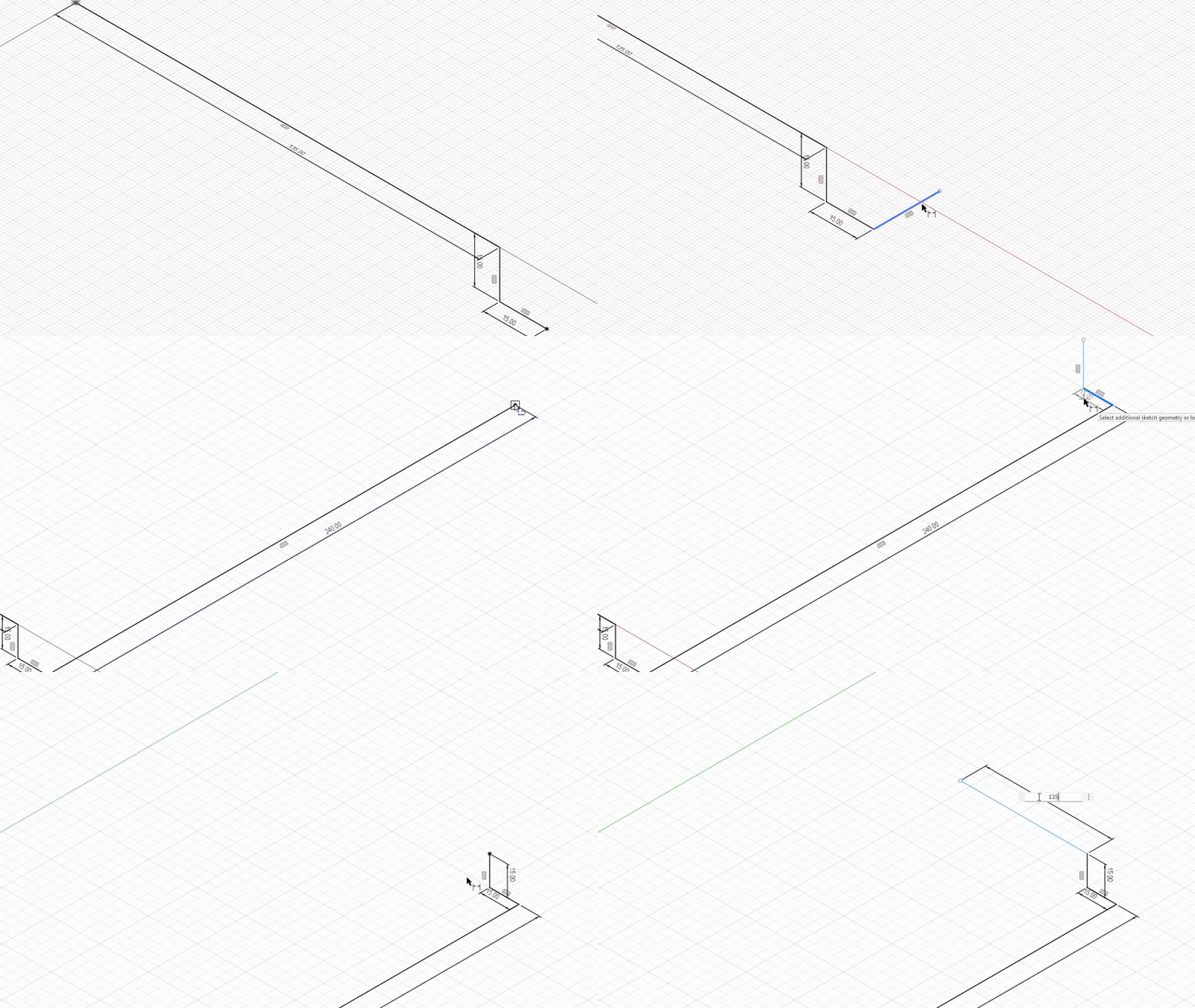
Step 4
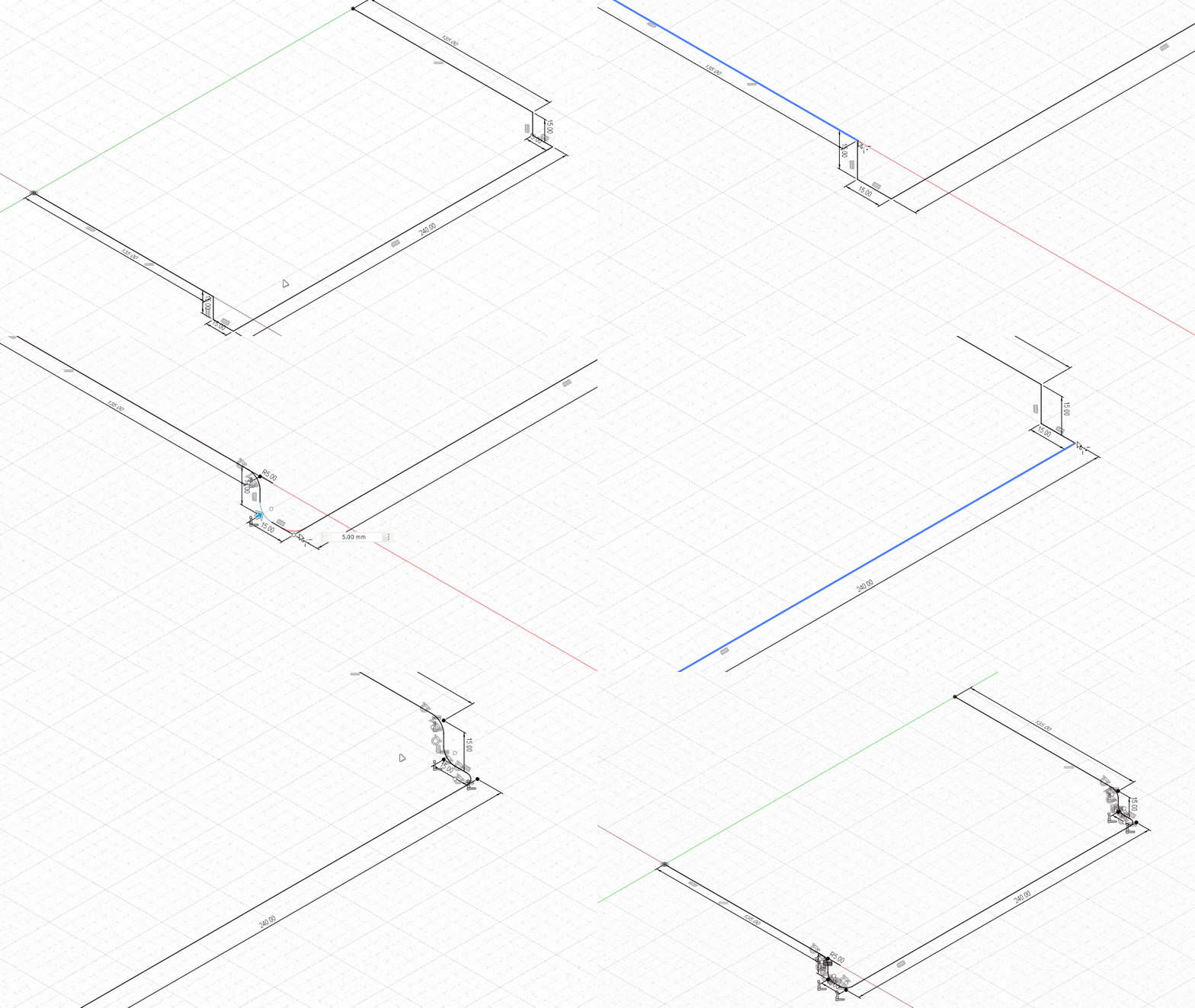
Step 6
Step 8
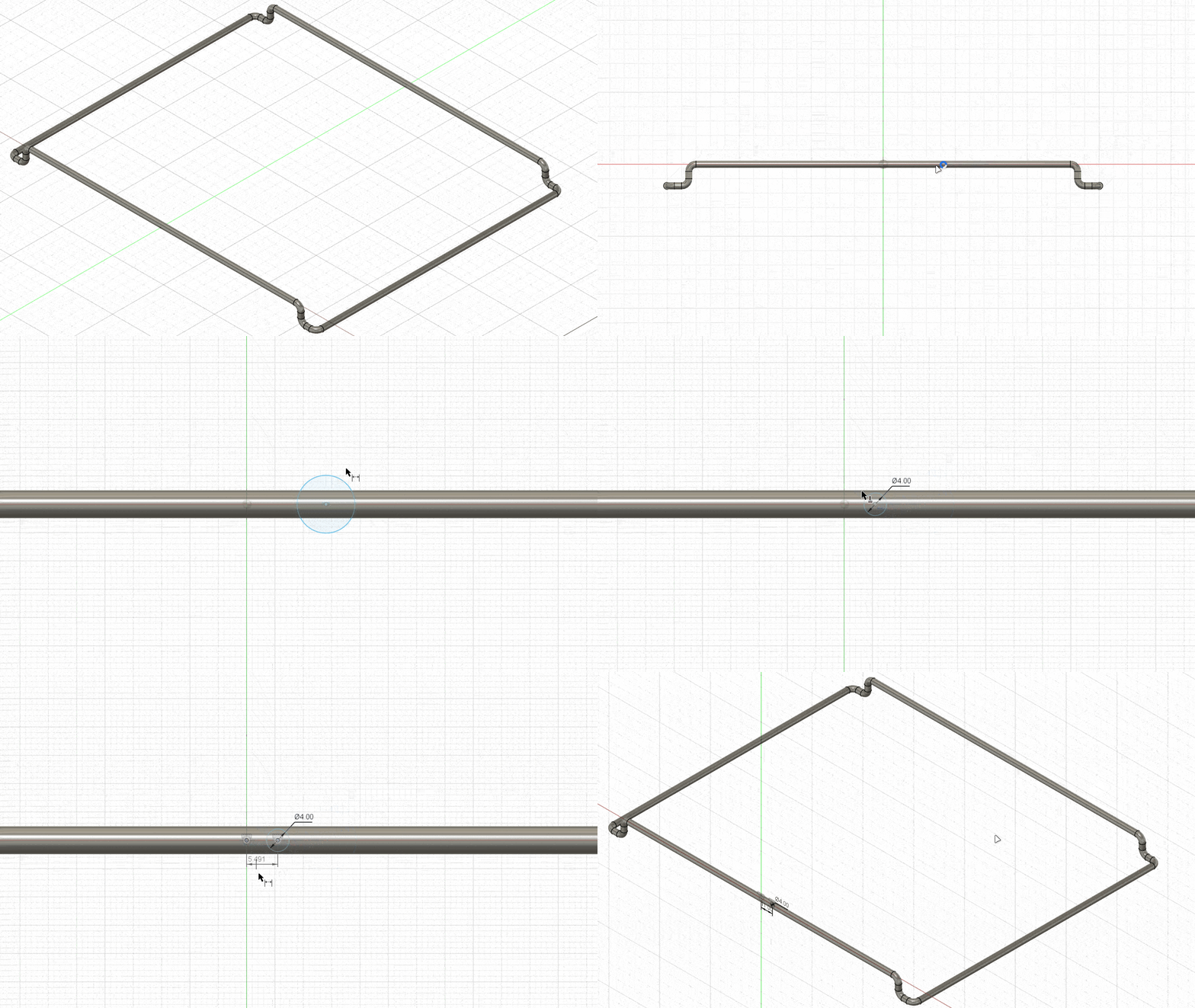
Step 10
Step 12
Step 5
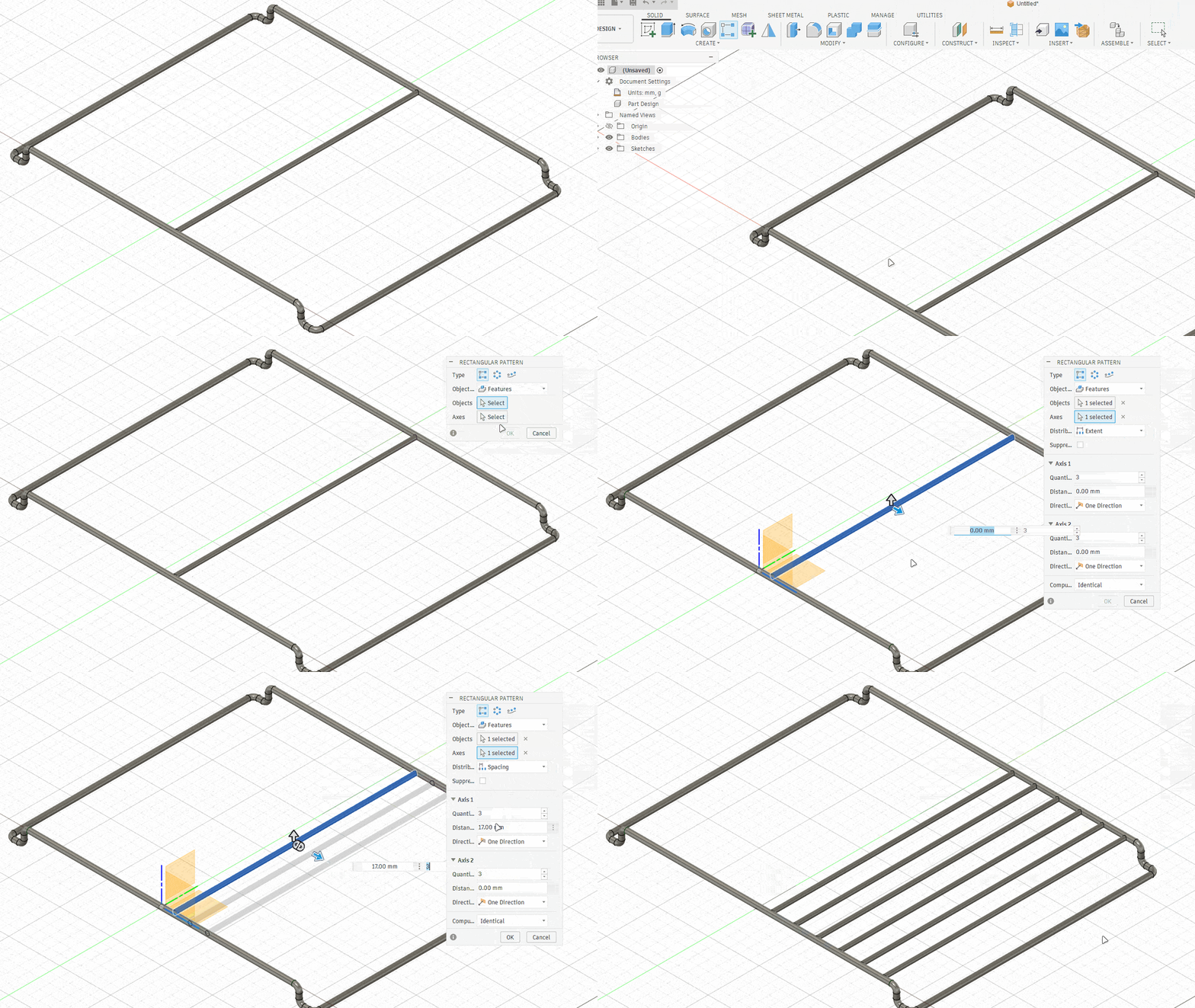
Step 7
Step 9
Step 11
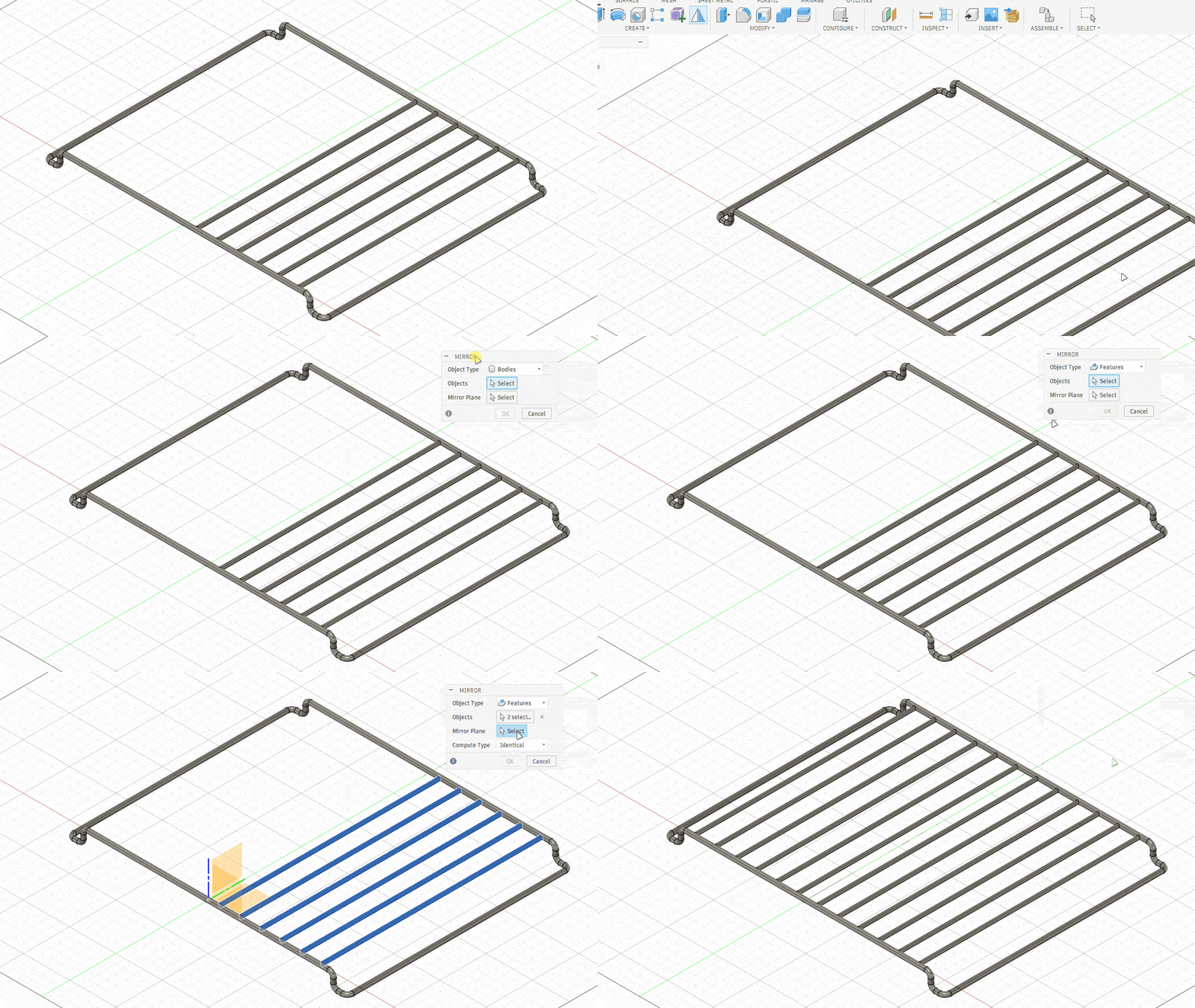
Step 13
Important Notes
•
Always check if 3D Sketch is enabled before drawing in 3D.
•
Add dimensions while drawing to keep the model controlled.
•
A 3D sketch can become confusing if it is not dimensioned properly, so keep the sketch simple and organized.
Common Mistakes
•
Forgetting to enable 3D Sketch.
•
Drawing the whole shape flat by mistake.
•
Moving in the wrong axis direction.
•
Not adding enough dimensions.
•
Using Pattern on the body instead of the correct feature.
Practice Tasks
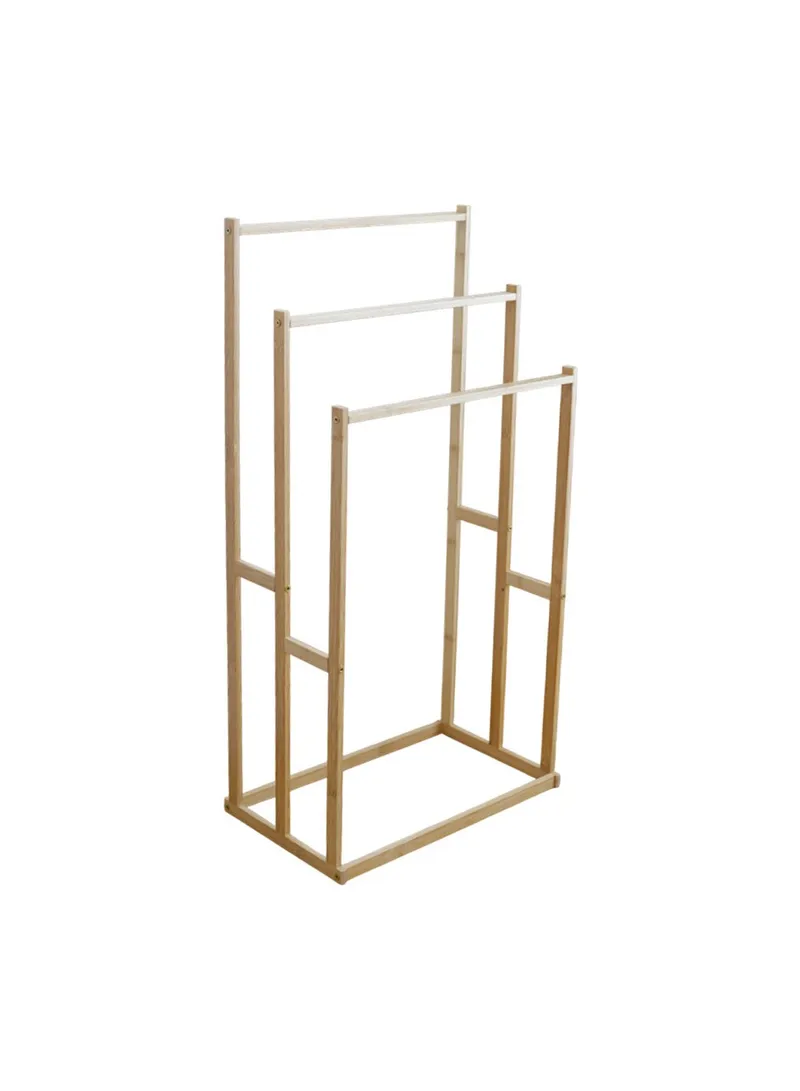
Create a small towel rack using 3D Sketch.
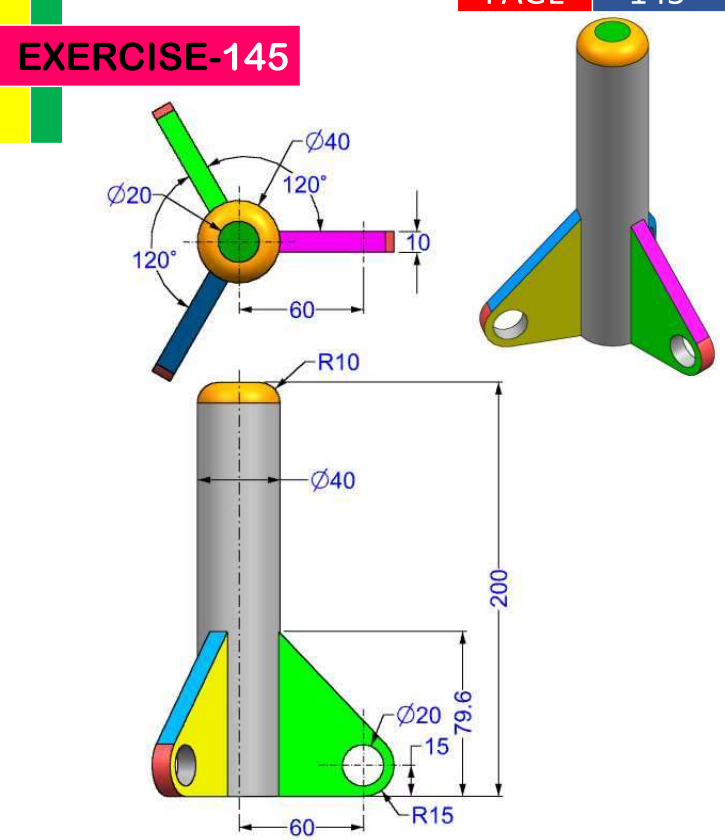
Cumulative Practice Project.
Reflection Questions
1.
What is the main difference between a 2D sketch and a 3D sketch?
2.
Why do we use Sweep instead of Extrude for the outer frame?
3.
Why is it important to add dimensions in a 3D sketch?
4.
What type of real objects can be created using 3D Sketch?
5.
How does Rectangular Pattern make the modeling process faster?