Objectives
•
Learn how two characters interact with each other.
•
Learn how a wait block can pause the action for a character long enough to let another character say or do something.
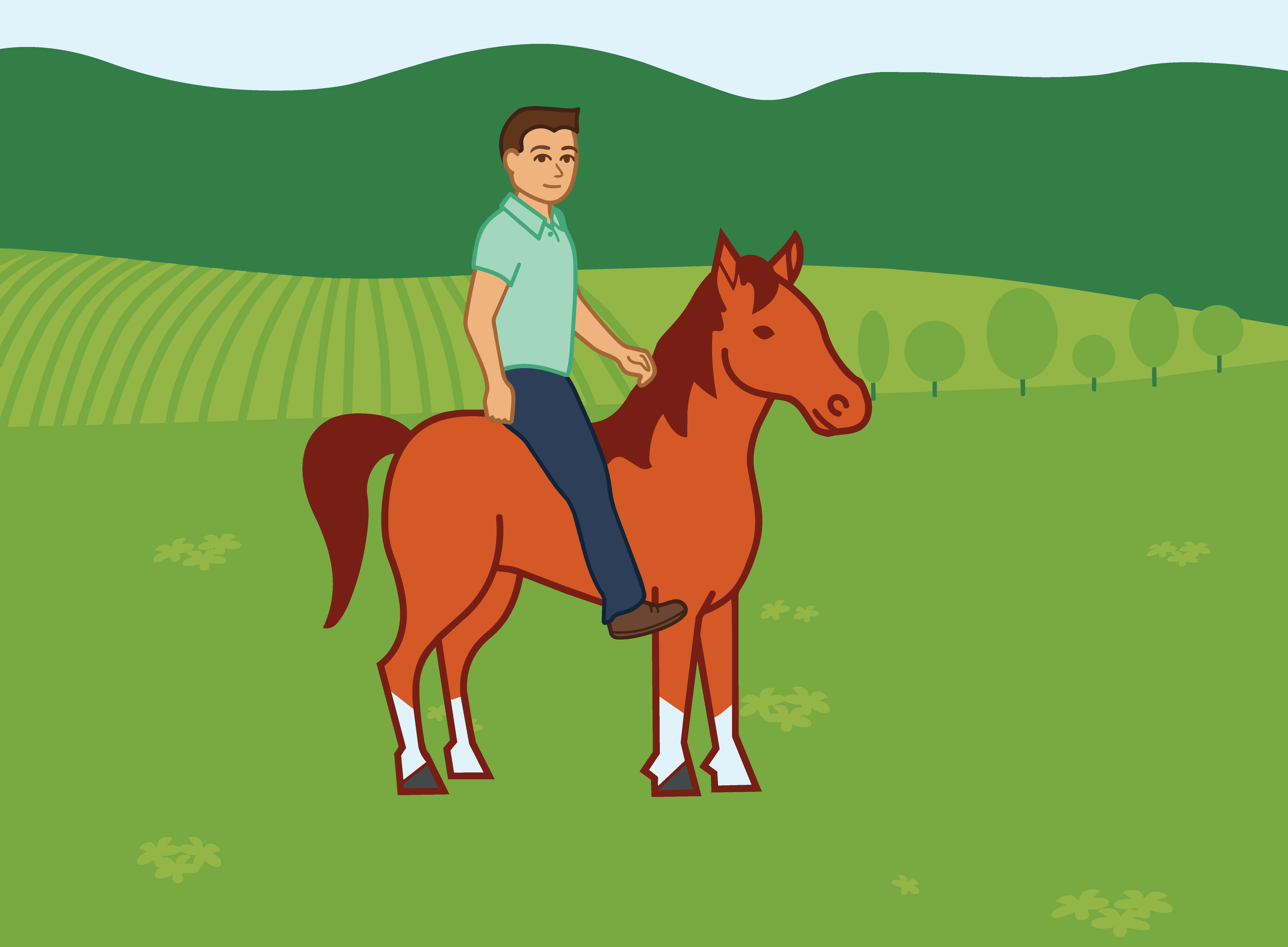
In this activity, the horse agrees to give the boy a ride and they gallop off together!
Step 1
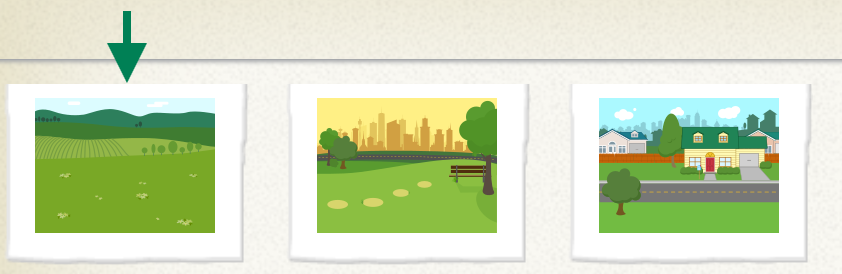
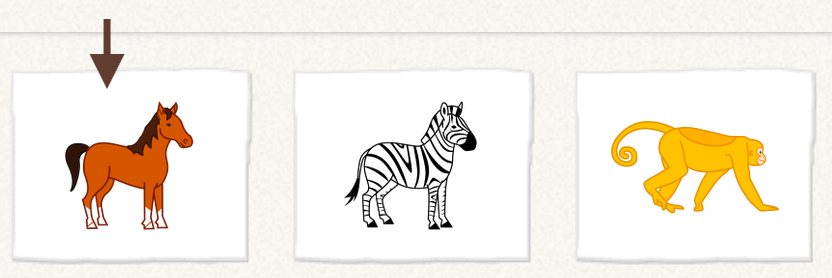
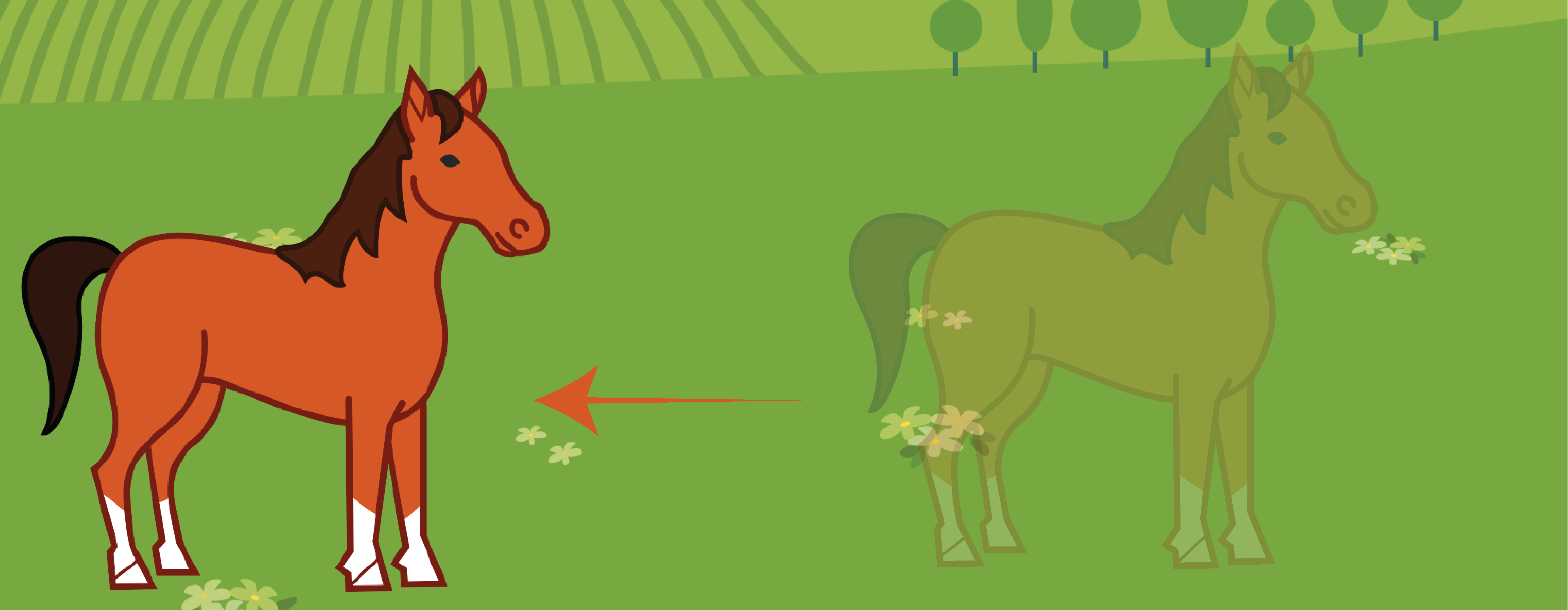
First, choose the farm background, and then add the horse. You can leave the boy where it is, but you need to move the horse to the left edge of the stage, as in the pictures shown here. We want to arrange the boy and the horse so that they move together.
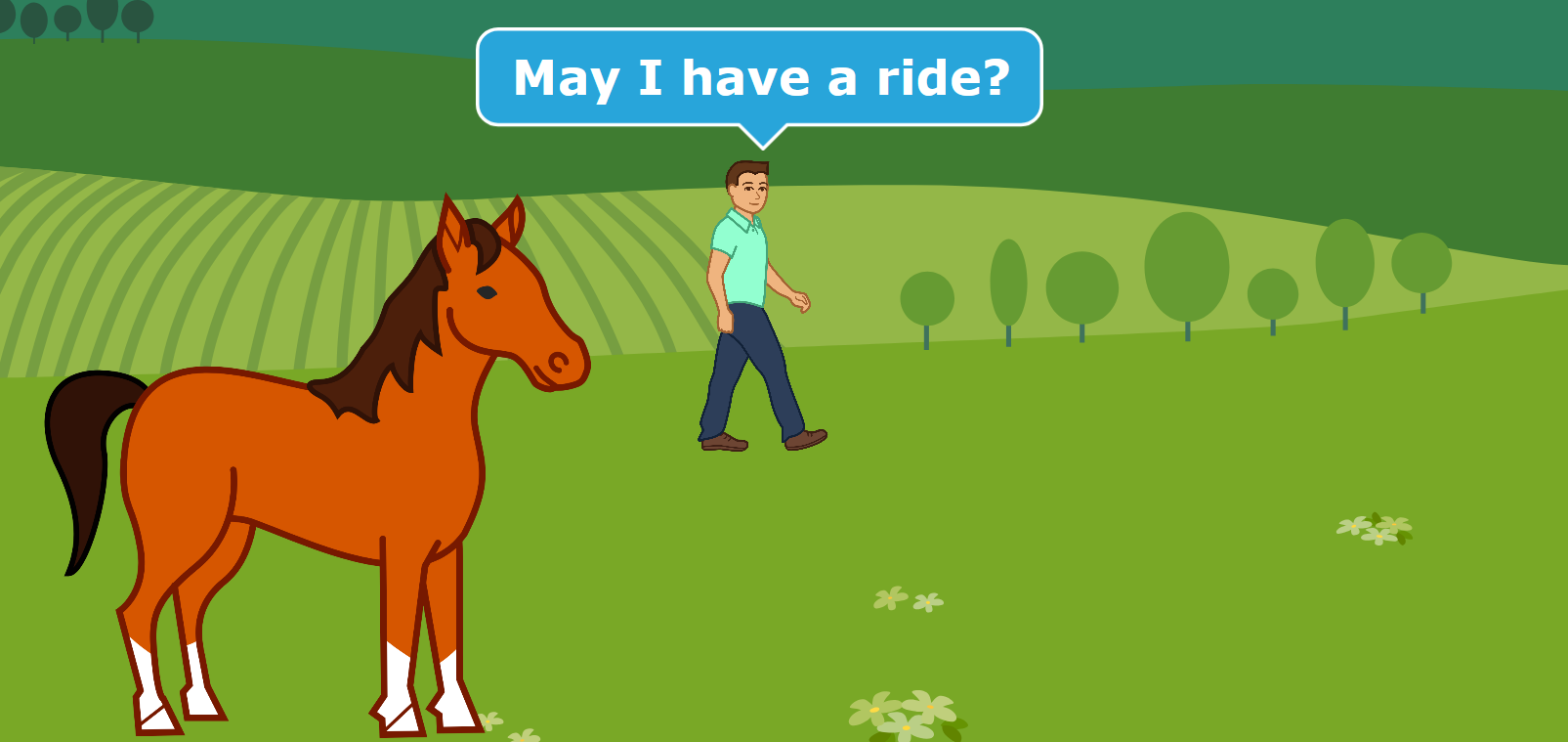
Let’s make a script for the boy first. Use a Say block to the cat say, “May I have a ride?”
Add a Wait block to have the boy wait for 2 seconds (20 tenths of a second) while the horse answers and walks over to it.
1
2
3
4
Step 2
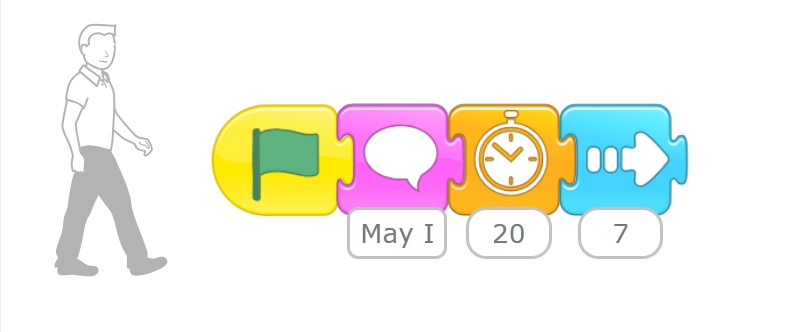
Move the boy forward 7 steps with the horse.
Step 3
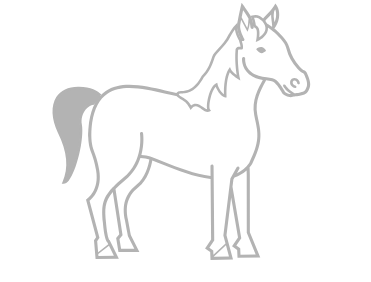
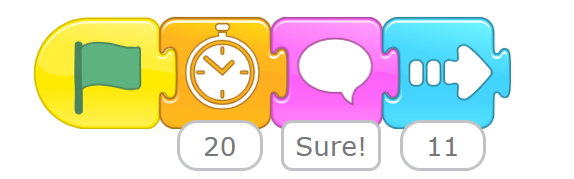
Now tap the horse to make its script. First, add a Wait block set to 2 seconds (20 tenths of a second) to give the boy time to ask for a ride. Then, add a Say block to have the horse reply,
“Sure !” Then move the horse forward 11.
Challenge
Try to build your scripts so that the cat and the horse move together at the same time.
After the horse says “Sure !” see if you can have the cat answer "Thanks!"
Activity
The Tortoise and the Hare
Objectives
•
use all of the skills just learned to make a full story !
Activity idea
This story is about a race between a patient tortoise and a boastful hare.
To create the scene, you first have to make a tortoise with the paint editor. Then, you can use the Set Speed block to make the hare move faster than the tortoise and to help the tortoise win ! You will also use what you learned about making characters talk to each other and about turning
story pages.
Step 1
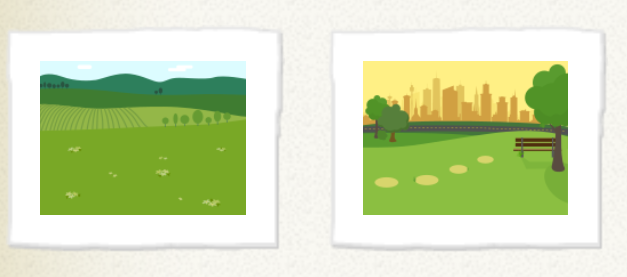
Choose the farm background, delete the cat or any sprite that fount already , and add the rabbit character.
1_Choose Background
2-Delete Sprite

3_Add sprite
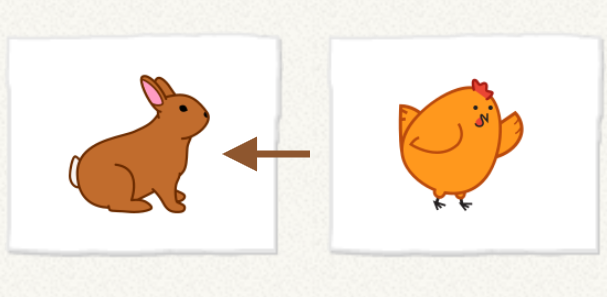
4_Add Rabbit
Step 2
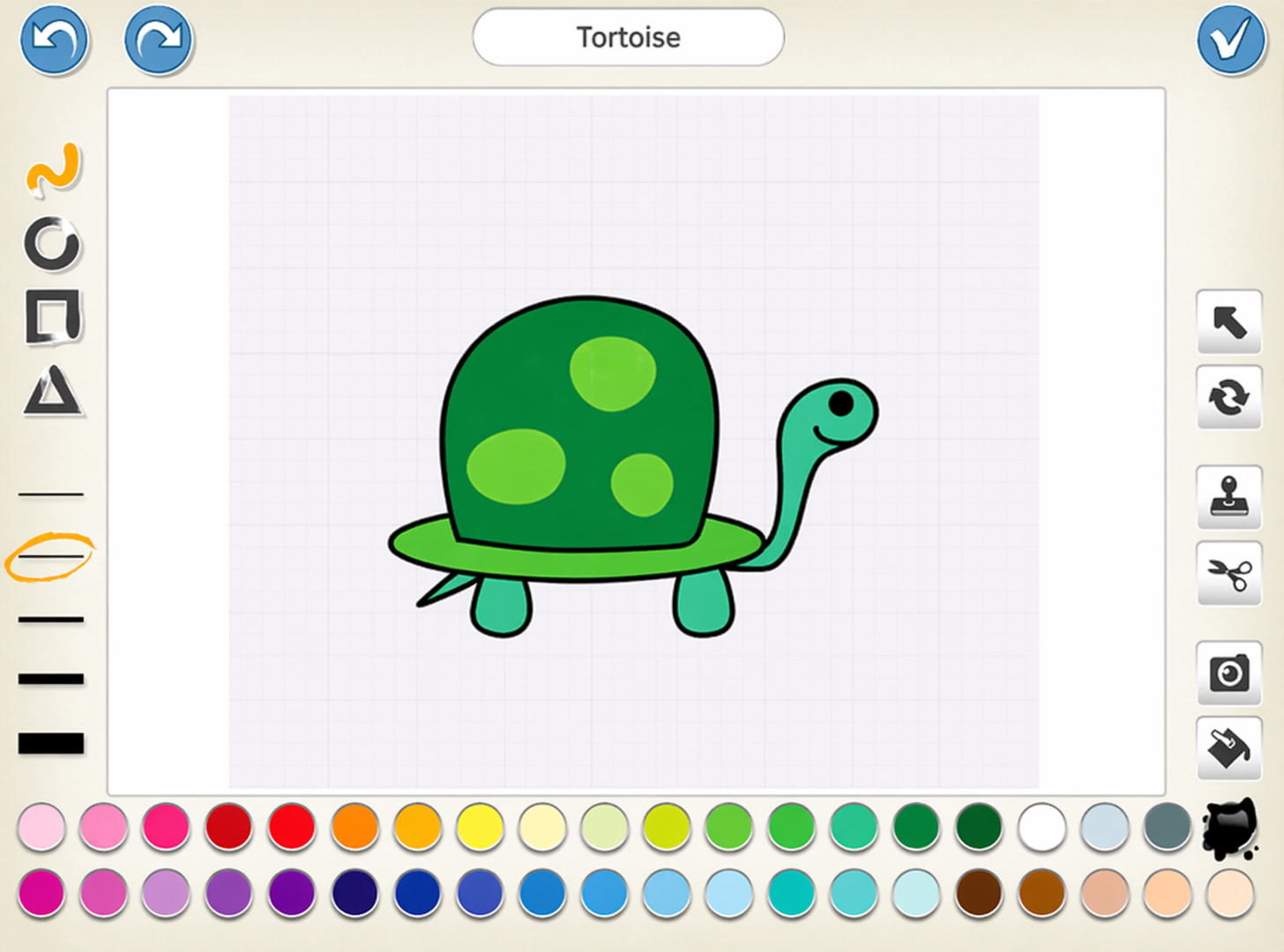
We don’t have a tortoise character already made, so we’ll use the paint editor to make one. Make sure you paint the tortoise quite big ! It will look smaller when it appears in the scene
than it does in the paint editor.
Step 3
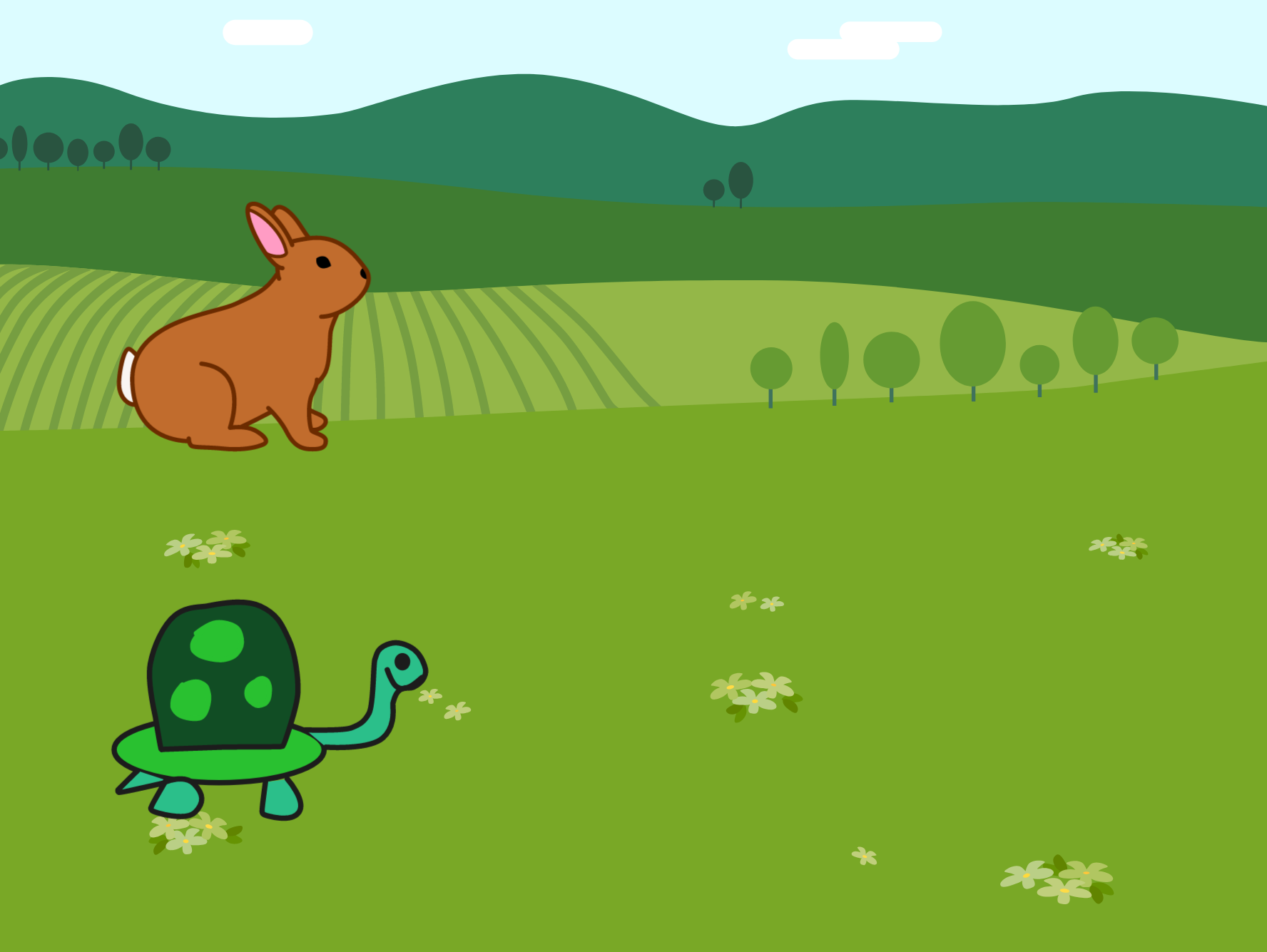
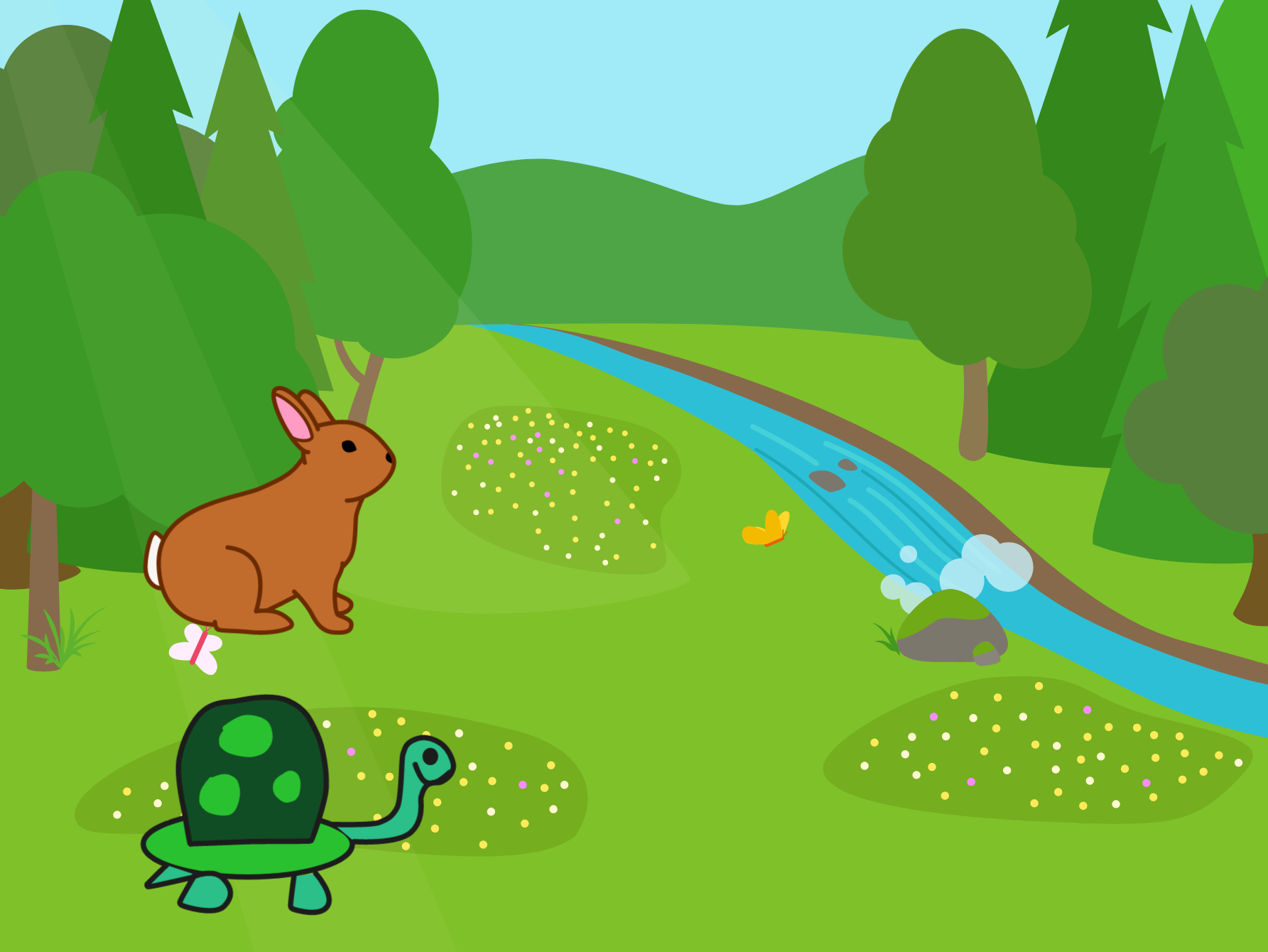
The race will go over the farm, past a river, and through an orchard. For this we need to make two new pages. Add the river background to the second page and then add the spring background to the third page.
Step 4
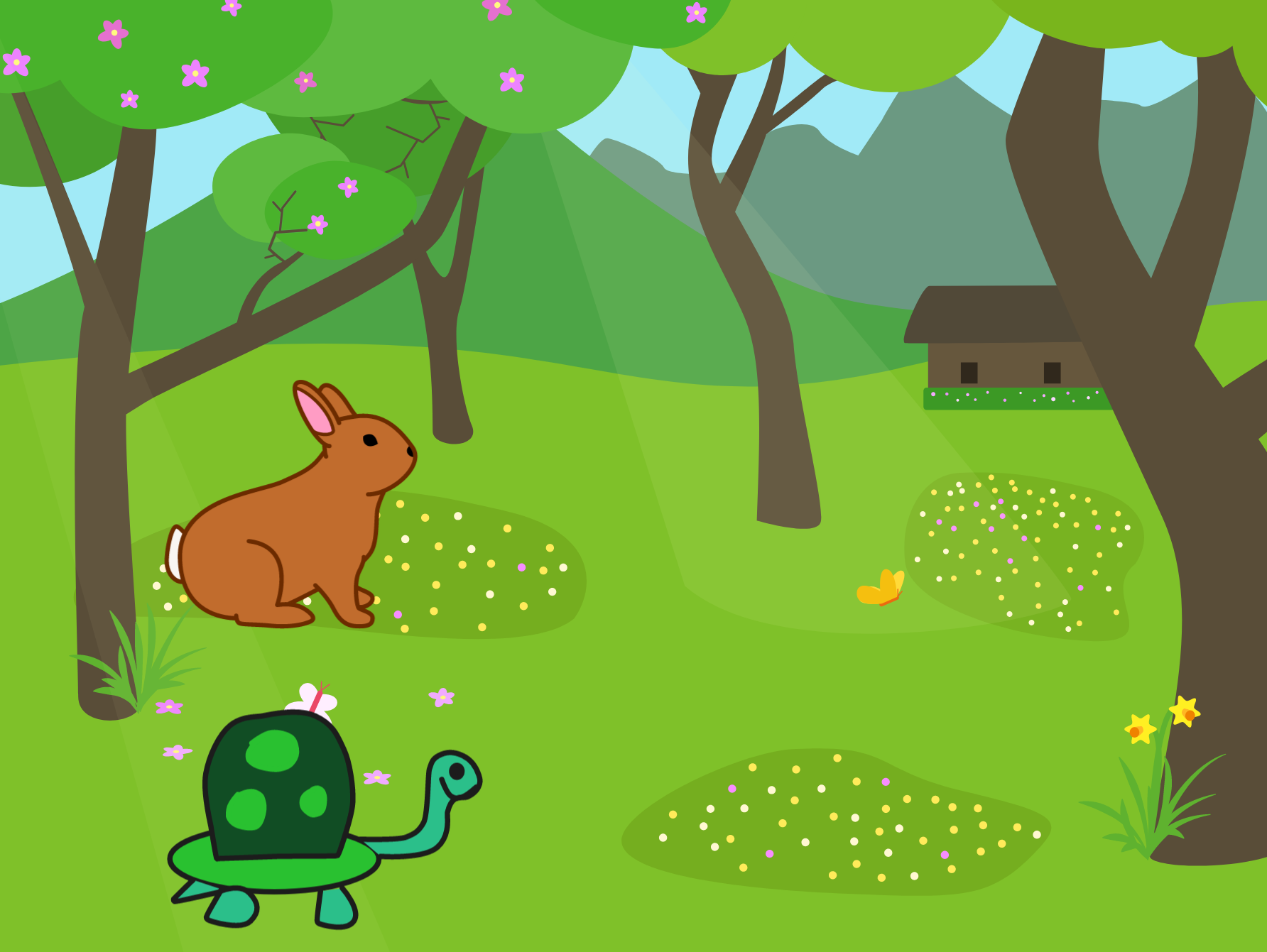
Let’s add the tortoise and the hare to the two new pages too. Drag the rabbit character from page 1 to page 2 to copy it over, and then drag the tortoise from page 1 to page 2. Don’t forget to copy the characters to page 3 too
Step 5
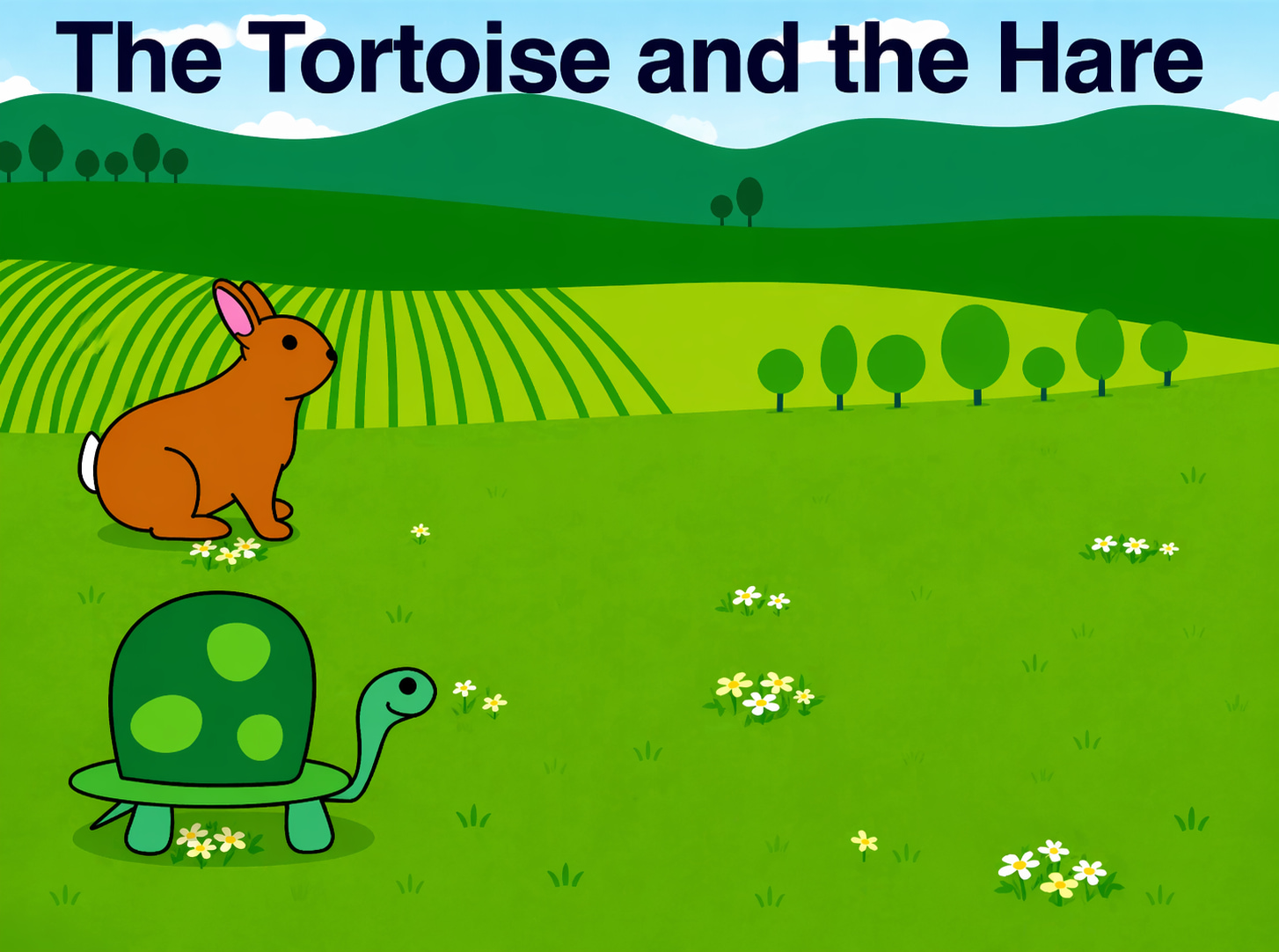
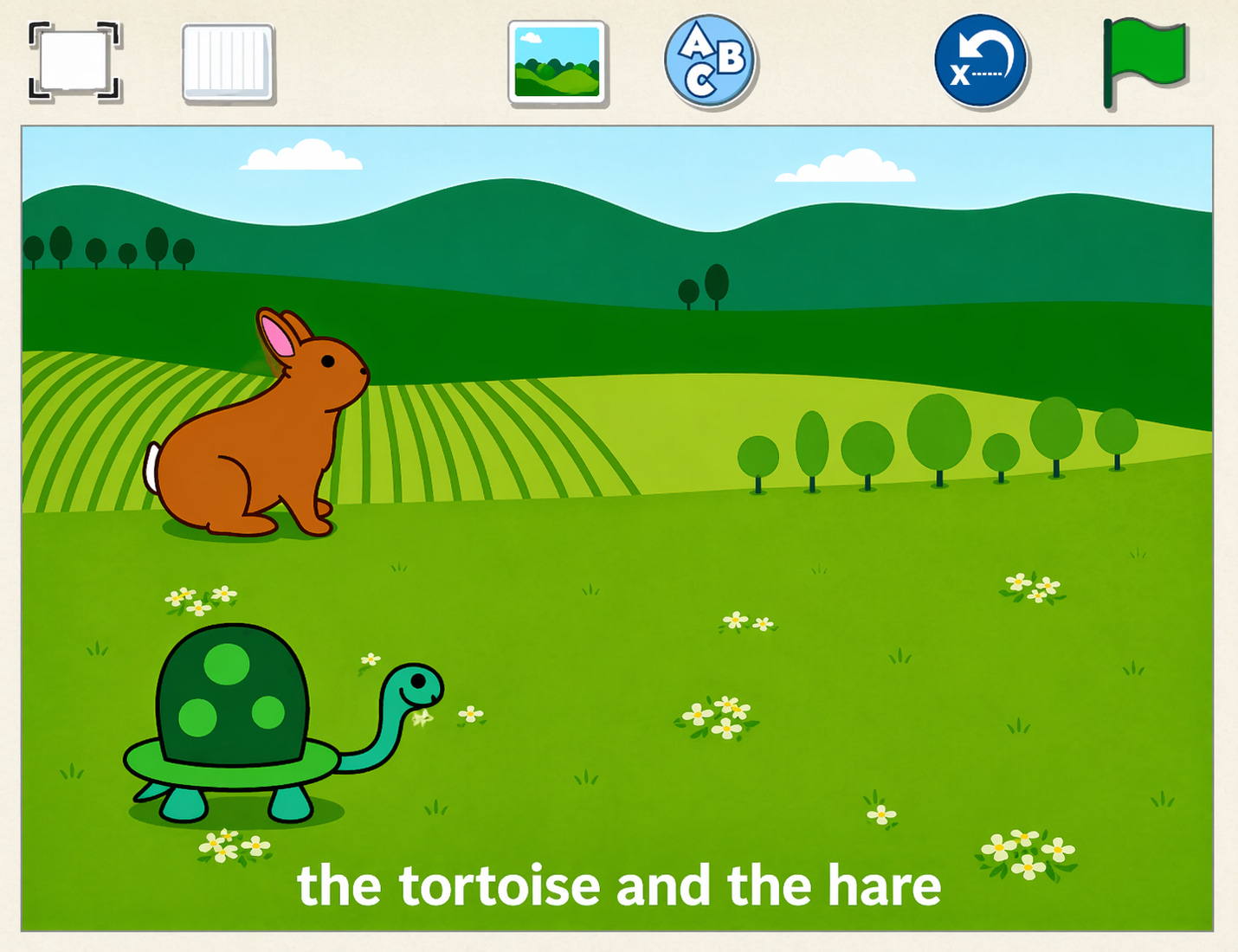
You can use the Add Text button to add words of different sizes and colors to your page. Larger words look more like a title, and smaller words might be the main part of your story that you can read aloud. Select page 1 and tap the Add Text button to give your story a title.
Step 6
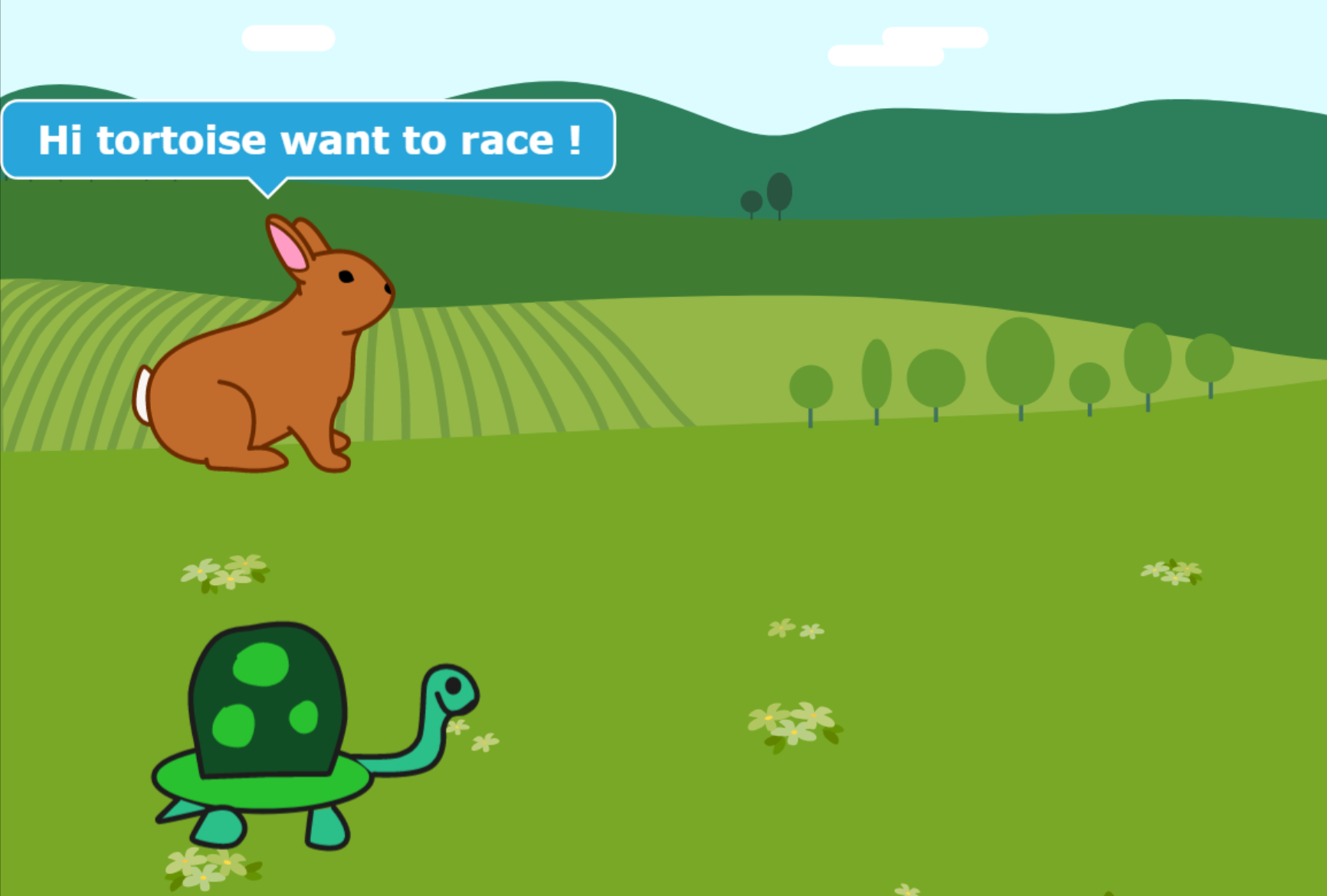
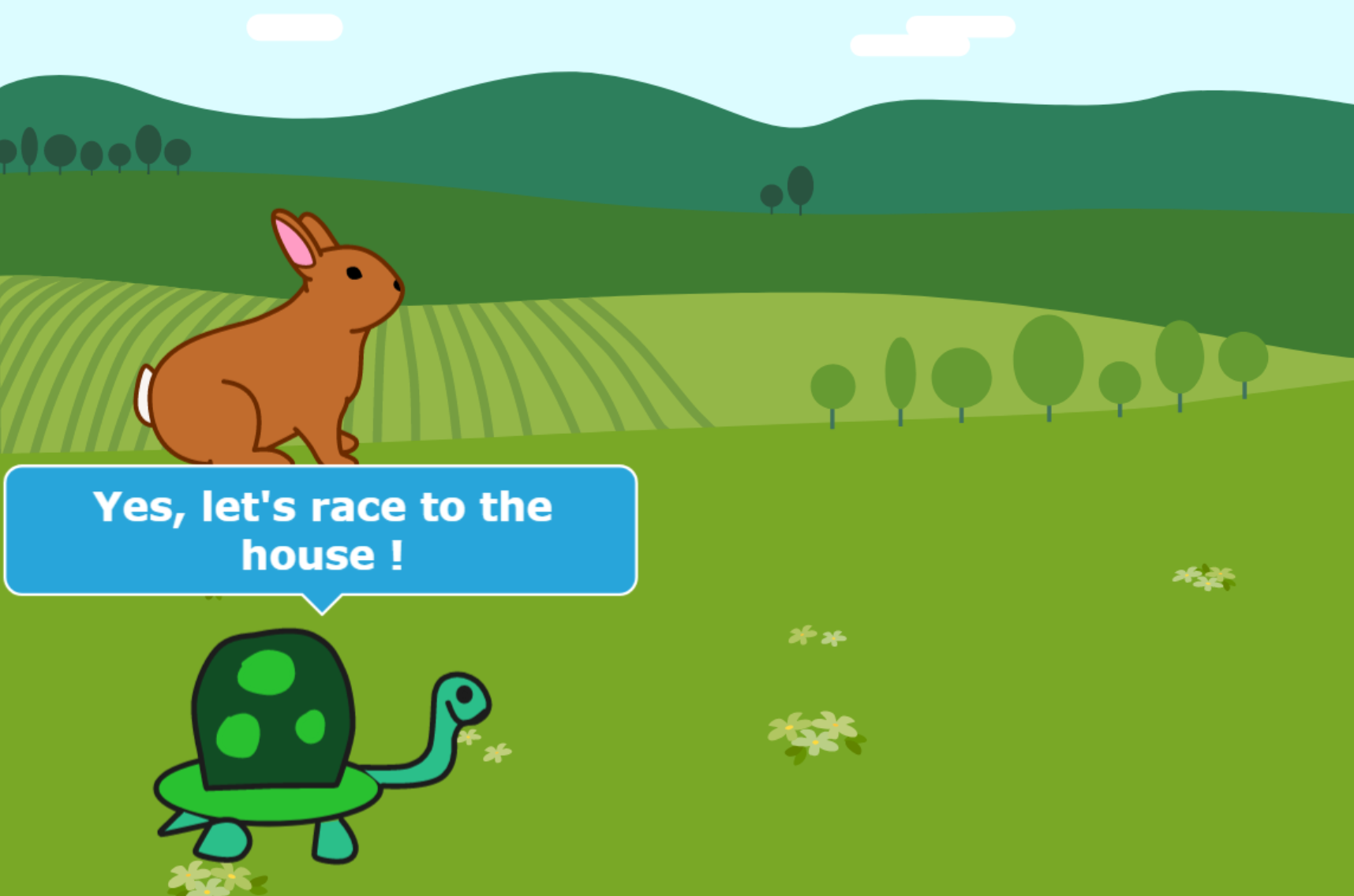
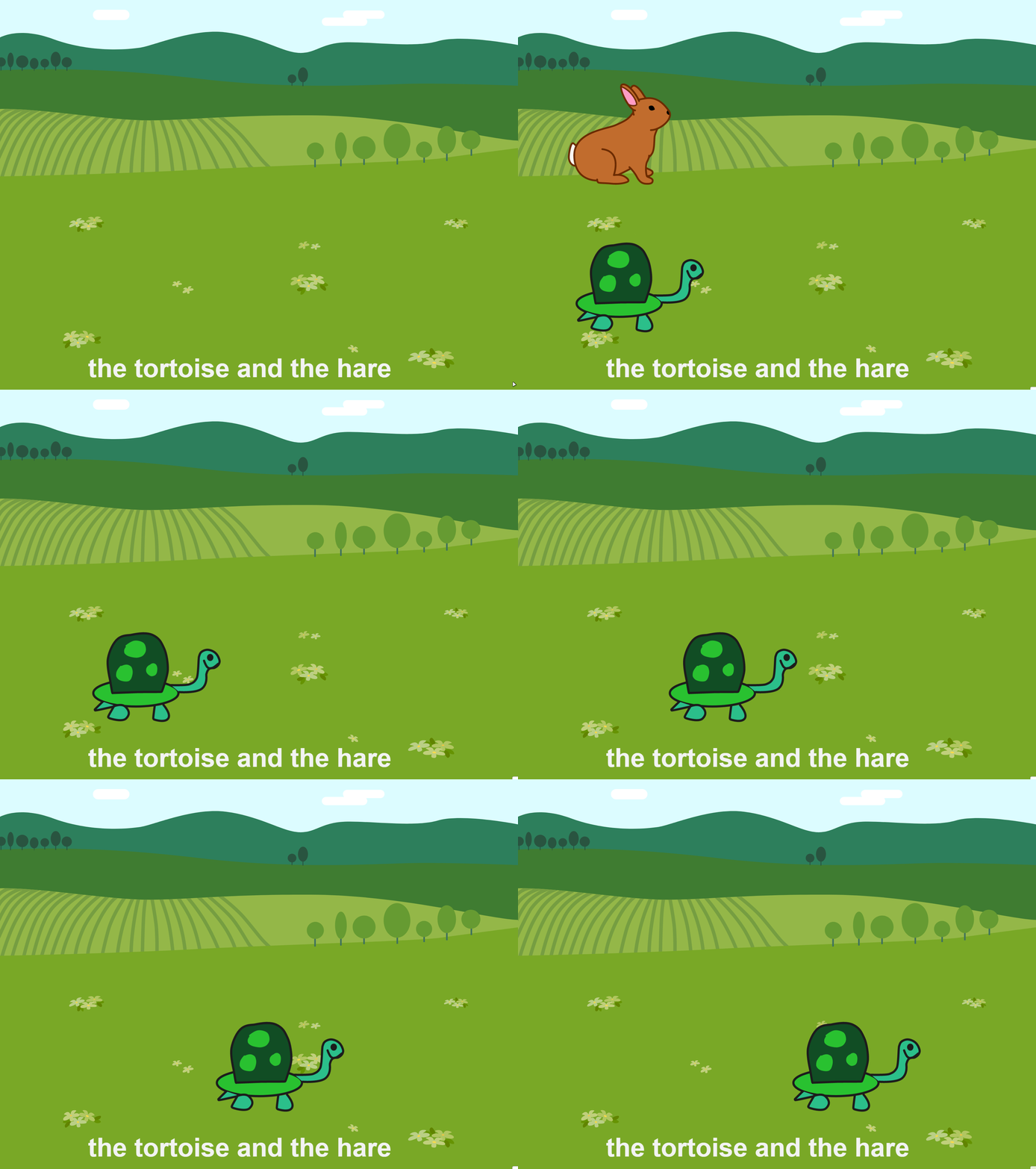
Now comes the action. On page 1, the tortoise and the hare talk about the race they want to have
Step 7
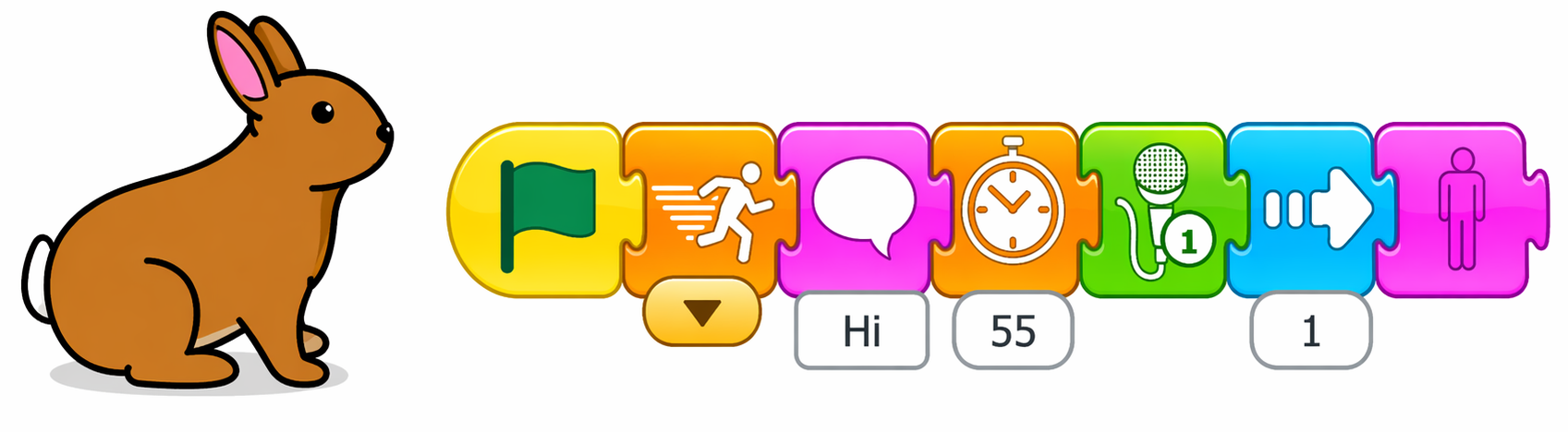
Program your script to the race

Note
Output
Challenge
Try recording yourself telling the story by using multiple Play Recorded Sound blocks. Can you time the recorded sounds with the actions on the screen ?

use a combination of drawing, writing, and speaking to create an animated tale about the tortoise and the hare! Practice writing and spelling by using the Say block to make speech bubbles for the characters and the Add Text button to add titles.