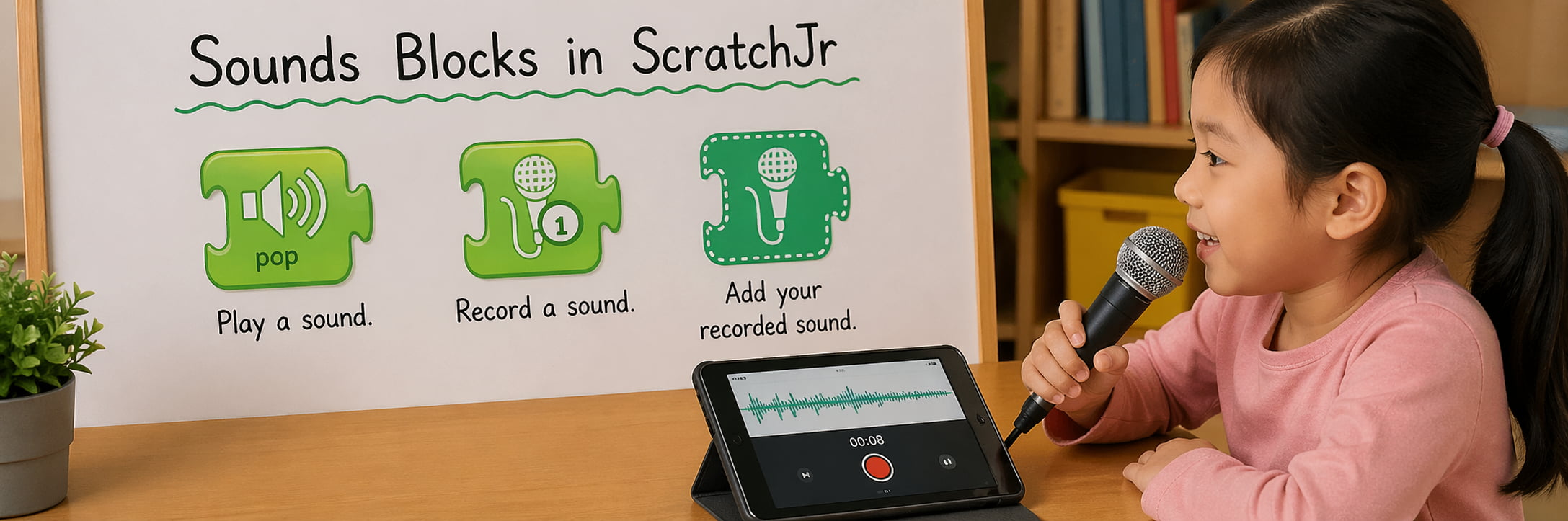
Objectives
•
Learn how to use sounds Blocks
•
learn how to record sounds for your character .
•
Learn How to make speech bubbles that show your character talking.
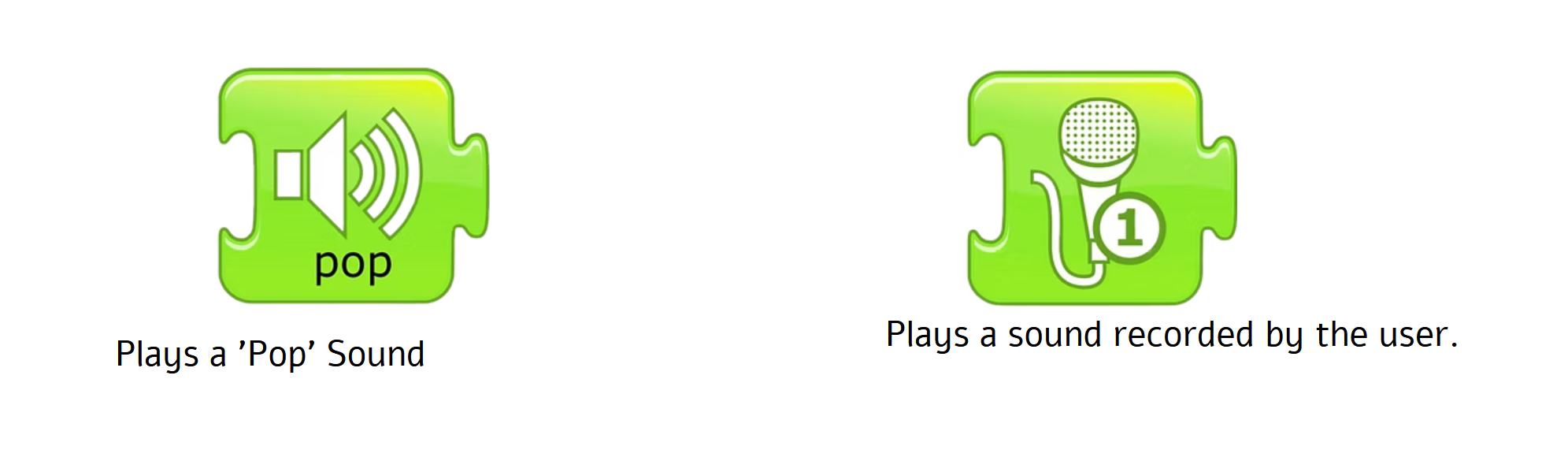
Sounds Blocks
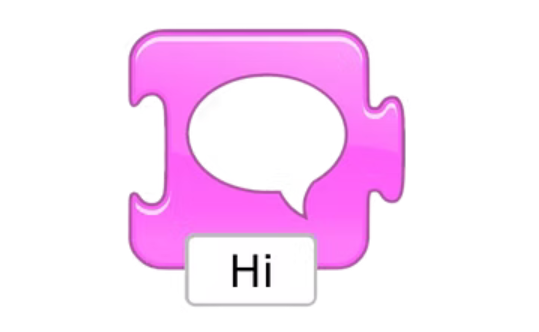
Say Block
Shows a specified message in a speech bubble above the character.
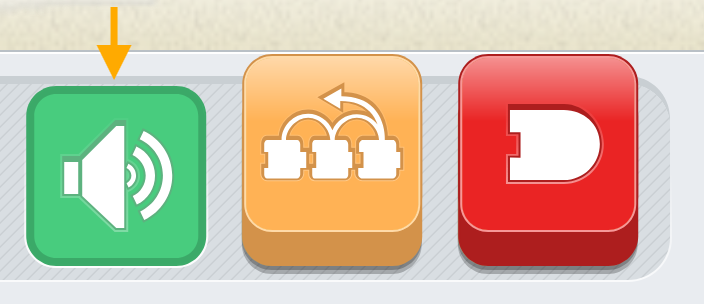
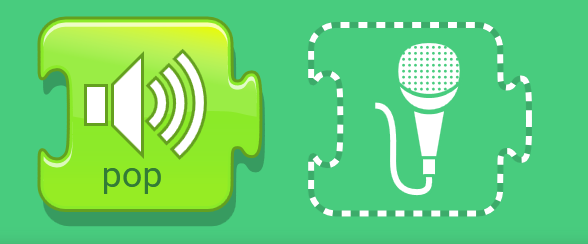
Record sound to a character
Step 2 | Select the theater background. Then, start the cat’s script with a Start on Green Flag block.
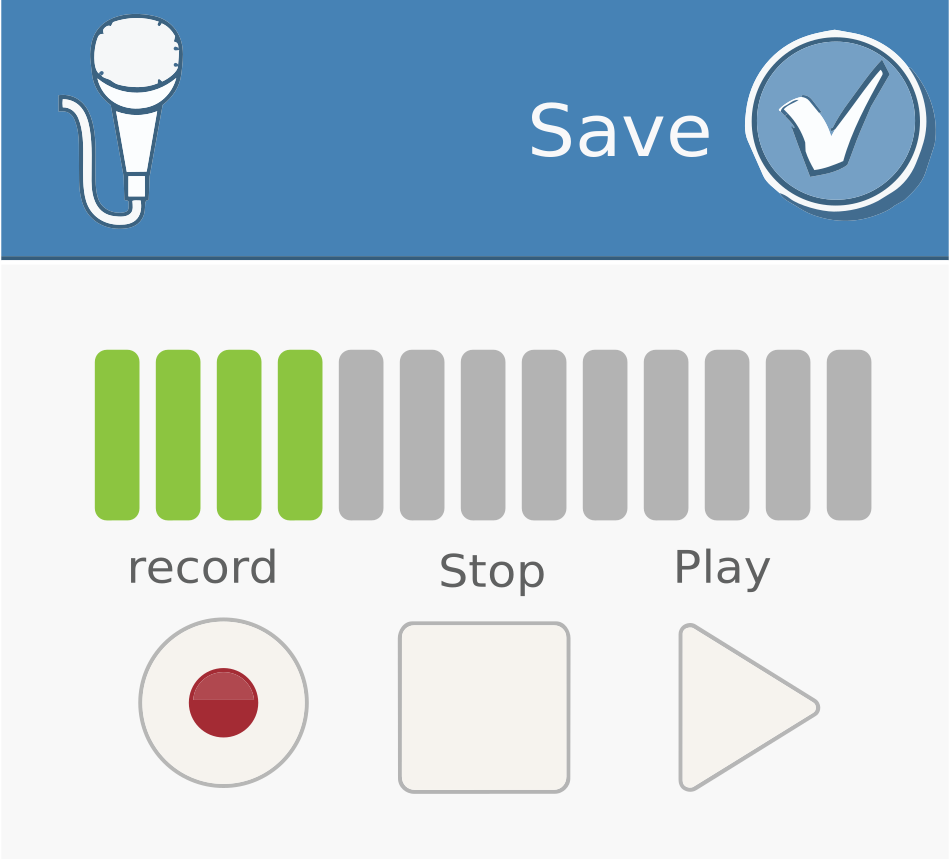
Step 3 | Here you can tap the Record button to record a sound, tap the Stop button to stop recording, and tap the Play button to play the sound you recorded.
Note: The green sound bars show you how loud the sounds are while you’re recording them. More green bars mean a louder sound recording.
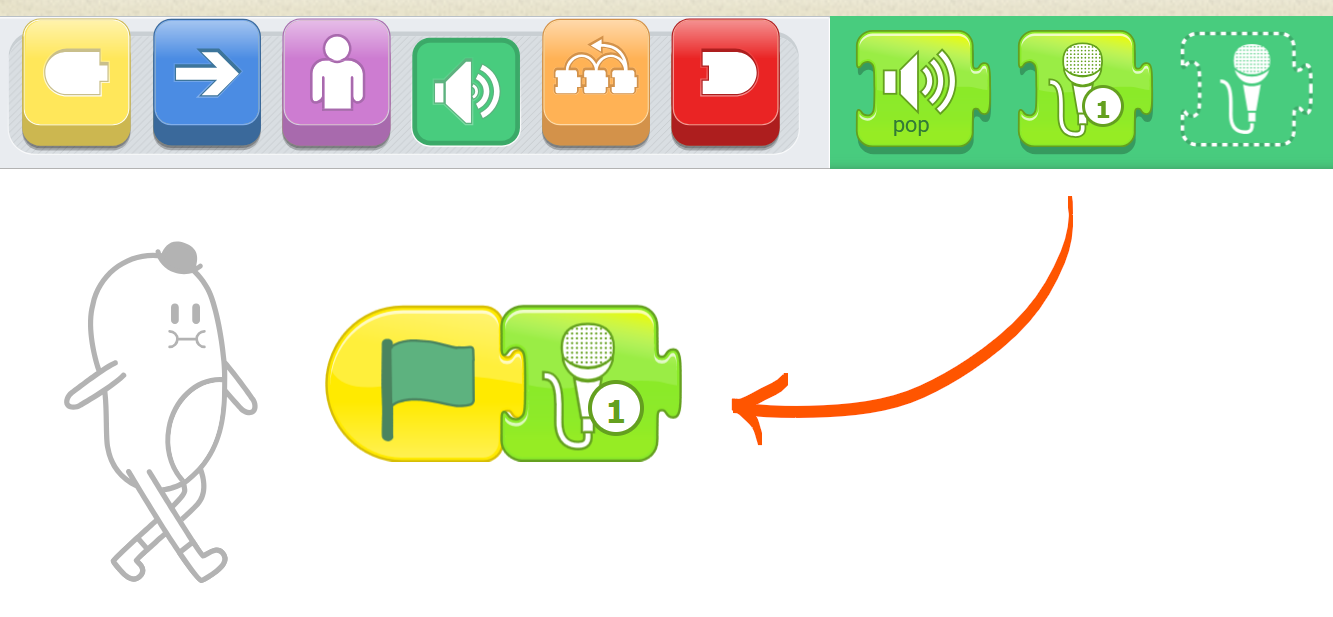
Step 4 | tap the check mark to save it. Your sound will be saved as a new Play Recorded Sound block that you can add to your script.
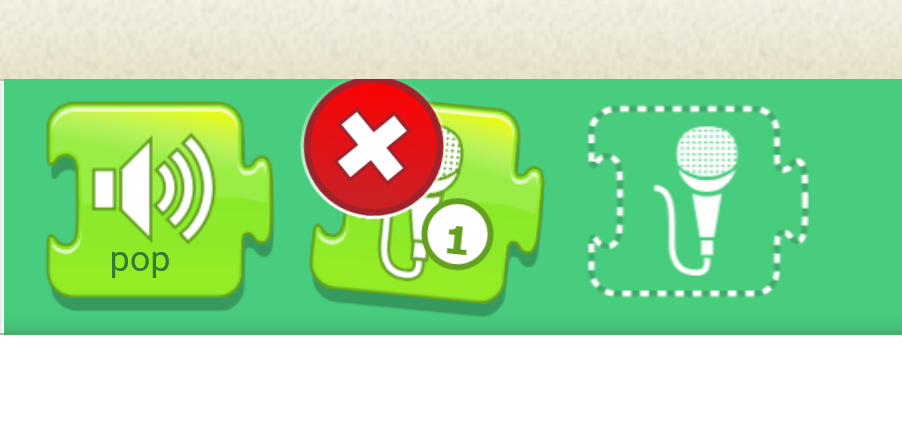
If you want to delete a sound, press and hold (long-press) the Play Recorded Sound block.
You will see a red X appear. Tap the X to delete the sound.
💡Hint
you can play it back to hear it. If you don’t like it, simply press the Record button again to record another sound
Make a character talk using a bubbles
You can also have your characters talk with speech bubbles.Tap the purple blocks category to reveal the looks blocks in the palette. Drag the Say block to the programming area and
snap it onto the end of your script
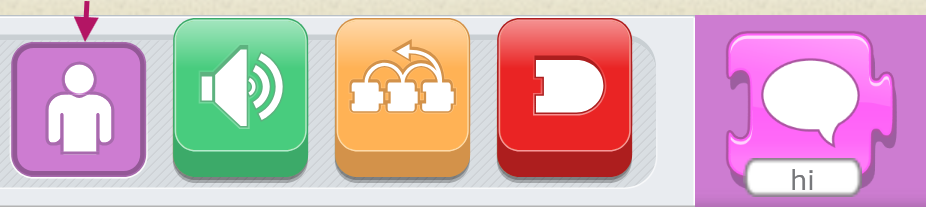
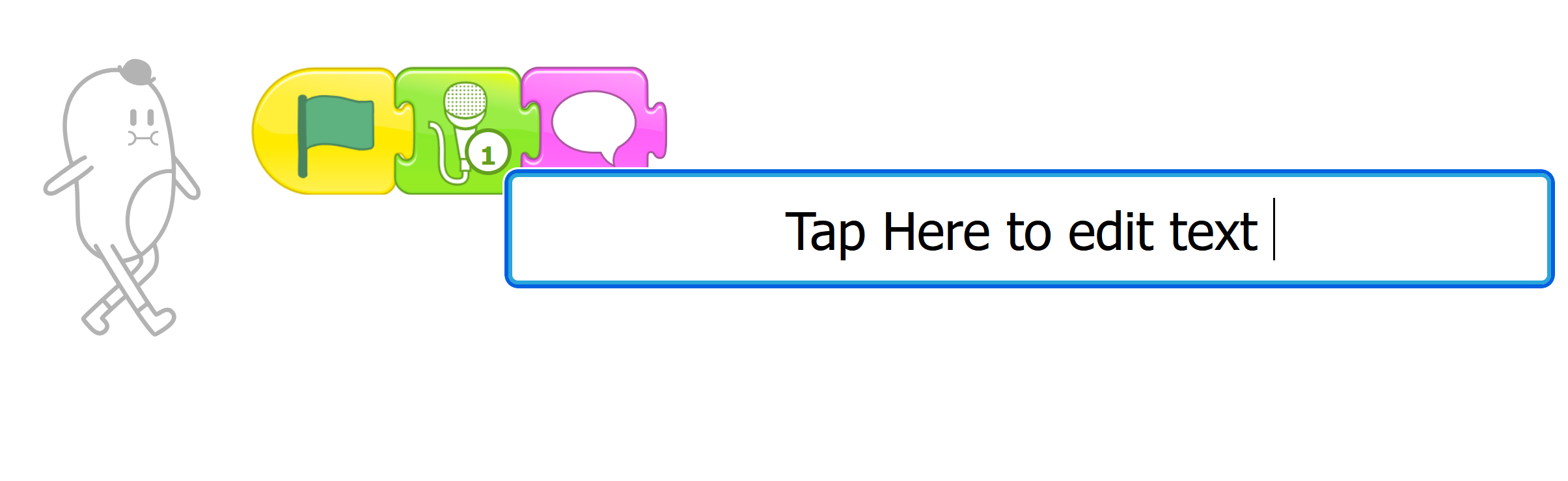
Tap the white box under the speech bubble and delete the text there by tapping the backspace key. Now type what you want the cat to say and tap Go.
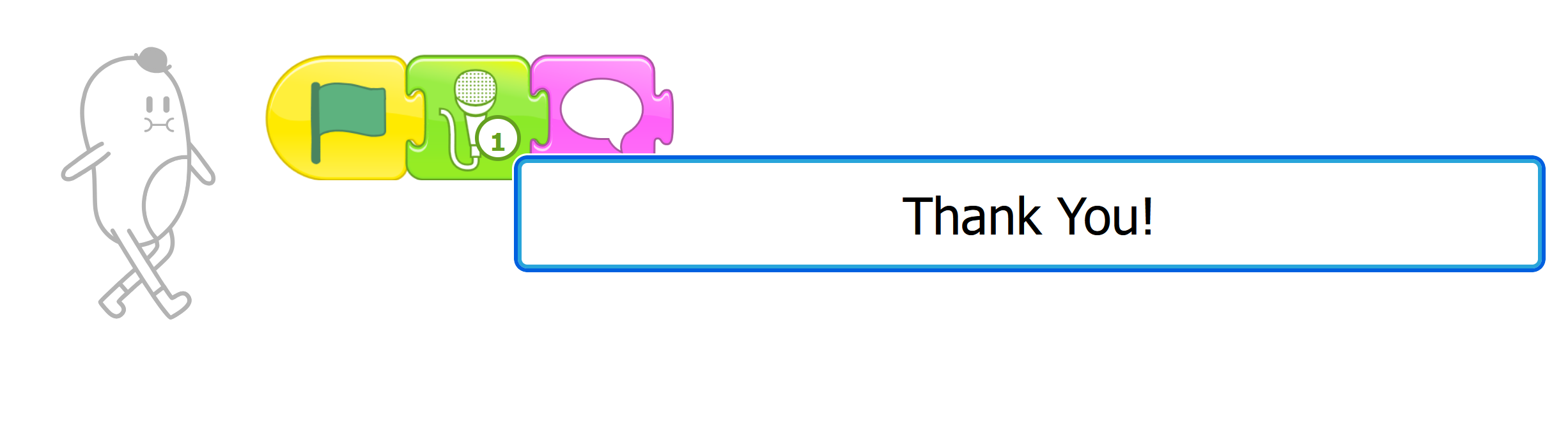
Tap the Green Flag button at the top of the screen to see the show!
Challenge
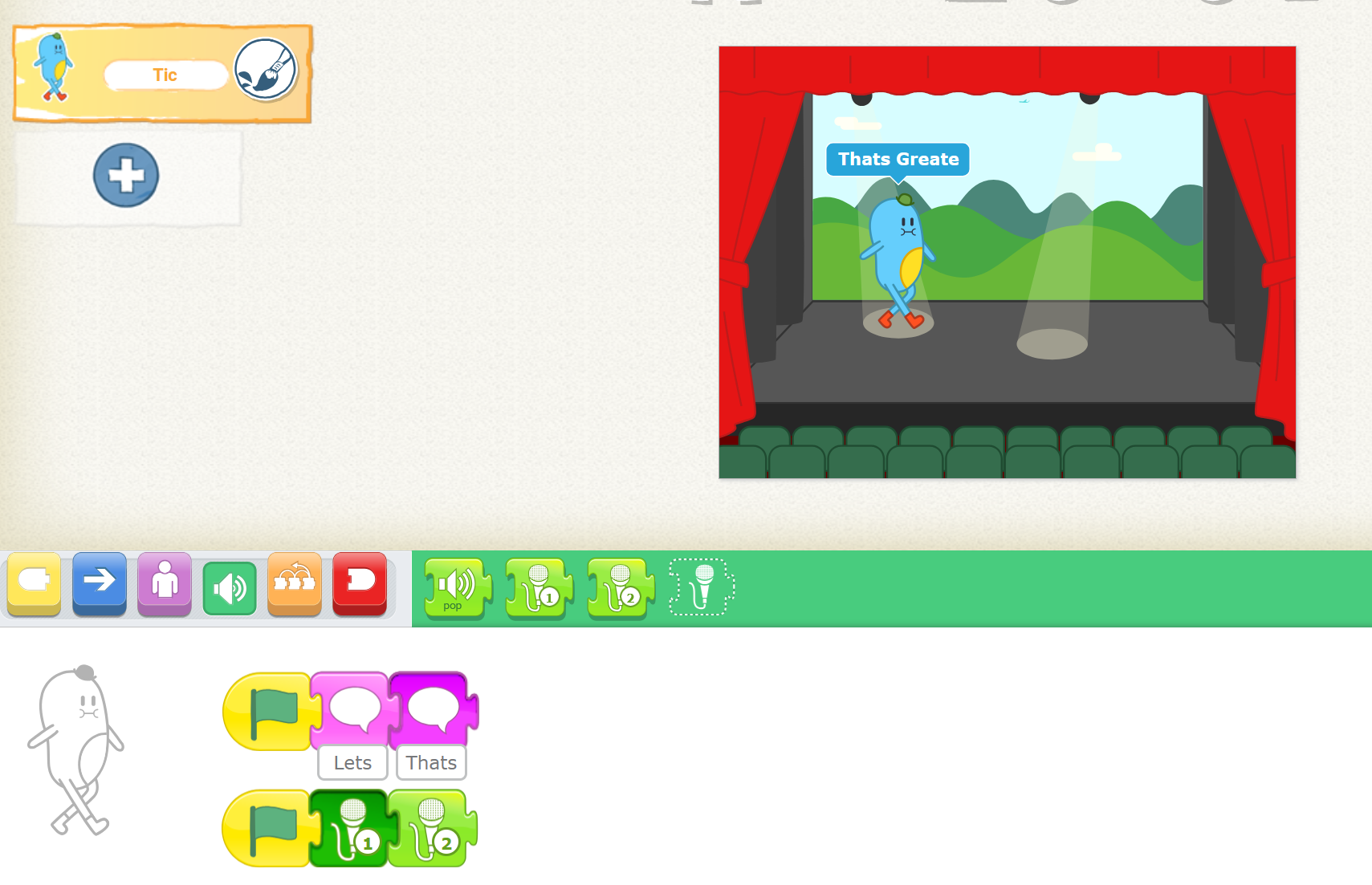
Make sounds and speech bubbles play at the same time .Make two scripts for the same character. Put both scripts in the character’s programming area and begin both scripts with a
Start on the Green Flag block, but don’t connect them together!
💡Hint
One script should have only Play Recorded Sound blocks.
Activity
Animal Sounds
Lets Learn about sounds of animals
Objectives
•
Practice how to use sounds blocks
Step 1
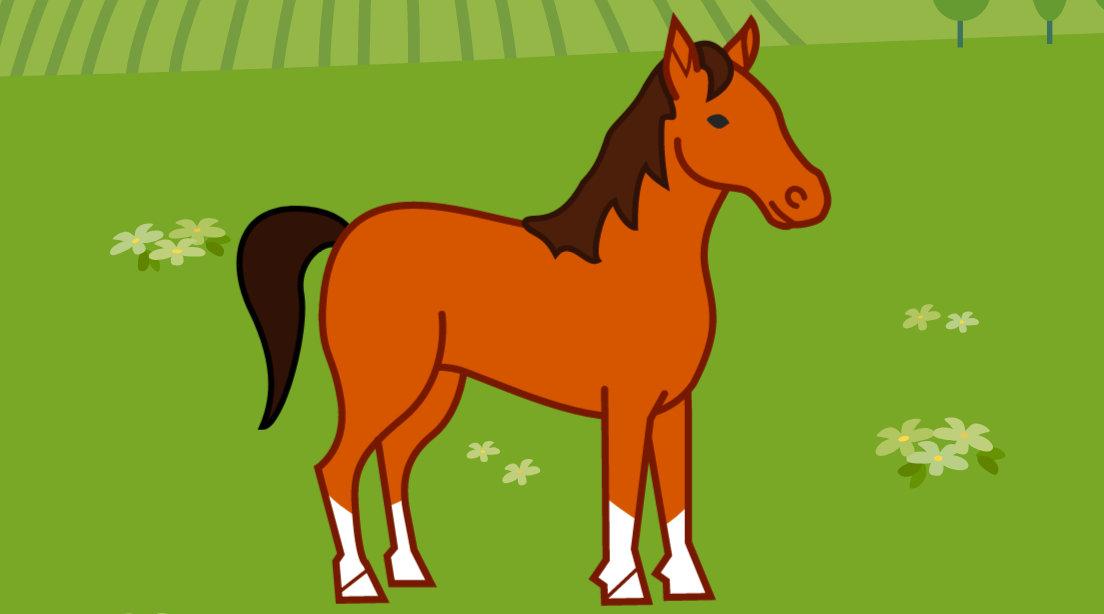
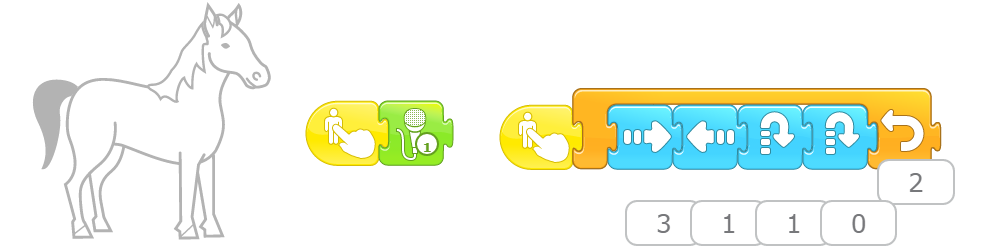
When you tap the horse, say “neeh” using a microphone and Turn left and turn right by loop function two times.
Step 2
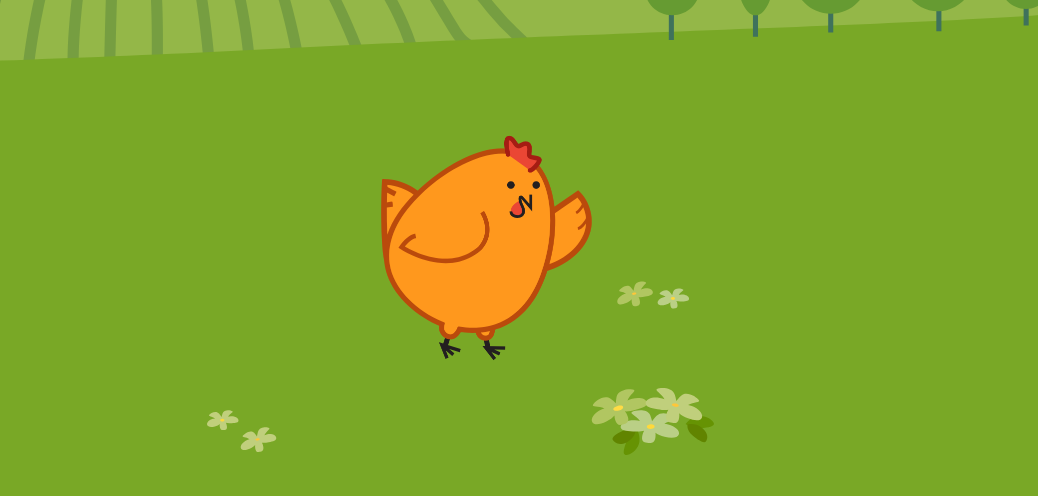
When you tap the Chicken say “bok bok“using a microphone and hop.

•
Step 3
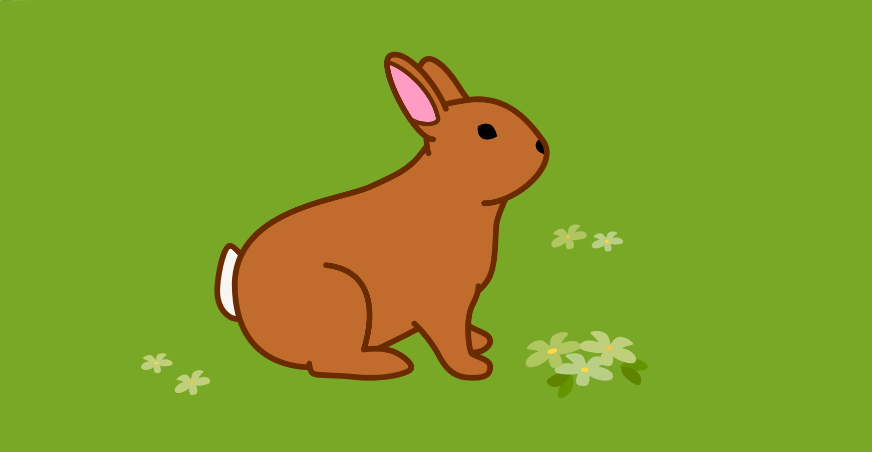
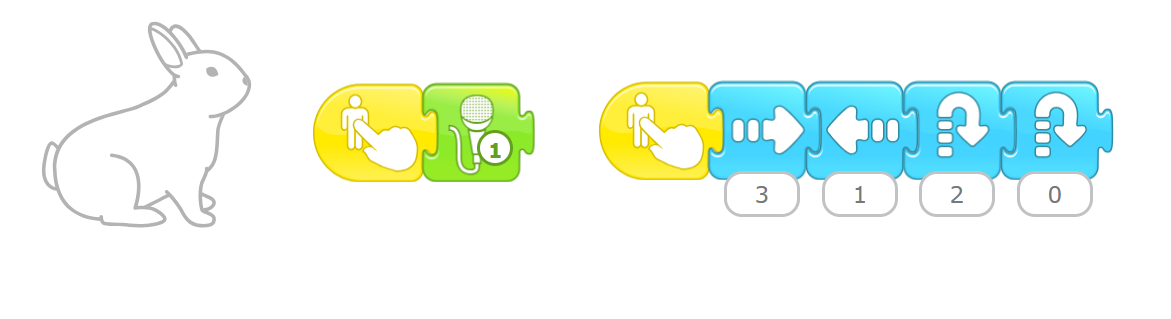
When you tap the Rabbit say “Squeak, squeak” using a microphone. and After that, move right and left and hop.
Activity
Dance Party
can I make my character dance !
Objectives
•
Use sound and motion blocks and a start again block to make characters dance.
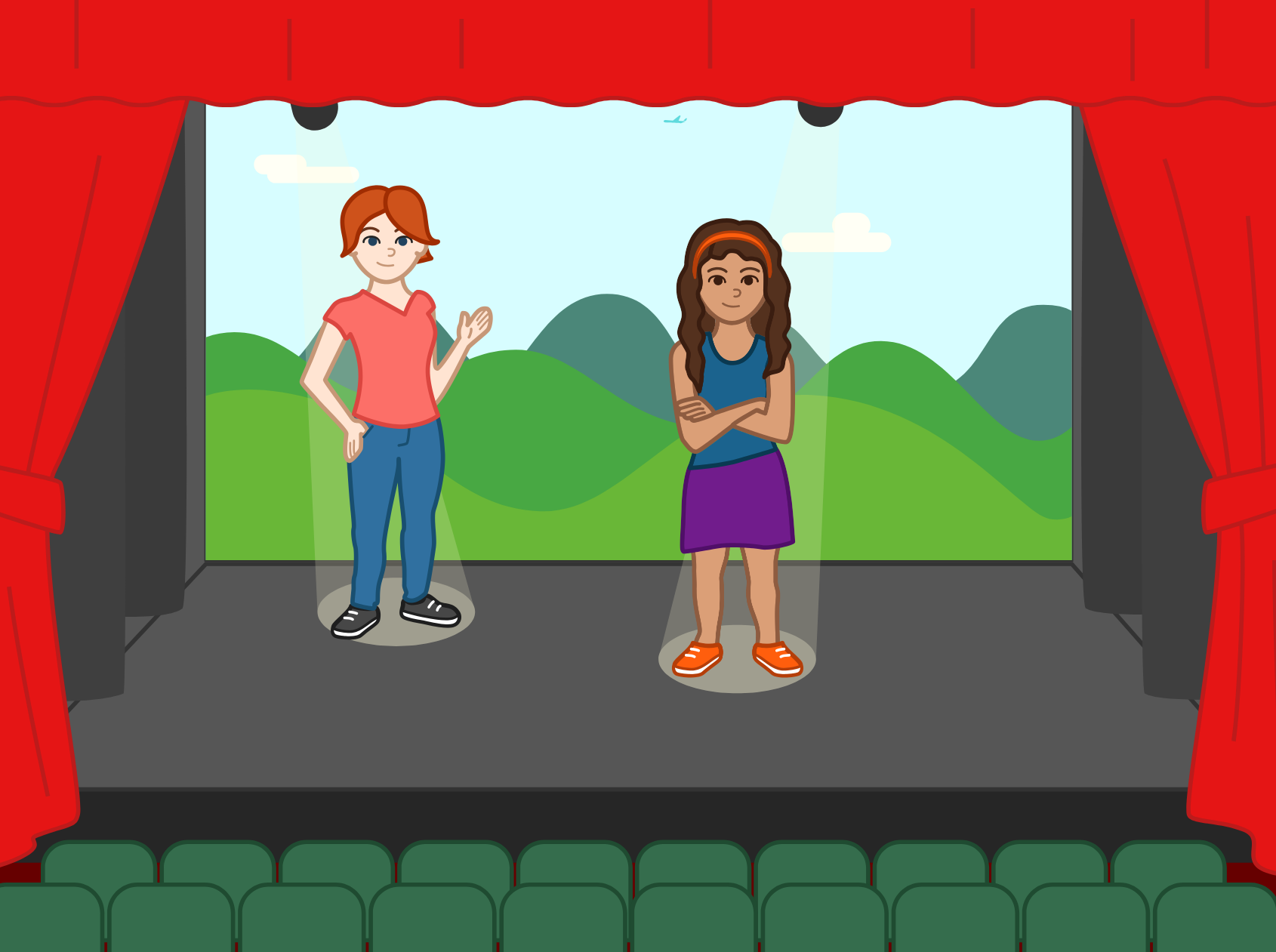
Step1
Choose theater background
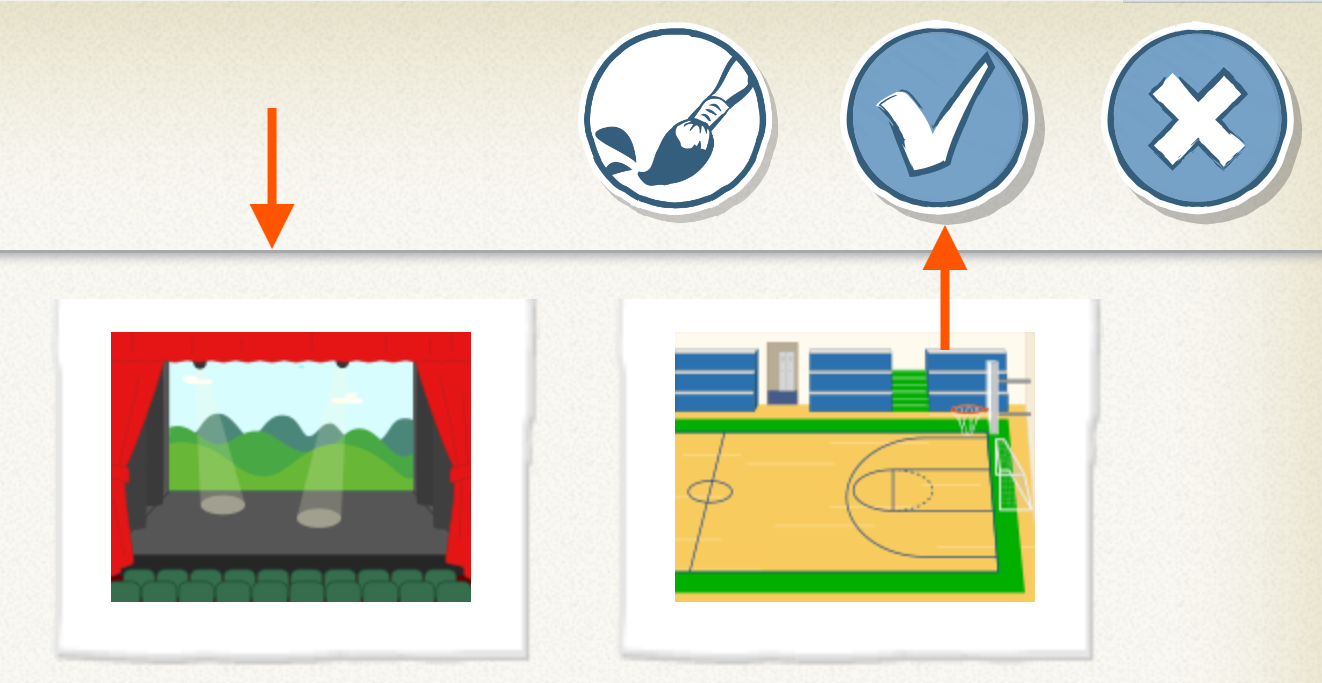
Step 2
Choose a characters
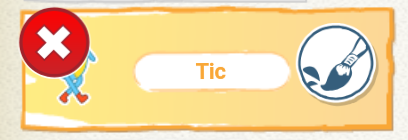
don't forget to delete the tic sprite

Step 3
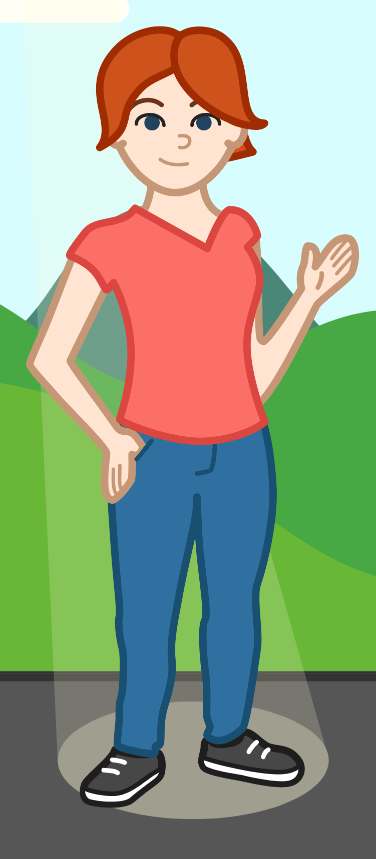
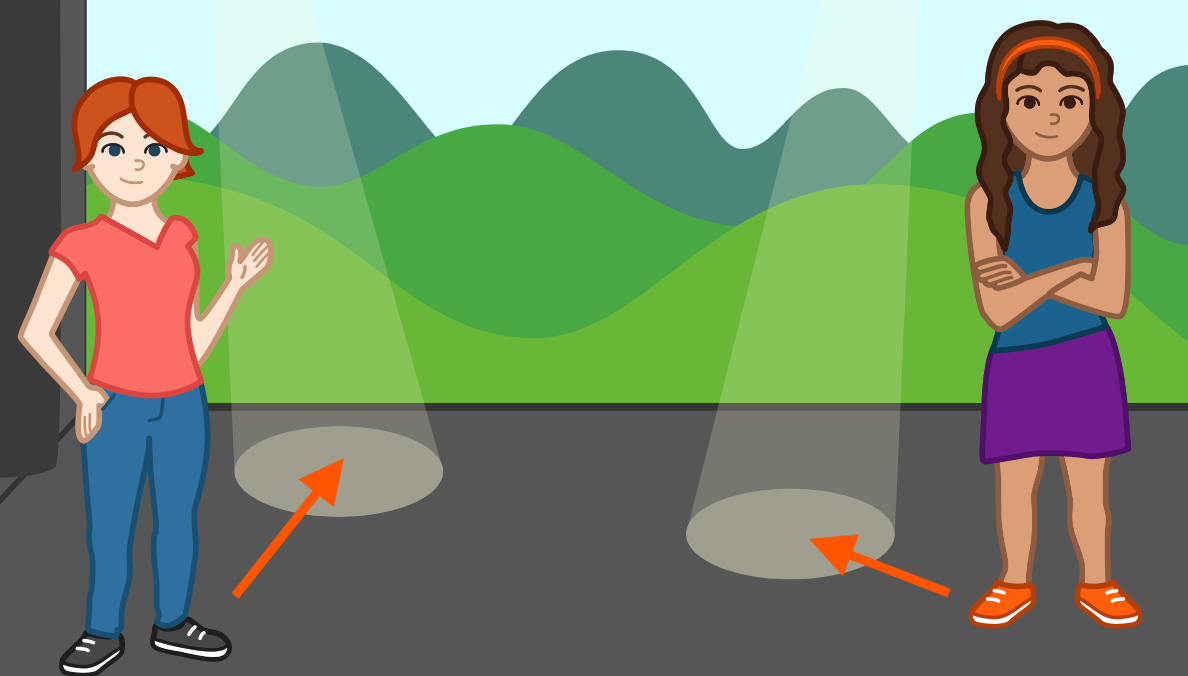
Move characters to start places
Position the characters by dragging them from the center of the screen
Step 4
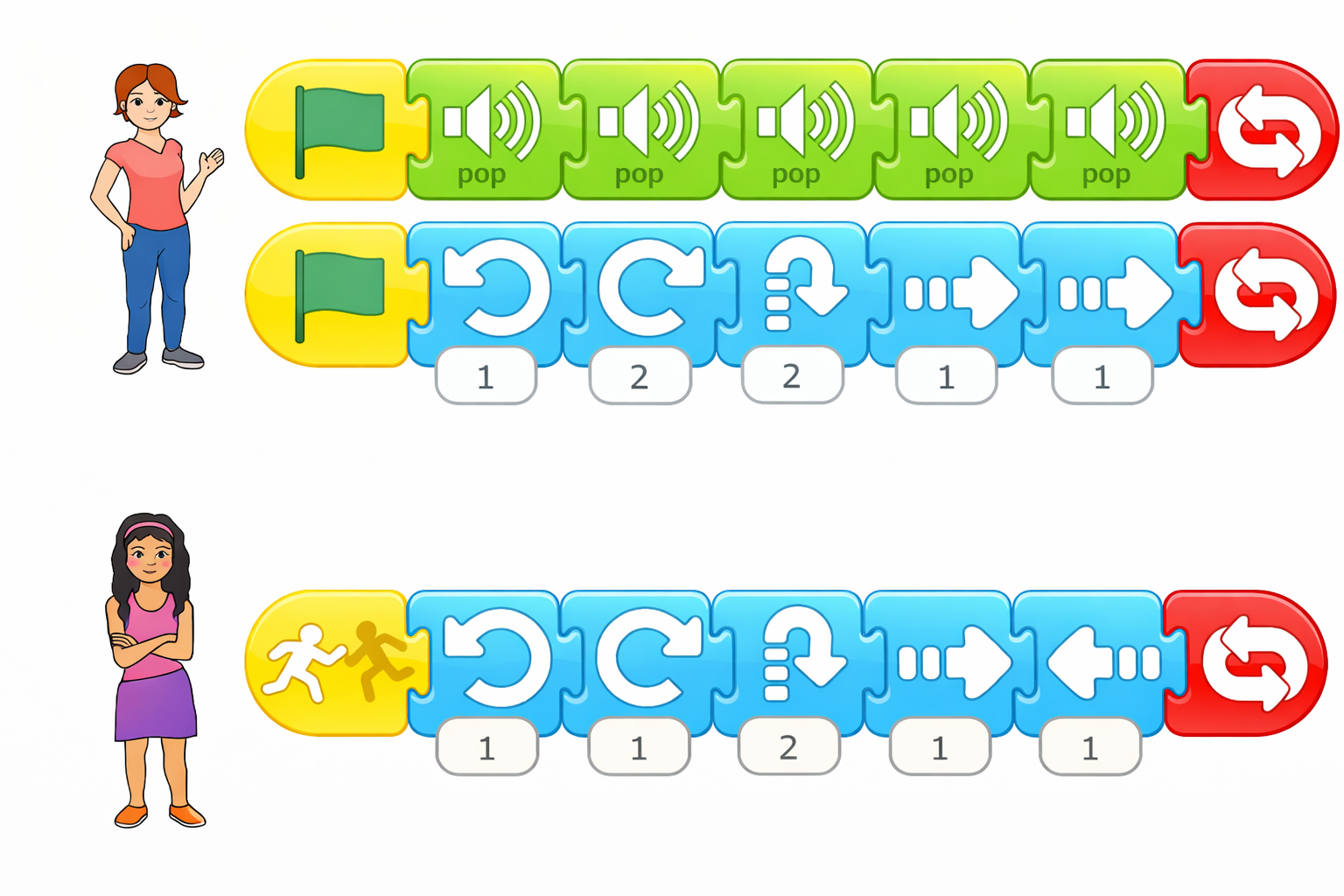
Make program for each character
Challenge
•
Can you make other things happen when one character touches another? Try the disappear block!
•
How can you use the speed block to change how the characters move?