Objectives
•
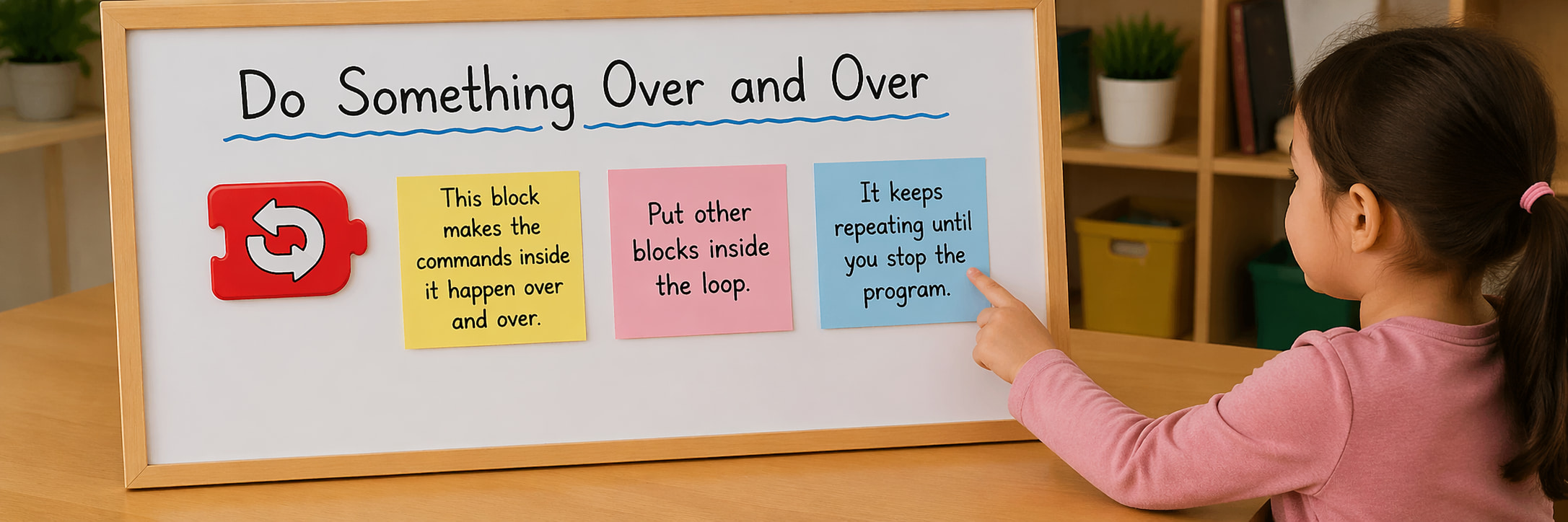
Learn how to use the Repeat block .
•
Learn how to use Repeat Forever block to repeat one or more actions .
•
Learn how to make a cat repeat multiple actions on the stage without using multiple blocks of the same kind.
Let’s take a look at your script from the previous lesson (lesson 6 )
The first two blocks (the Hide block and the Show block) make the cat disappear and reappear. This pattern of Hide and Show blocks is then repeated two more times. But rather than use all of these blocks, you can use a Repeat block to make the first pattern run several times.
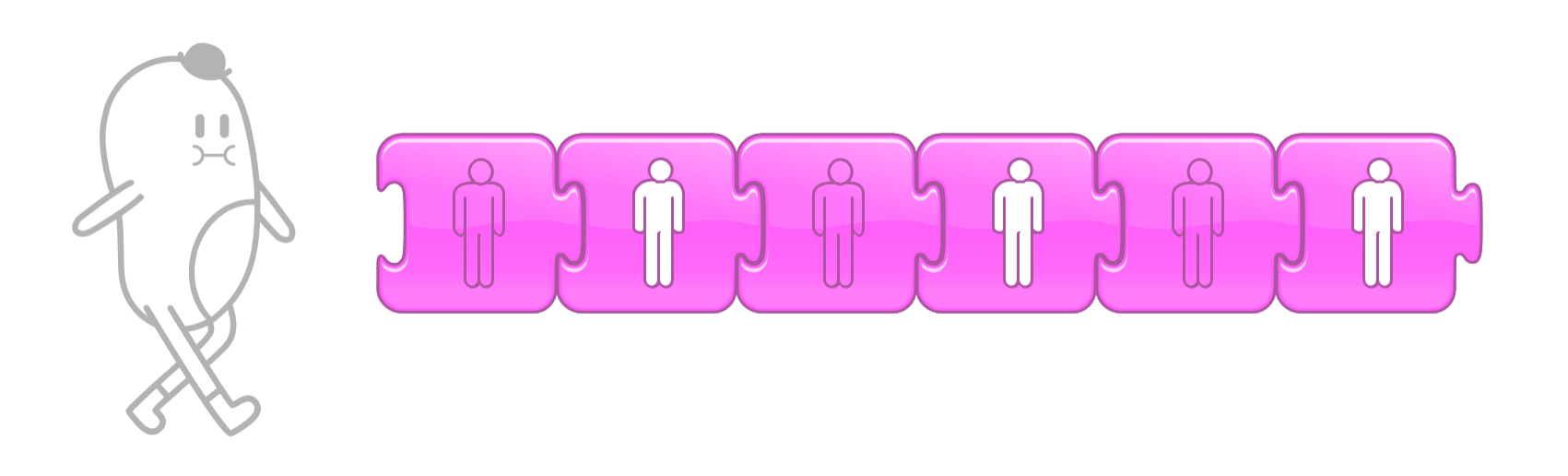
How to use the repeat block
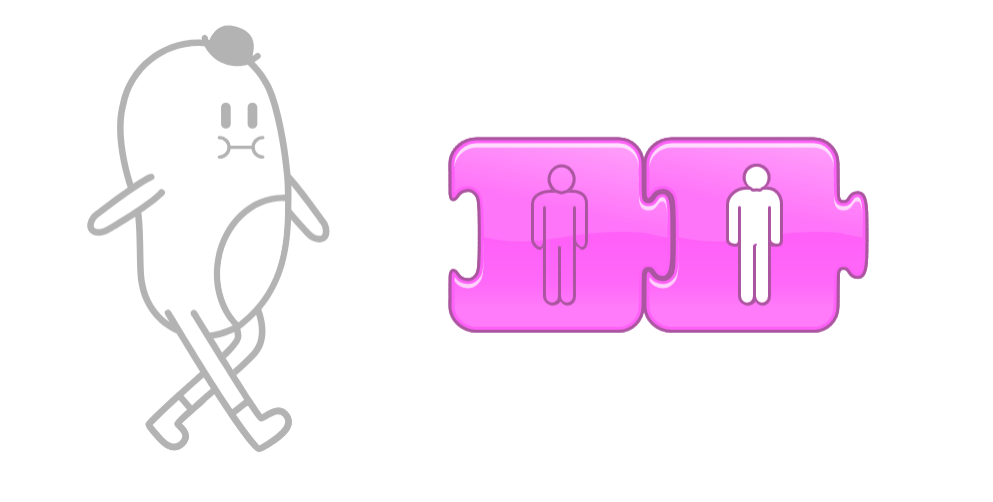
Step 1 | First, delete the last four blocks of the script .Left only a single Hide block and a single Show block.
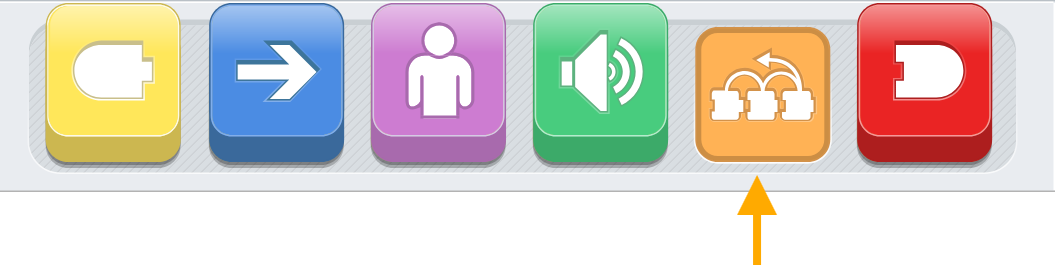
Step 2 | Tap the orange category of blocks to reveal the control blocks.
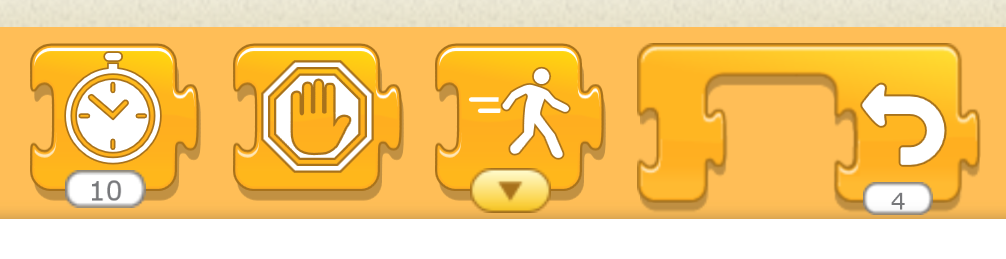
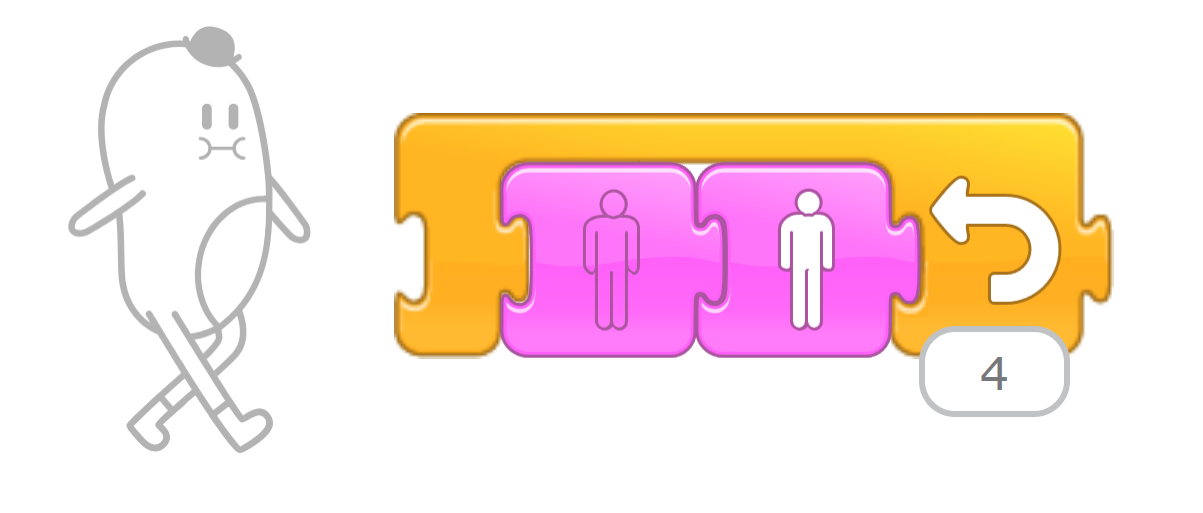
Step 3 | Drag the Repeat block to the programming area and position it around the two purple looks blocks.
You can change the number in the bubble of the Repeat block to whatever you want.
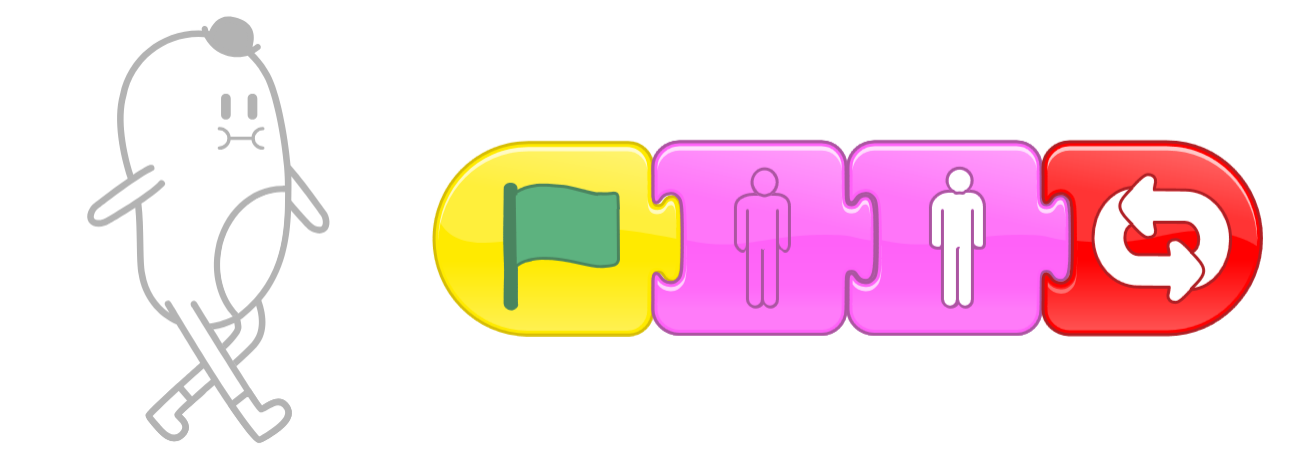
Repeat forever Block
If you want the cat to disappear and reappear forever? Then, instead of using a Repeat block, you could end your script with the Repeat Forever
Challenge
Put other blocks inside and outside of the Repeat block.
Try out some motion blocks from the blue category. Notice how the animation changes depending on whether a block is or is not included in the Repeat block.
Activity | Under The water
Objectives
•
Practice to to use movement Blocks and repeat block
Let's build an aquarium and learn about the types of fish on the ocean floor
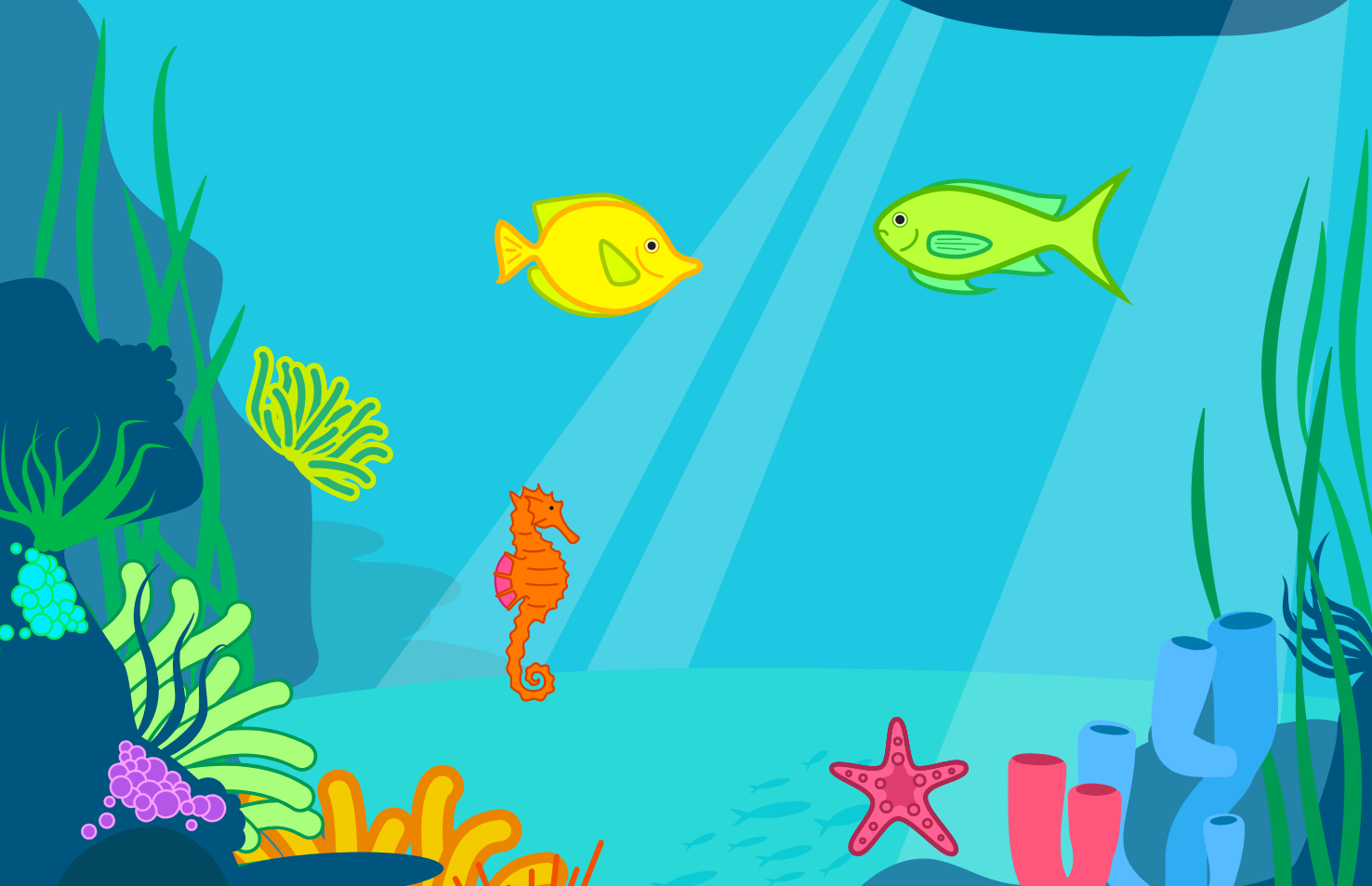
Step 1 | Go forward and backward face to face with yellow fish.
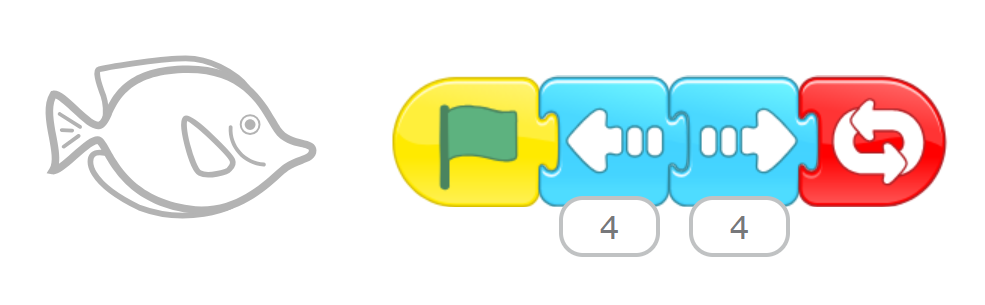
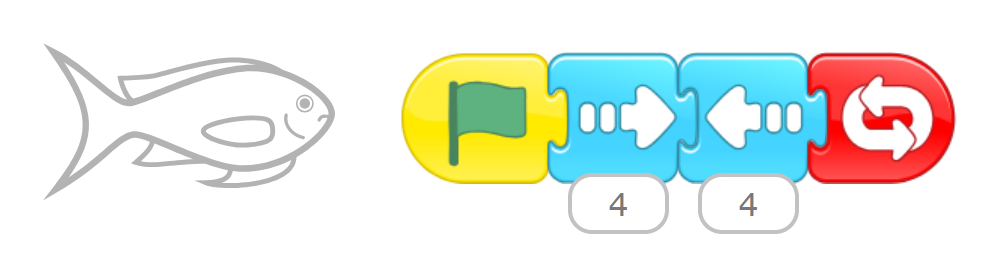
Step 2 | when the green fish goes forward, the yellow fish should go backward and vice-versa.
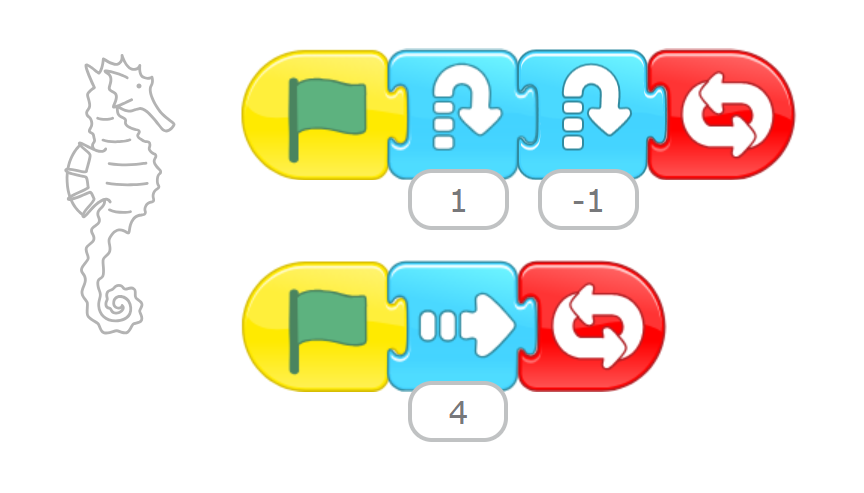
Step 3 | The sea horses must go forward and hop together.
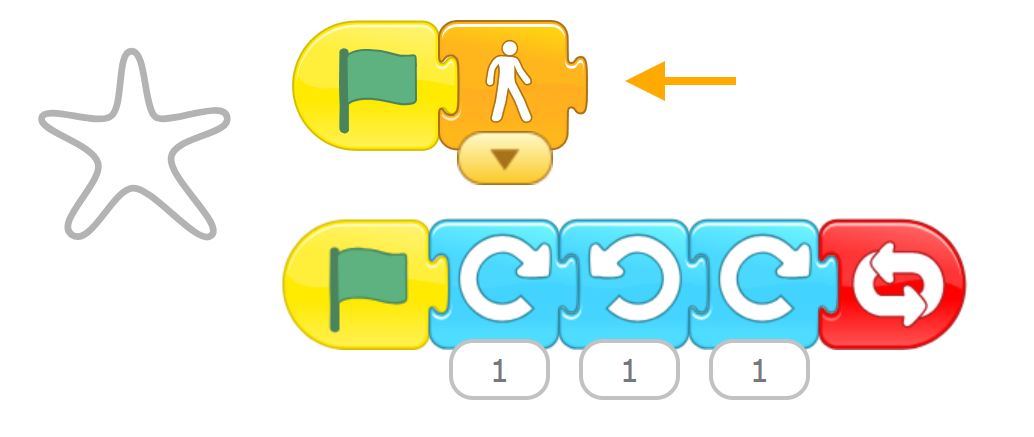
Step 4 | The star fish must turn left and turn right.
Speed block to tell each character how fast to move ( we will discuss it in chapter 10)
Output
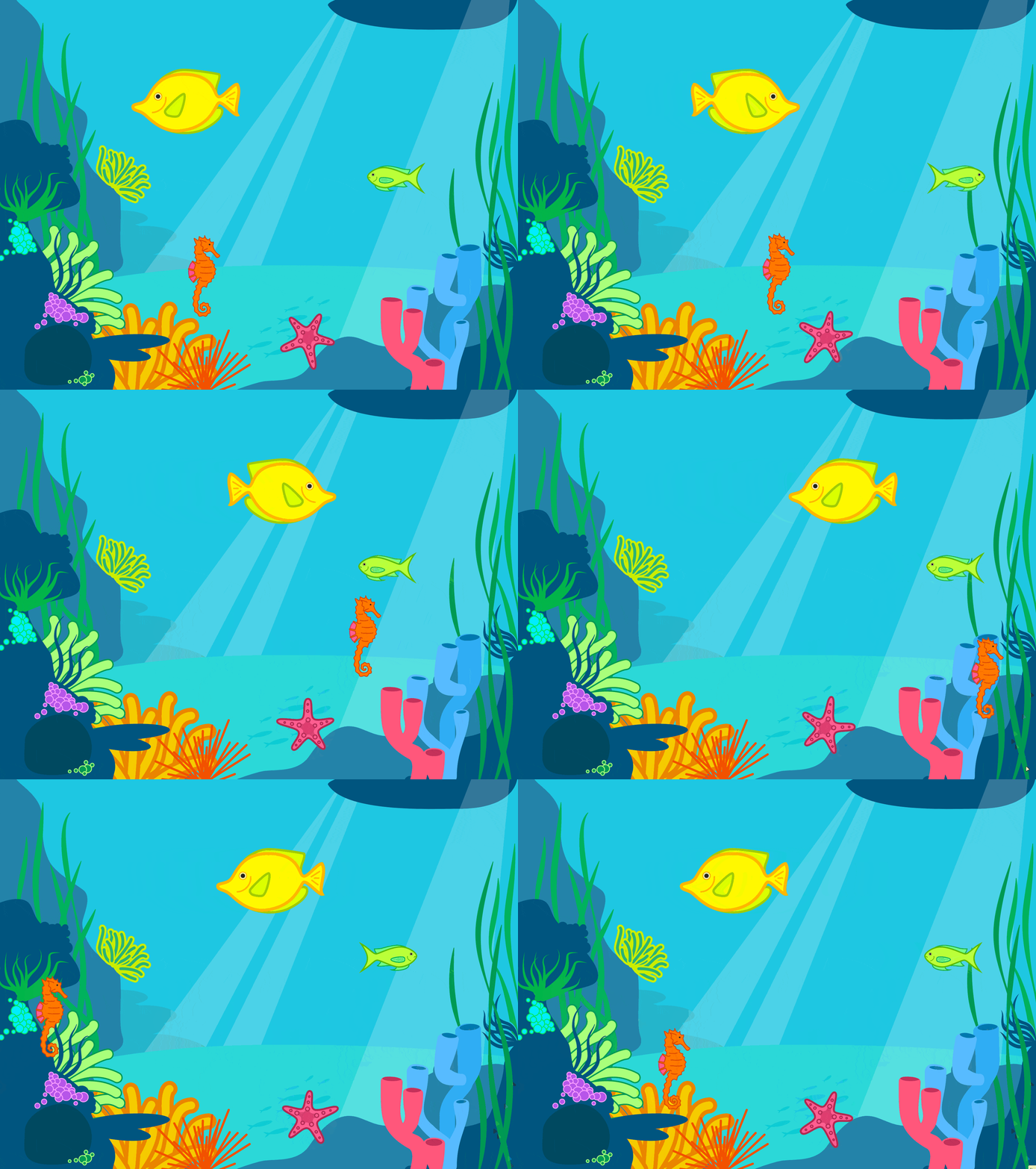
Project 1
MacDonald’s Farm
Objectives
Use the skills that you learned in the previous chapter: move, turn, show, hide, and repeat to make a beautiful Farm
Project idea
For this activity you will make a farm with three animals and a barn, and you will program the animals to start moving when you tap the Green Flag button. You will use the skills that you learned in this chapter: move, turn, show, hide, and repeat.
Step 1 | Let’s make a farm with at least three animals.
To set the scene, we can find a background that will give the animals a good place to graze. Tap the Change Background button, tap the farm, and then tap the check mark to load the farm onto the stage.
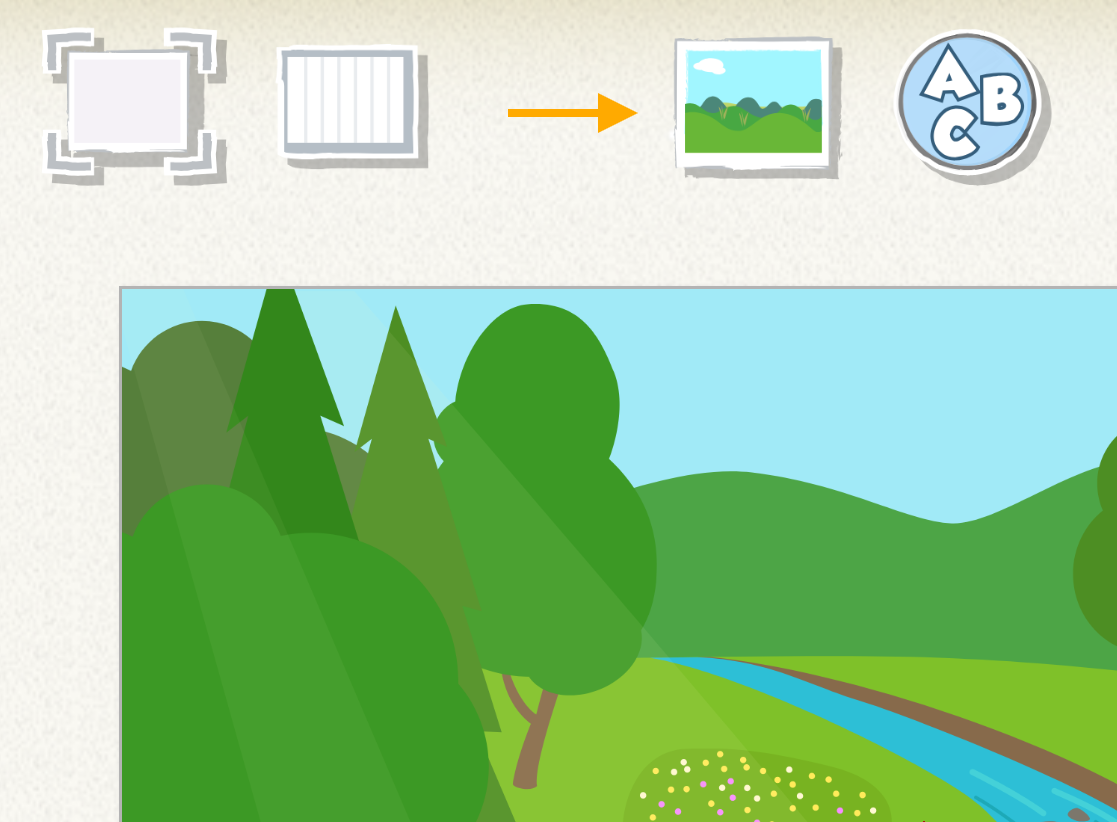
Step 1
Step 2 | Now we can add the farm animals.
Let’s start with a rabbit.
Tap the plus sign under the cat to add a new character. Select the rabbit and then tap the check mark.
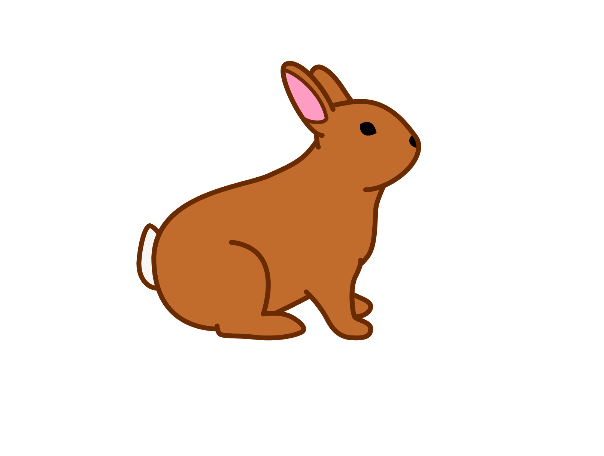
Step 2
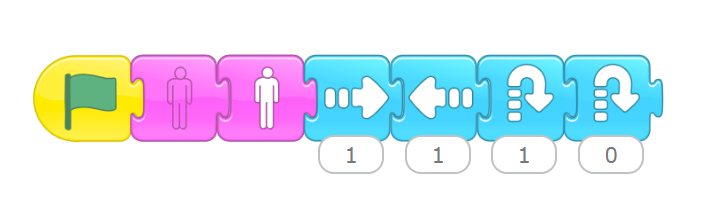
Step 3 | We want to make the rabbit disappear, reappear, and then move in different directions when we tap the Green Flag button.
Drag the following blocks to the programming area, and snap them together to make this script
rabbit Sprite
Step 4
Step 4 | Add at least two more animals to your farm, and give them programs to make the animals move around the stage you might add a chicken that hops around using the Hop block.
Or you can add a horse that rune around the farm. Perhaps you might add a cow and use the Move Left and Move Right blocks with a Repeat Forever block to keep it moving.
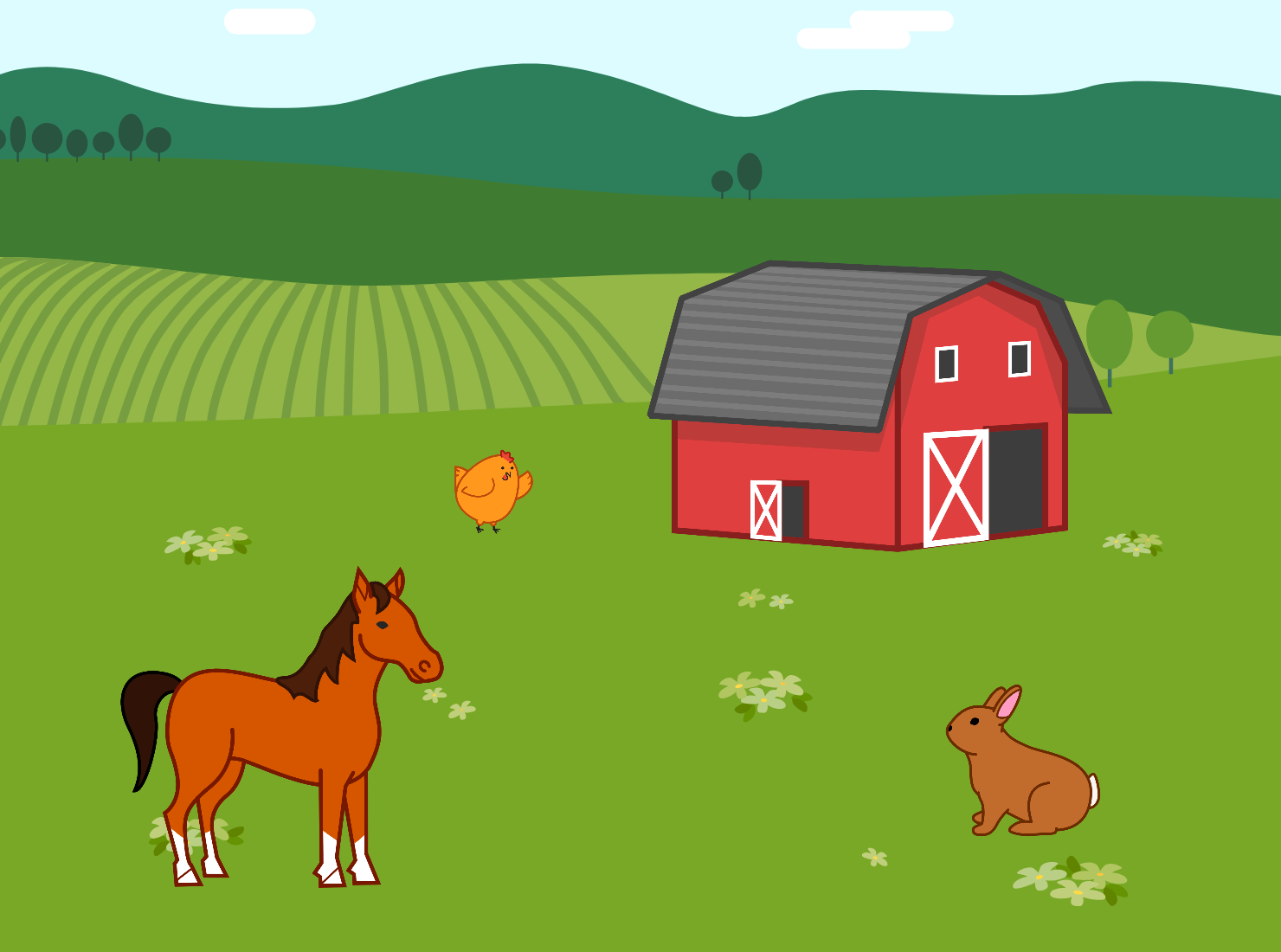
If you add a chicken and a pig, your farm will look like this
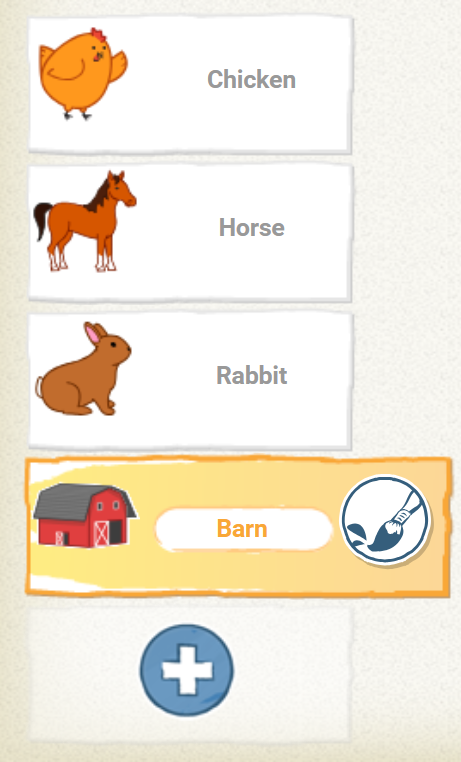
Note: The barn is one of the characters that you can add to your project. Try adding it
to your farm too.
to your farm too.
Do More and more
Put yourself on the farm .
Create a character that looks like you !
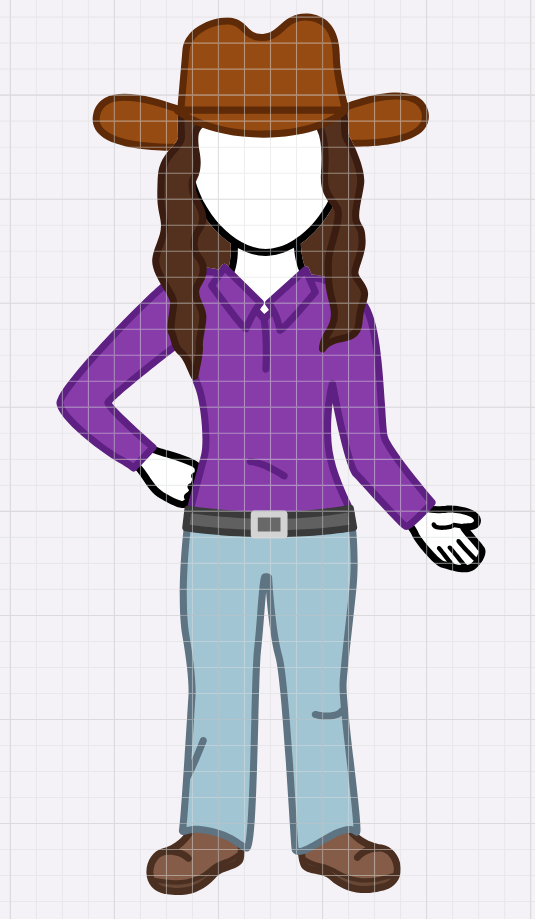
Here’s how you can do it. Tap the new character button, pick a person with a blank face, and tap the check mark.
Add your own face to a character
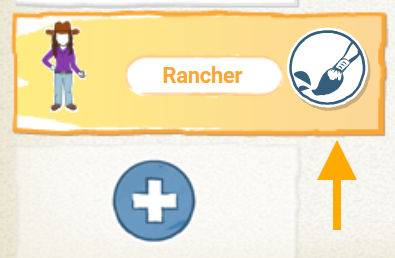
To add your own face to the character, you’ll have to edit it.
Tap the Paintbrush button next to the character you chose.
1.
tap the Camera tool, and then tap the face of the character.

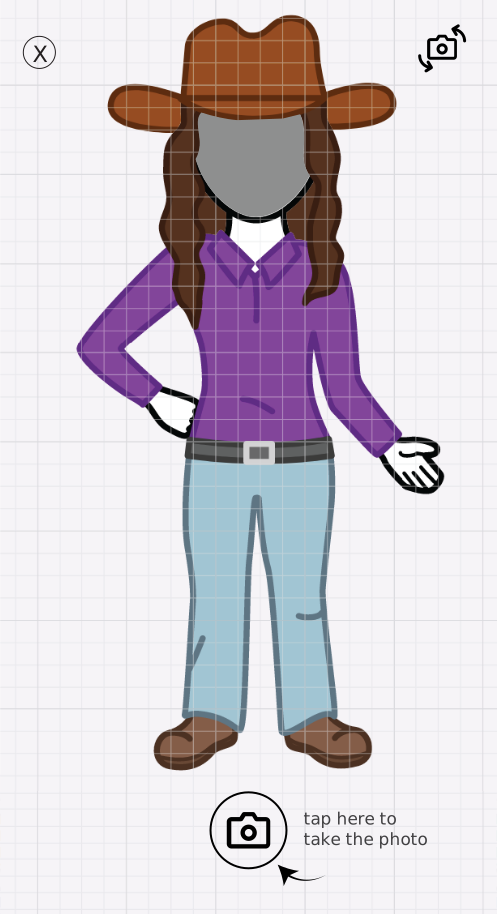
2.
Line up your own face so it looks good, and then tap the Camera button.
tap the Camera tool
Line up your own face