
Objectives
•
Learn how to make a game.
•
Learn how to start a script by tapping a character, using the Start on Tap block.
•
Learn how to use the Shrink block, the Go Home block, and the Reset Characters button.
Start on Tap block
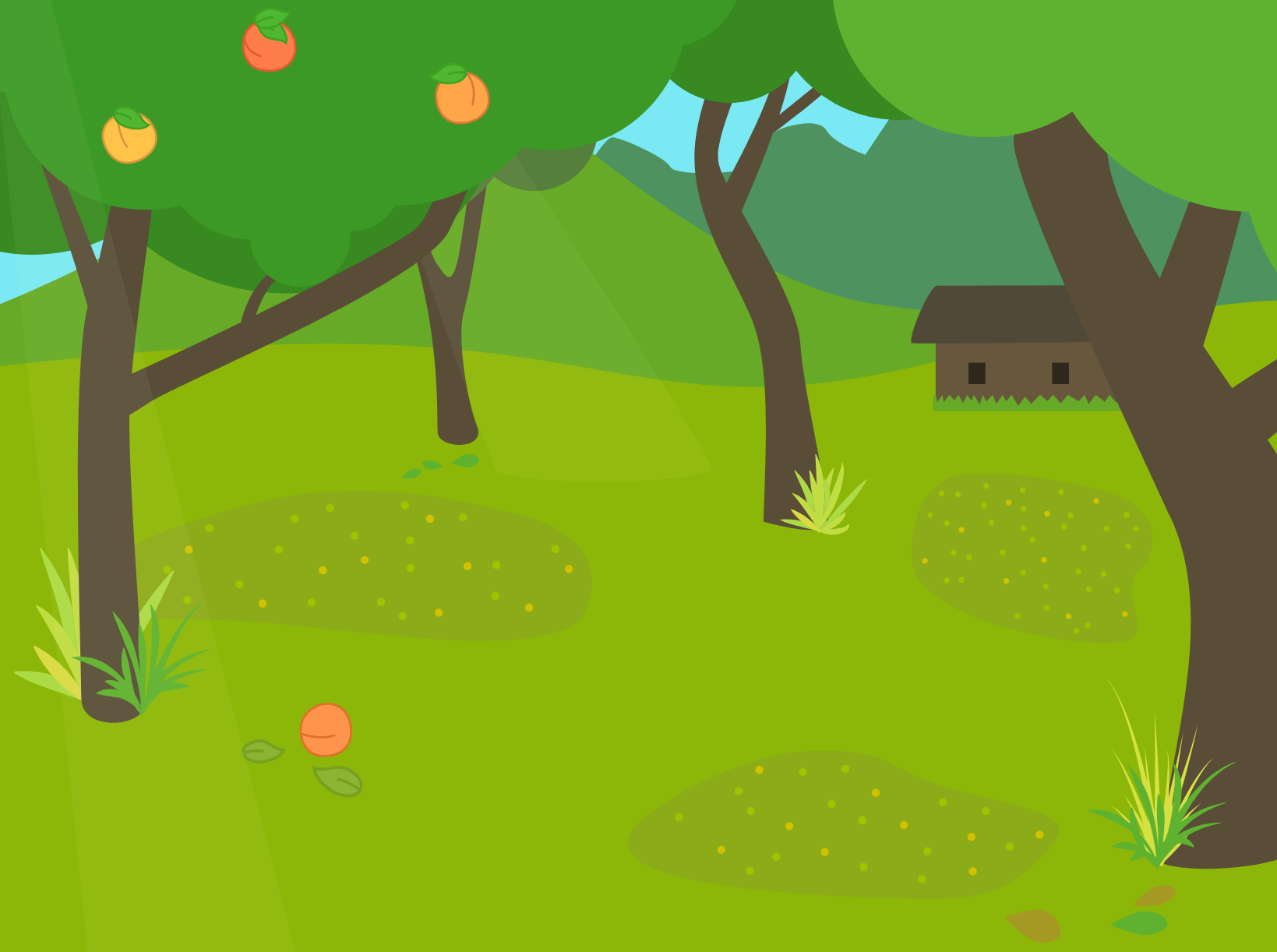
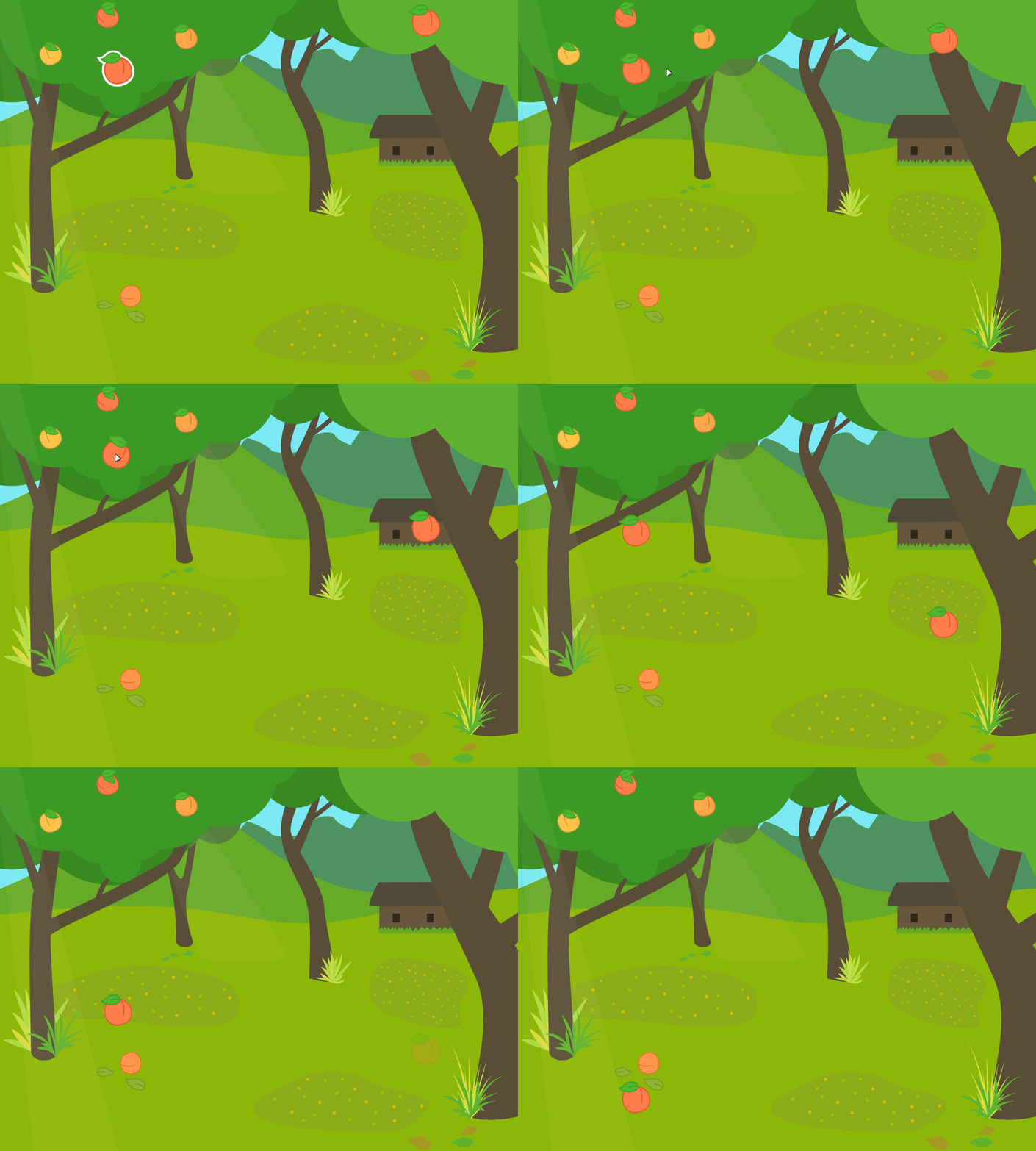
The goal of this game is to find out which of the peaches on the tree is ripe! Tap a peach, and if it’s ready, it’ll fall to the ground.
To create this game, we’ll need to give scripts to a peach on the tree.
Step 1
Select the summer background and delete the cat character can see that the tree on the left already has some peaches on it, but these are just part of the background and they cannot move.
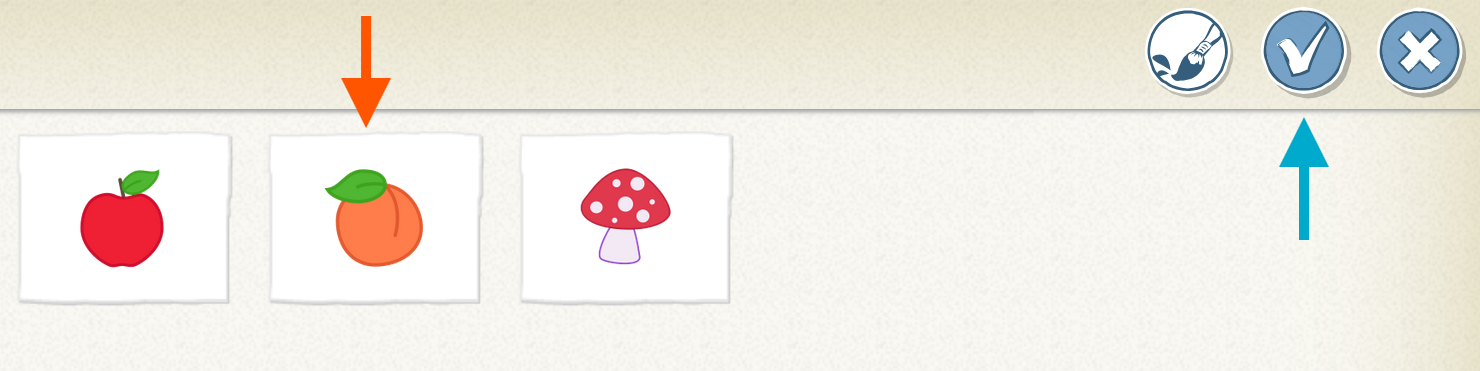
To get a peach that will move when we tap it, we need to add it to our scene as a character, tap the plus sign in the character area and select the peach. Drag the peach onto the tree that already has three peaches on it.
Step 2
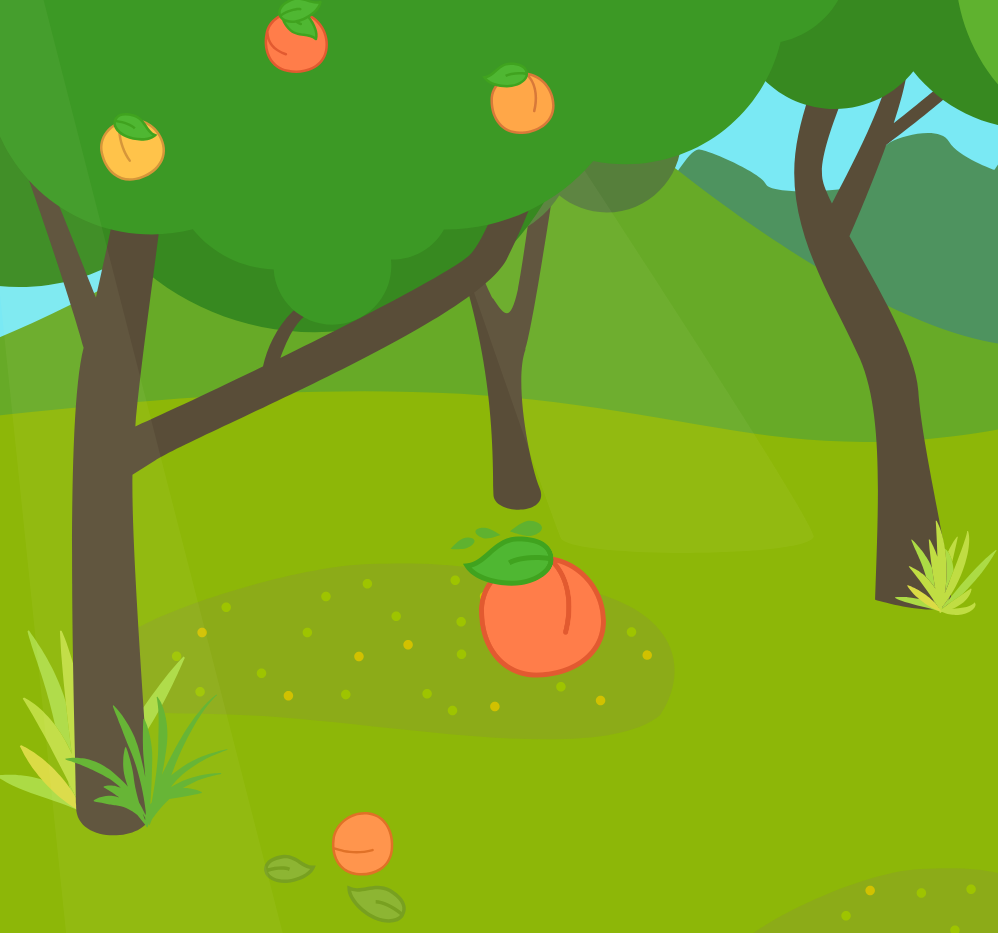
We want to make the peach close to the same size as the other peaches on the tree, so tap the purple looks blocks category.
Drag the Shrink block to your peach’s programming area and tap it twice.
The first tap will make the peach smaller, and the second tap will make it even smaller.
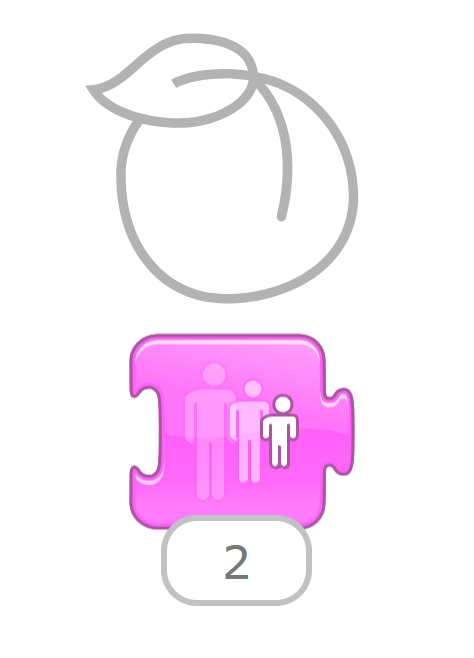
Now the peach is the right size, so you can drag the Shrink block back to the blocks palette to delete it.
Step 3
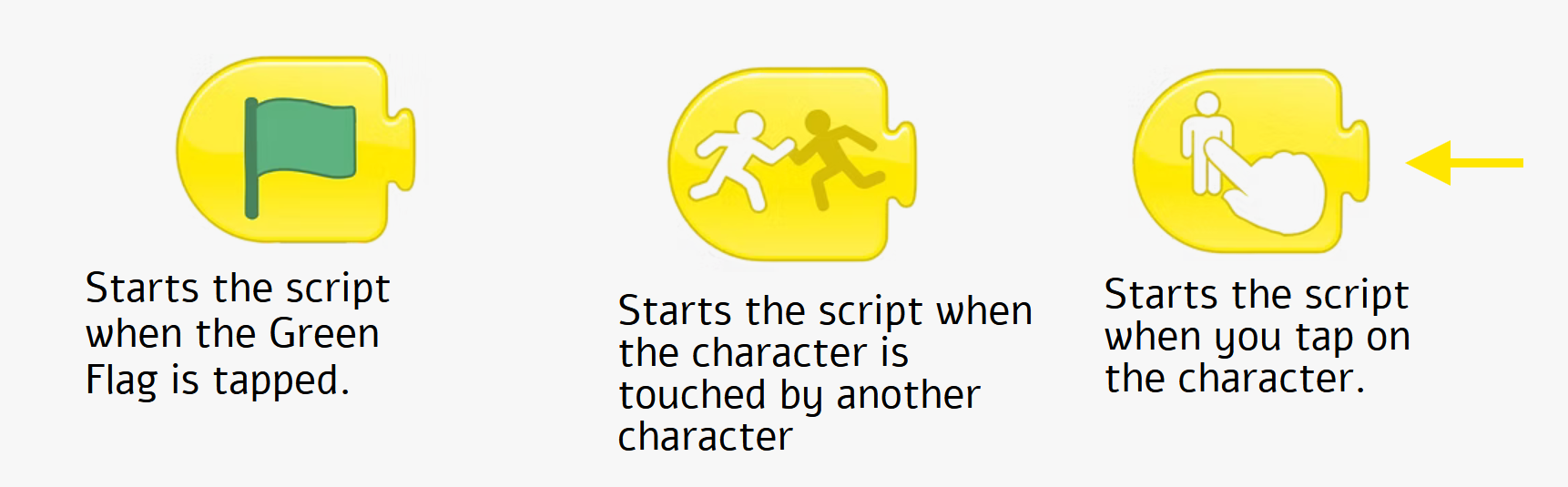
Tap the yellow triggering blocks category to show the family of starting blocks. This time, instead of using the Start on Green Flag block, we’re going to use the Start on Tap block, which brings characters to life when you tap them.


Step 4
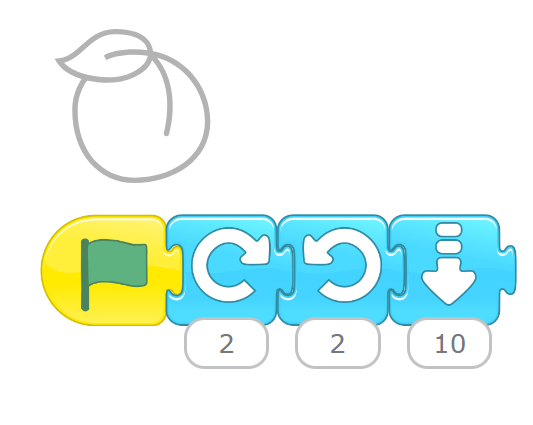
Drag the Start on Tap block to the programming area to start the peach’s script.
Add some blue motion blocks to this triggering block to make the peach wiggle and fall from the tree
Step 5
Try it out! Tap the peach and see what happens.
If you tap the peach again after it has fallen to the ground, the peach will start its script again but from the ground, not from the tree. The Start on Tap block does not return characters to their original positions like the Start on Green Flag block does.You can return the peach to the tree by tapping the Reset Characters button at the top of the screen.
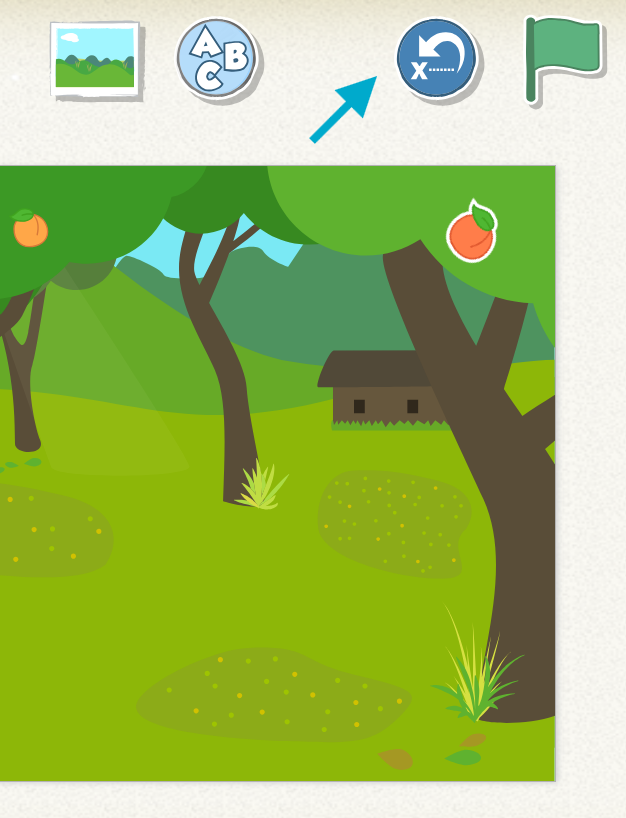
The Reset Characters button will return all characters to their home positions.
Step 6
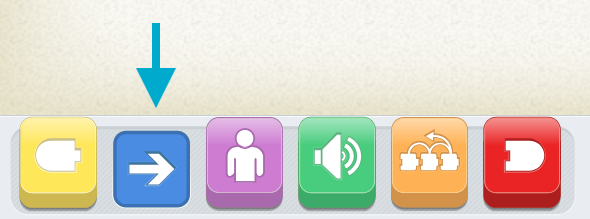
Tap the blue motion blocks category to find the Go Home block

Step 7
Drag the Go Home block to the end of the peach’s script.
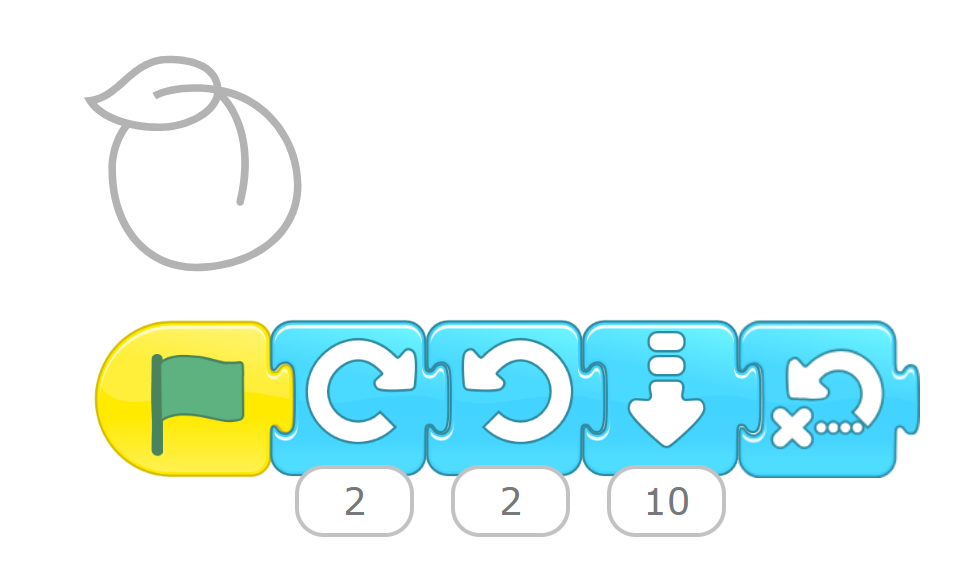
Now the peach will hop back up onto the tree after it has fallen, and you can play the game again!
Hints You might want the script to pause for a couple of seconds before it reaches the Go Home block so that the peach doesn’t jump straight back up onto the tree as soon as it falls. Use the Wait block to make the peach stay on the ground for a moment.

Output
Challenge
•
Add more peaches to the tree. Make it so that some of the fruit is not ripe enough to fall yet . If the fruit is not ripe, maybe it just wiggles on the tree and stays put.
•
Add another character to this scene and create the first page of a story
•
How do the characters react to the falling fruit? Are they surprised ? Hungry? Use speech bubbles, sound recordings, and the Add Text button to incorporate speaking and words into your story.