Objectives
•
Learn how to get the characters to work together.
•
Learn how to use the Send Message and Start on Message blocks.
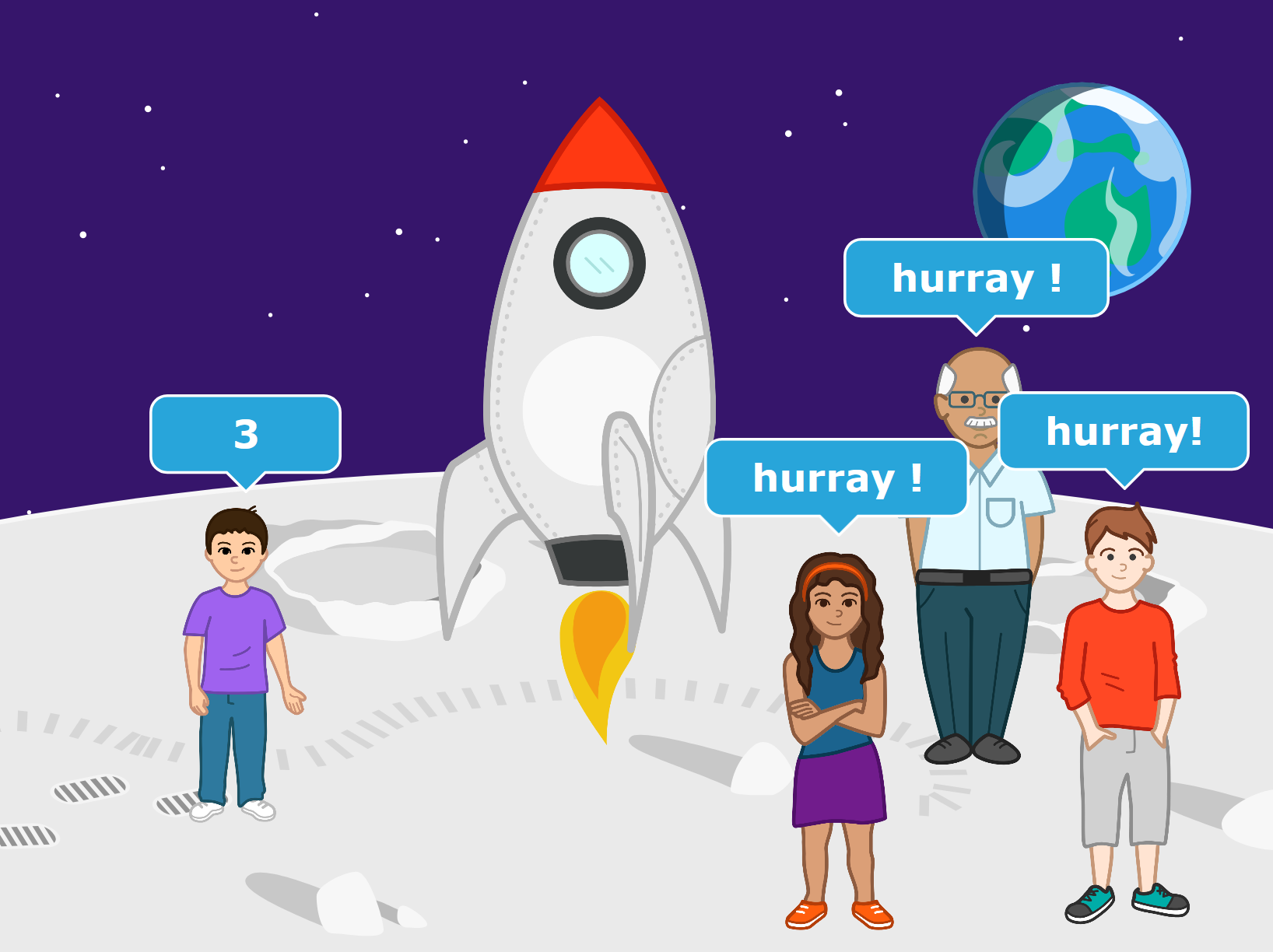
In this activity, the boy counts down, and then a rocket ship explodes!

Start message
Runs the script when a orange message is received.

Start on message
Runs the script when a orange message is received.

Step1
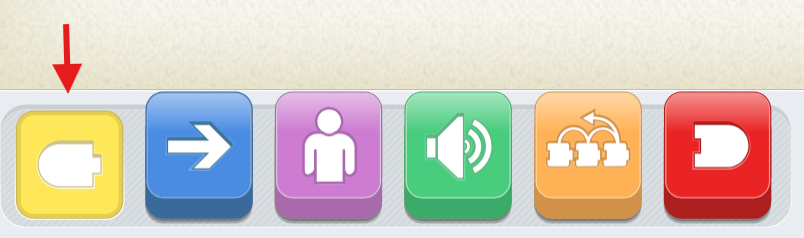
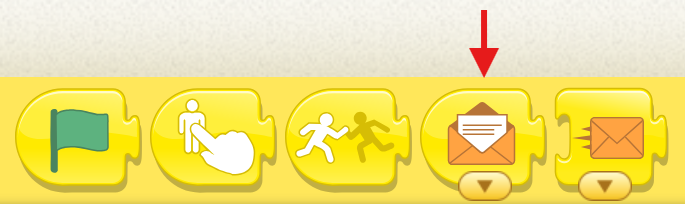
Tap the yellow triggering blocks category to find the Send Message block.
Step 2
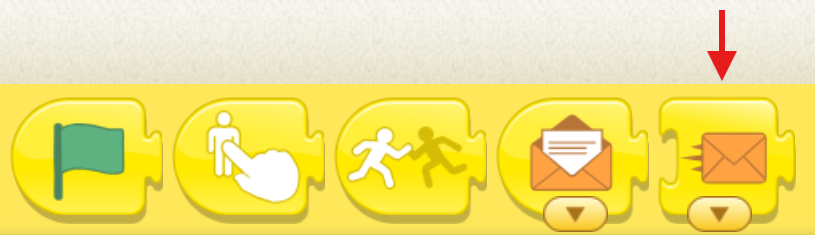
Drag the Send Message block down to the programming area and snap it onto the end of the cat’s script.
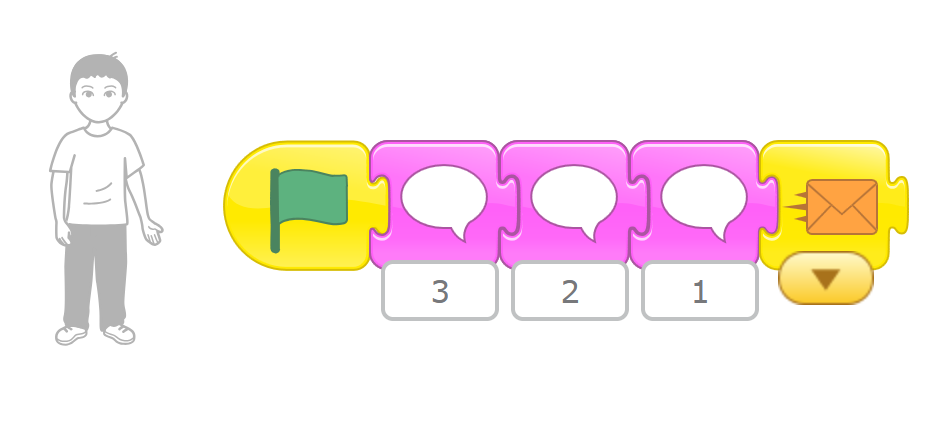
This will tell the rocket when to start. When the cat has finished counting, it will send a message for the rocket to receive.
Step 3
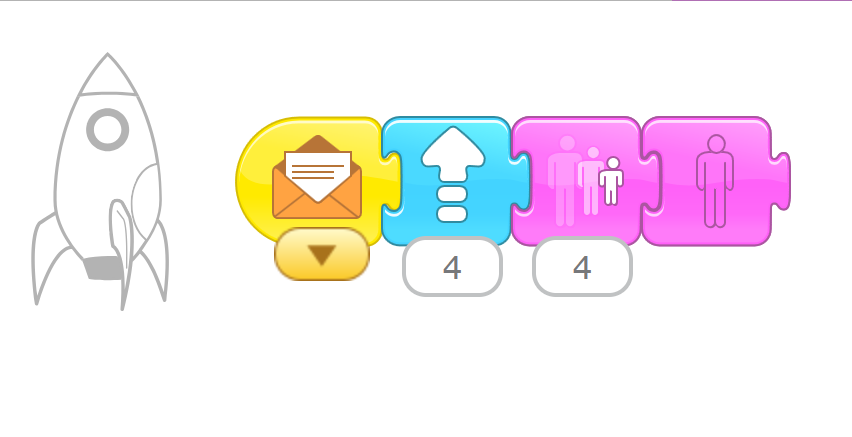
Tap the rocket and give it a script.
We want to make the rocket ship blast off when it receives the message from the cat. Start the script with the Start on Message block. This script will run when another script sends a message.
Step 4
After the Start on Message block, add a Move Up block to make the rocket move up the screen as if it is taking off, and then add a Hide block to make the rocket disappear.
Tap the Green Flag button to try out the script.
Hint This script uses an orange message.
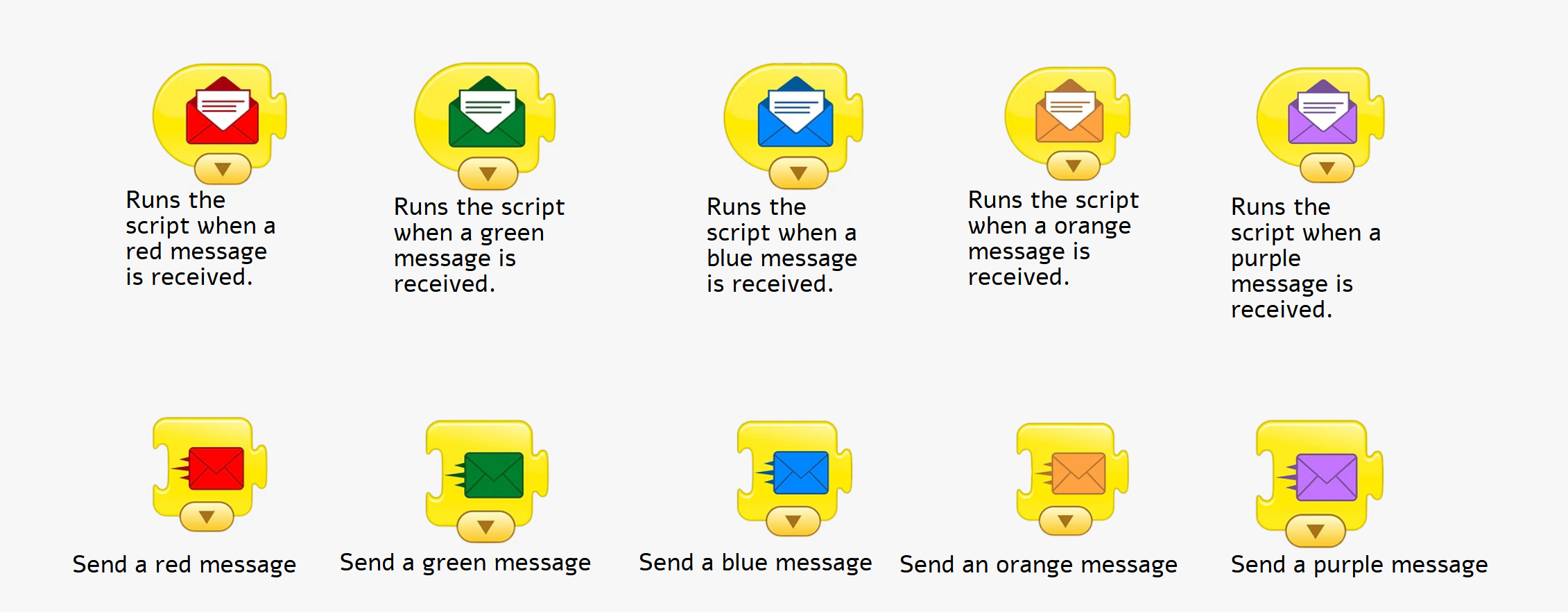
You can choose from six different message colors to communicate between characters in your project. Just keep in mind that your Send Message block has to match the color of your Start on Message block.
For example, an orange Send Message block will trigger a script that begins with an orange Start on Message block, but if you have used a purple Send Message block in your project instead, the script that begins with an orange Start on Message block will never run !
Challenge
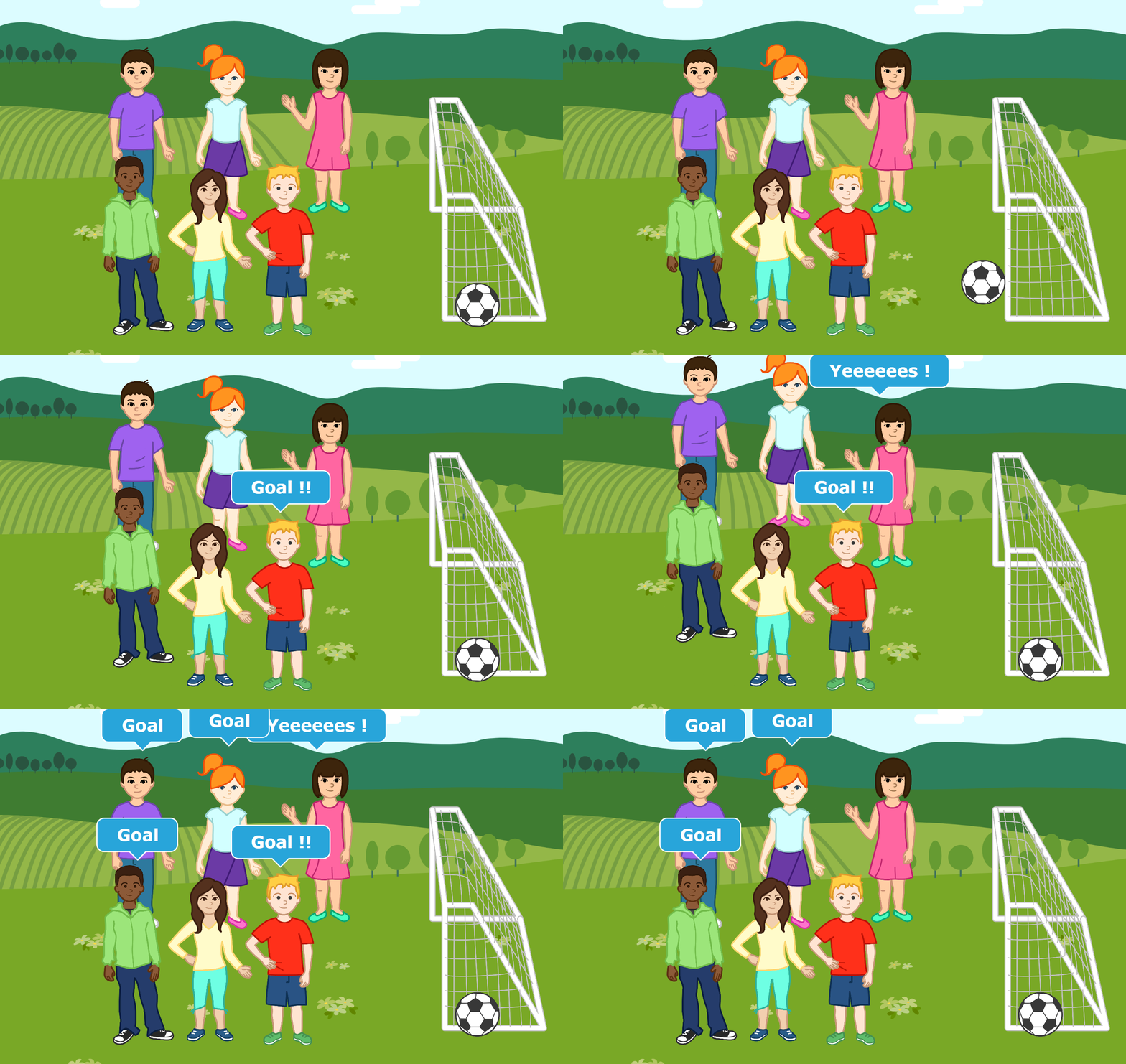
Add some more characters and start each of their scripts with a Start on Message block. You could have a crowd of characters cheer together when the rocket blasts off by giving them all the same color Start on Message block.
Activities
Activity 1
Meet and greet
Objectives
•
Practice on how we can use colored message to make a conversation
•
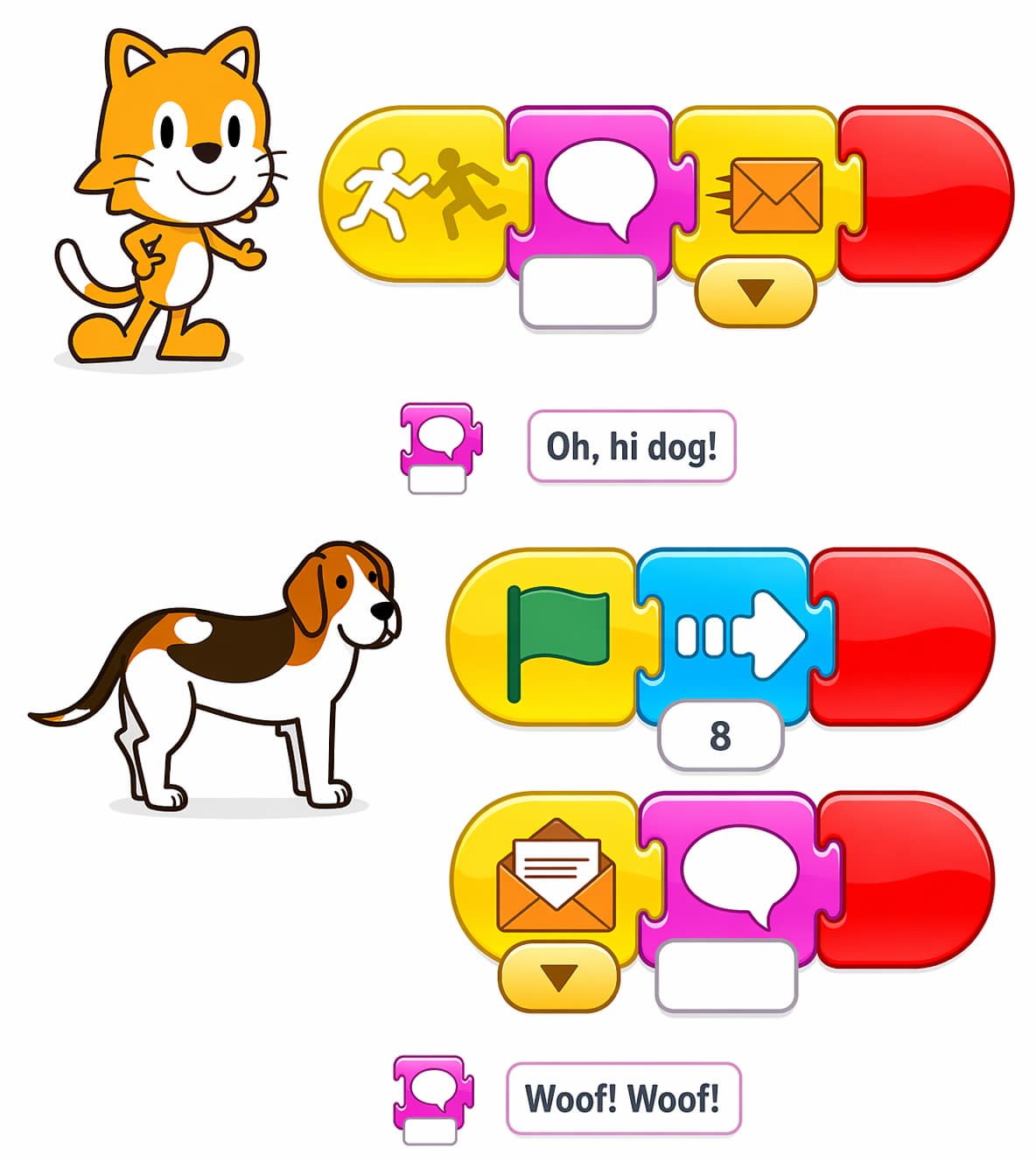
Use the envelope to send a message from one character to another
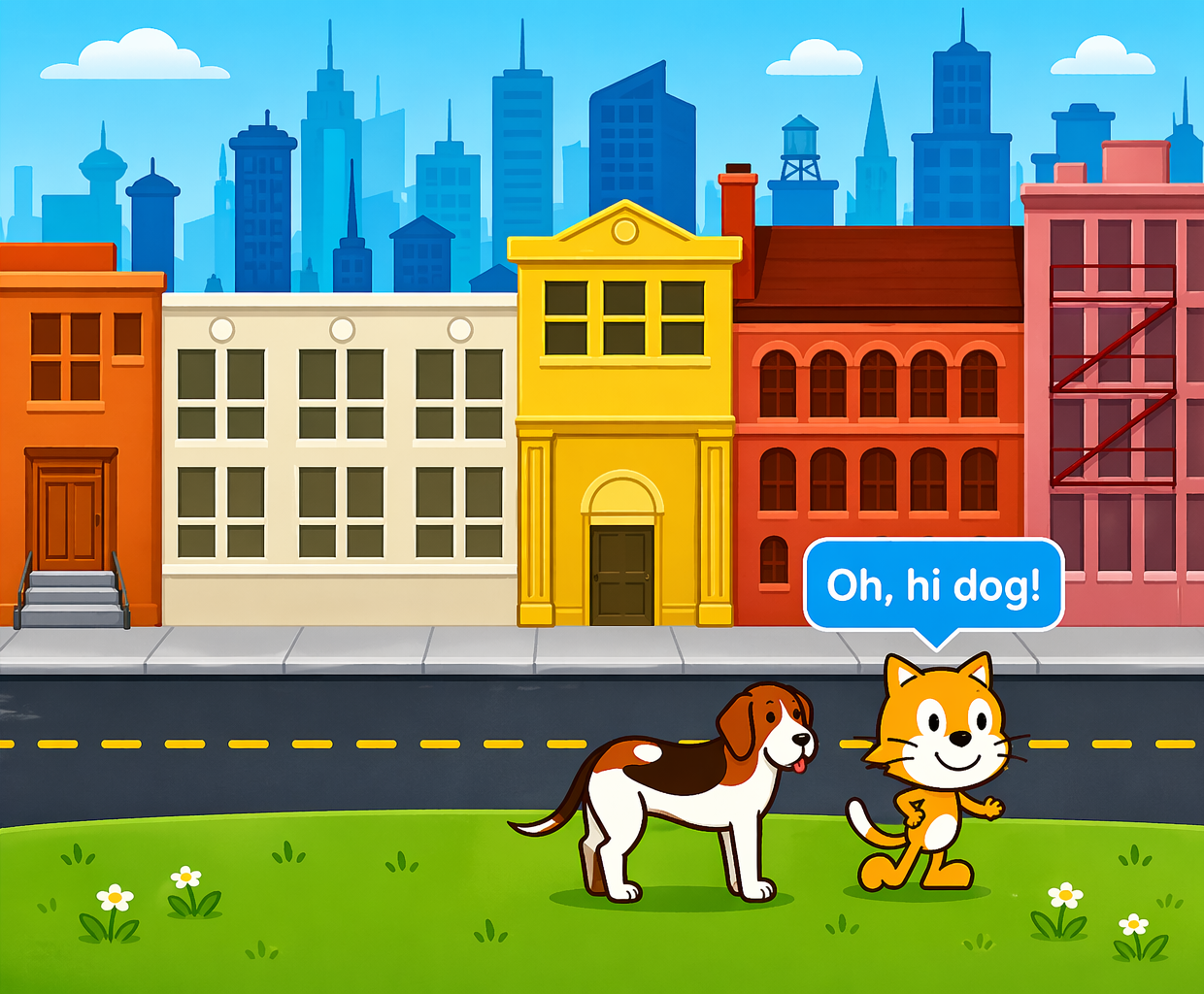
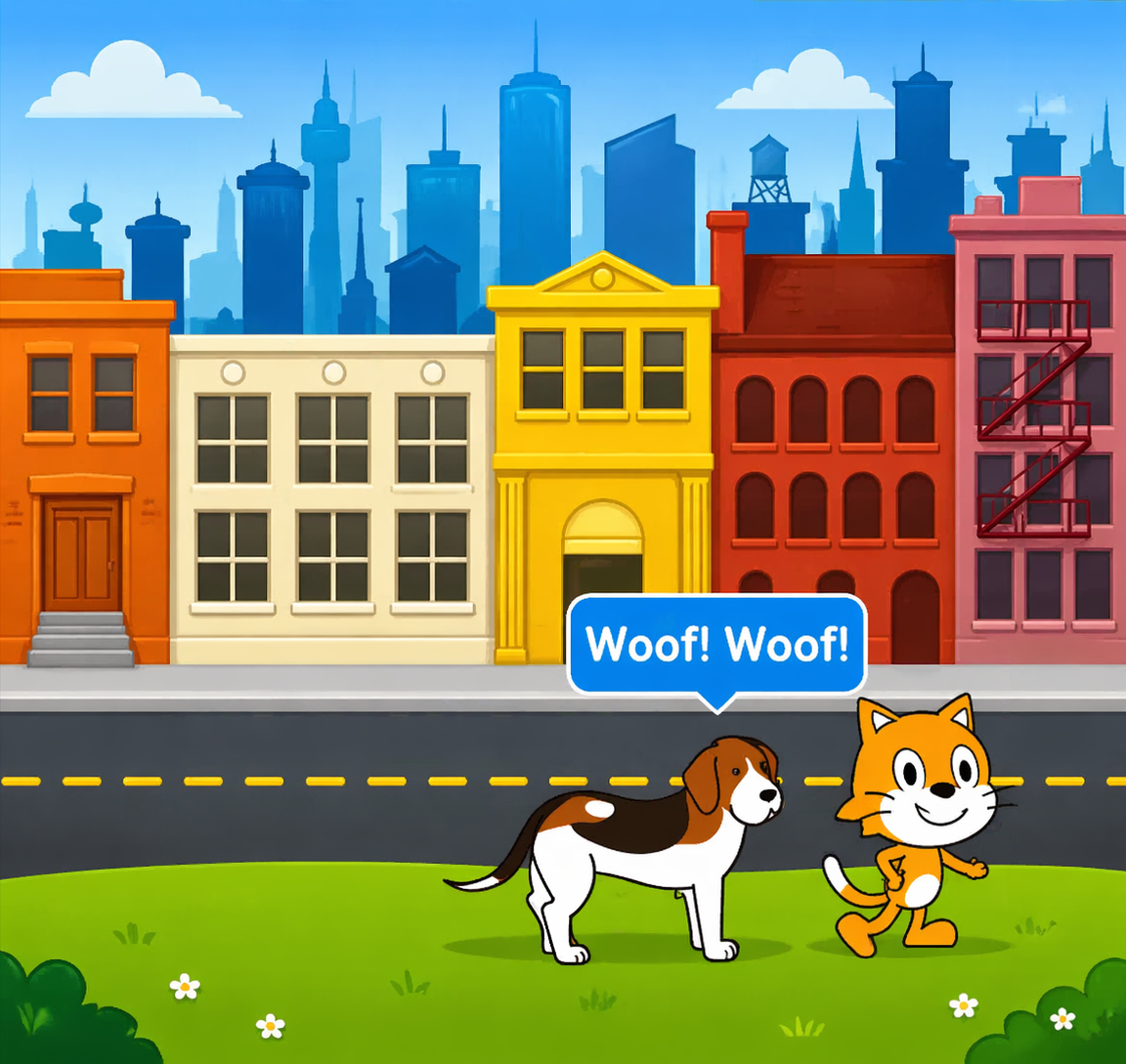
Make characters greet each other
In this activity we will Send multiple messages among characters using different colored envelopes.
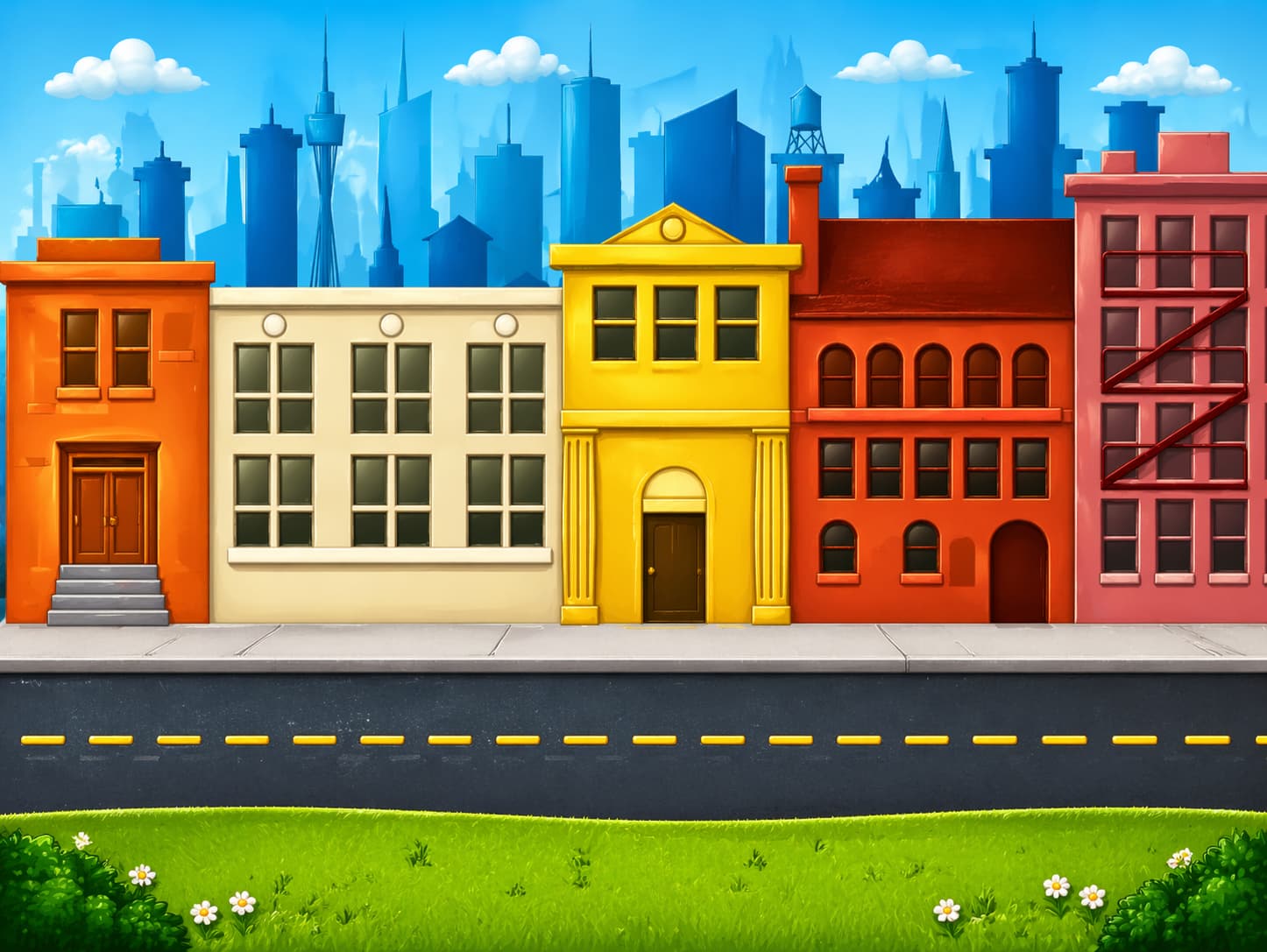
Step 1
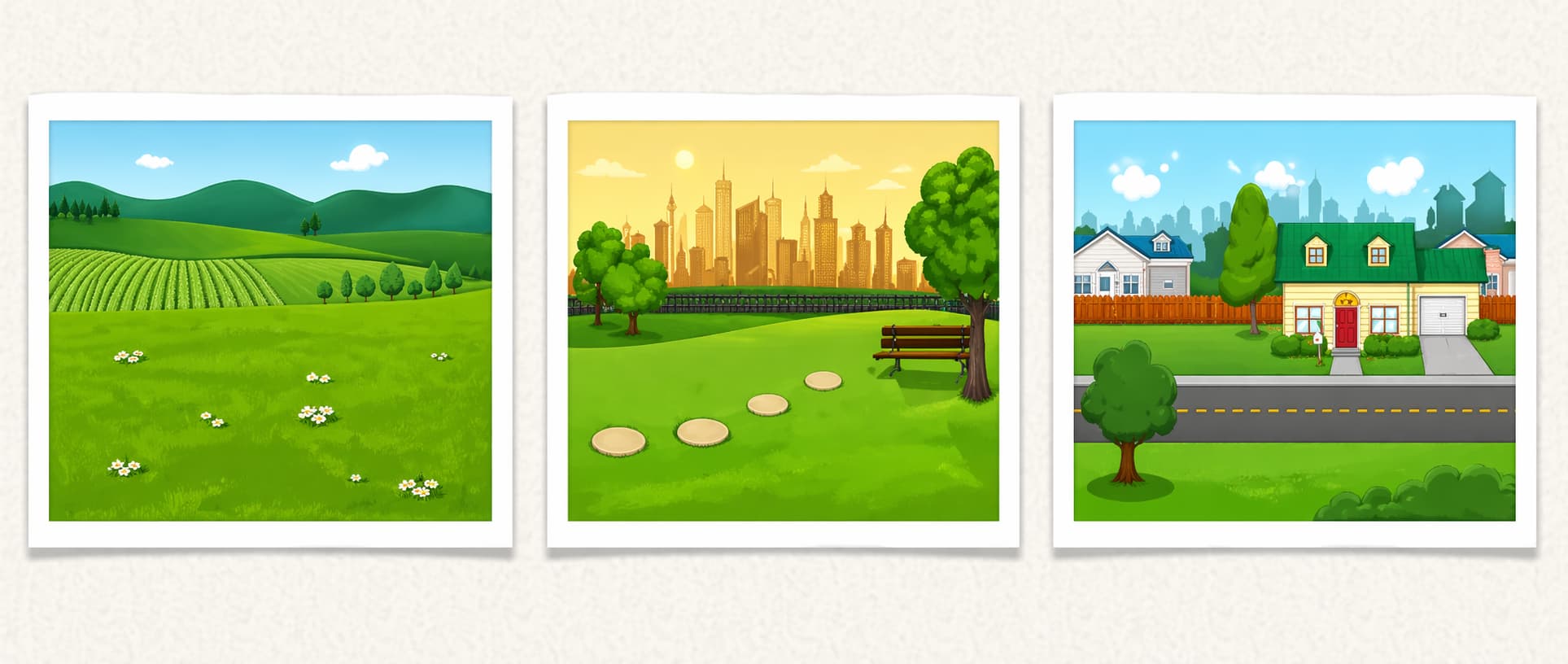
Choose a background
Step 2
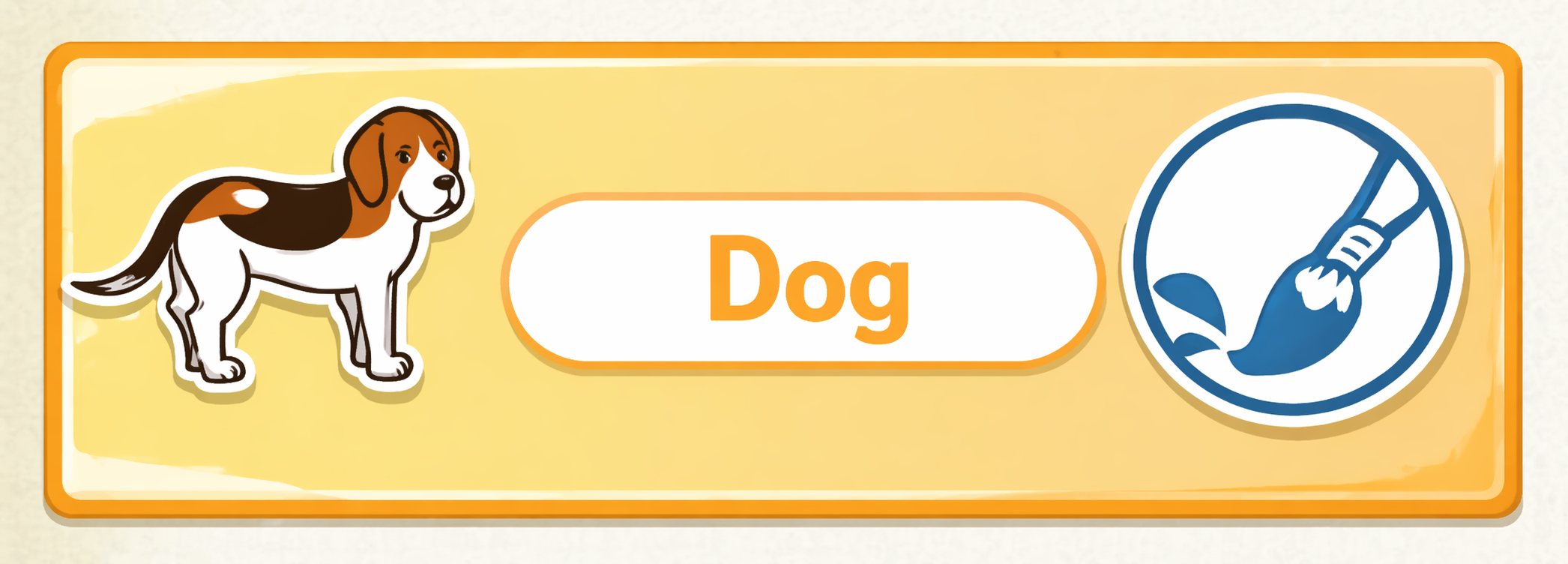
Choose additional character
Step 3
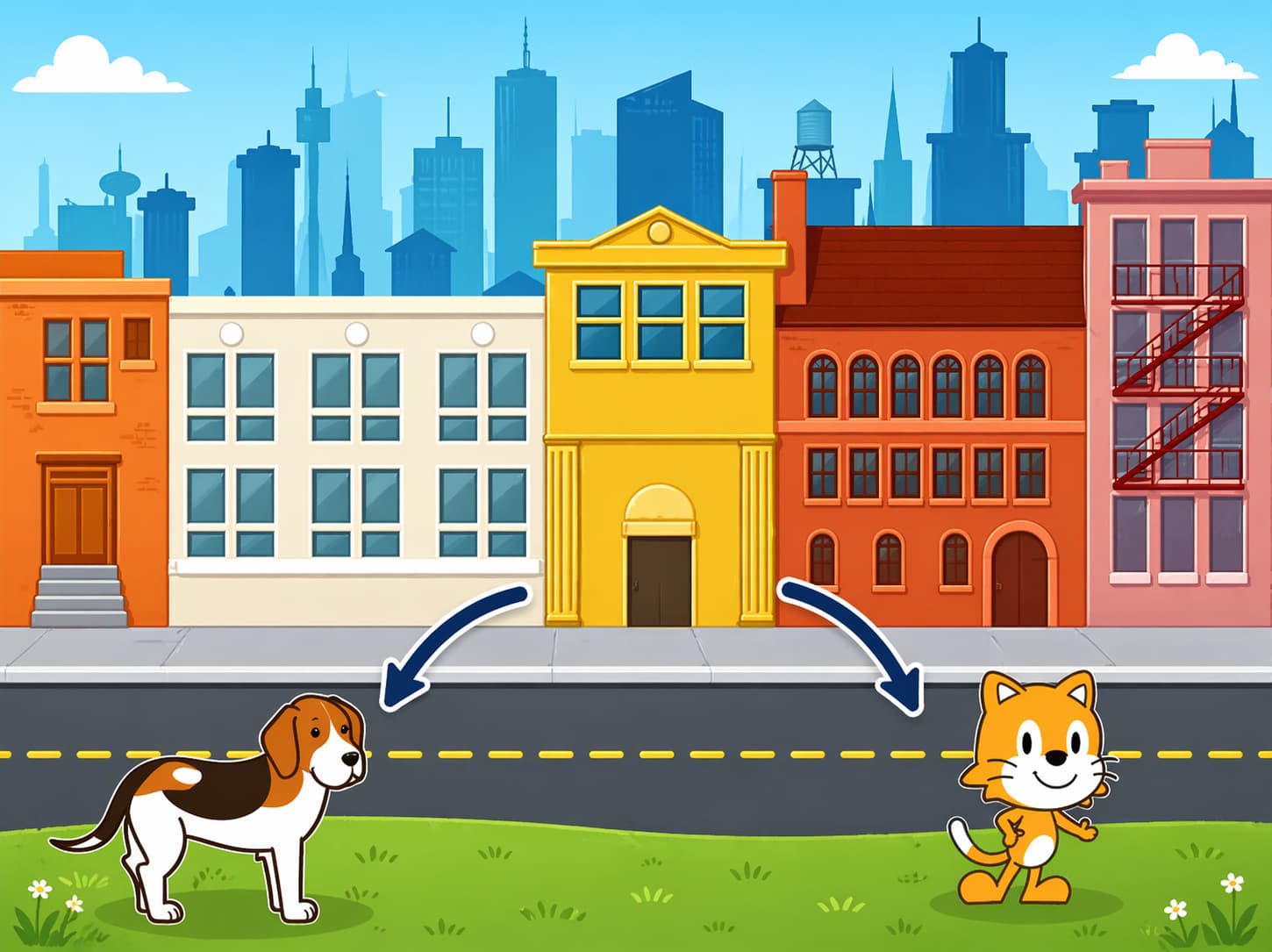
Change the position of the characters by dragging them from the center of the screen
Step 4
Make program for cat ,dog
Challenge
•
Why do you think the program repeats forever?
•
What could you change to have the program not repeat forever?
Activity 2
Kick the Ball
Objectives
•
Practice how to use use movement blocks , wait block , say block , sound block and set speed block
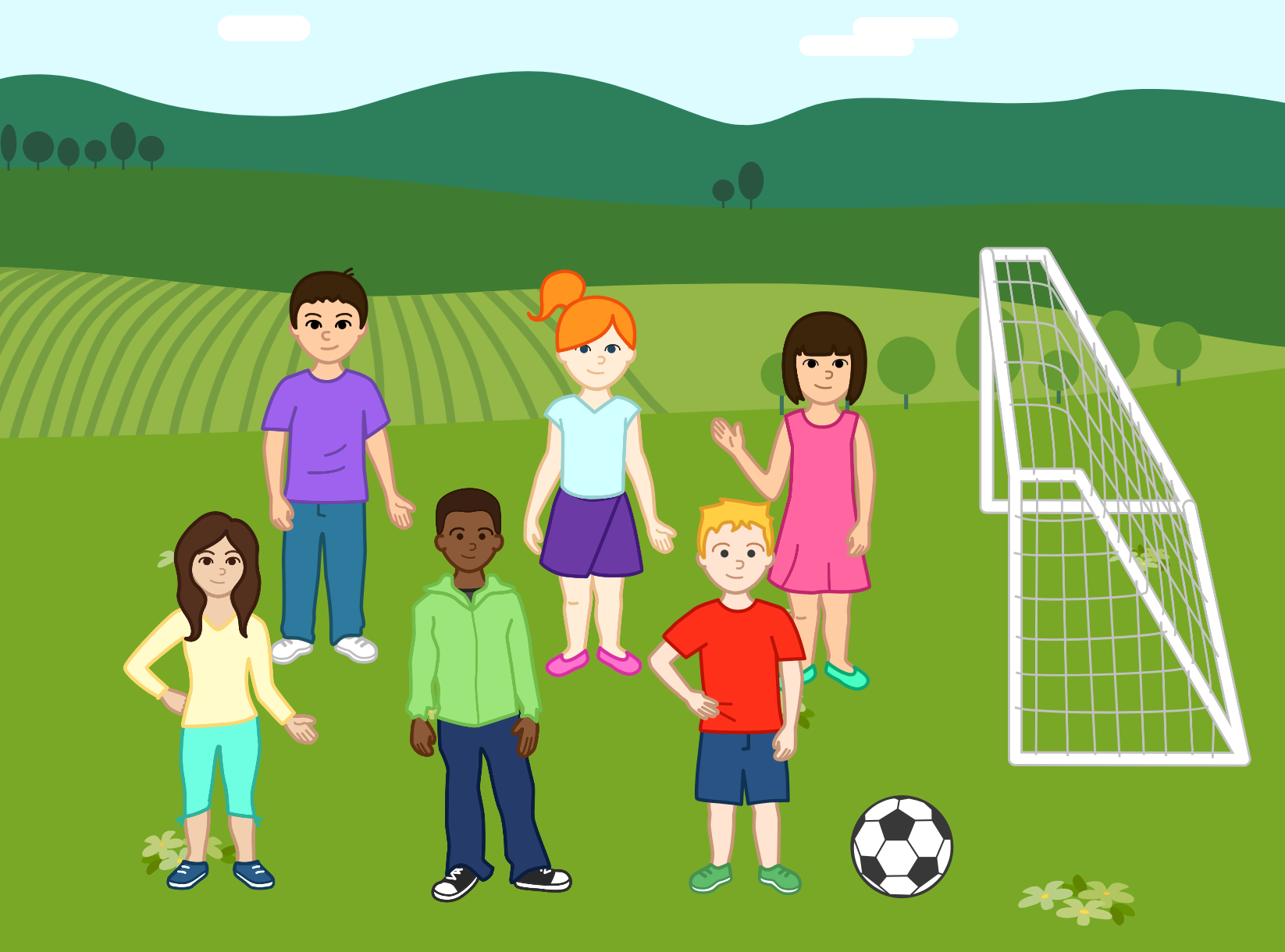
In this activity we will simulate the reality of football stadiums
Step 1
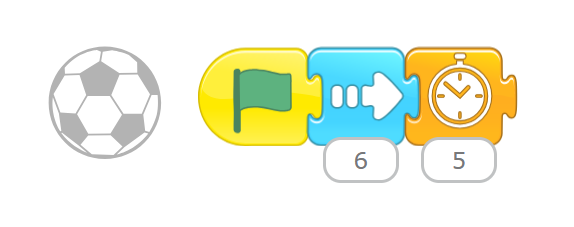
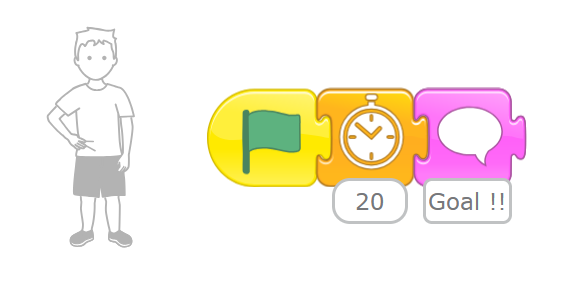
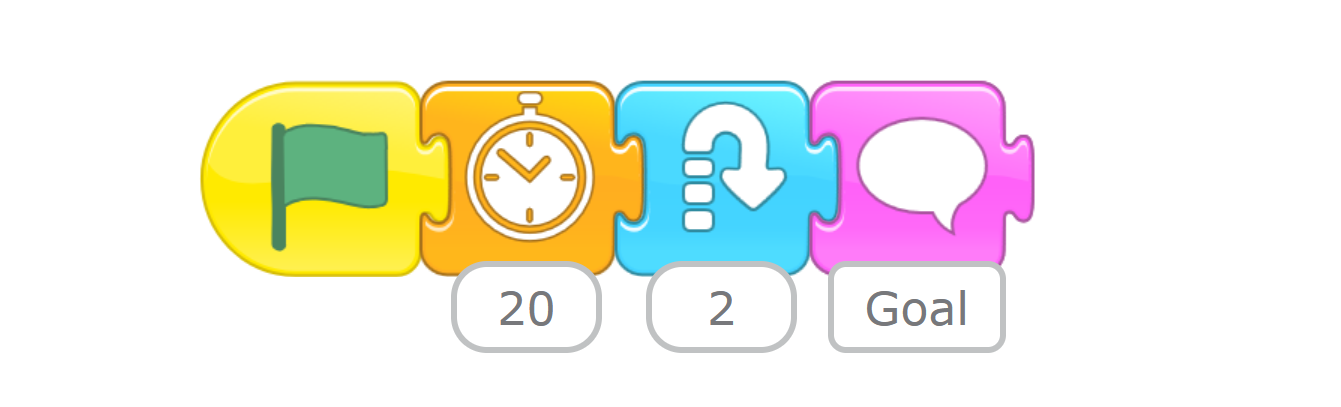
Move right to kick the ball. When the ball goes inside the soccer net, say “goal!”.
Step 2
When the boy kicks the ball kicked by the boy, hop and move to the right side of the right soccer net.


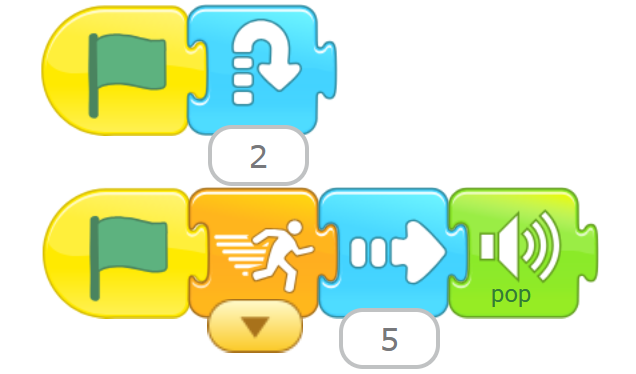
Step 3
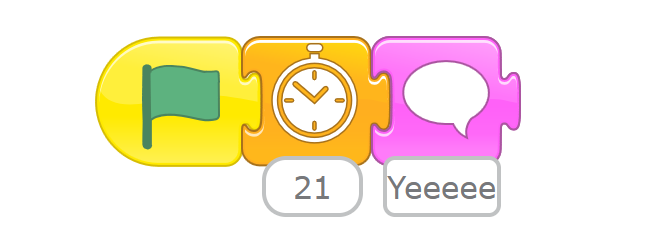
When the ball goes inside the soccer net, play a cheer sound and say “Yeeeees!

Step 4
When the ball goes inside the soccer net, say “Goal!” ! And hop.

Output