
Objectives
•
Learn how to create multiple pages in ScratchJr
•
Learn how to use the Go to Page block to tell your story from beginning to end without stopping
Make a story using different Background
In this activity we will make a story about your school ! You will see how you can set different backgrounds for different scenes in your story, like turning pages in a book.
you can show a character traveling through your school by making a new page in ScratchJr for each part of your school that your character will visit.
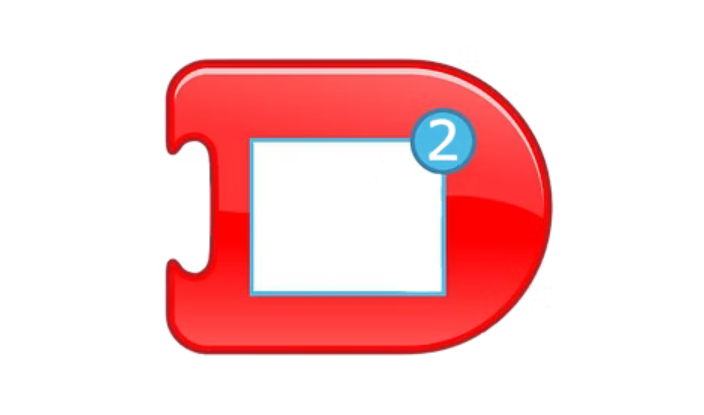
Go to page block
Step 1
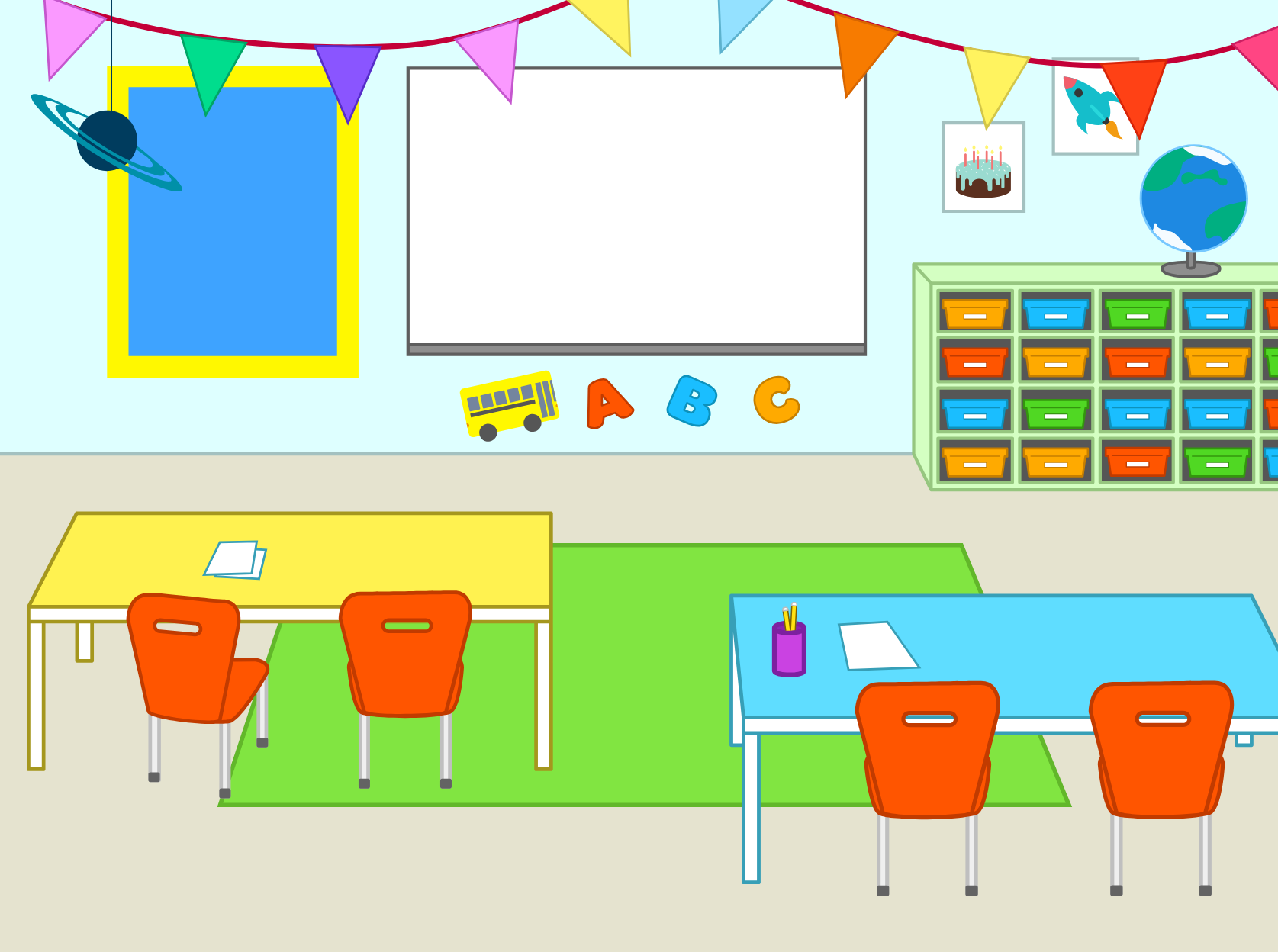
In this example, we will use three different rooms from a school: a classroom, a gym, and one more room that you can choose.
Step 2
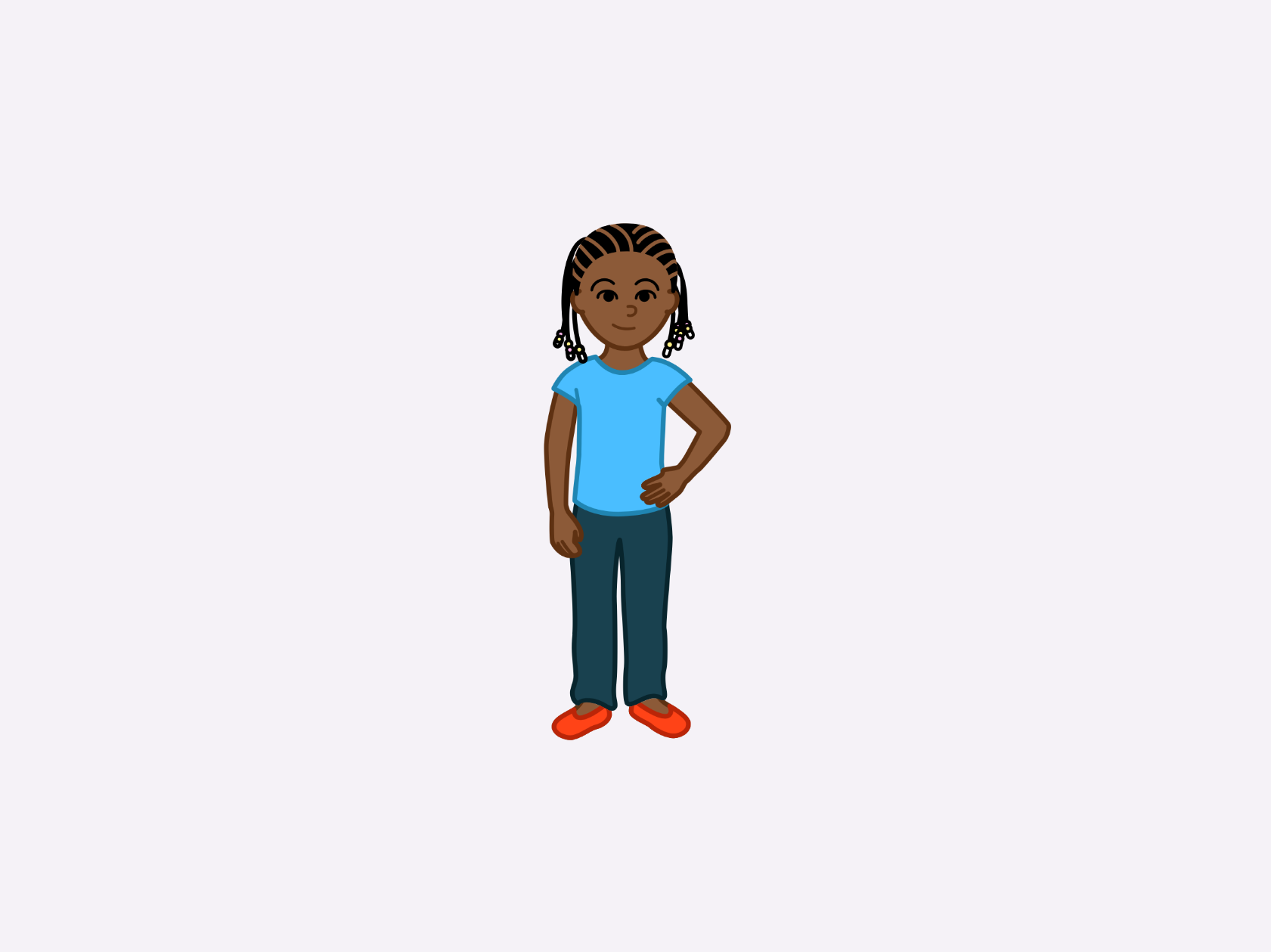
Cats are not allowed at school, so press and hold the cat character on the left, and then tap the red X to delete the cat.
Step 3
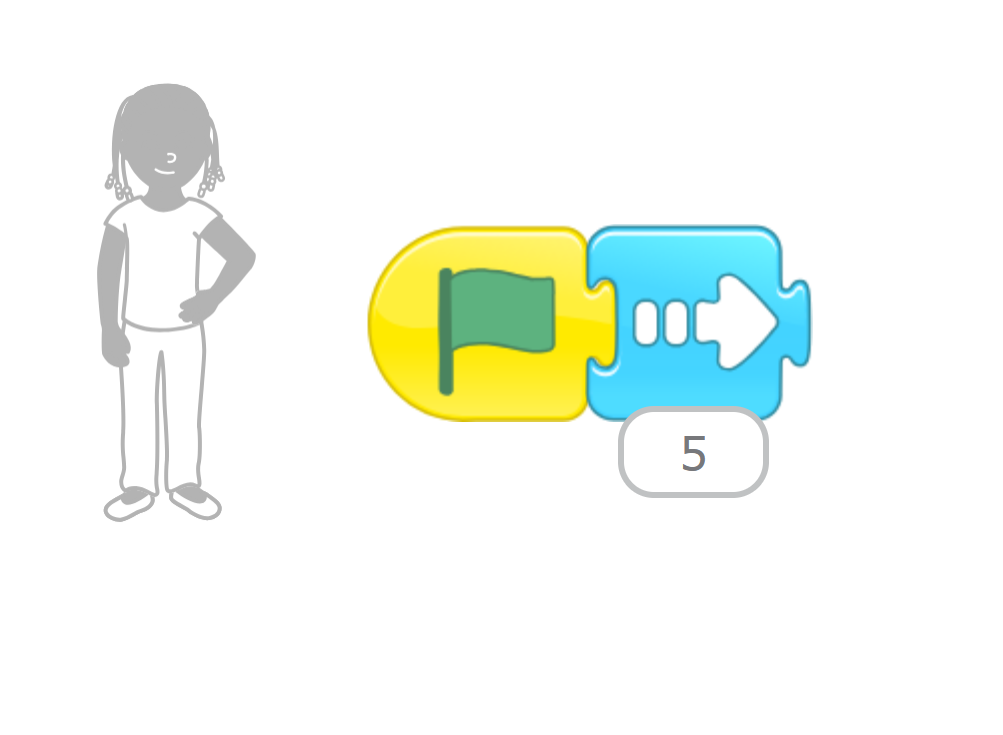
Give your character something to do in this scene. For now, we will just have her move across the classroom when we tap the Green Flag button.
Step 4
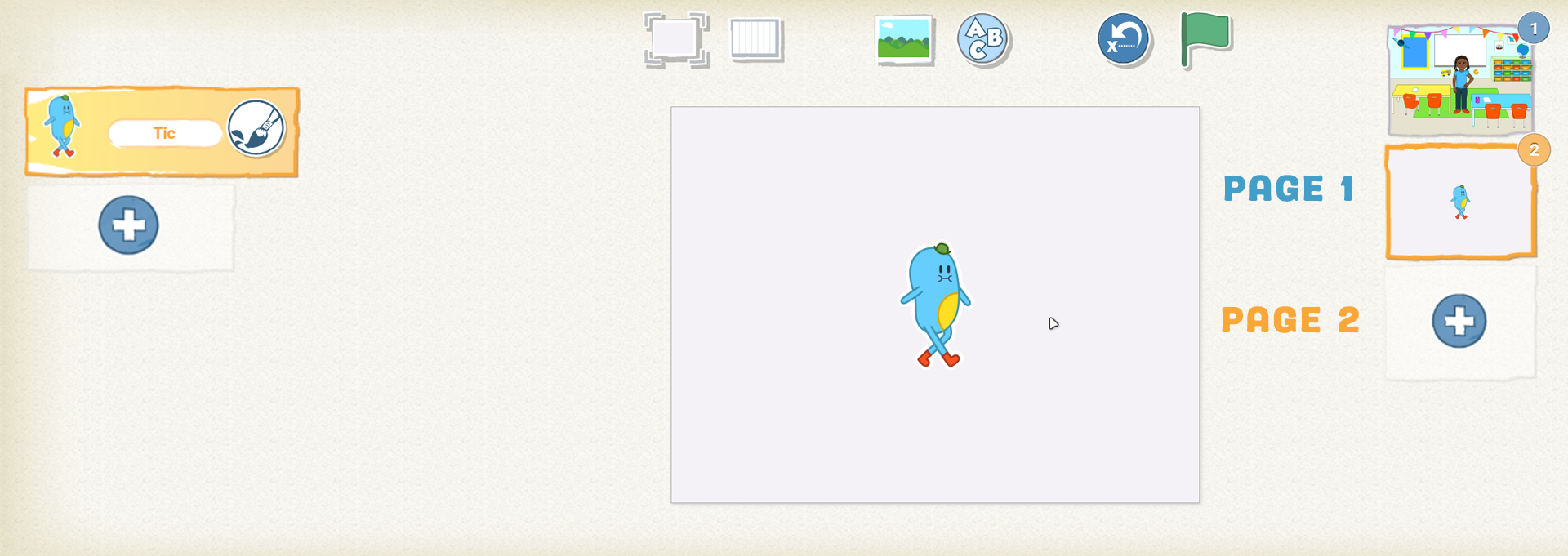
When you are ready to add a new page, tap the plus sign on the right side of the screen.
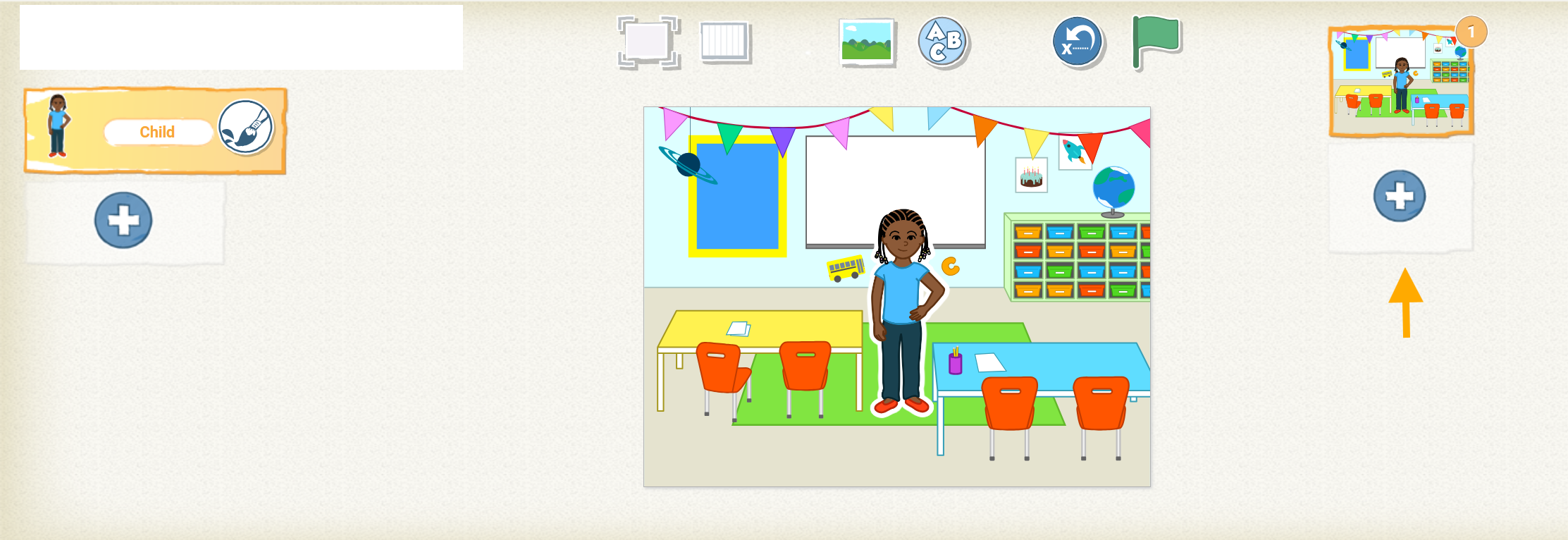
Now you have a whole new space to add the next part of your story !
Step 5
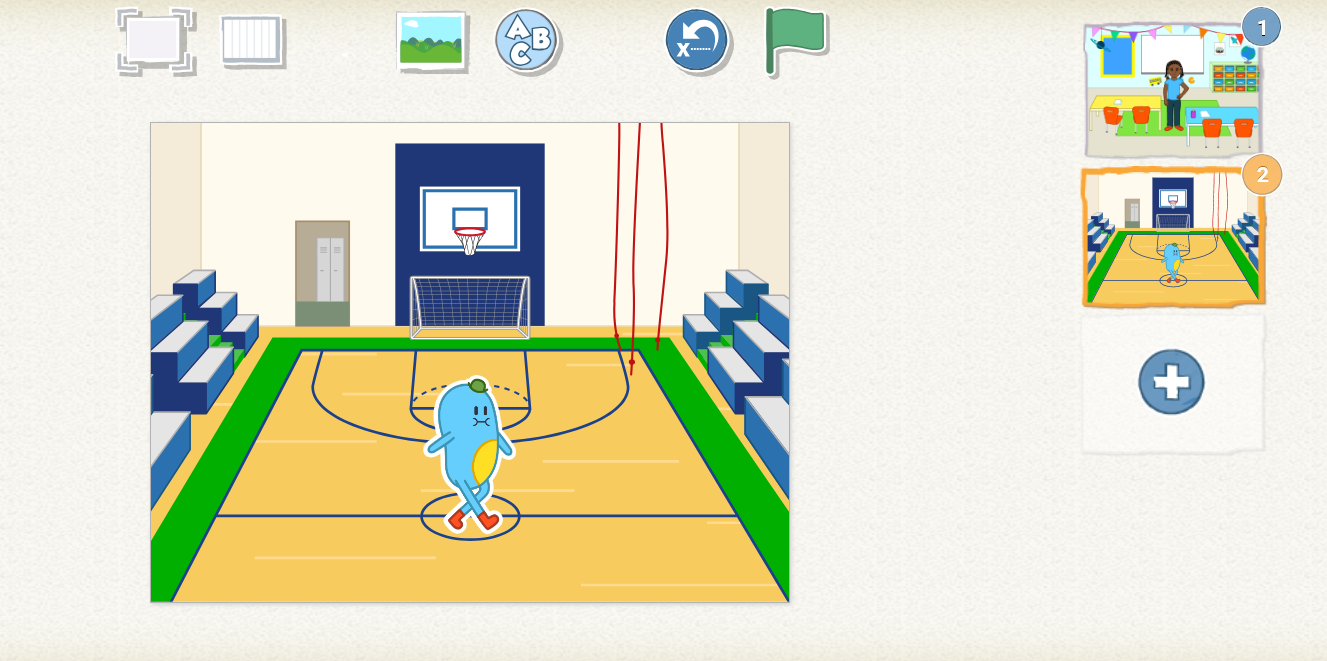
Pick a background for page 2.
This time, let’s choose the basket ball court.
Step 7
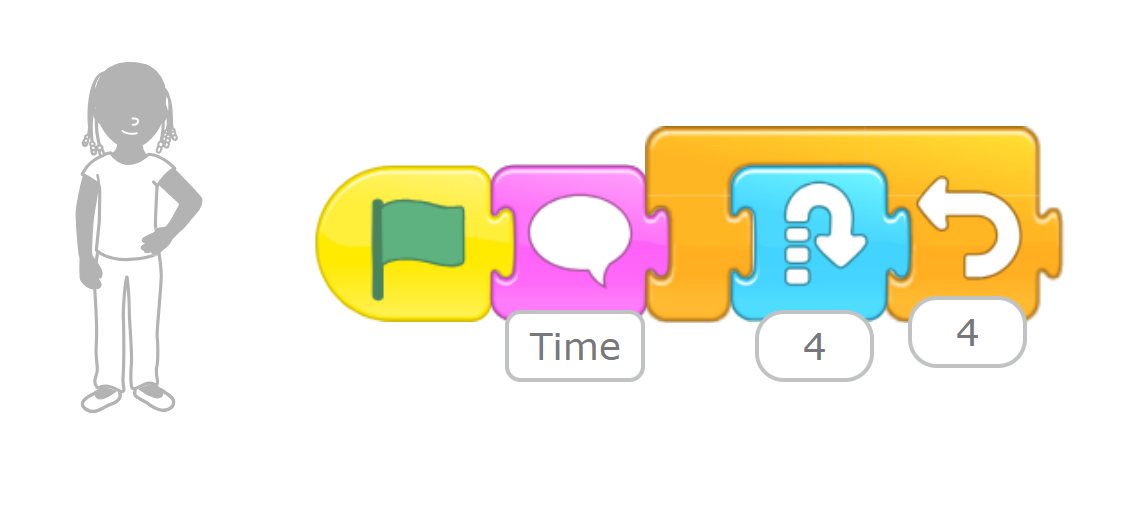
In the gym, let’s have the girl say “Time to exercise!” and jump up and down a few times.
Step 8
Add a third page with a background that looks like another room in your school. We’ve chosen the library. Add the girl,delete the cat, and decide on an action that your character should take.
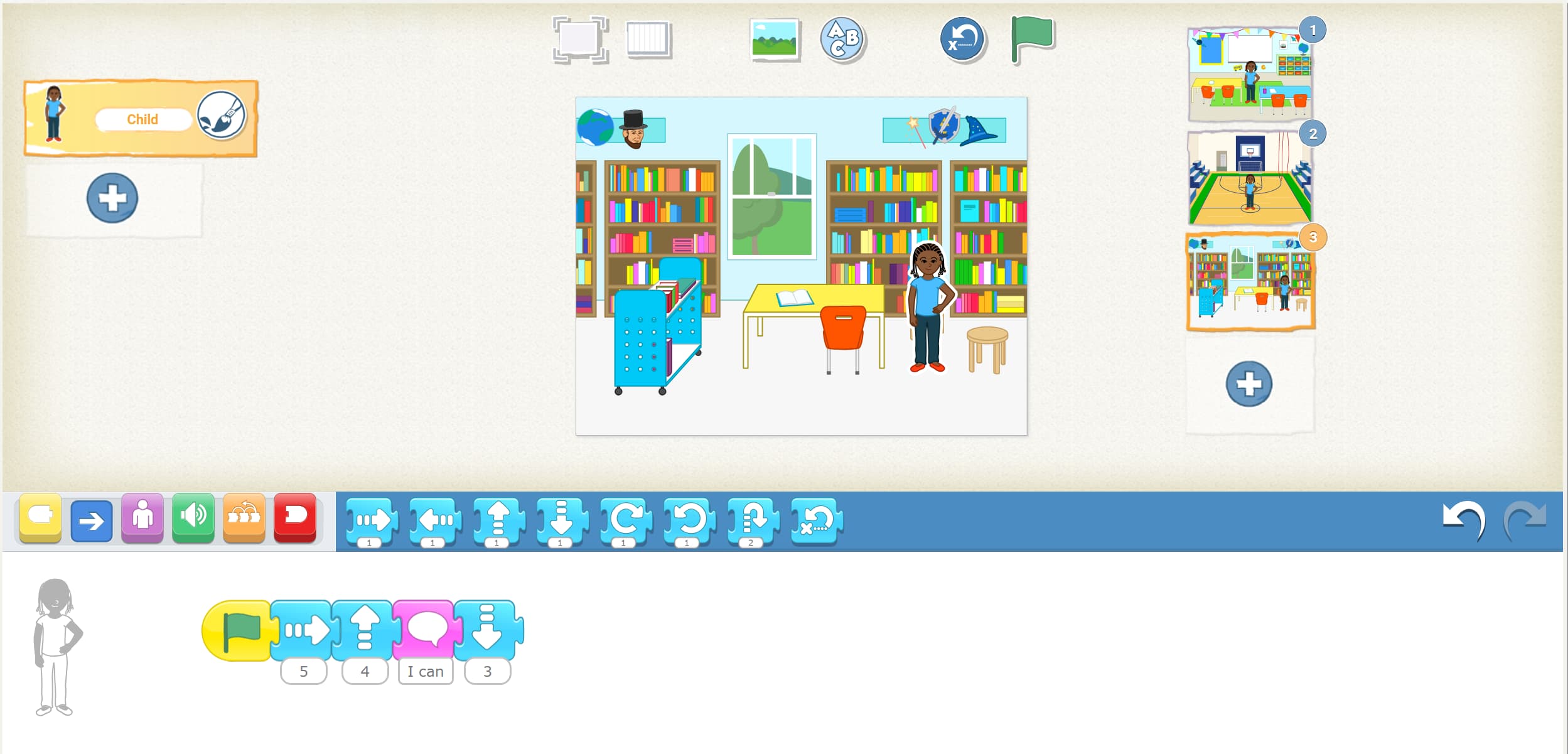
In our example, the girl walks over to a stool, climbs onto it, and says “I can stand on this stool to reach the books!”
Step 9
When all of your pages are complete, it is time to connect them so that the action flows from one page to the next. Tap the first page in the list to go back to it.
Step 10
Tap the red blocks category to reveal the end blocks.Each new page you create makes a new Go to Page block with a small picture of your new page (called a thumbnail) in it.

Step 11
Use the Go to Page 2 block at the end of your character’s script on the first page.
When this script finishes, it will “turn the page” and go to the second page of your story.
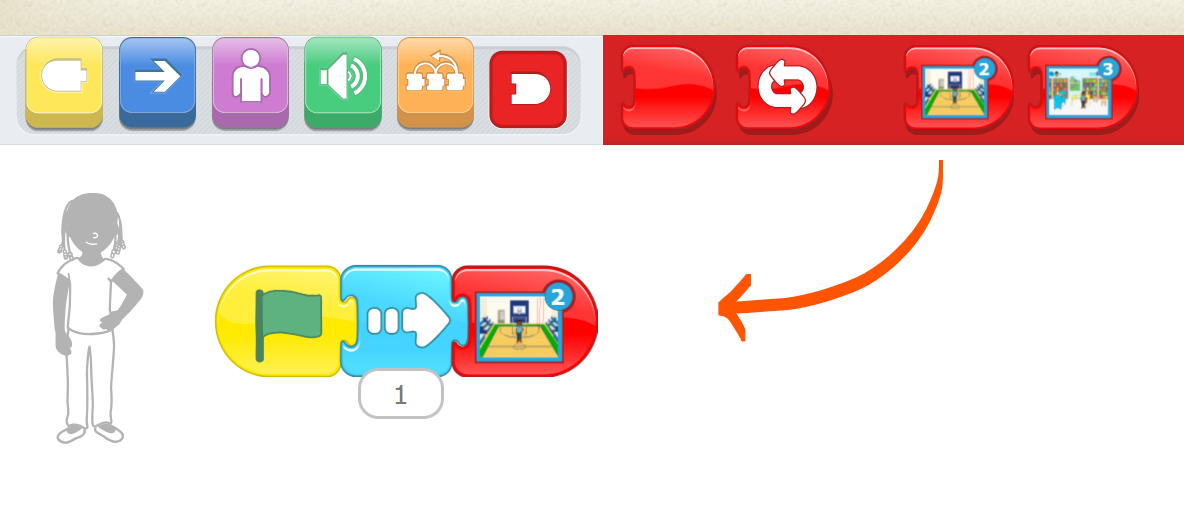
Step 12
Now tap the second page, and add the Go to Page 3 block to the end of the script there.
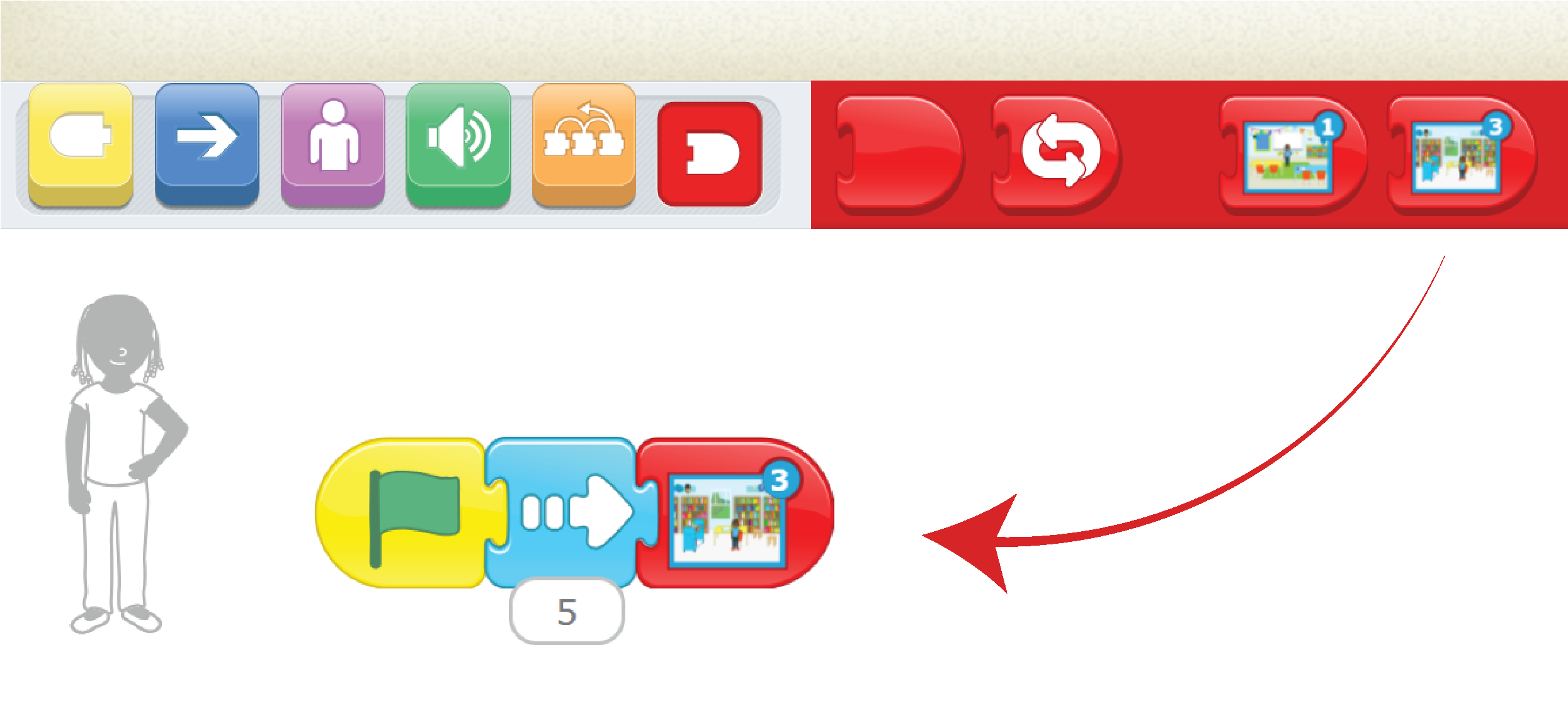
Step 13
Tap the first page to return to it. Now when you tap the Green Flag button at the top of the screen, the action will flow through the pages without stopping. Every time a new page starts, all of its scripts that begin with a Start on Green Flag block will run automatically.
Note You can delete a character or a page from these lists by pressing and holding it and then tapping the red X that appears
You can change the order of the pages in the list by dragging them before or after other pages. You can copy a character and its scripts from one page to
Another by dragging the character from the character area to the page thumbnail.
Output
Add a title to your story
Tap the Add Text button at the top and type the title of your tale.

You can change the size of your title by tapping the Change Size button, which looks like three A’s. You can also change the color of your title by tapping the Change Color button, which
looks like a paint bucket. Try it !

You can move the text around the page by dragging it, just like you can with a character. You could even write something on the whiteboard in the classroom
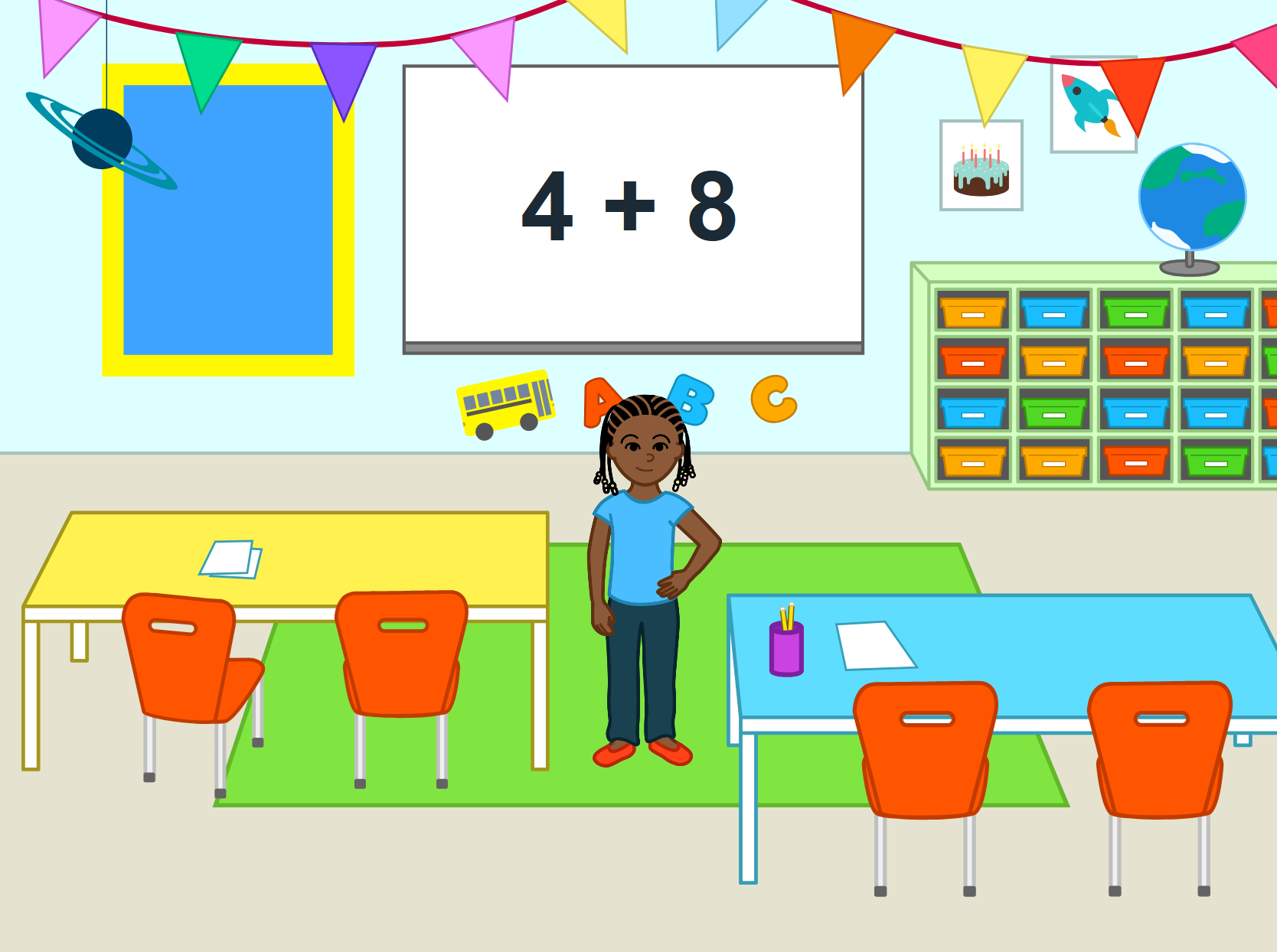
Challenge
Use ScratchJr to tell a story that actually happened to you! Use multiple pages to make sure your story has a beginning, middle,and end. Try including more pictures and words to tell your story. Don’t forget to share it with a friend when you’re all done!
Activity
Moon rise after sunset
Objectives
•
Practice how to add a new page to change scene
Step 1
Choose the sunset project

Step 2
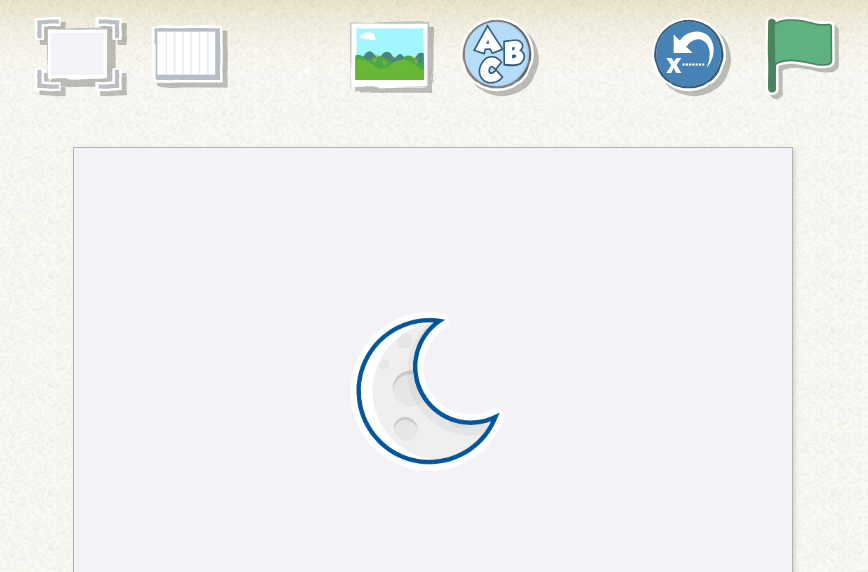
Add a new page and moon character to new page
Step 3
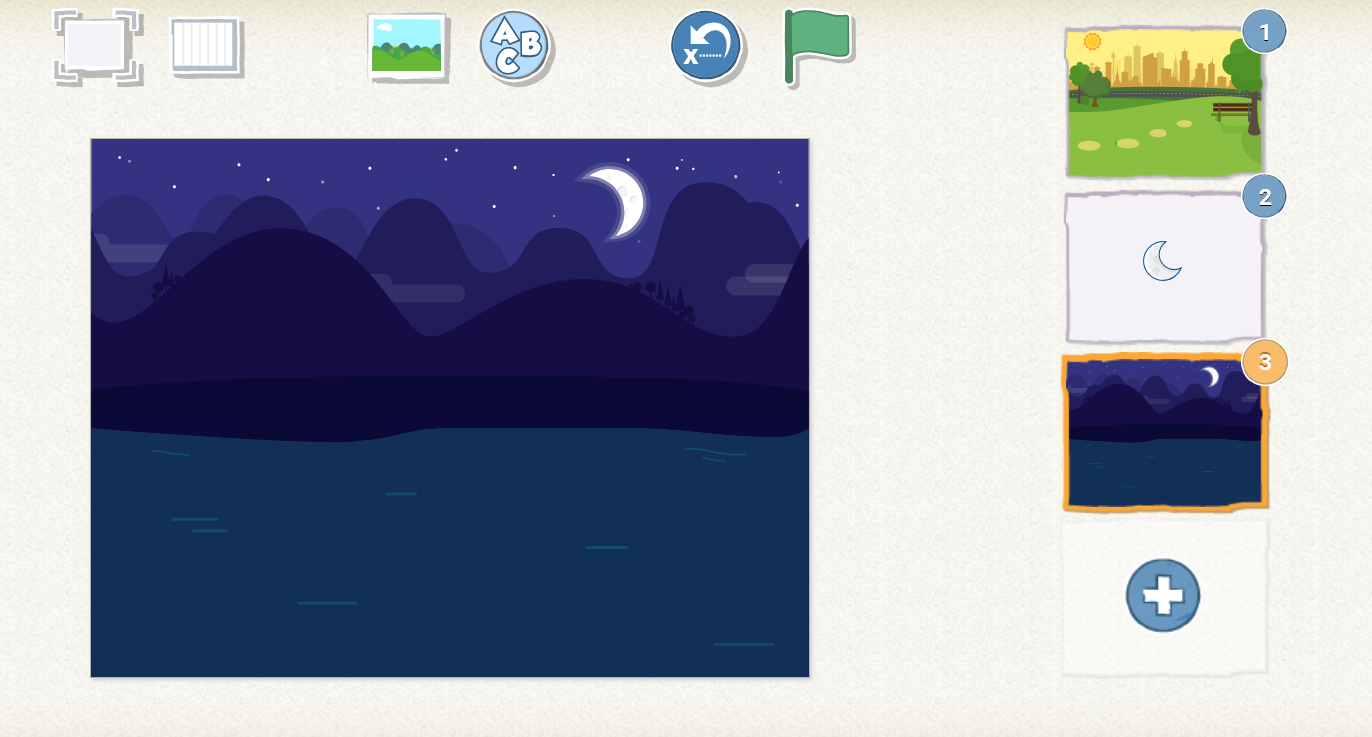
Choose Background , edit to remove background’s moon
Step 4
Change program on page 1
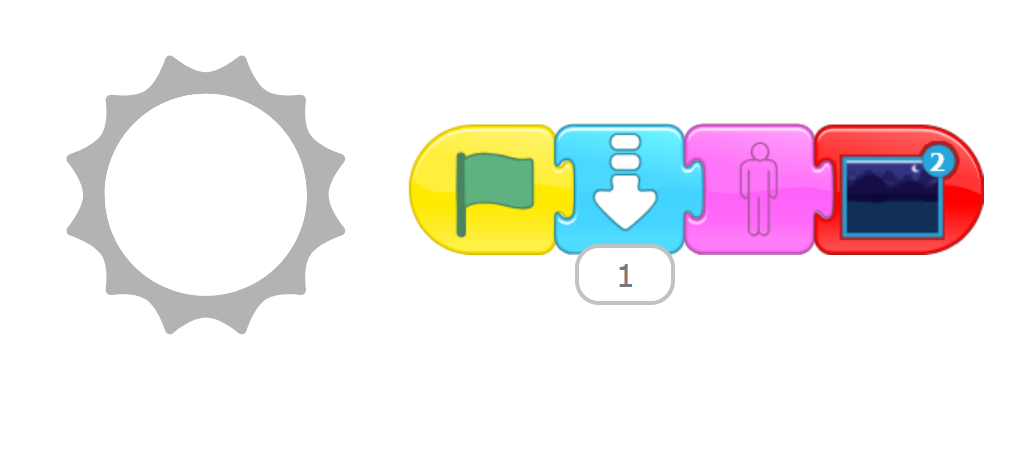
Step 5
make program on page 2

Output

Challenge
•
Now that you know how to make new pages, can you make a project that has 3 pages, or 4 pages?
•
What happens when you drag a character from one page to another?