Overview
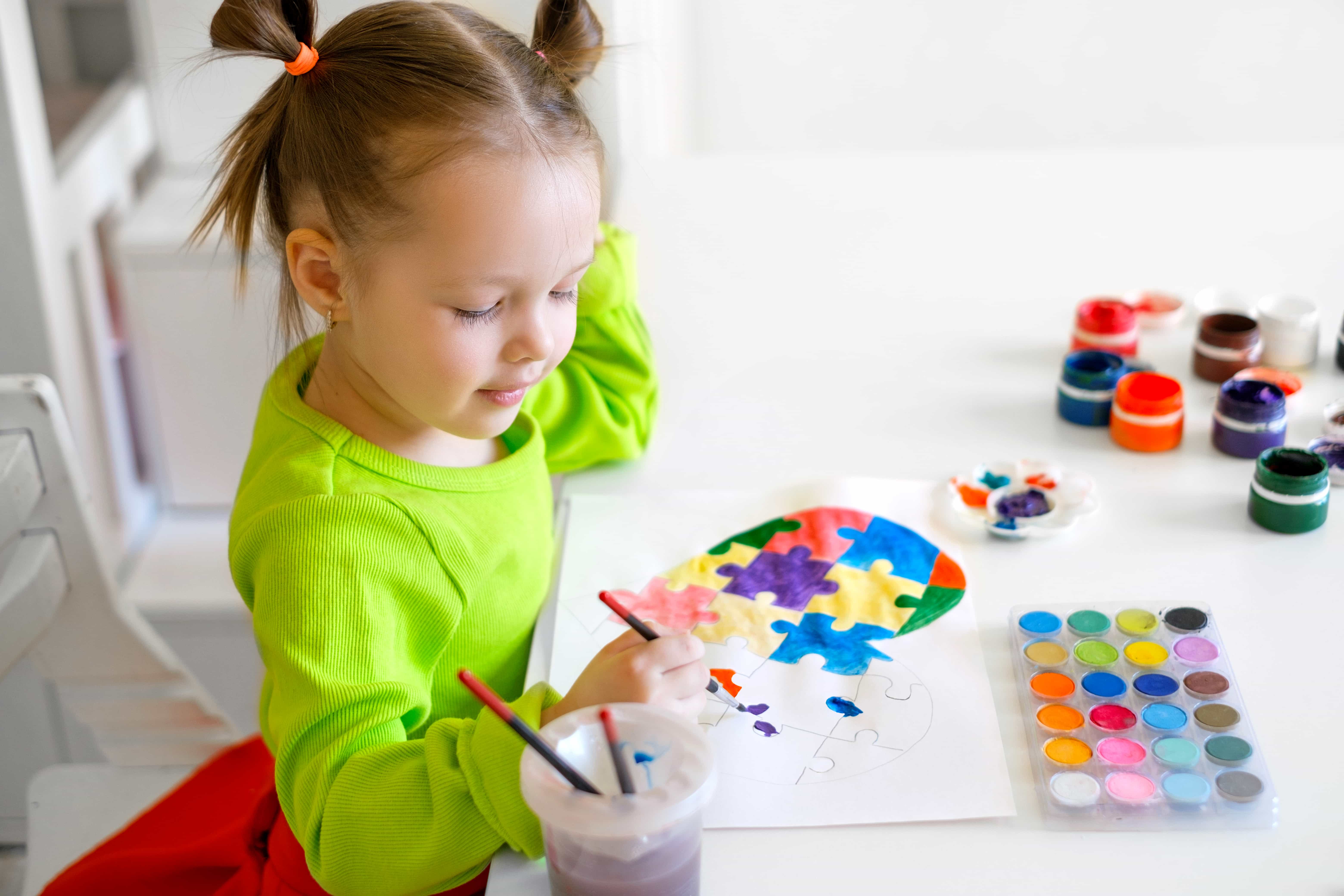
In this lesson, students will explore the ScratchJr Paint Editor, a built-in tool that allows them to create, draw, and customize characters and backgrounds.
The Paint Editor is an important feature because it helps learners be creative, not just program. Instead of using ready-made characters, students can design their own and bring their ideas to life.
Throughout the lesson, students will Learn
•
how to use different drawing tools (circle, line, triangle, fill, etc.)
•
Understand how to edit shapes using tools like duplicate, rotate, drag, and cut
•
Practice coloring and designing characters
•
Follow step-by-step instructions to create a snowman character
By the end of the lesson, students will be able to confidently use the Paint Editor to:
•
Create their own characters
•
Modify existing sprites and backgrounds
•
Combine simple shapes to build complete designs
Objectives
•
Learn about Scratch Junior Paint Editor Tools
The Paint Editor is Scratch's built-in costume and backdrop editor. Many Scratchers make their own sprites and backdrops using it. These images can be used in many ways. This is one of the things that makes Scratch different from many other coding tools, because many others do not provide a built-in image creator
You can use the paint editor to draw your own characters and backgrounds or to customize existing ones.
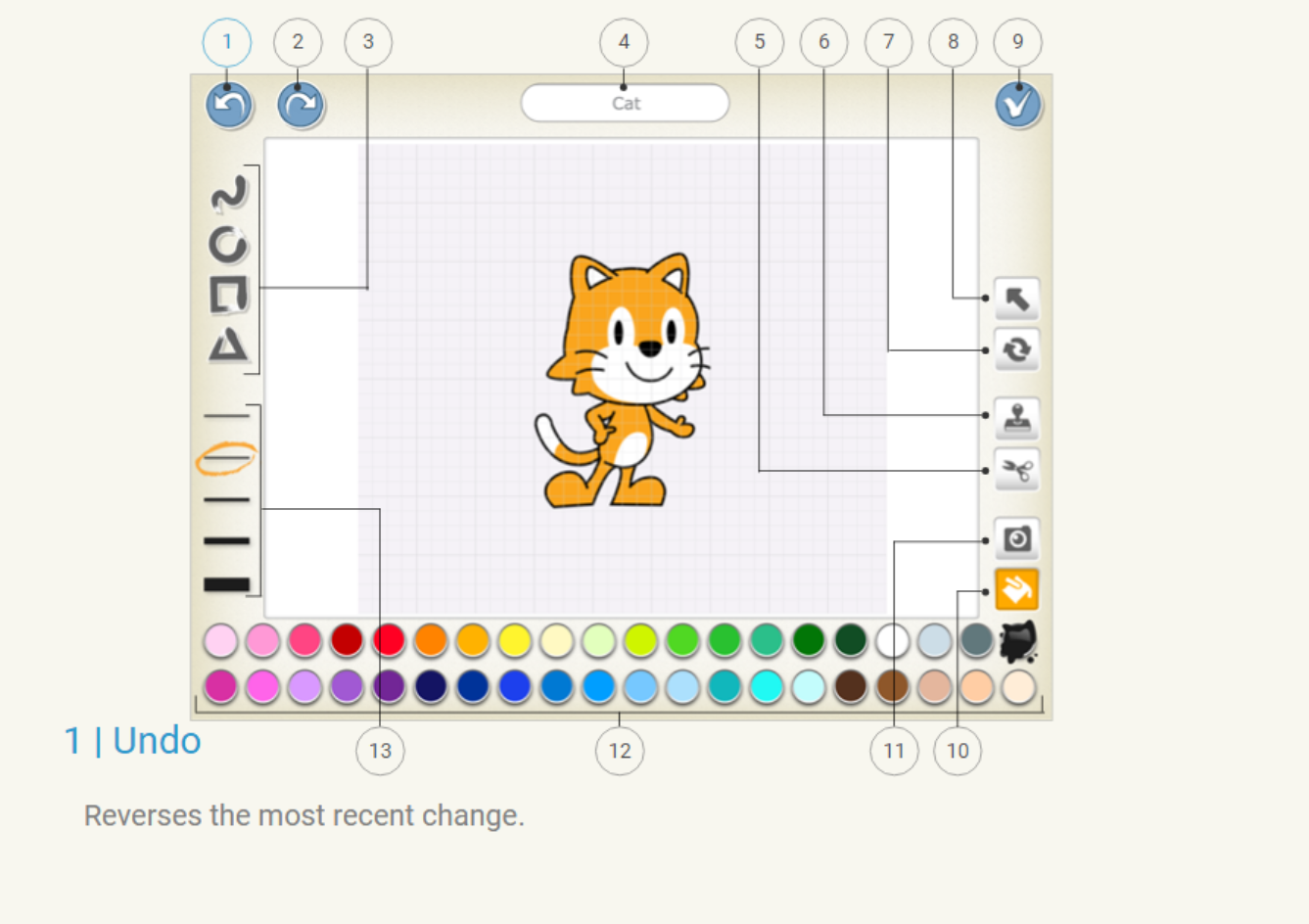
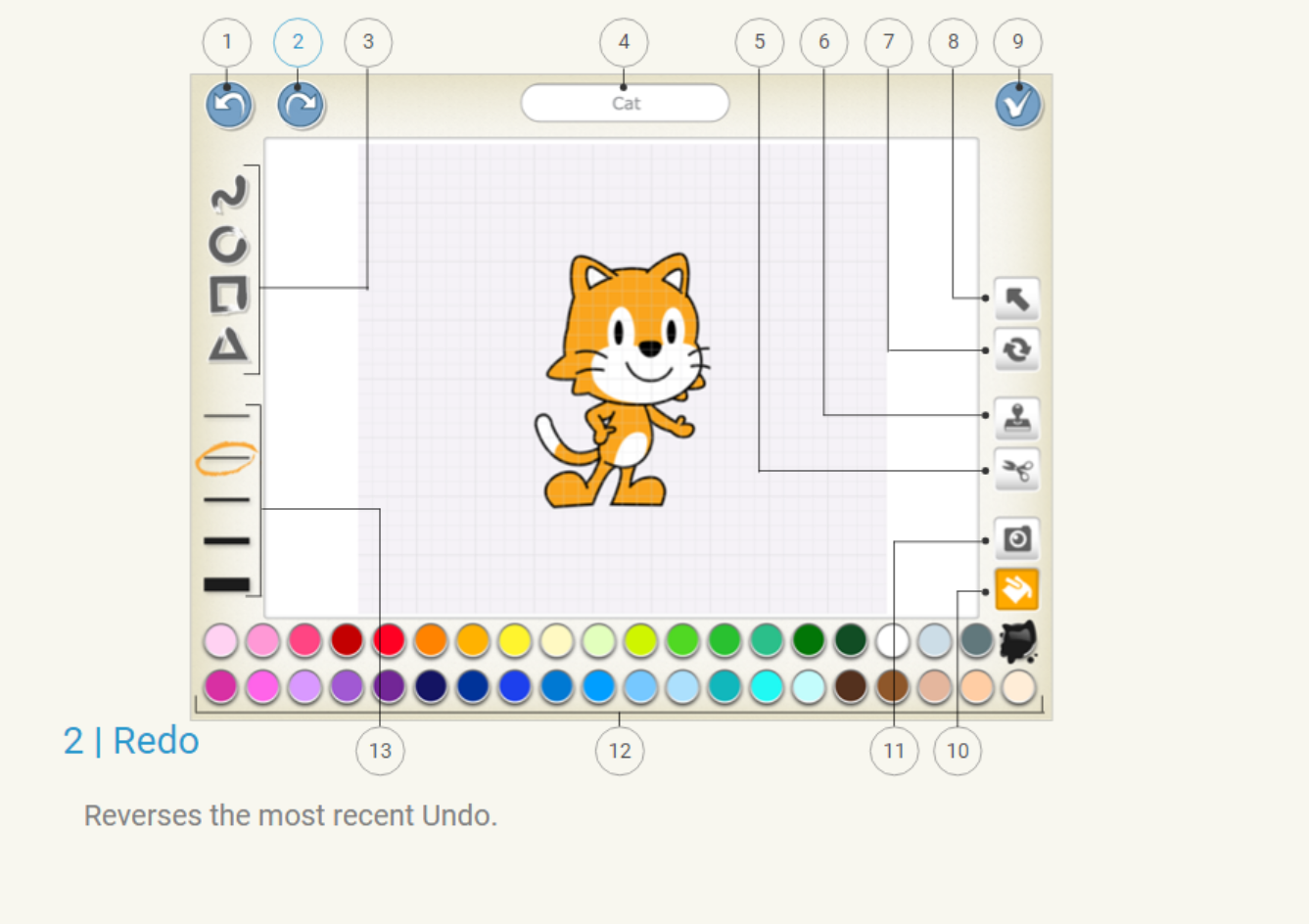
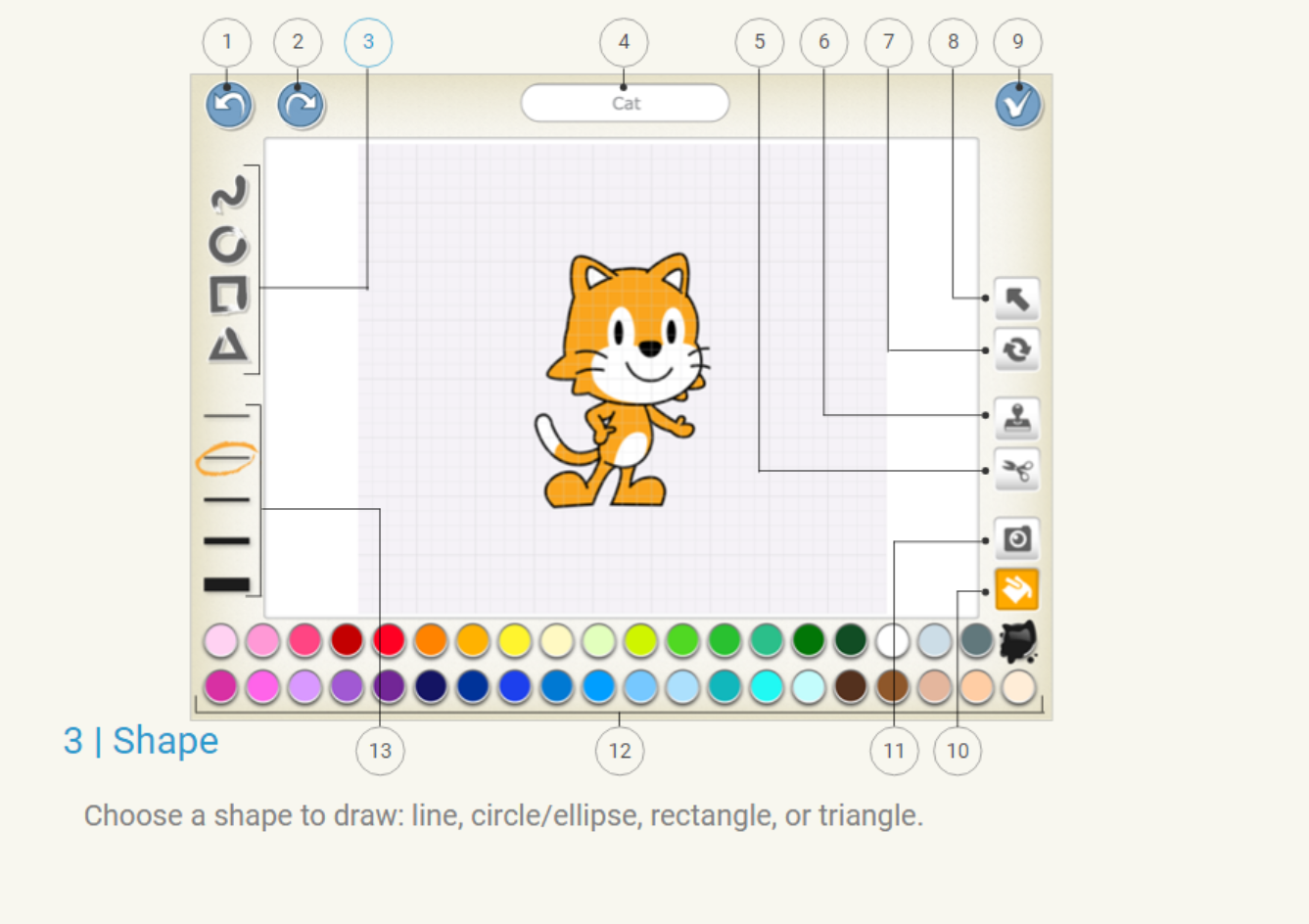
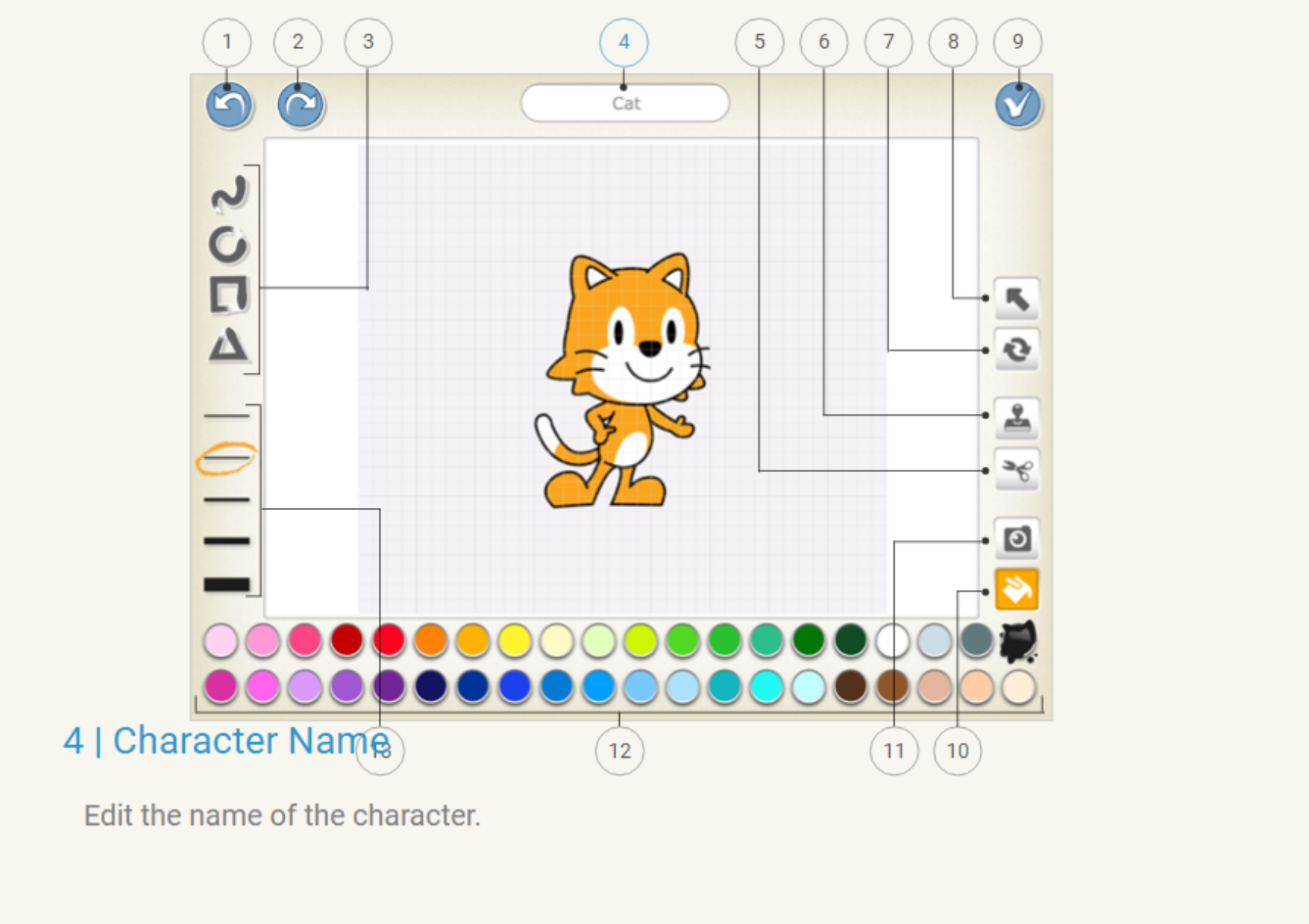
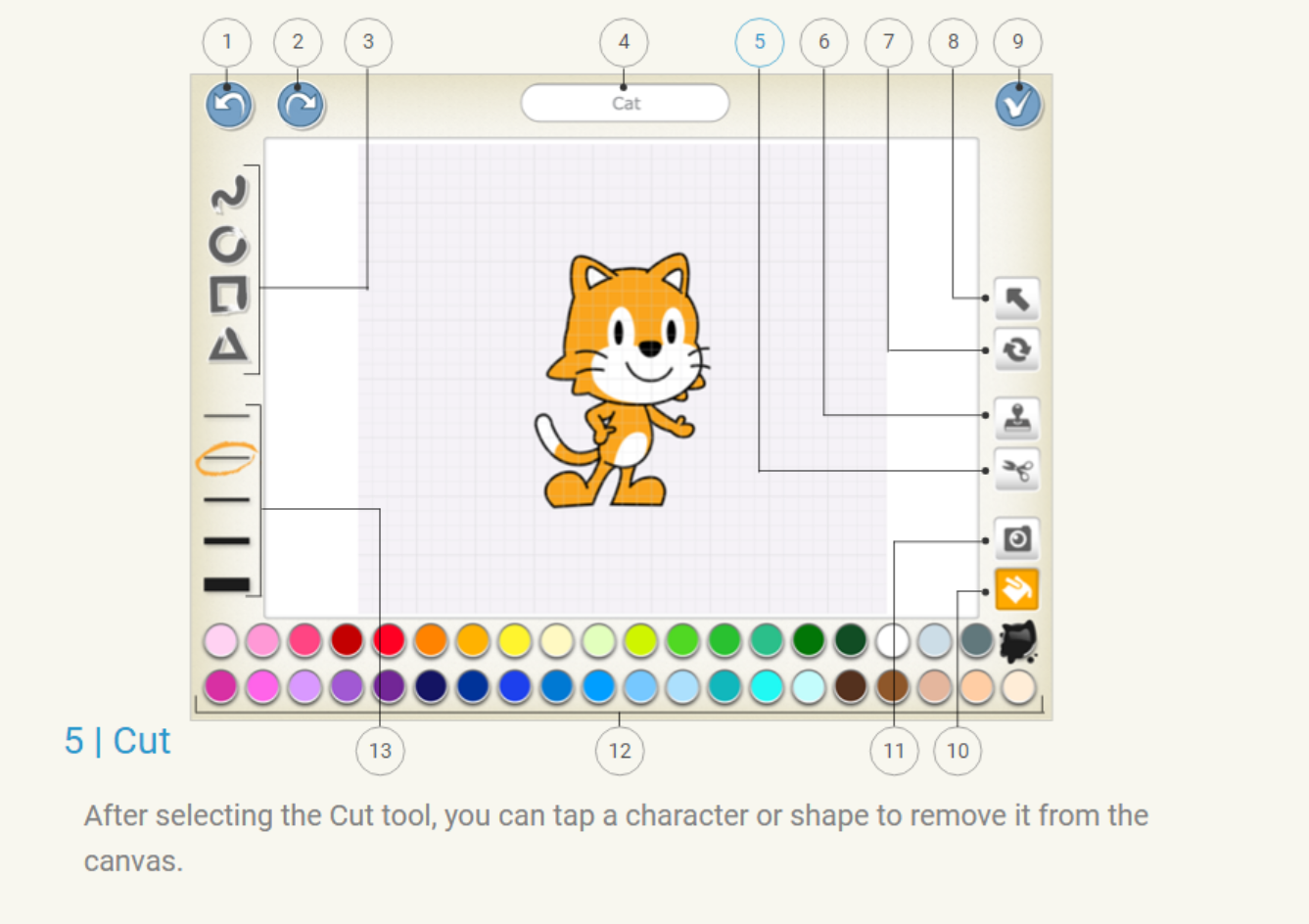
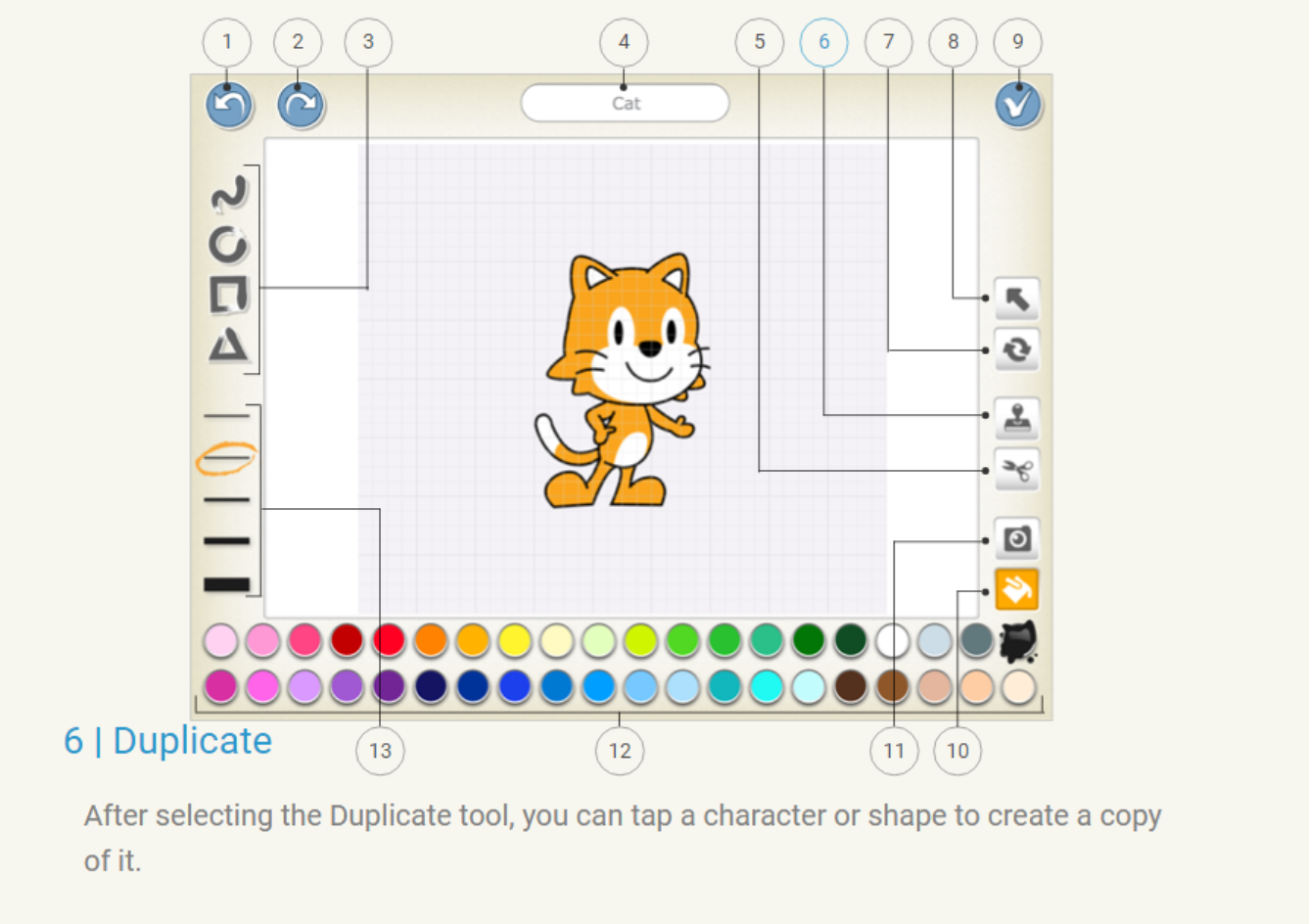
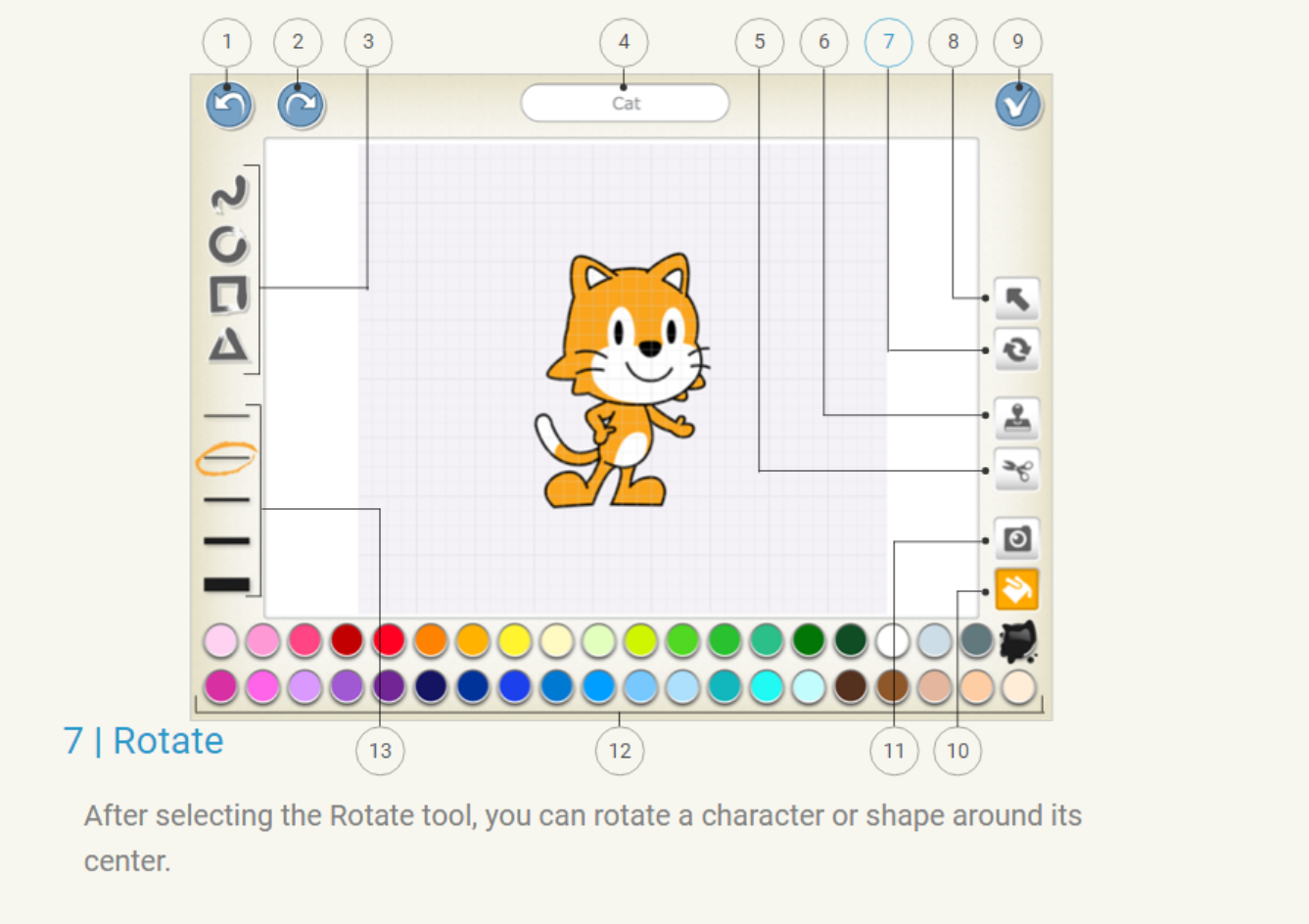
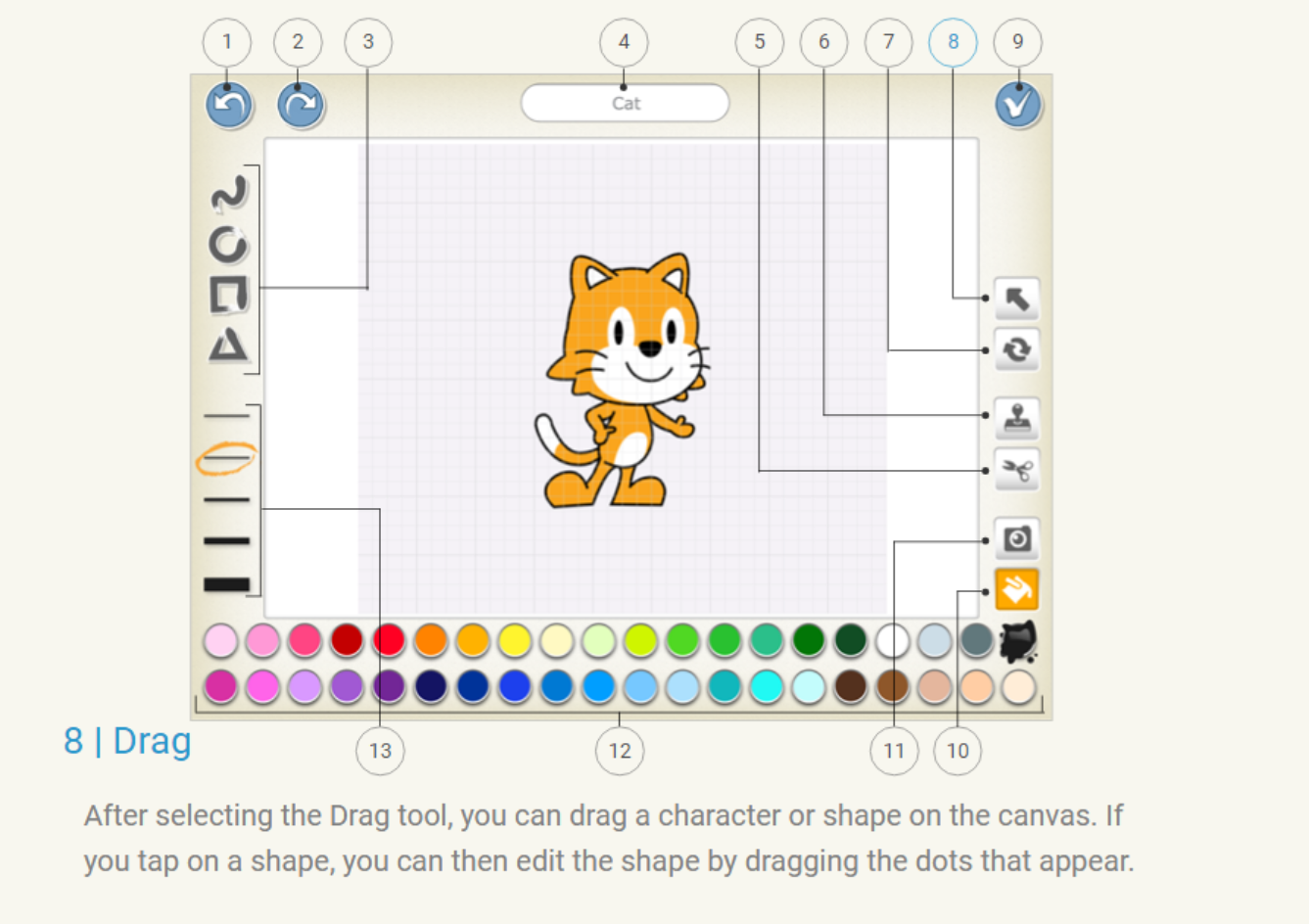
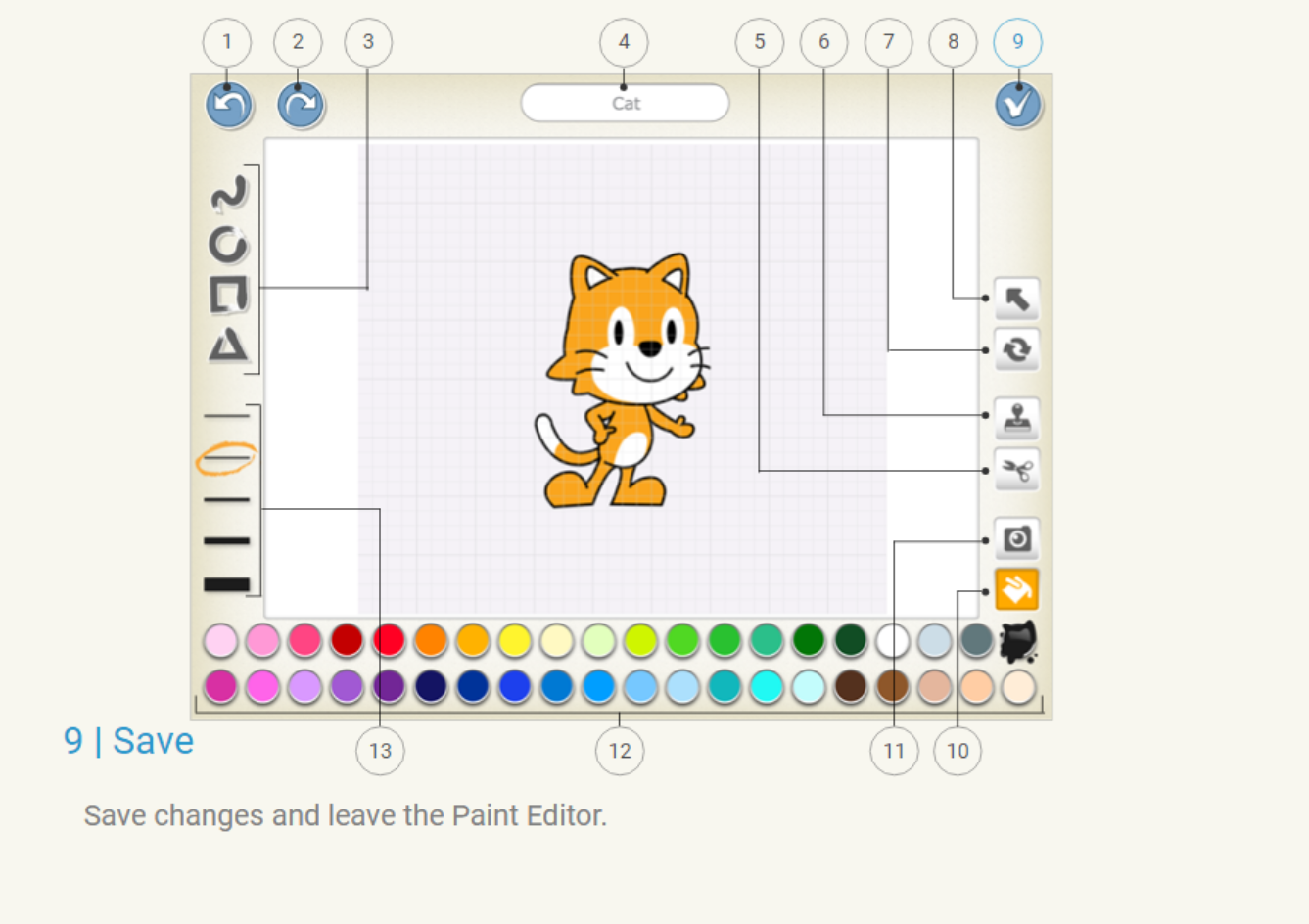
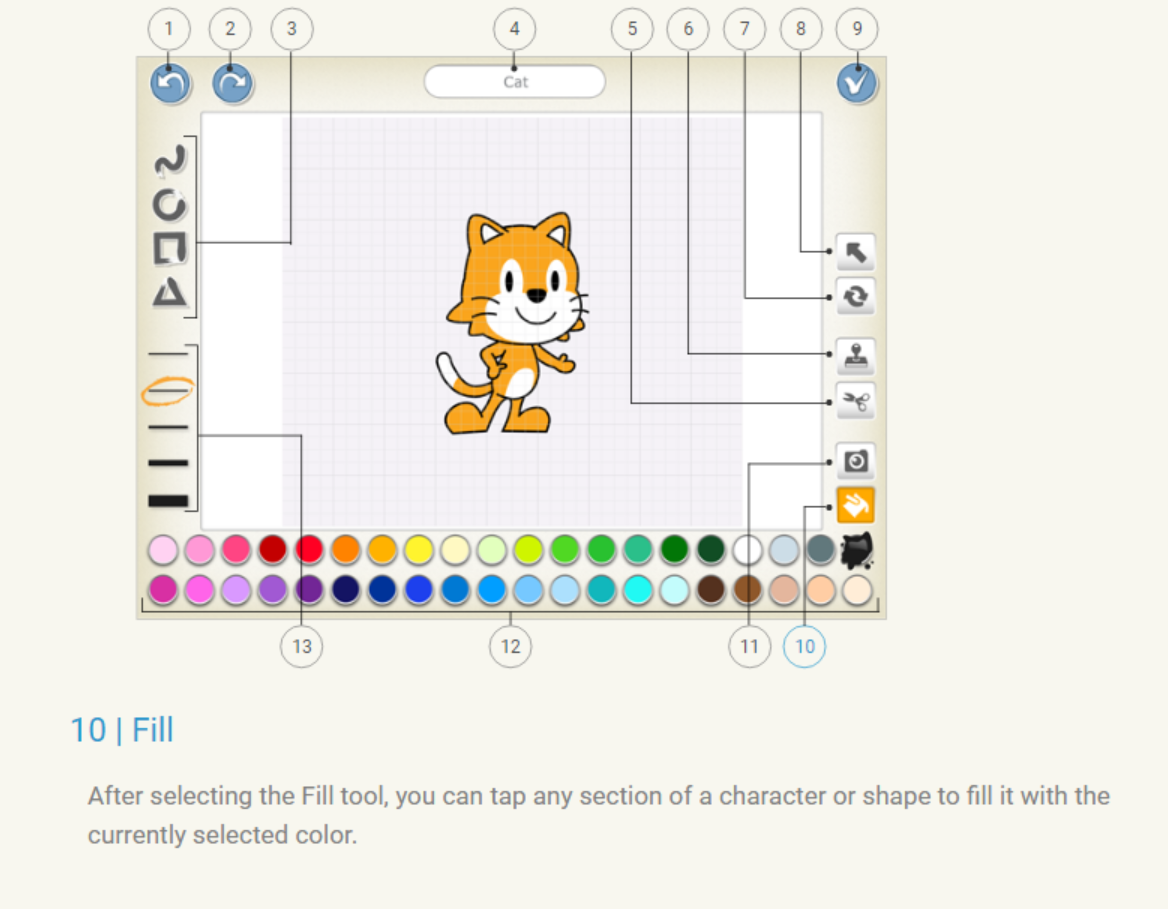
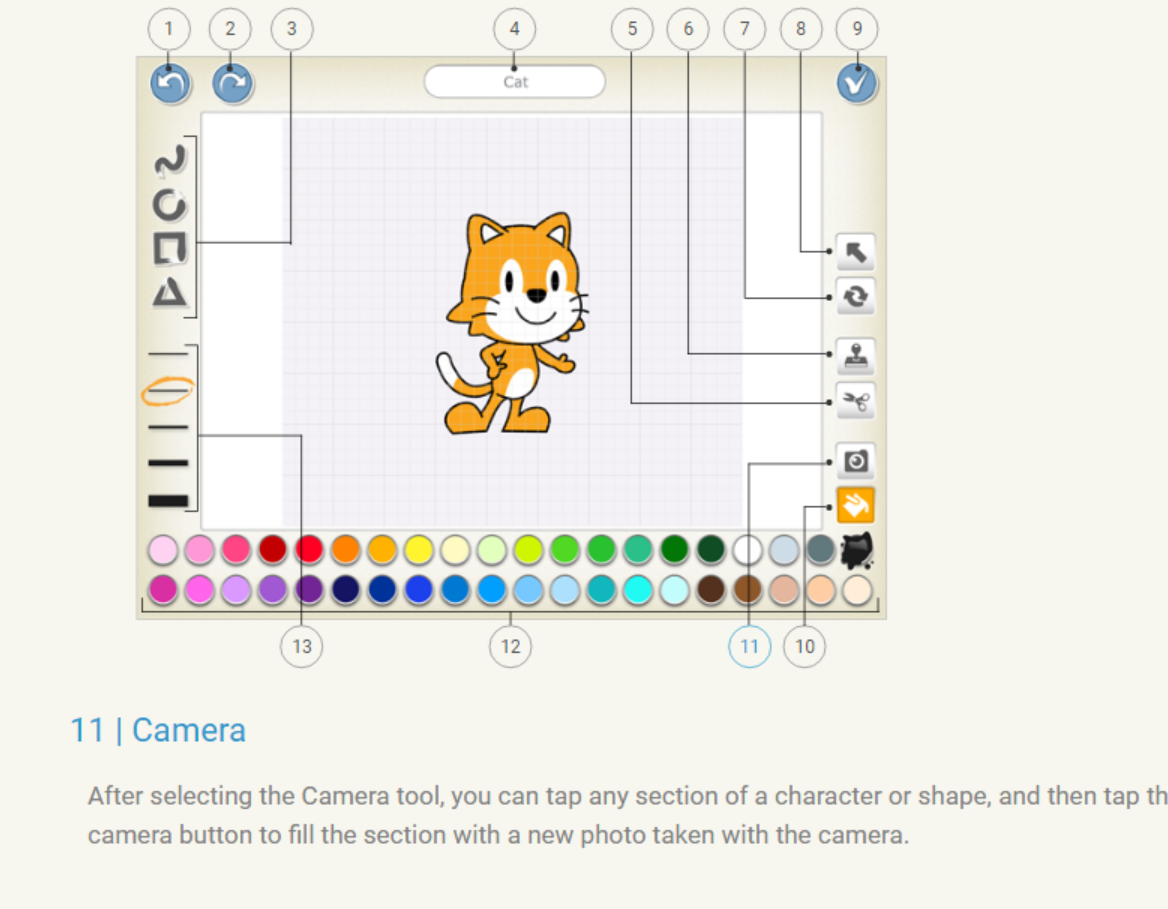
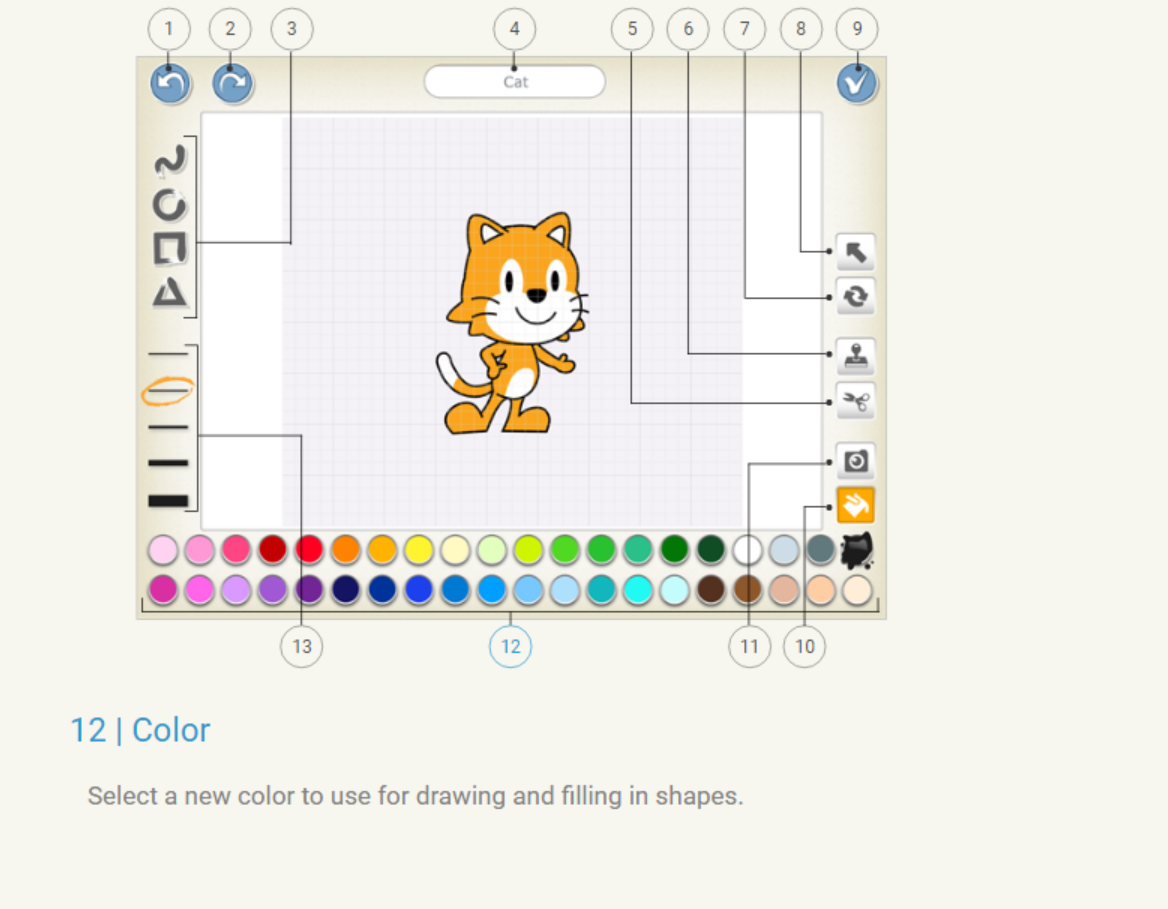
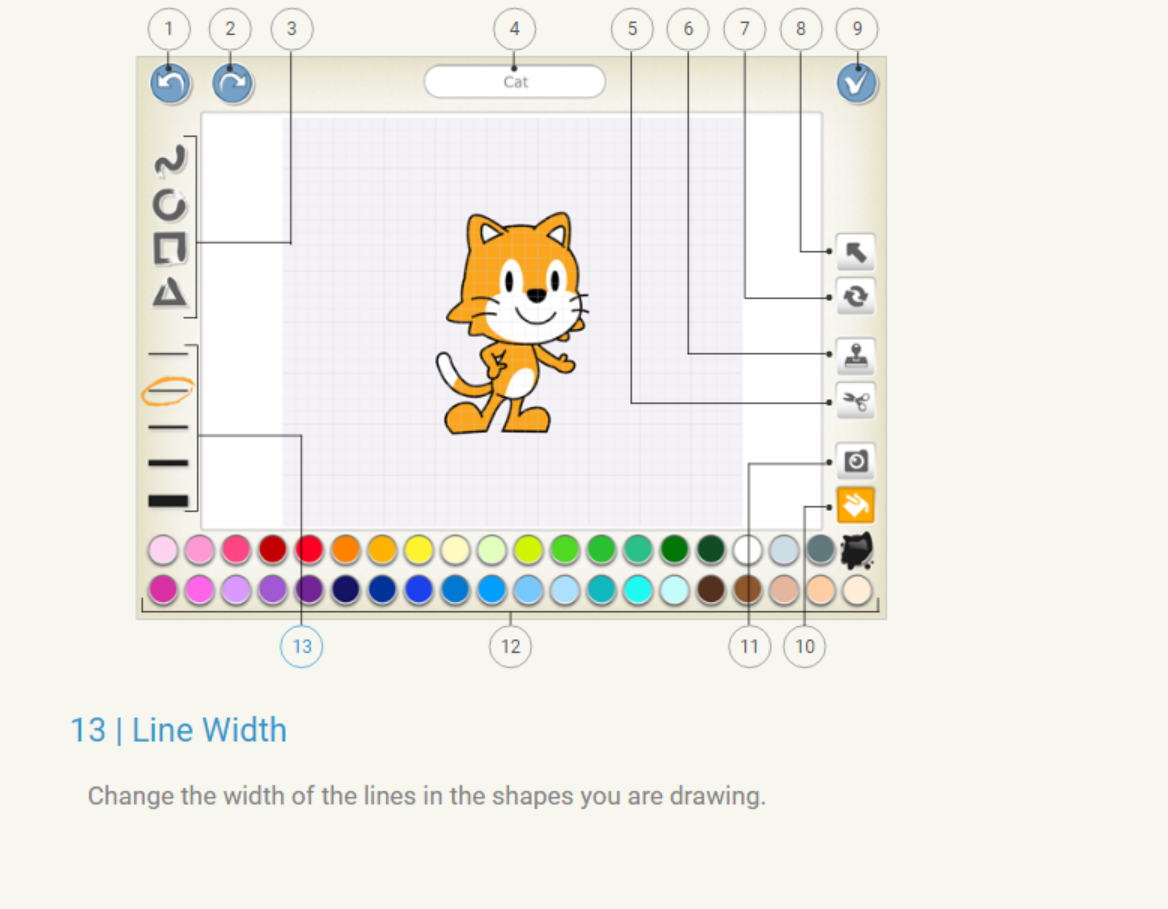
Undo
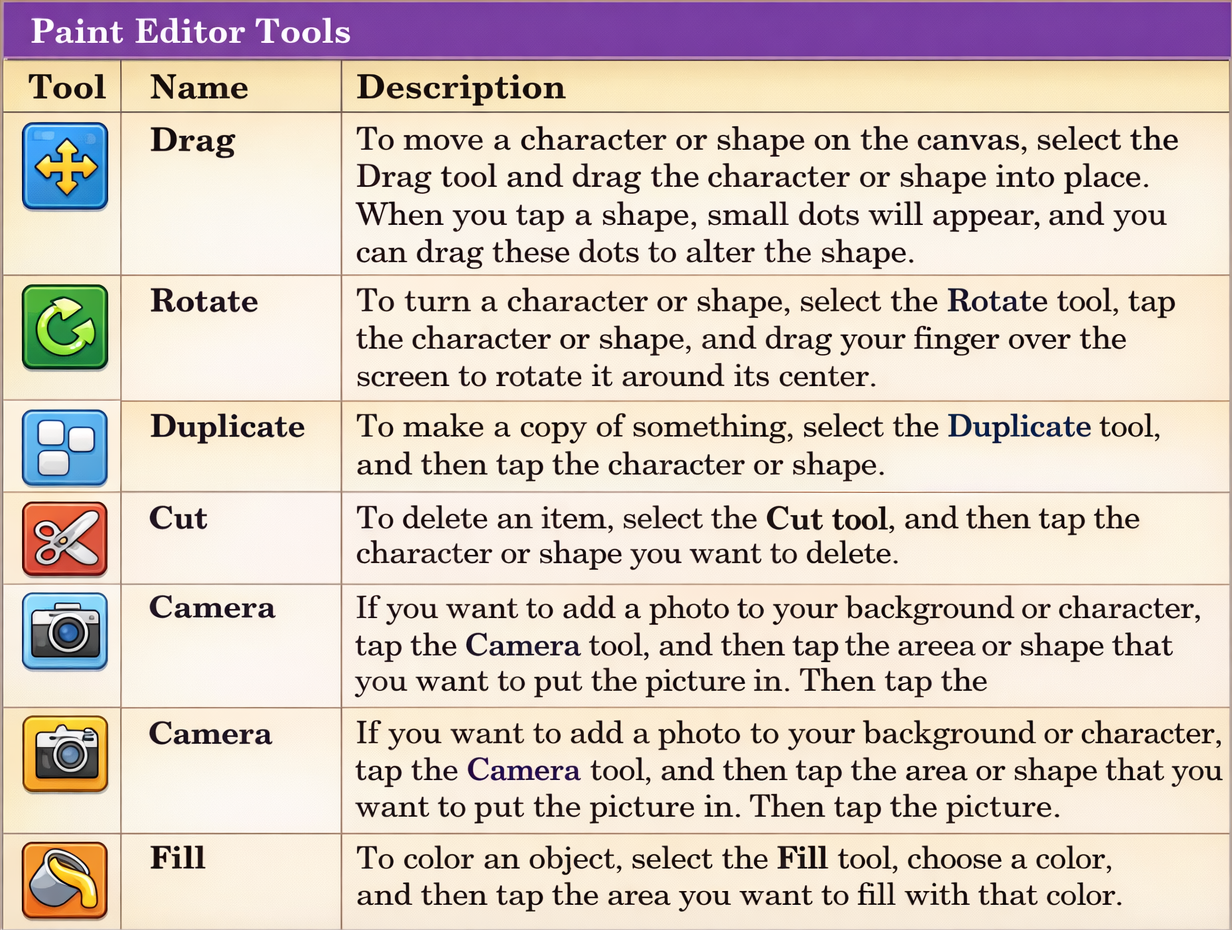
Tool Shortcuts Guide
Challenge
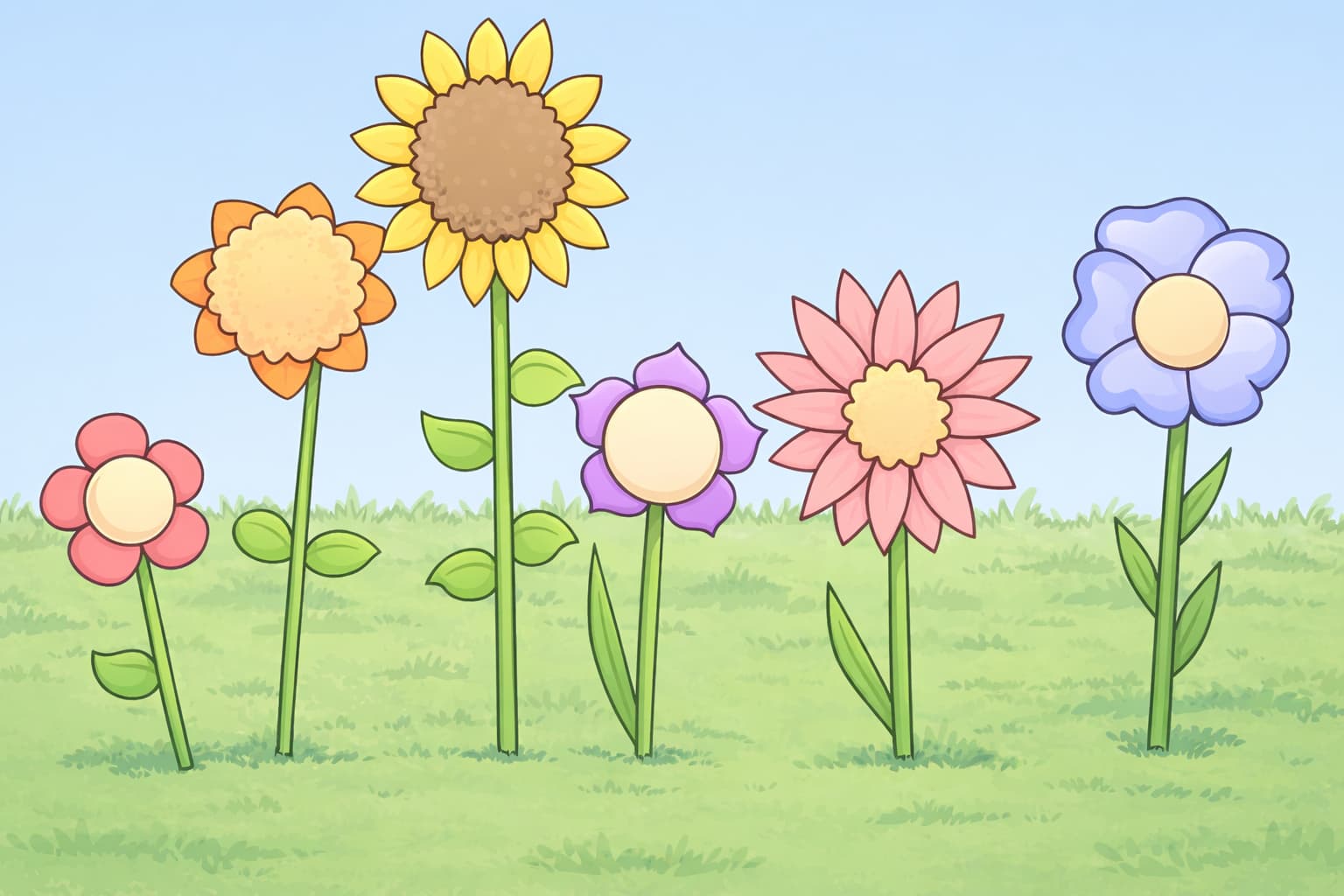
Can you use the background paint editor to create a new background with grass and flowers?
Activity
Draw a Snow Man
Objectives:
•
Practice how to use the paint editor to make your own characters
•
Change other characters and backgrounds using the paint editor
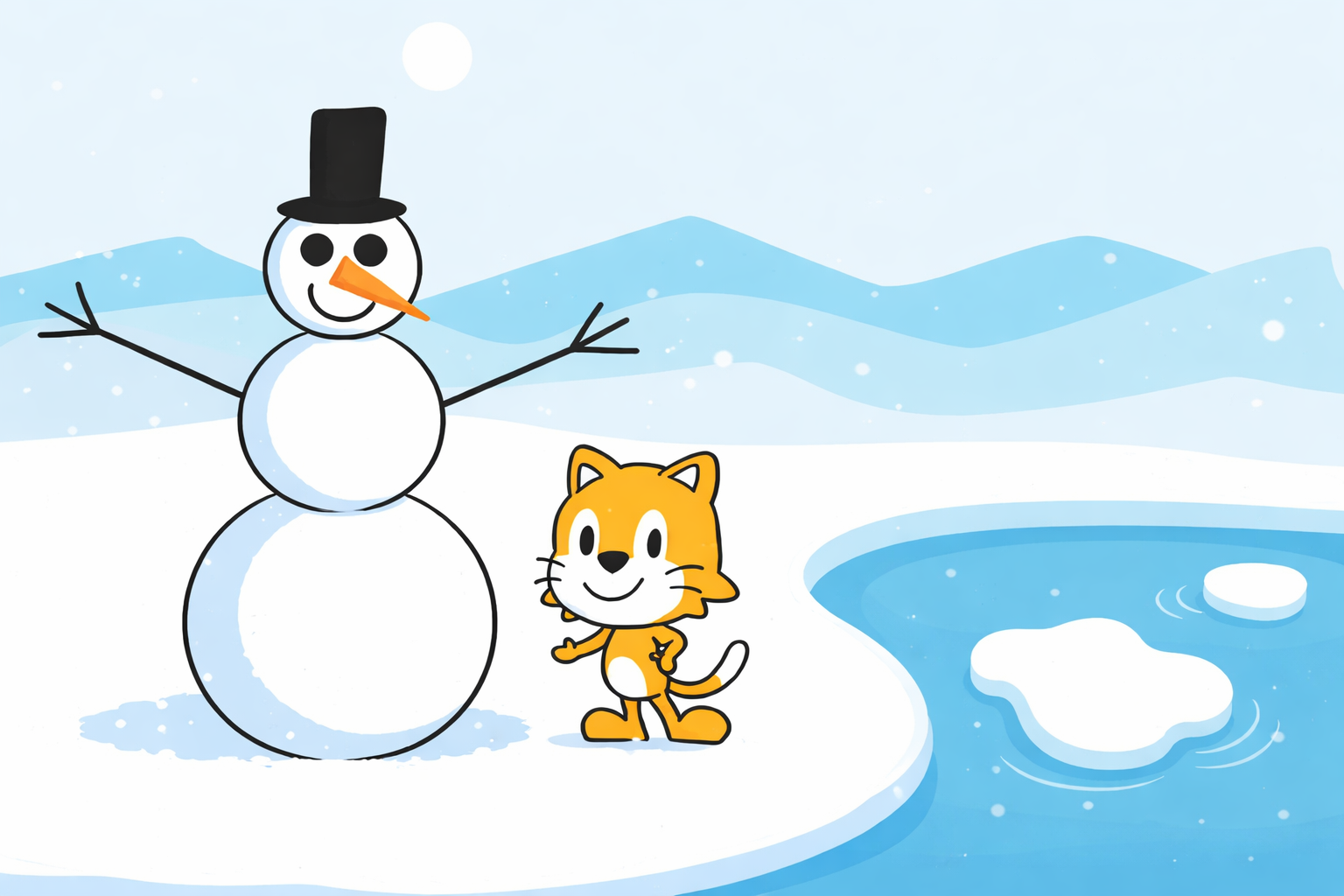
In this activity we will build a snowman to live in the arctic !
Step1
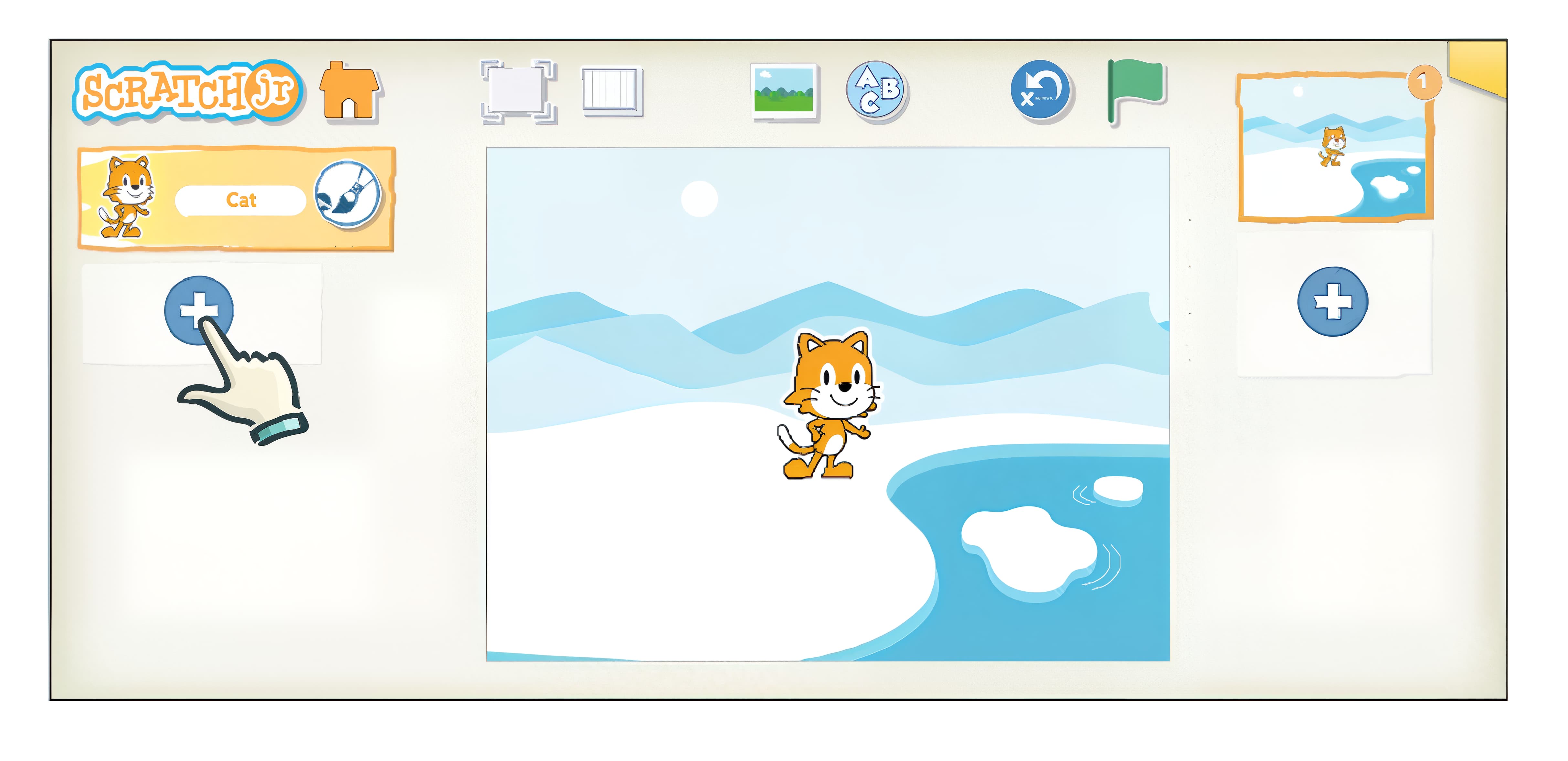
Start your project by choosing the arctic background.
To draw a character, tap the plus sign on the left side of the screen as if you were going to add a new character.
Step 2
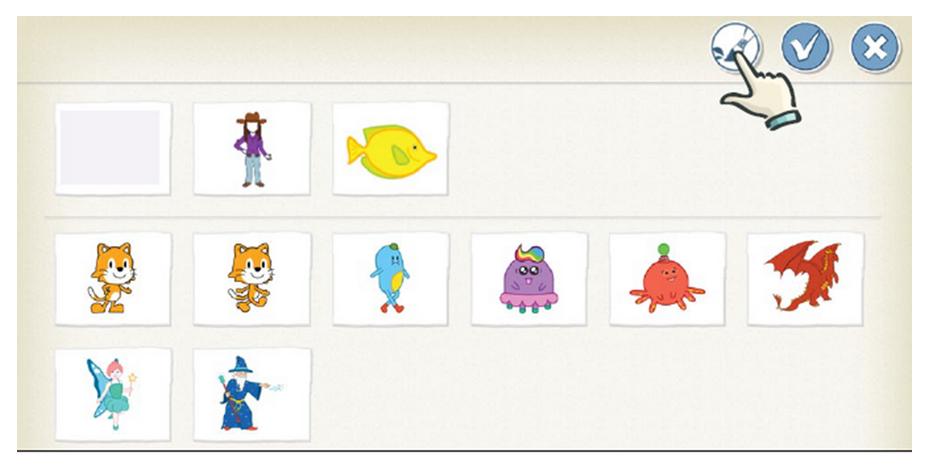
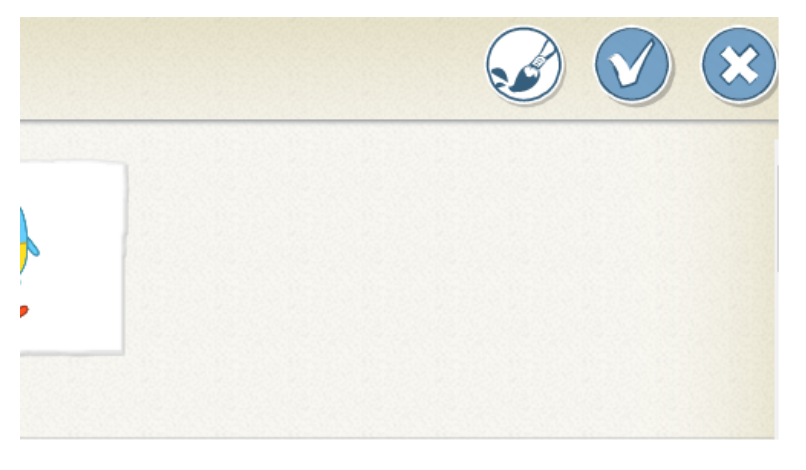
Without actually selecting a character, tap the Paintbrush Button to open the paint editor.
Step 3
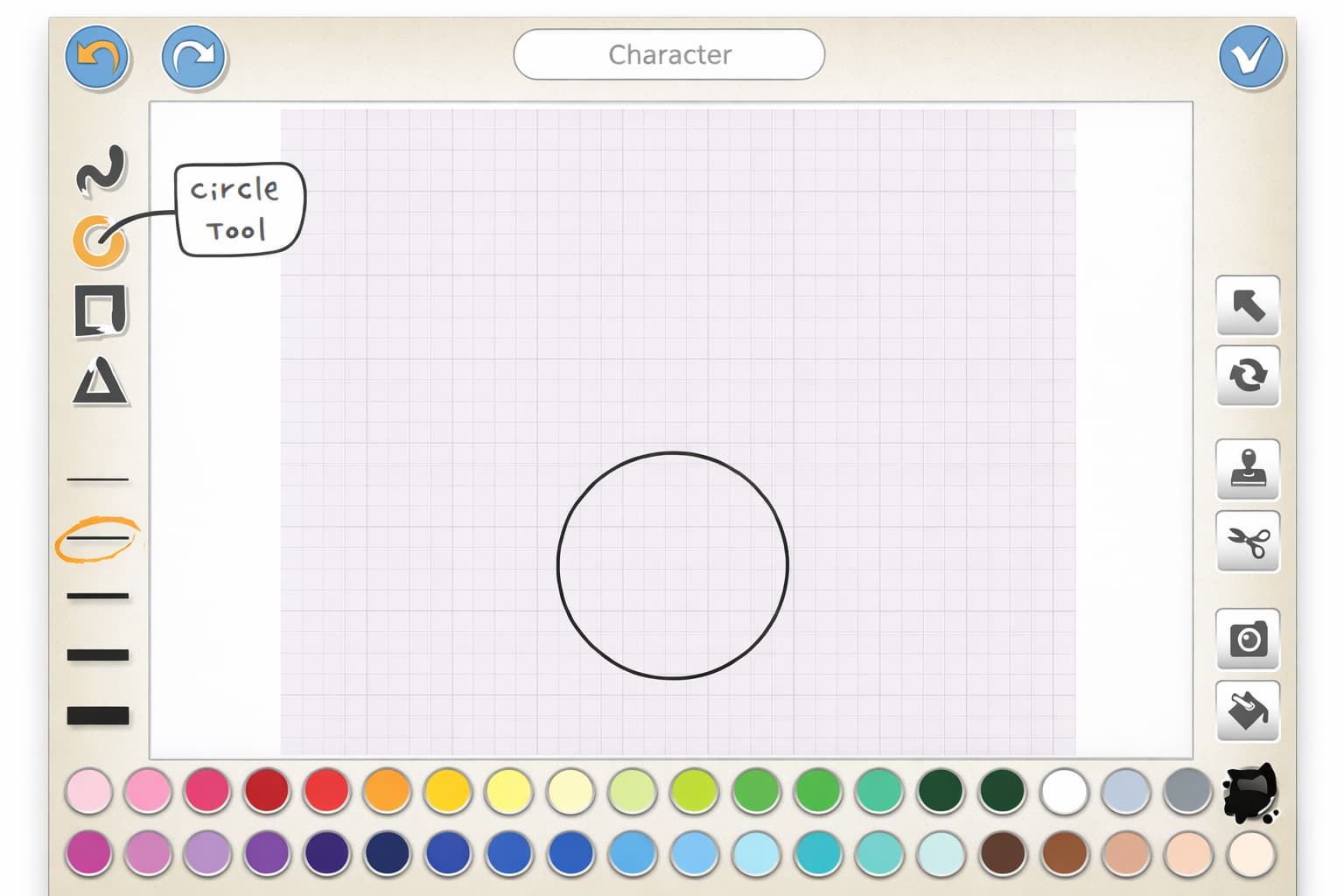
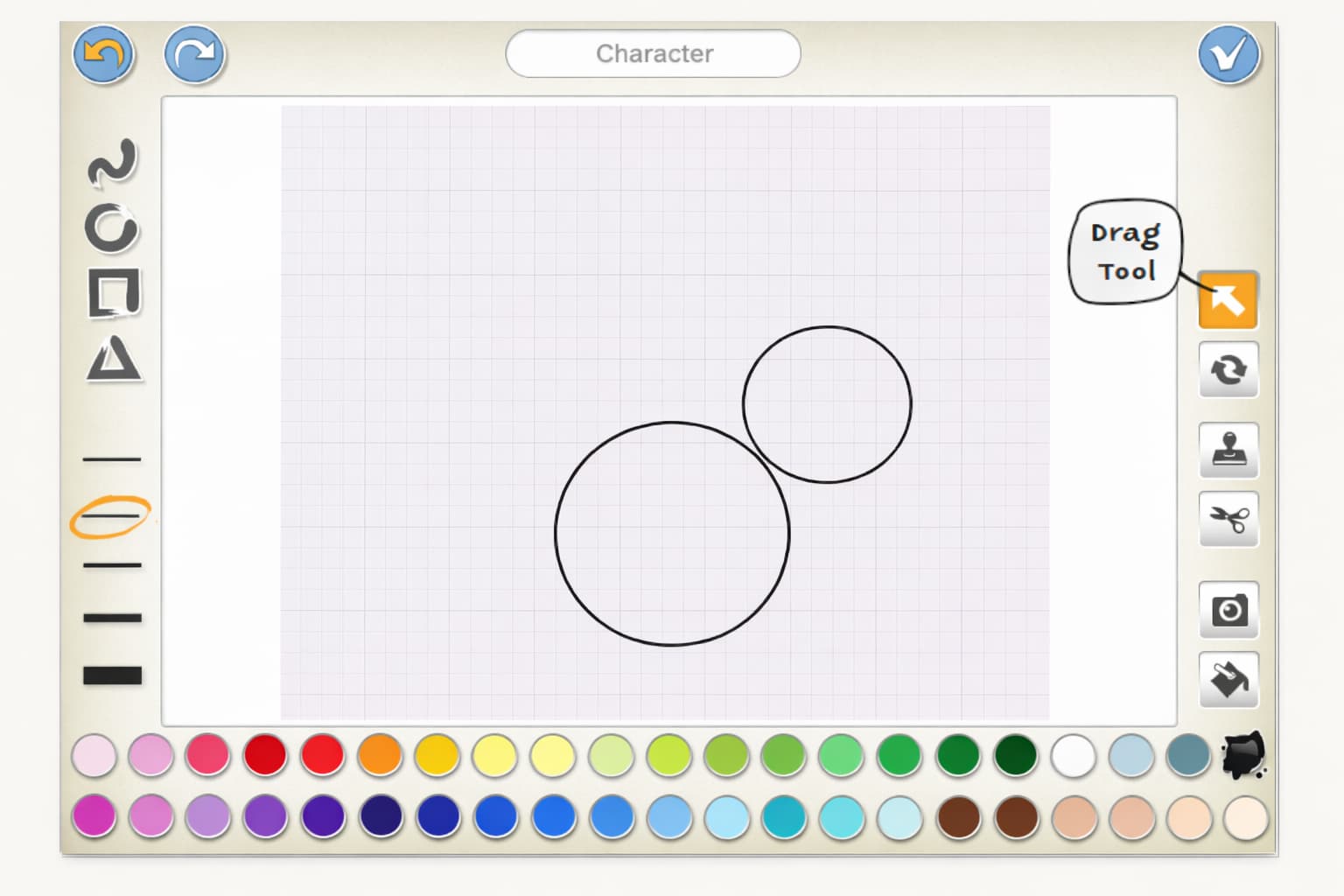
Now, to make a snowman, you will need three circles of different sizes. To make a circle, tap the Circle tool
Step 4
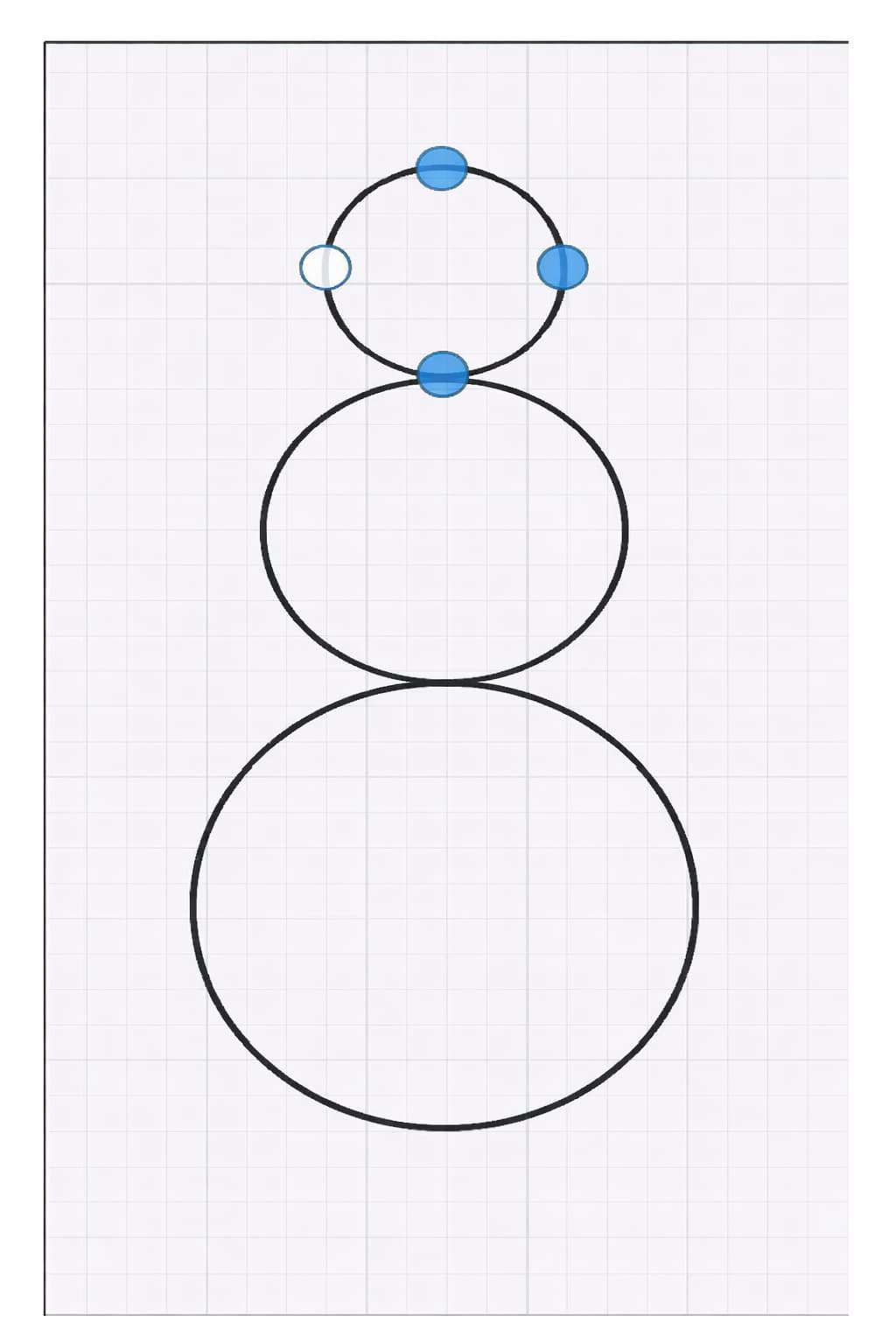
Next, drag your finger on the drawing grid (or canvas) in a diagonal line, and you will see a circle appear. When you get the size and shape that you want for the snowman’s base, lift your finger off the grid. Make another circle for the snowman’s middle. Don’t worry about where it is on the grid, because you can move i
Step 5
Make a third circle for the snowman’s head and drag it into place too
Step 6
Now you need to make the eyes with two much smaller circles. Using the Circle tool, draw a small circle, or just tap the screen to create a round dot. You can make sure your eye circles are the same size by using the Duplicate tool, which makes a copy of the shape you choose. Tap the Duplicate tool (which looks like a stamp), and then tap the eye circle that you I want to copy.
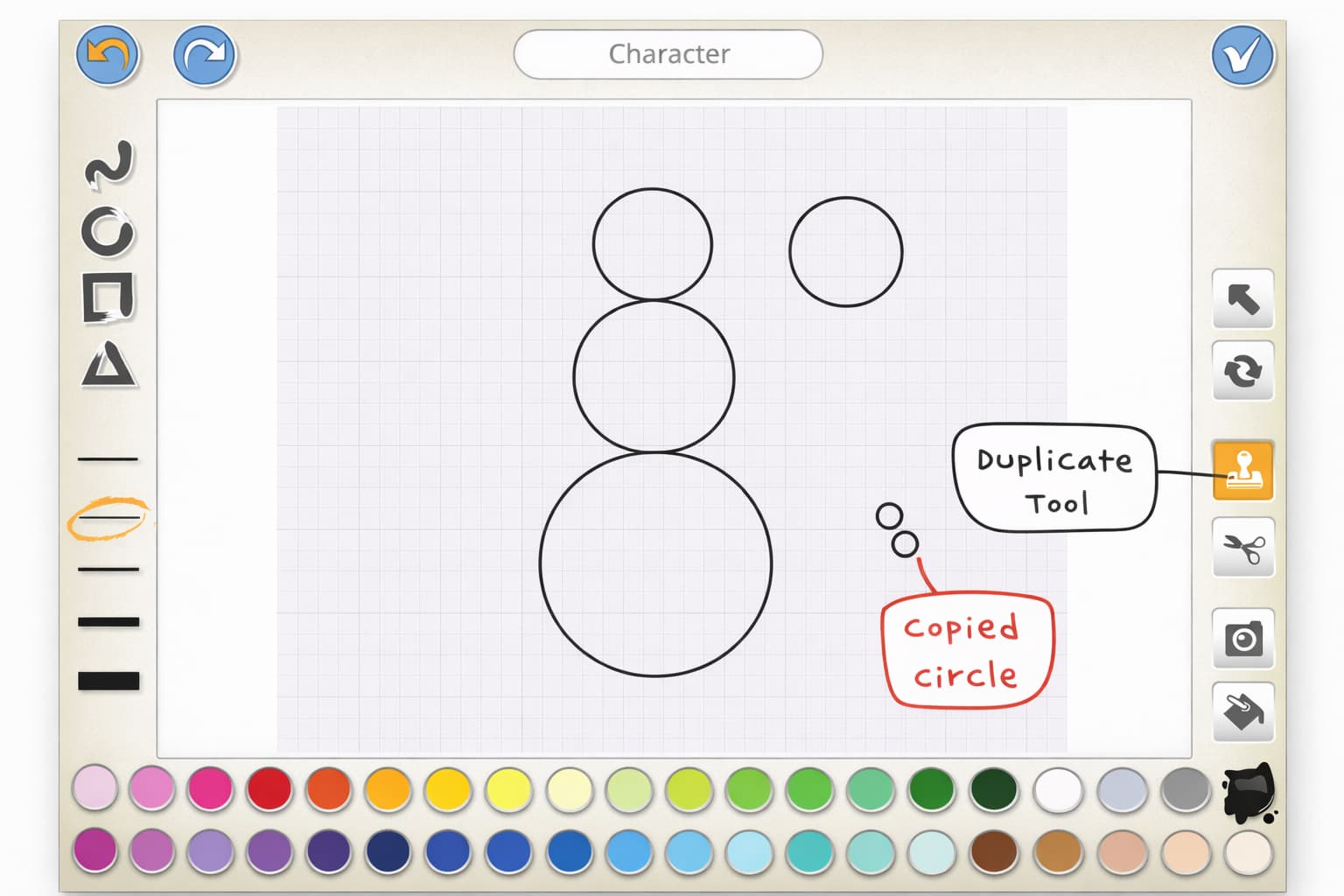
The Duplicate tool makes a copy of the shape that appears just to the side of the original, so you need to drag them apart carefully. Drag these eyes into place on the snowman’s head
Step 7
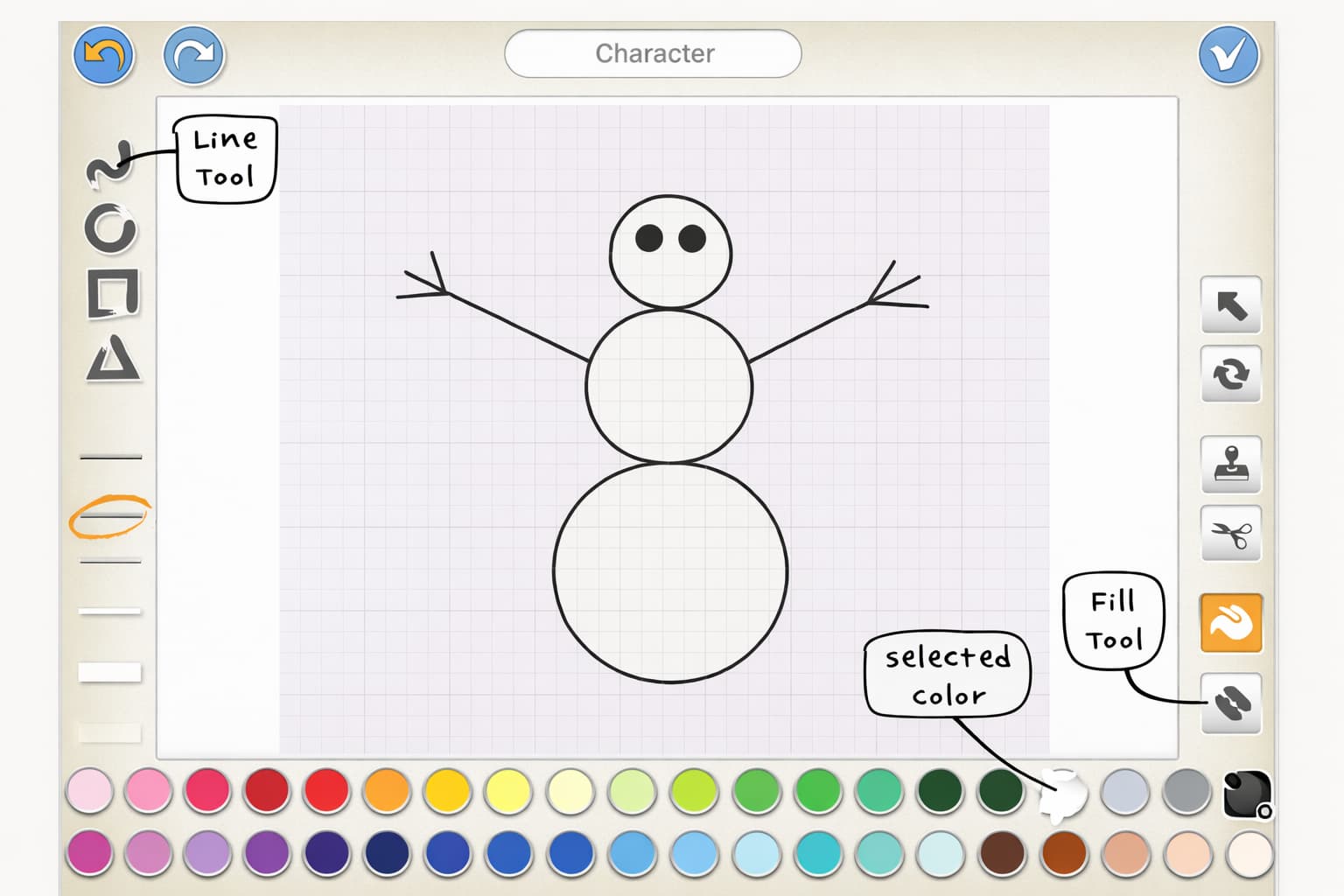
Tap the Line tool and draw two arms for the snowman. Next, we need to fill in the snowballs with white paint. Tap the Fill tool (which looks like a paint bucket) and select white from the color palette. Then tap each snowball, and the shape will fill with the color that you chose. Select black and color the eyes.
Step 8
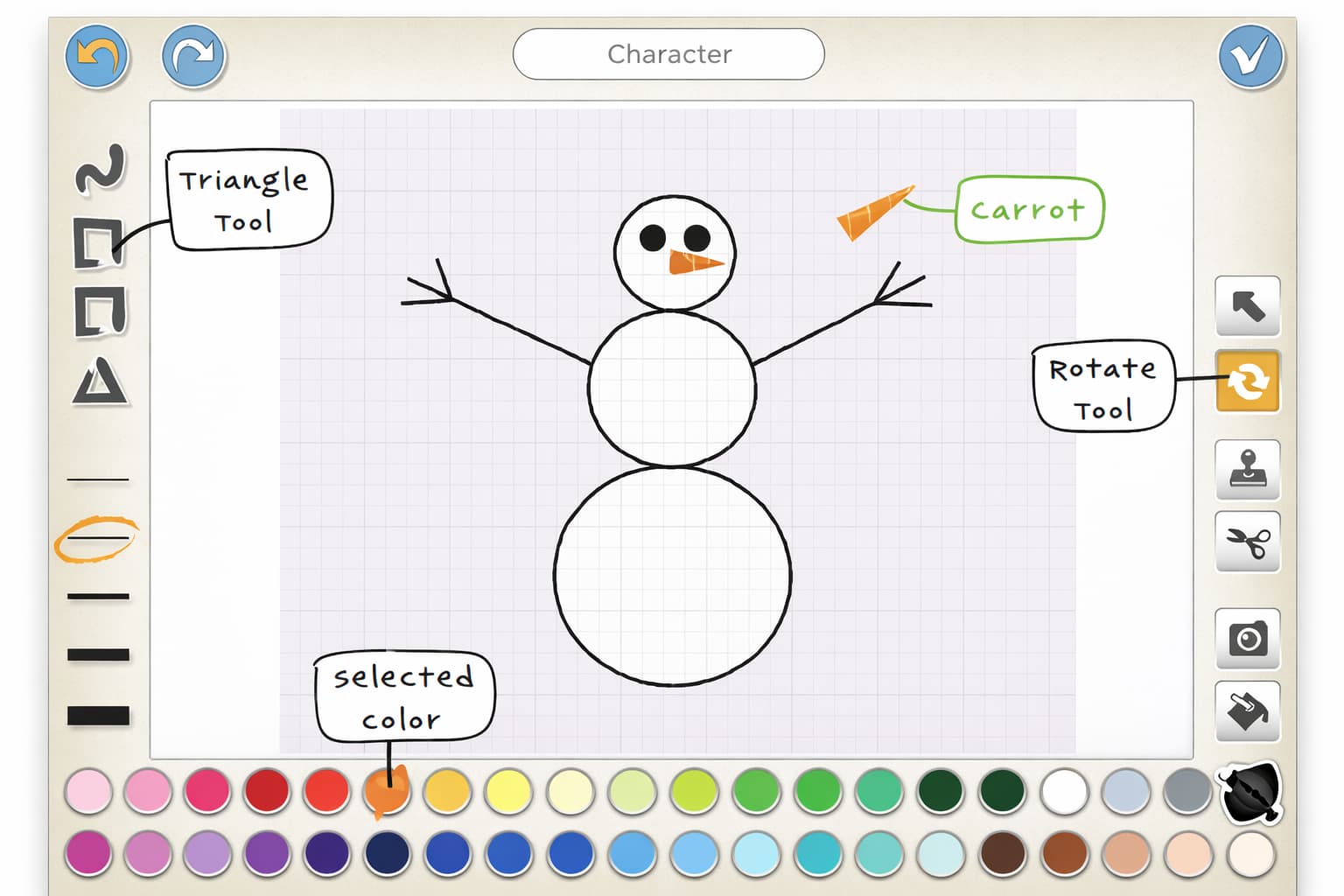
To make a carrot for the nose, change the color to orange and tap the Triangle tool. Drag your finger diagonally anywhere on the canvas until you have a carrot-shaped triangle.
Then, using the Fill tool, paint the carrot orange.
Step 9
Tap the Rotate tool, and then press and hold the carrot. Keep your finger on the screen and move it up or down or side to side to turn the carrot. Use the Drag tool to drag the carrot into place on the snowman’s face.
Step 10
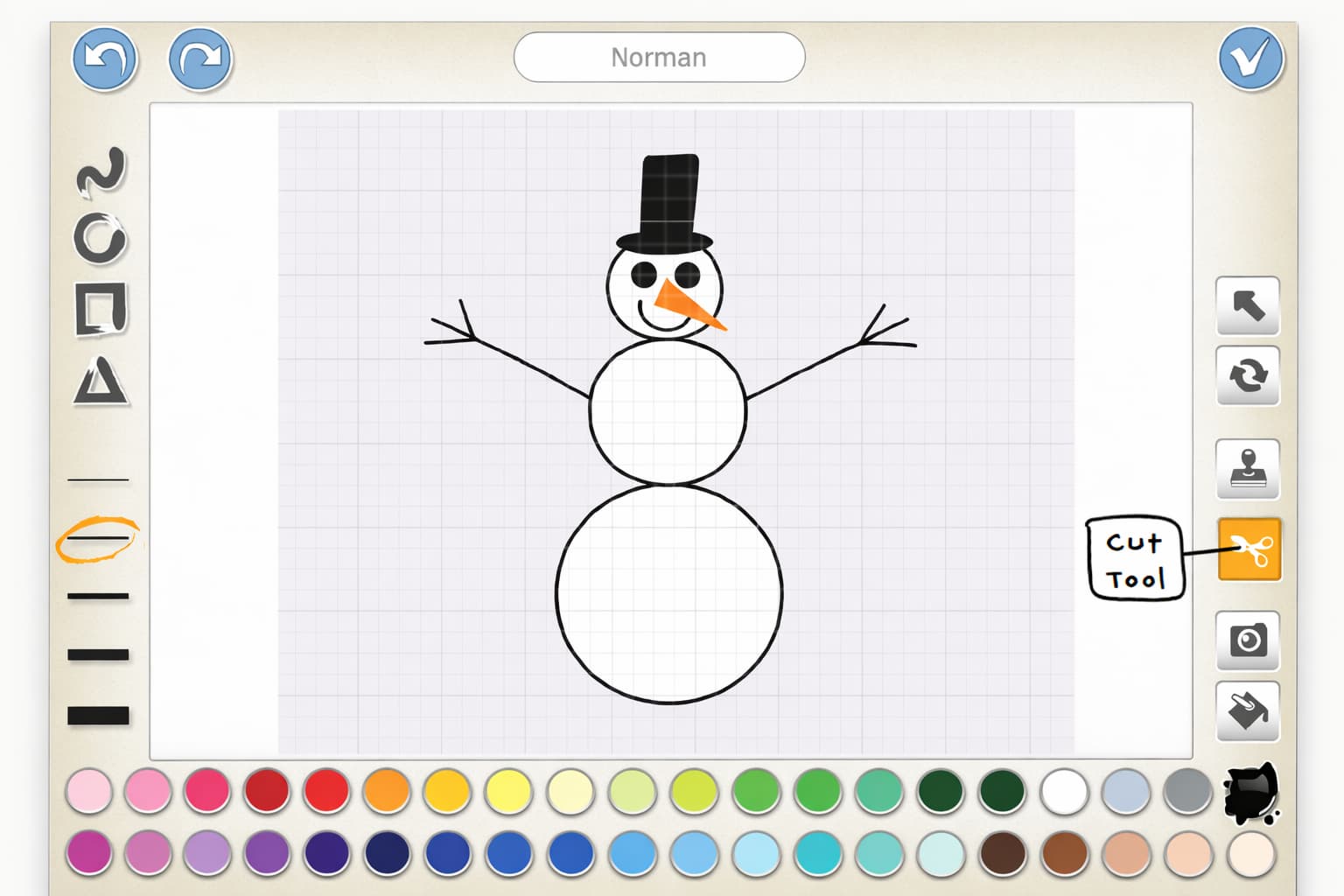
If you want to delete something in particular, you can use the Cut tool (which looks like a pair of scissors).
Tap the Cut tool, and then tap what you want to delete.
Activity
Objectives:
•
Creating a new character
•
Drawing and Coloring the character
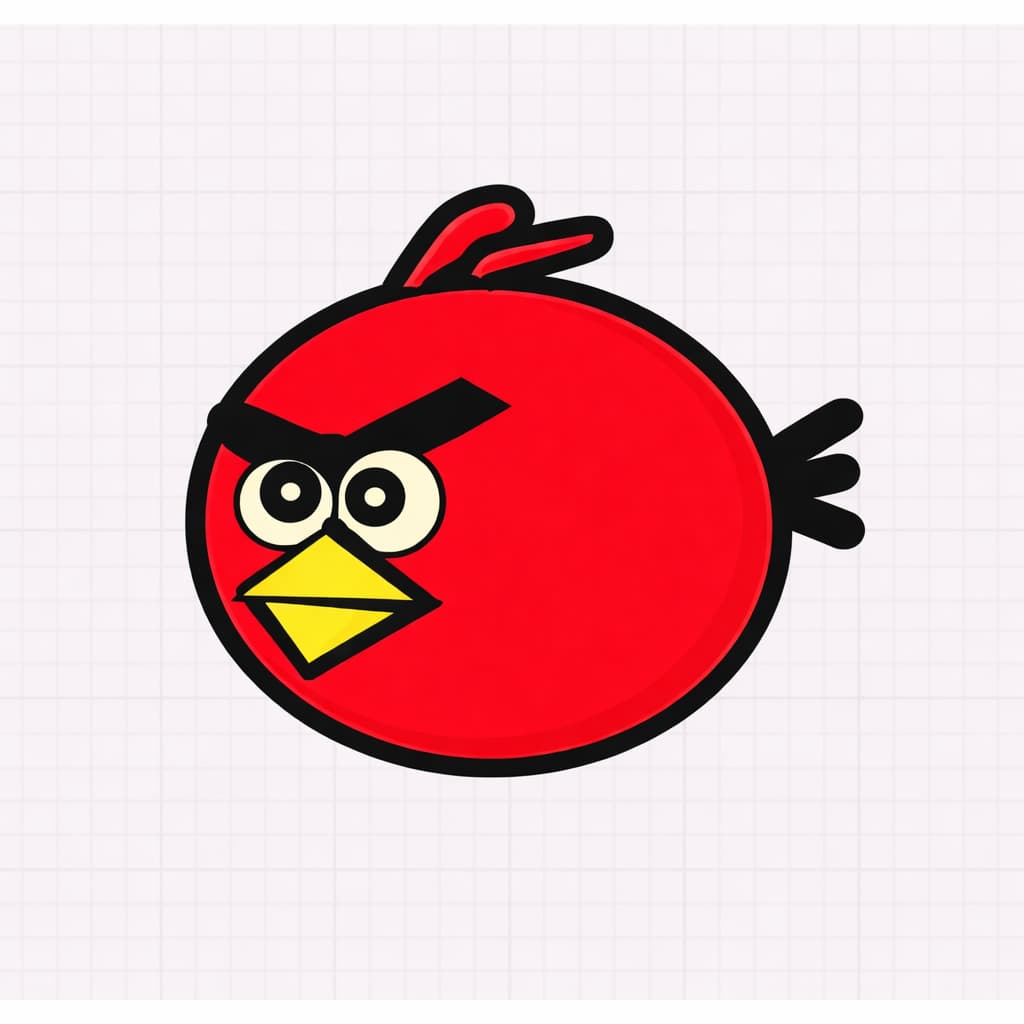
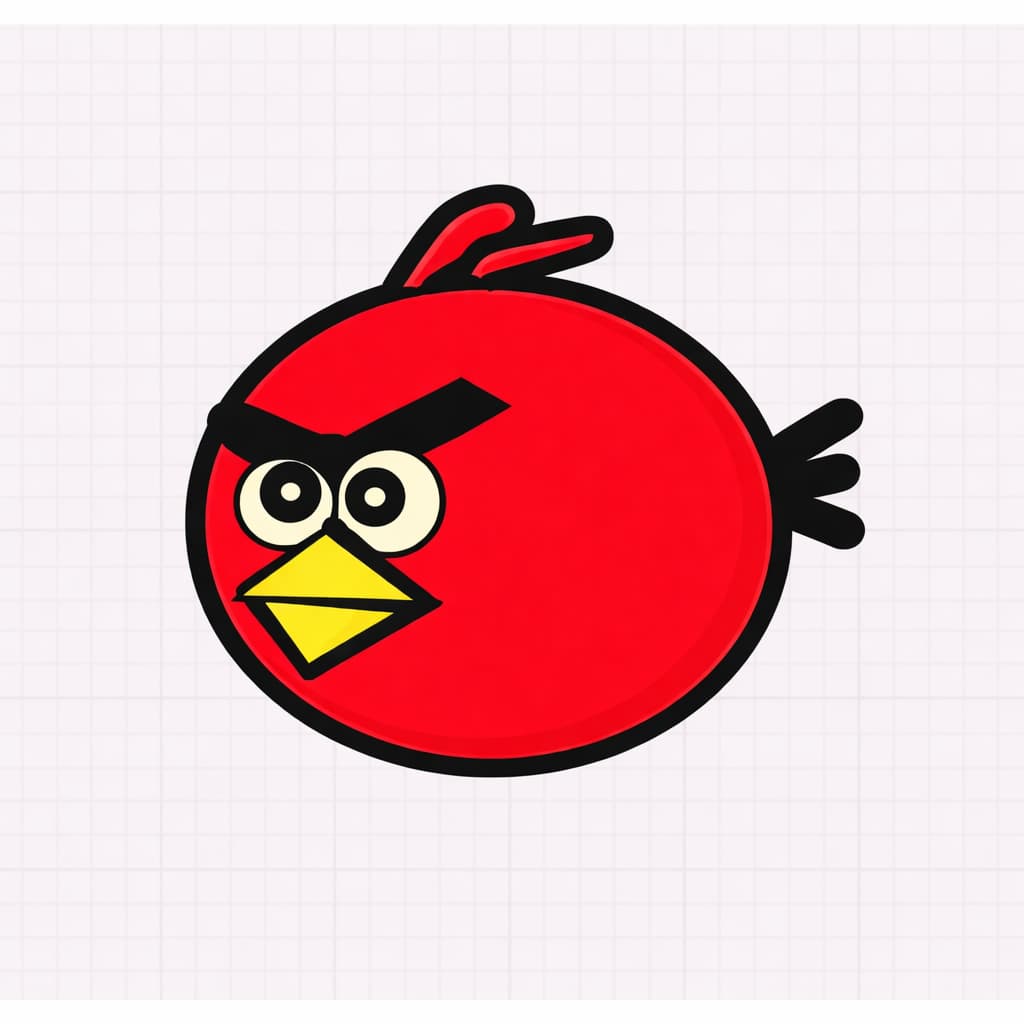
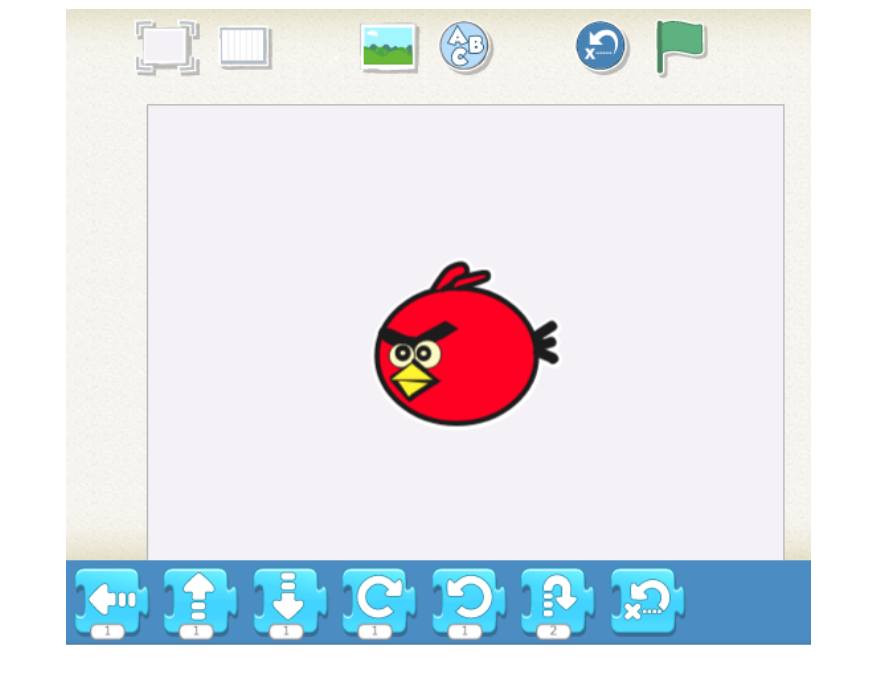
We will draw and modify a character
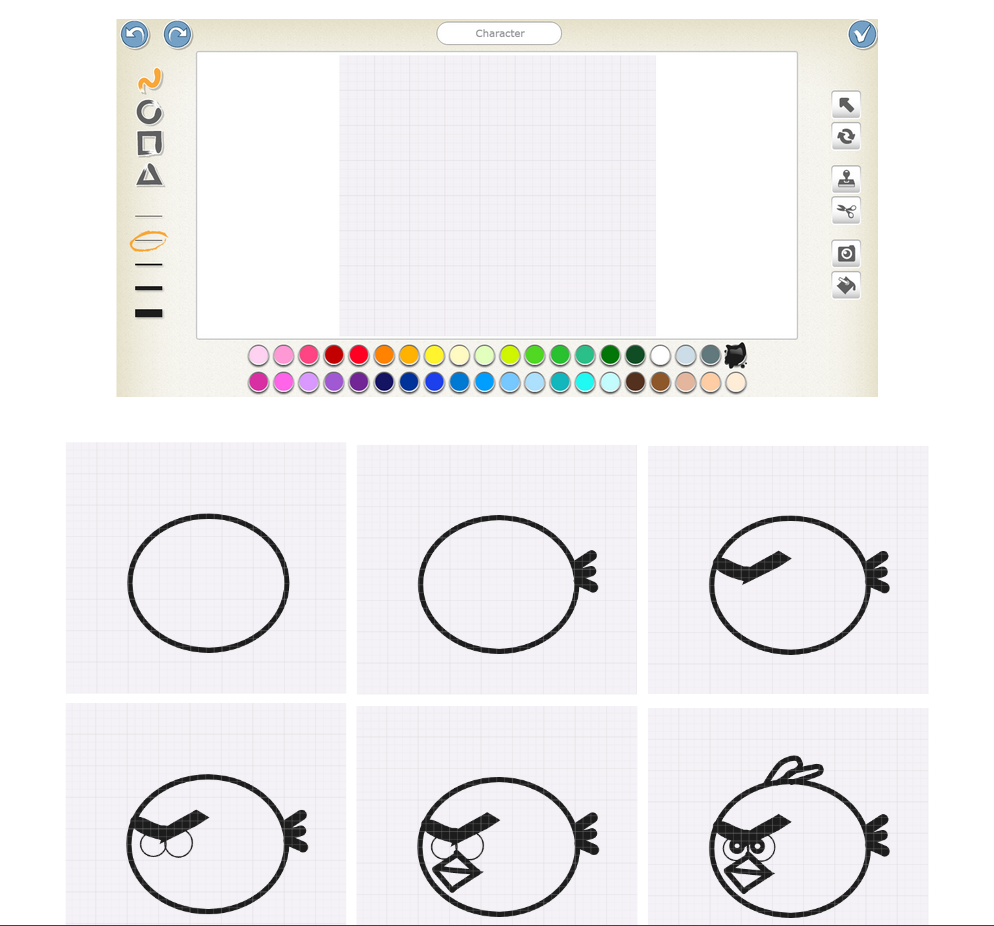
Step 1:Create a new character