
Points in Geometry
Overview
In this lesson, students discover the idea of points in geometry and understand how points show exact locations. Using Ziggy, the Geo Turtle Robot , students will draw points on paper by controlling Ziggy’s pen through MakeCode.
Students will also learn how to control when Ziggy draws and when it moves without drawing by using the Pen Up and Pen Down blocks. This lesson connects basic geometry with fun hands-on coding and robotics activities.
Students will be able to:
1.
Define what a point is in geometry.
2.
Recognize points in everyday life.
3.
Use Ziggy’s pen to represent points.
4.
Control drawing using Pen Up and Pen Down blocks.
Exploring Points in Geometry
A point in geometry represents an exact location. A point has no size. This means it has:
•
No width
•
No length
•
No depth
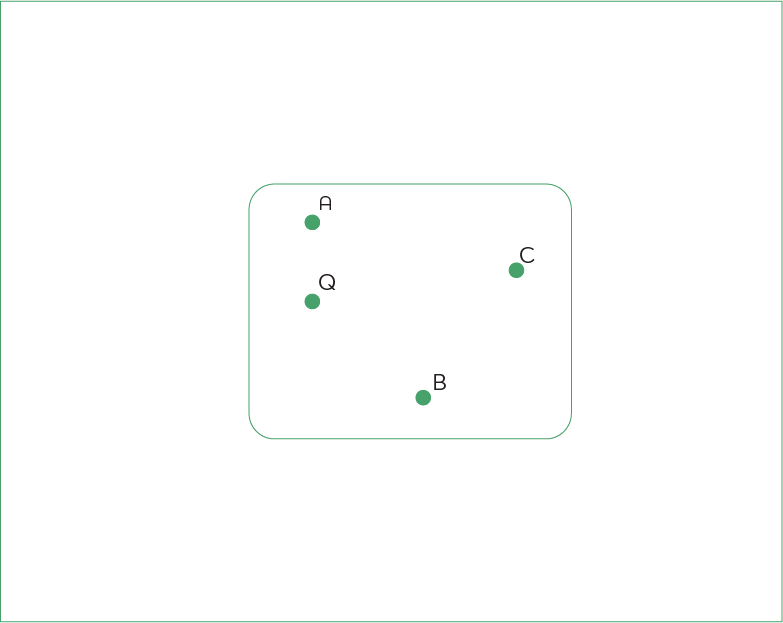
A point only shows position and is usually represented by a small dot. Points are very important because they are the building blocks of all geometric shapes. Every line, curve, and shape starts with points.
Points Around Us
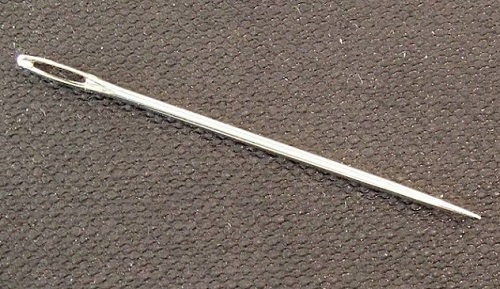
Points are not only found in math. We can see examples of points in our daily life, such as:
•
The tip of a pencil
•
Stars in the sky
•
Drops of water
•
Corners of objects or paper
These examples help us understand how points represent exact locations in the real world.St


Getting Started with MakeCode
Before using Ziggy, we need to prepare the coding software, Microsoft MakeCode.
Steps:
1.
Open MakeCode using the following link:
MakeCode
MakeCode
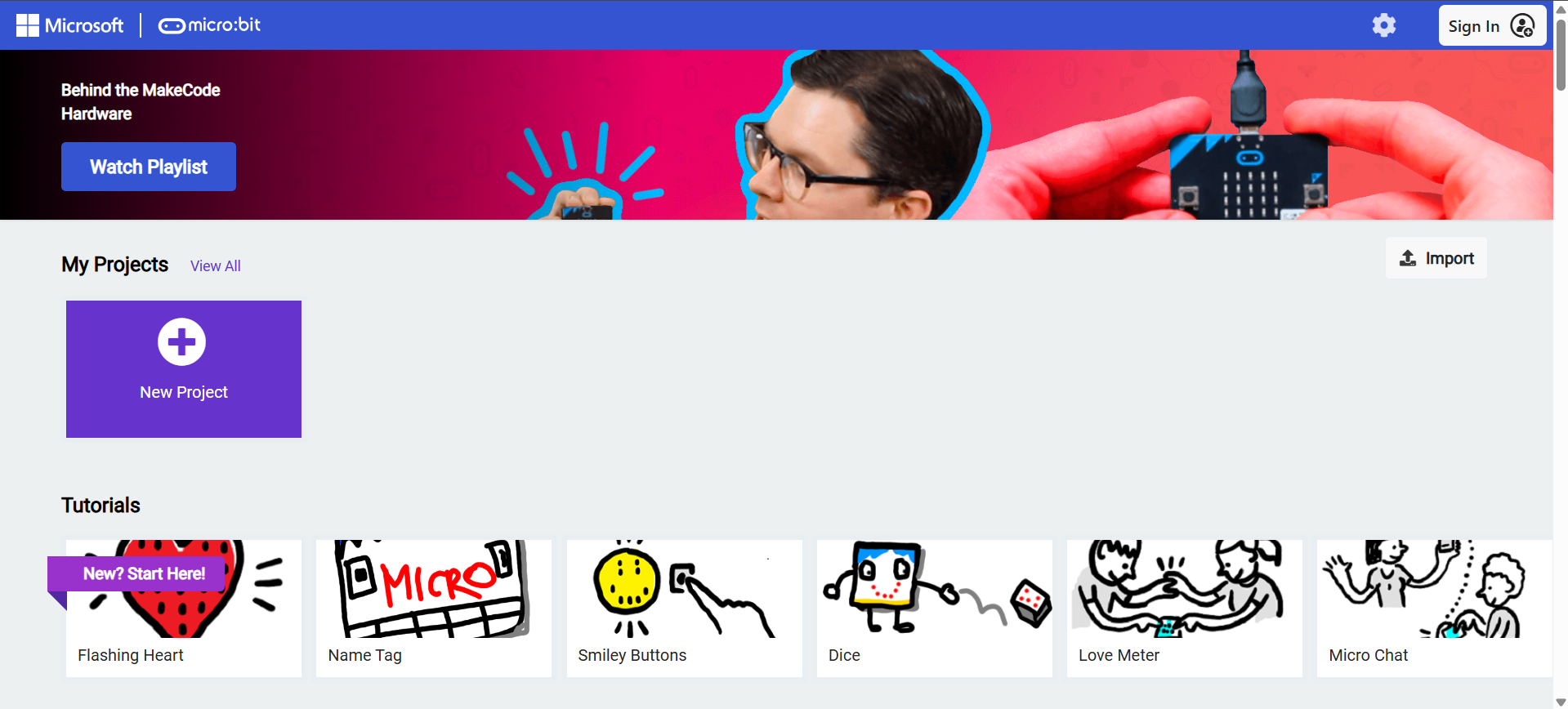
1.
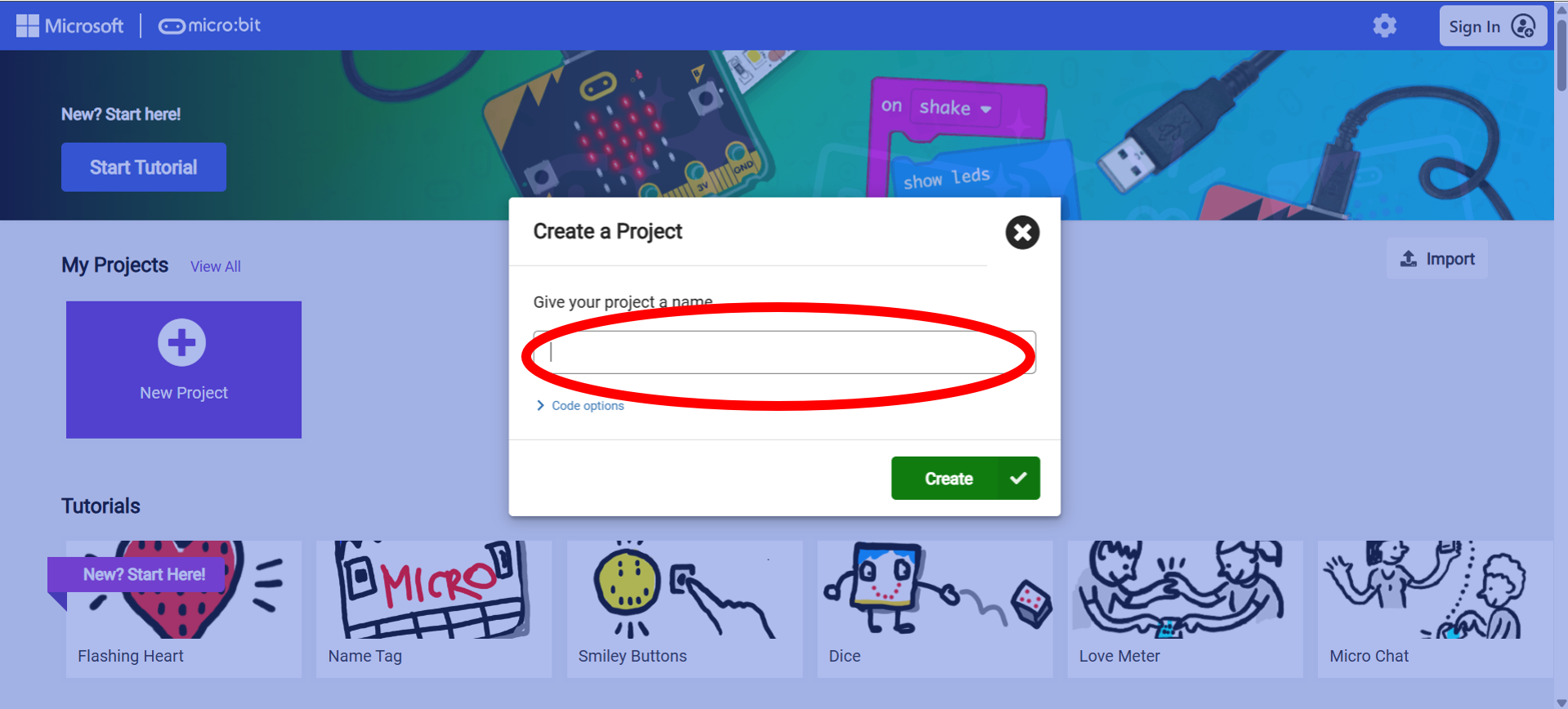
Click New Project
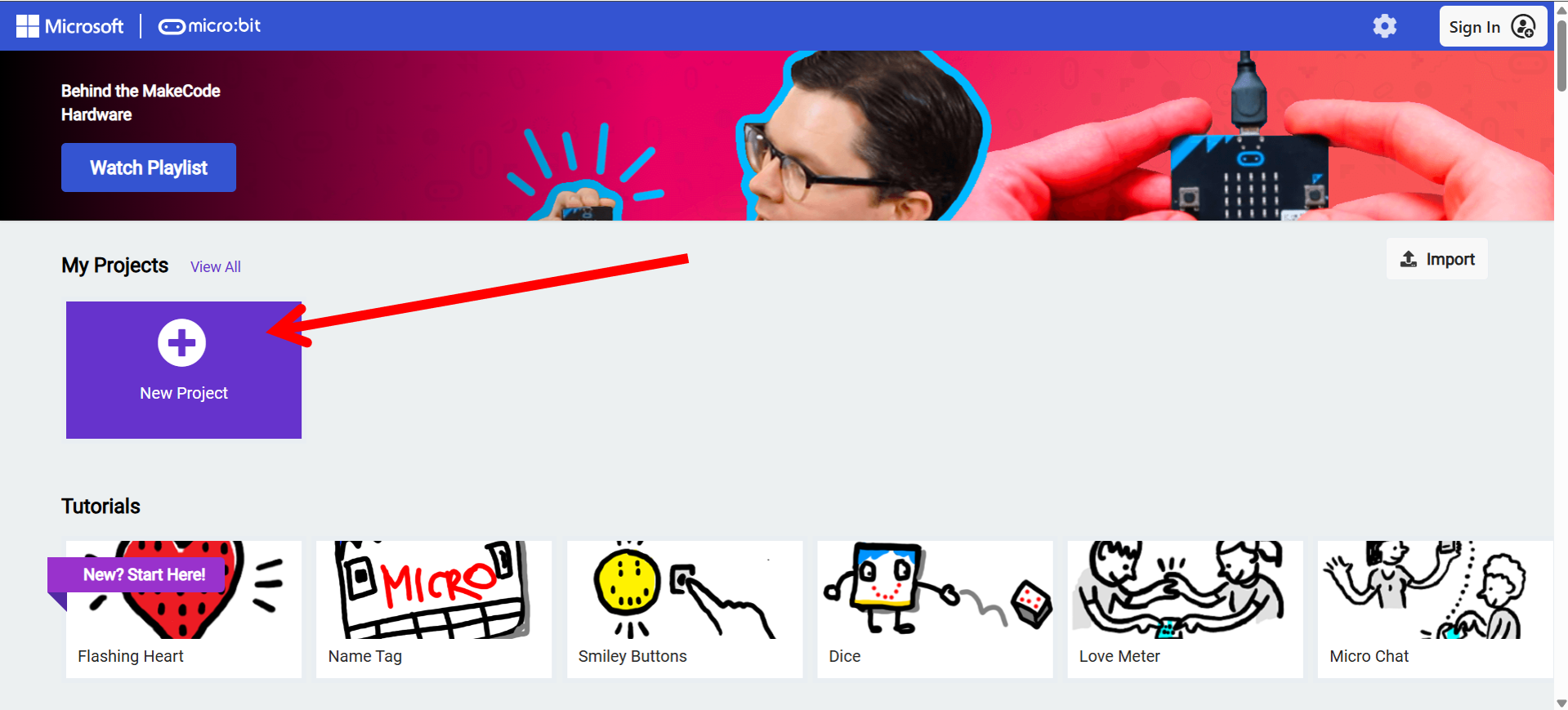
1.
Type a name for your project
1.
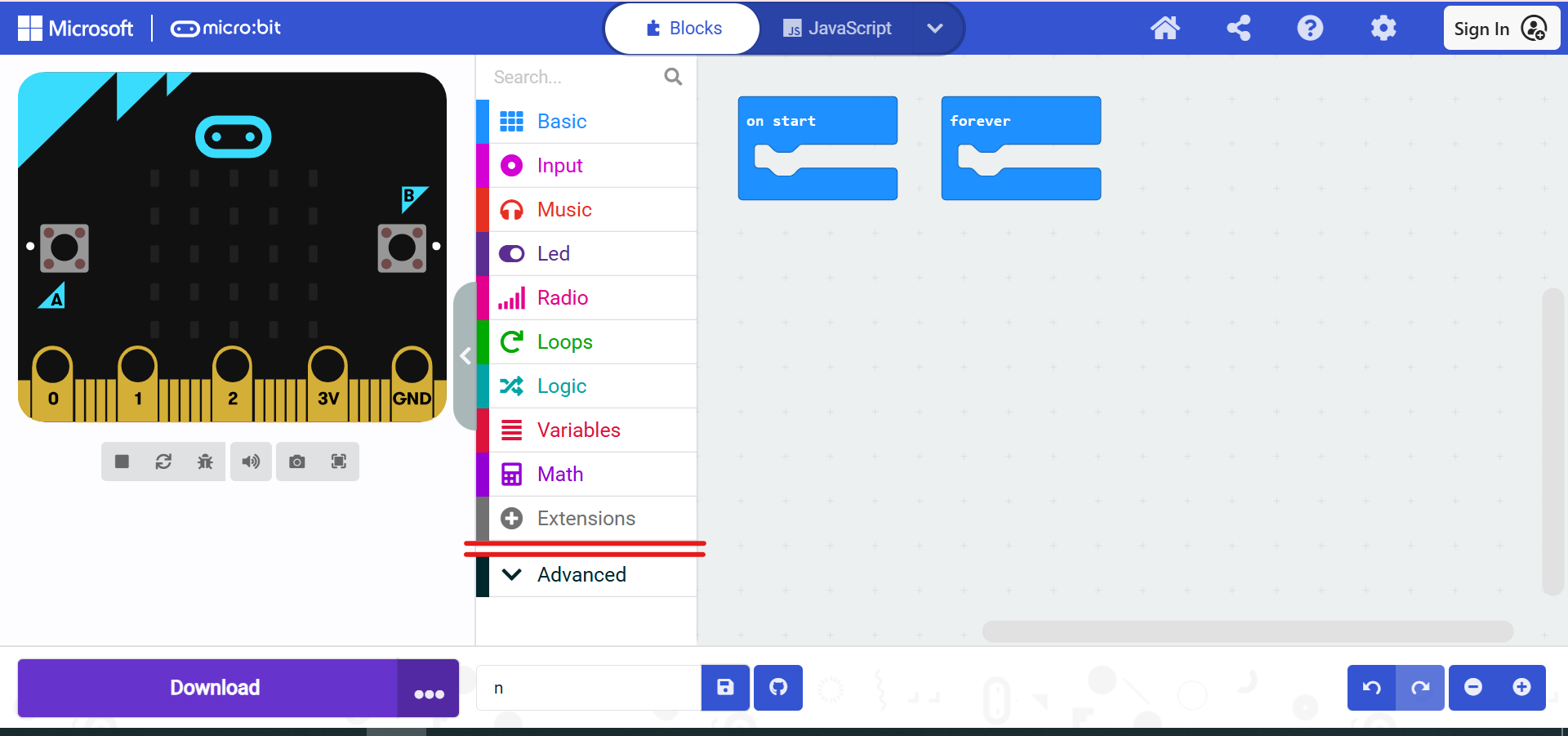
Open the Extensions tab
1.
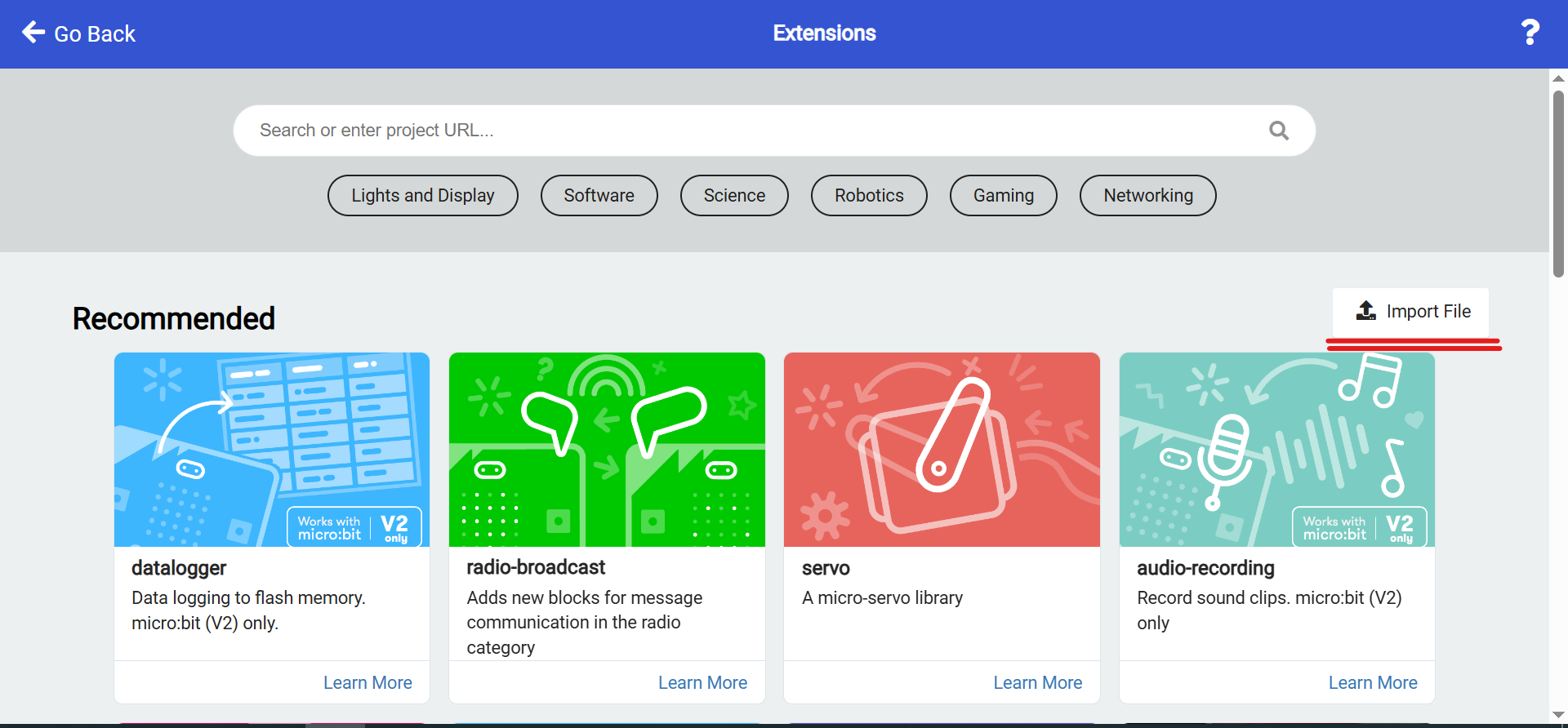
Choose Import File
1.
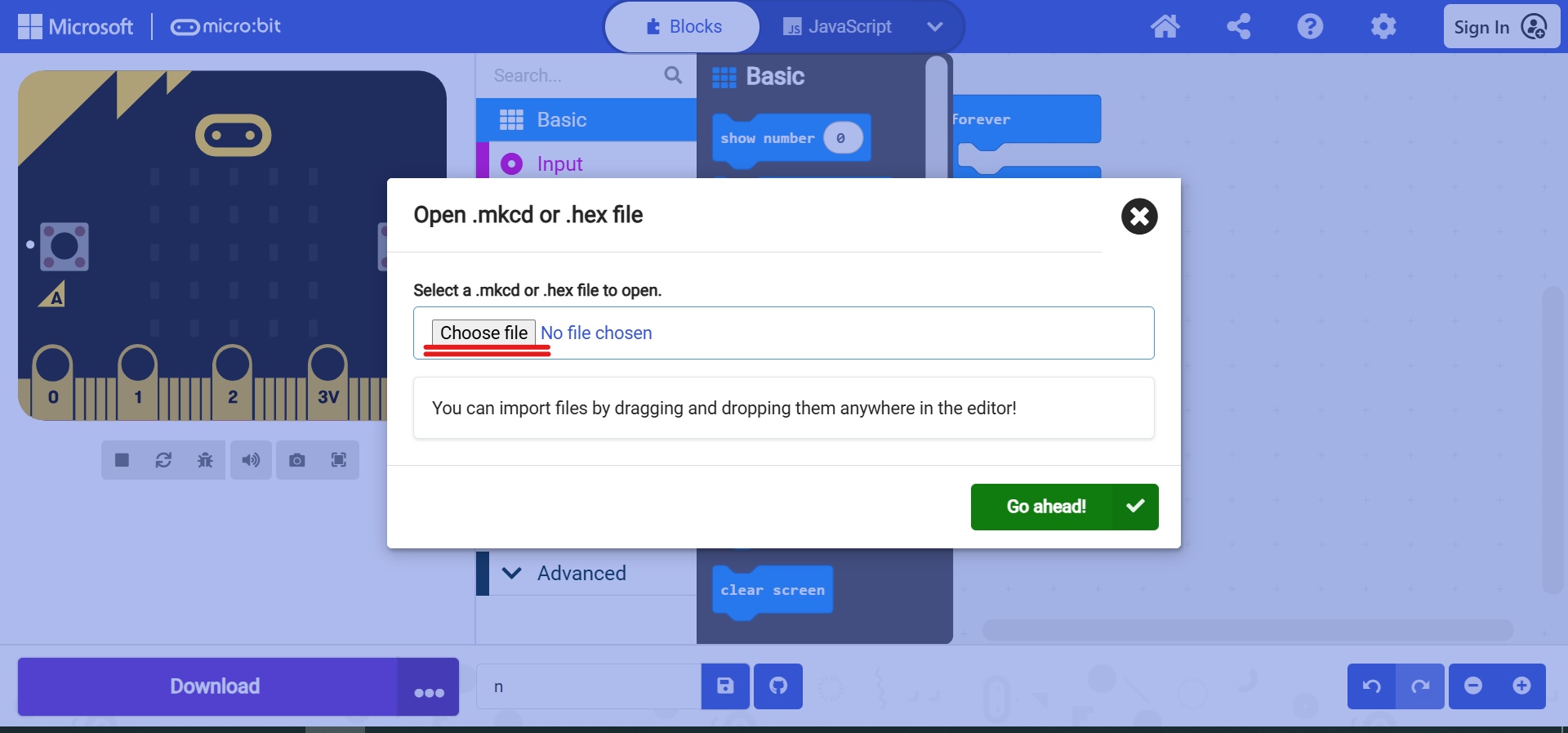
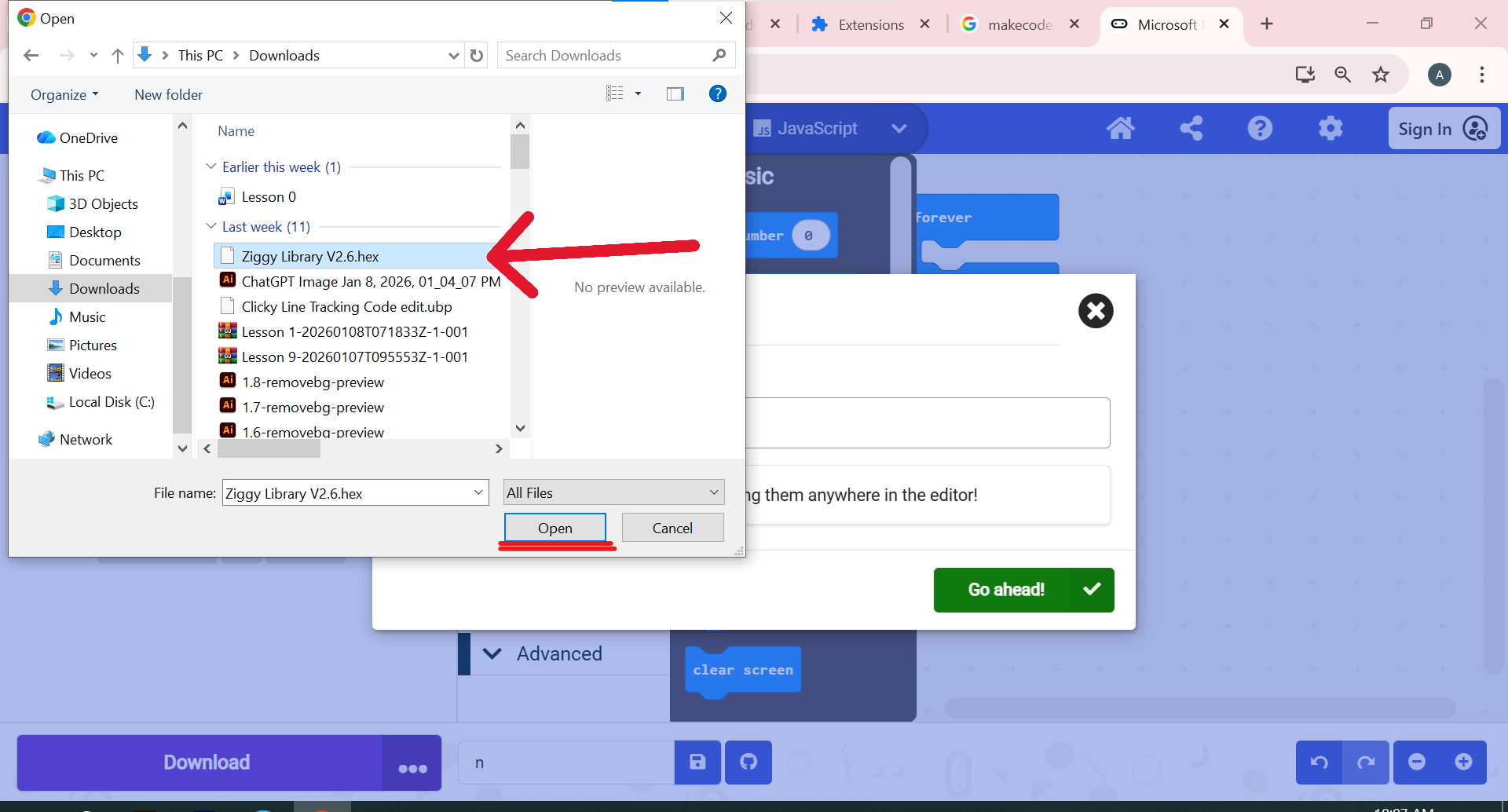
Select "Choose file"
1.
1.
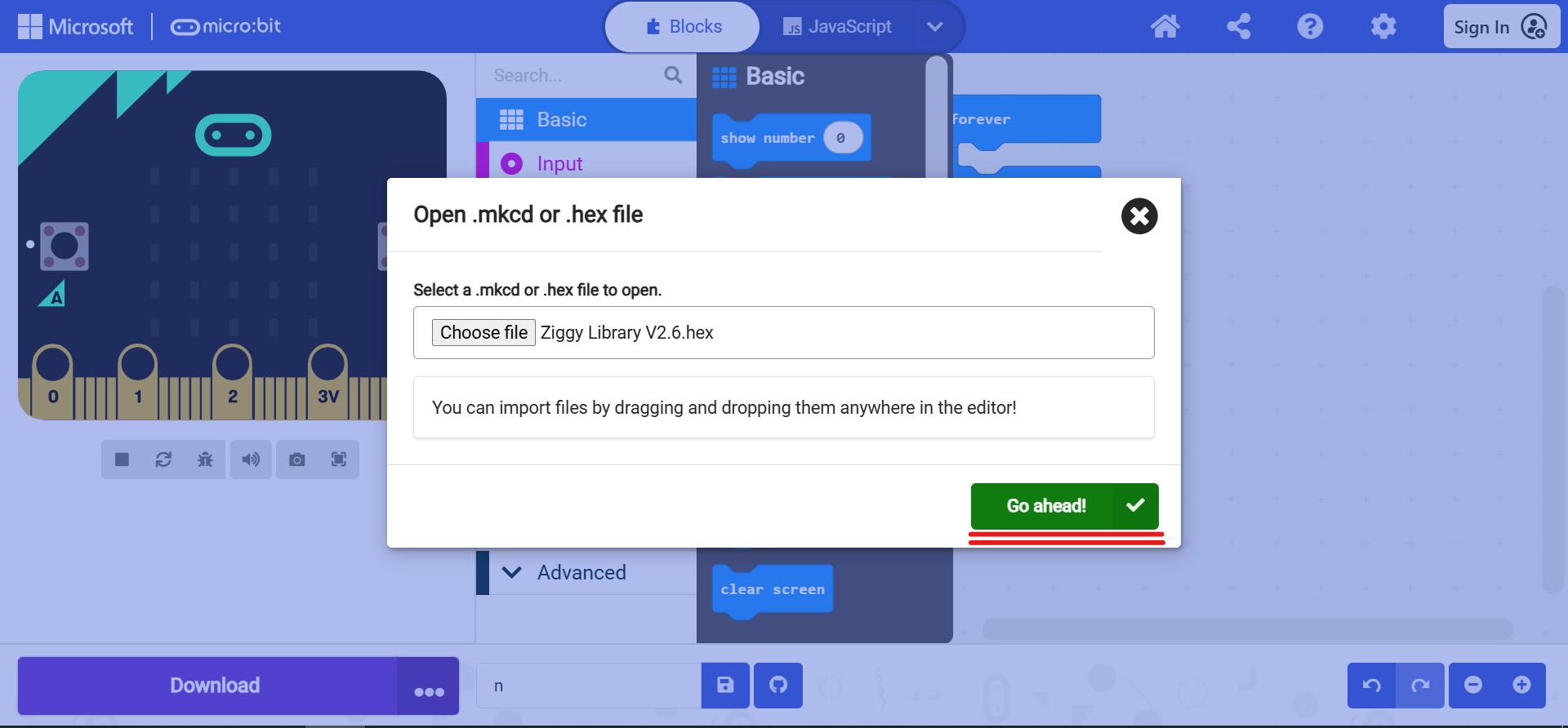
Click Go Ahead
1.
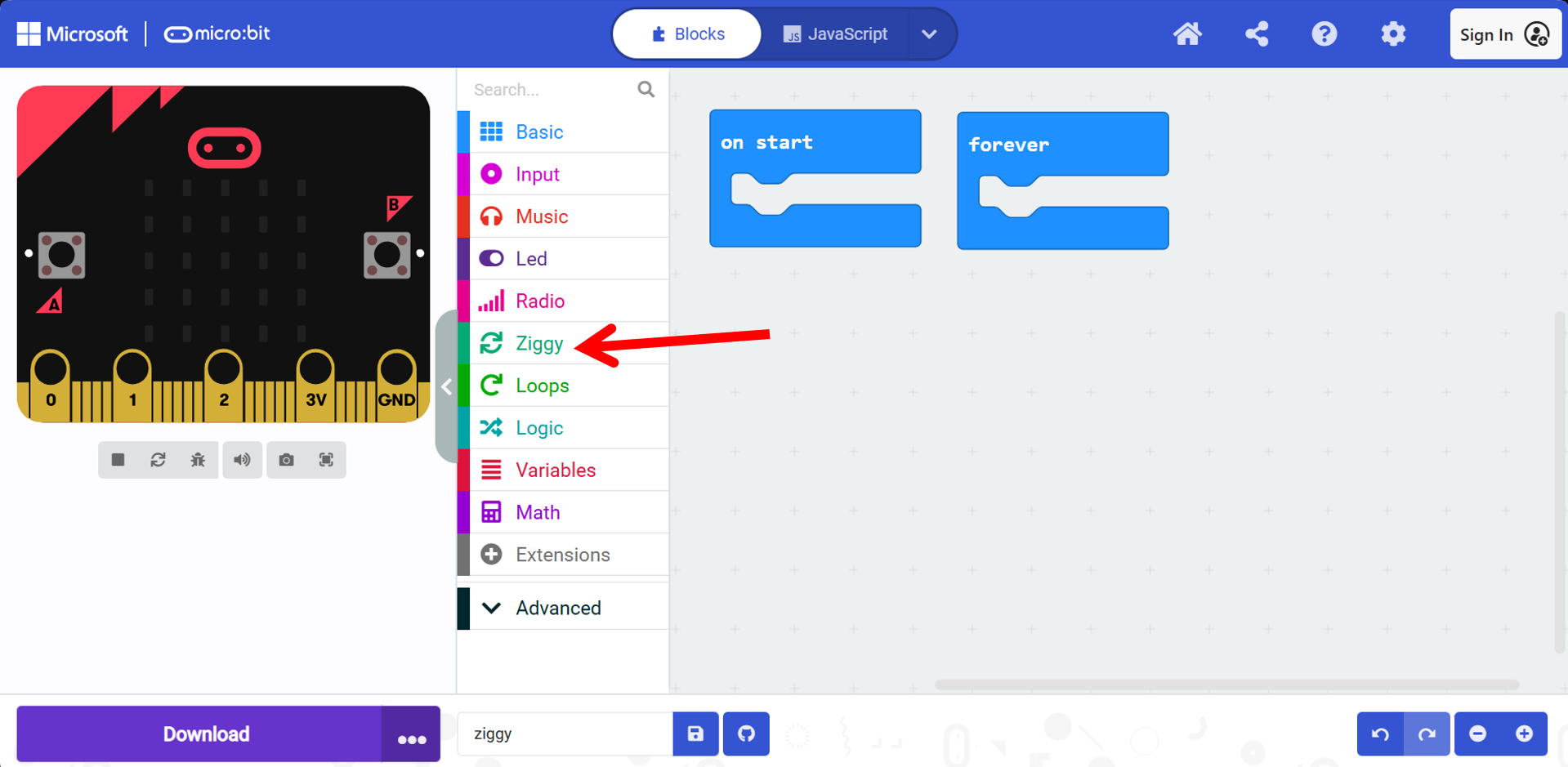
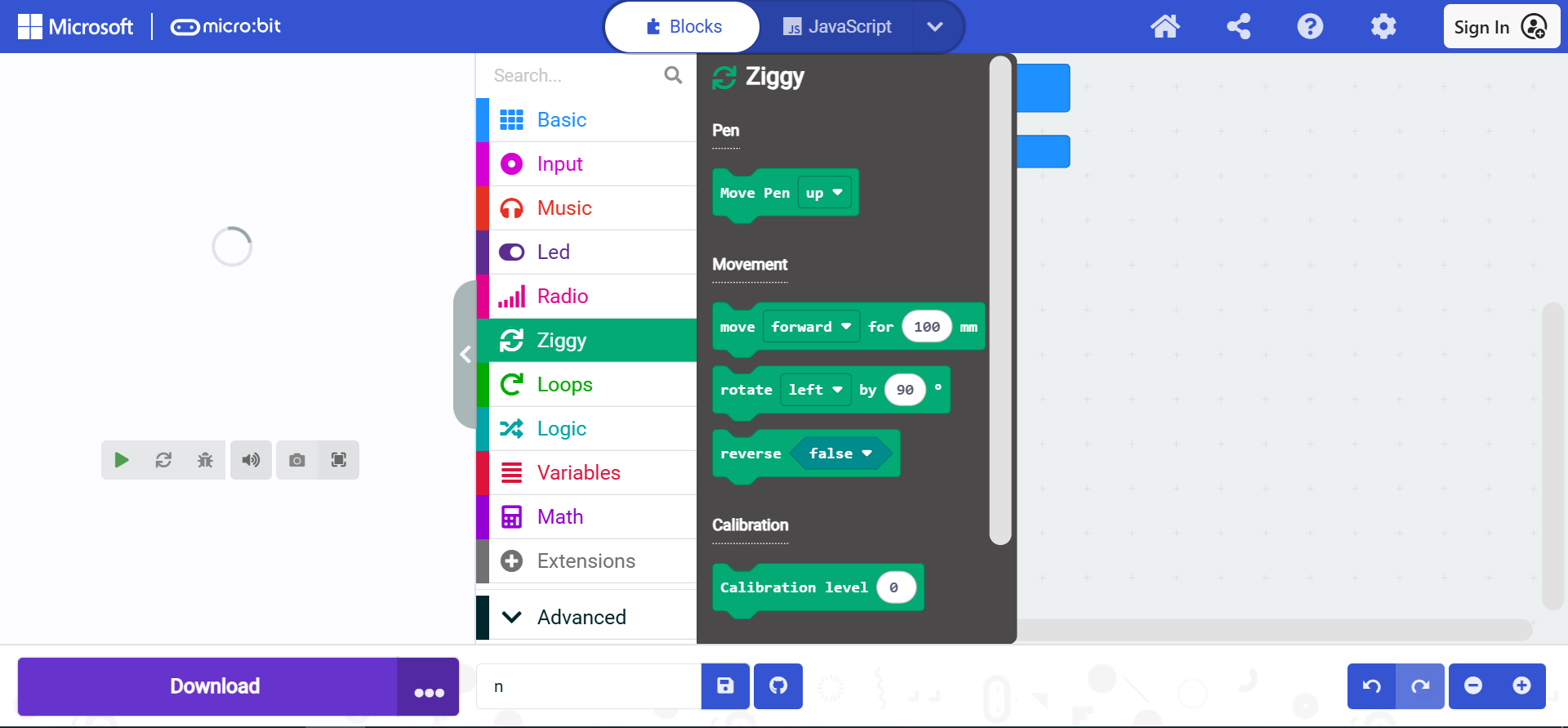
Open the Ziggy extension to start using its blocks
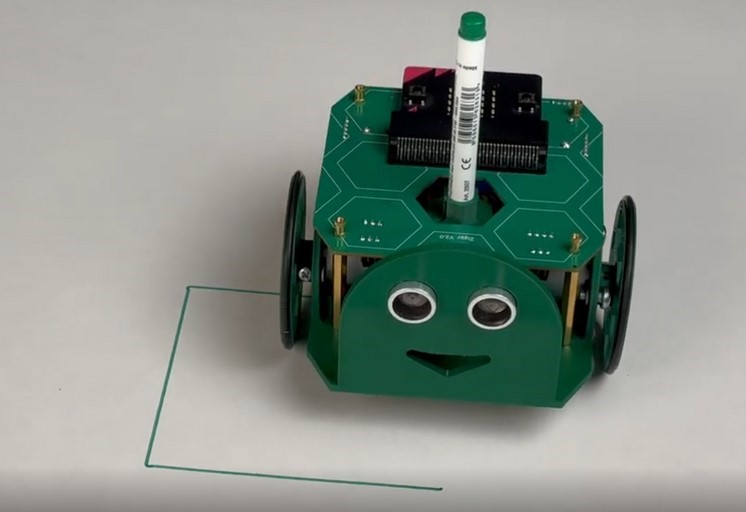
Ziggy’s Artistic Marker: The Turtle’s Pen
Ziggy is a small robot that can move in different directions:
•
Forward
•
Backward
•
Left
•
Right
Ziggy carries a pen that traces its movement on paper.
Pen Modes
•
Pen Up: When the pen is up, Ziggy moves without drawing. Use Pen Up when you want Ziggy to change position without leaving marks.
•
Pen Down: When the pen is down, Ziggy draws while moving. Pen Down is used to draw points, lines, and shapes.
Example:
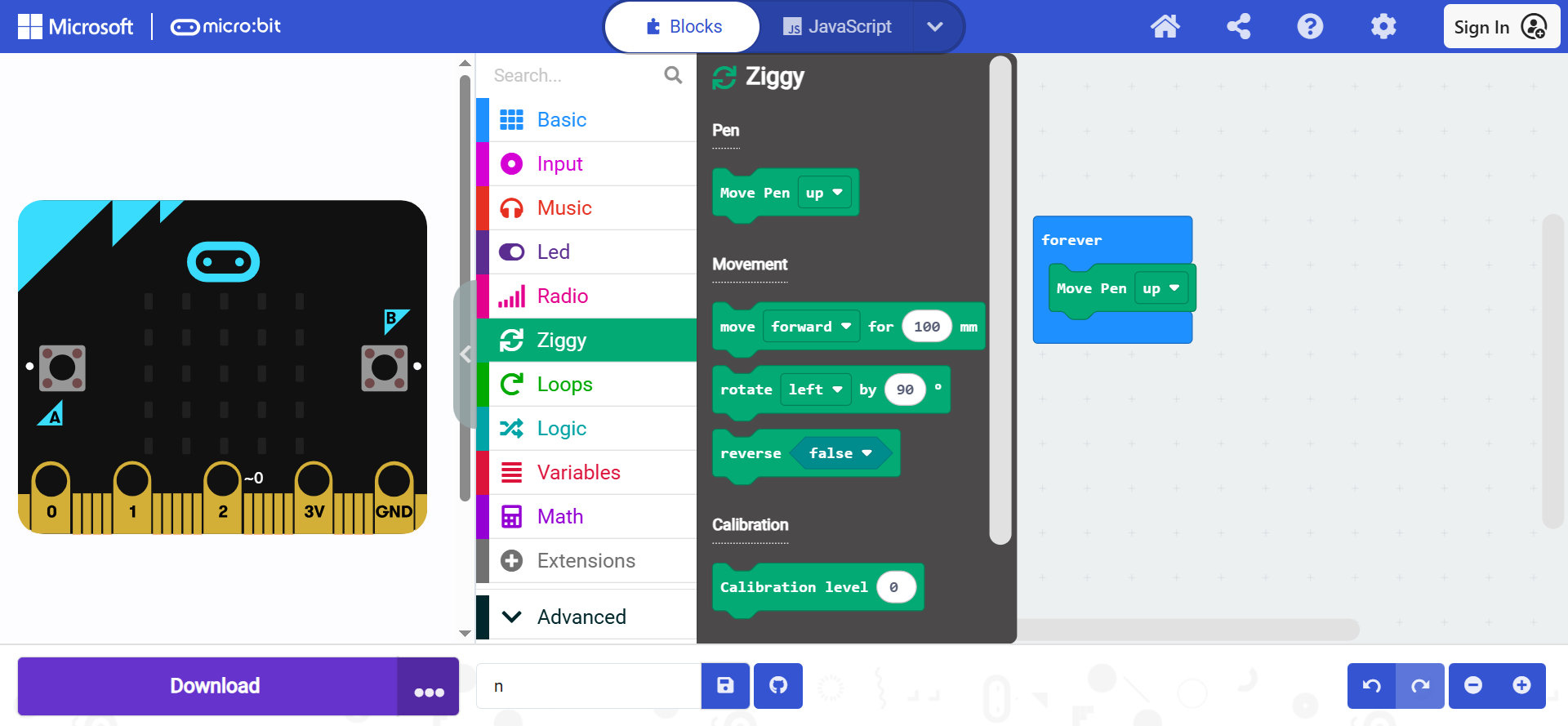
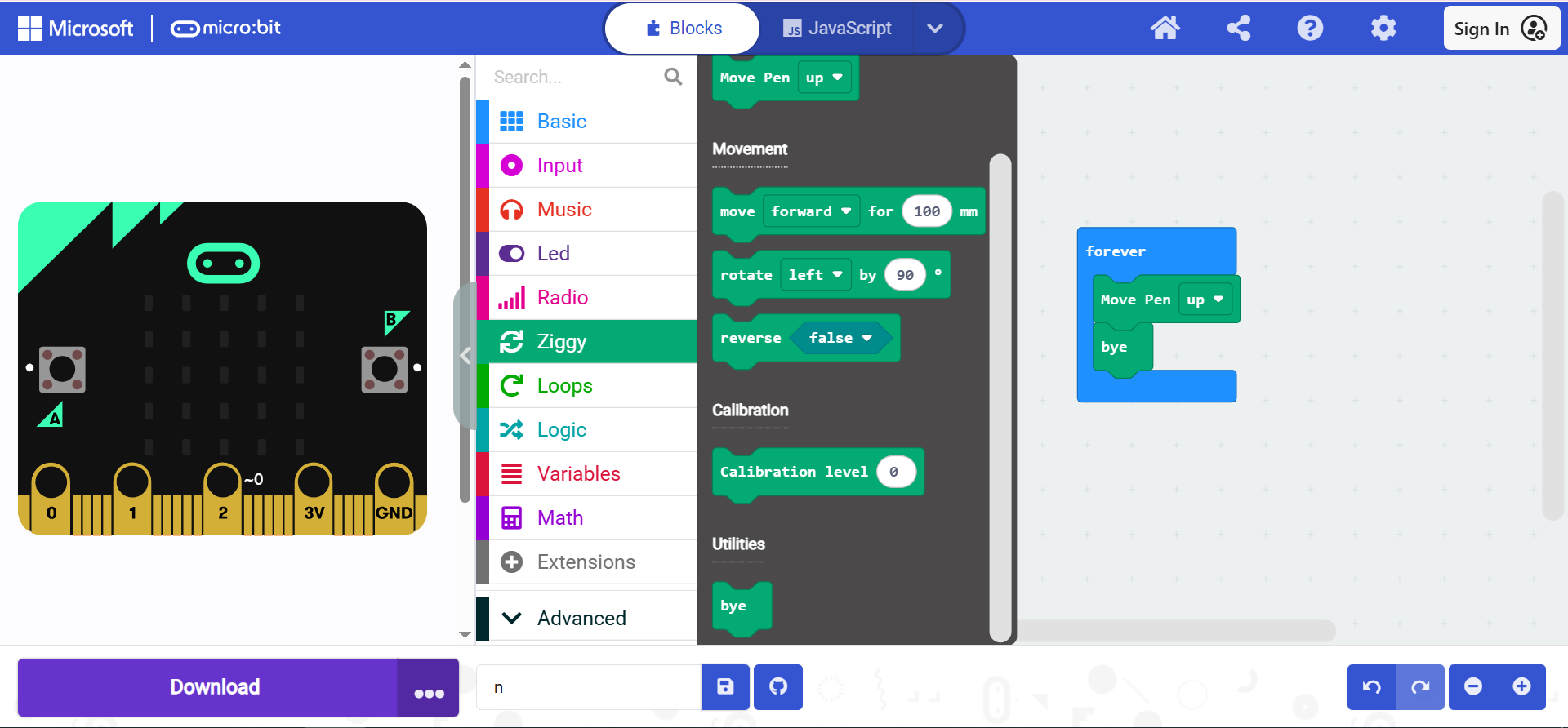
Tip: Use Pen Up when you want Ziggy to move or reposition without leaving marks.
Pen Down
To draw, Ziggy must lower the pen using Pen Down.
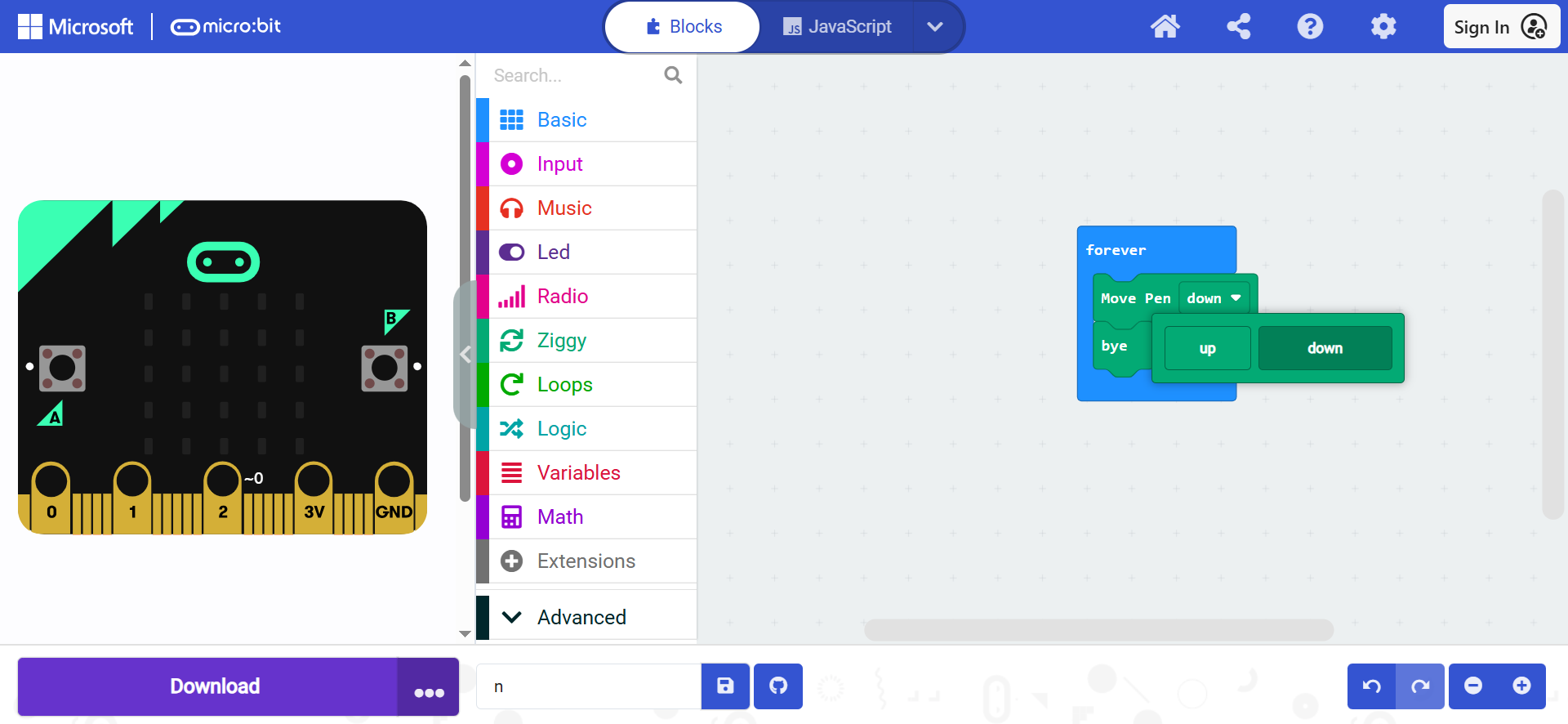
Example:
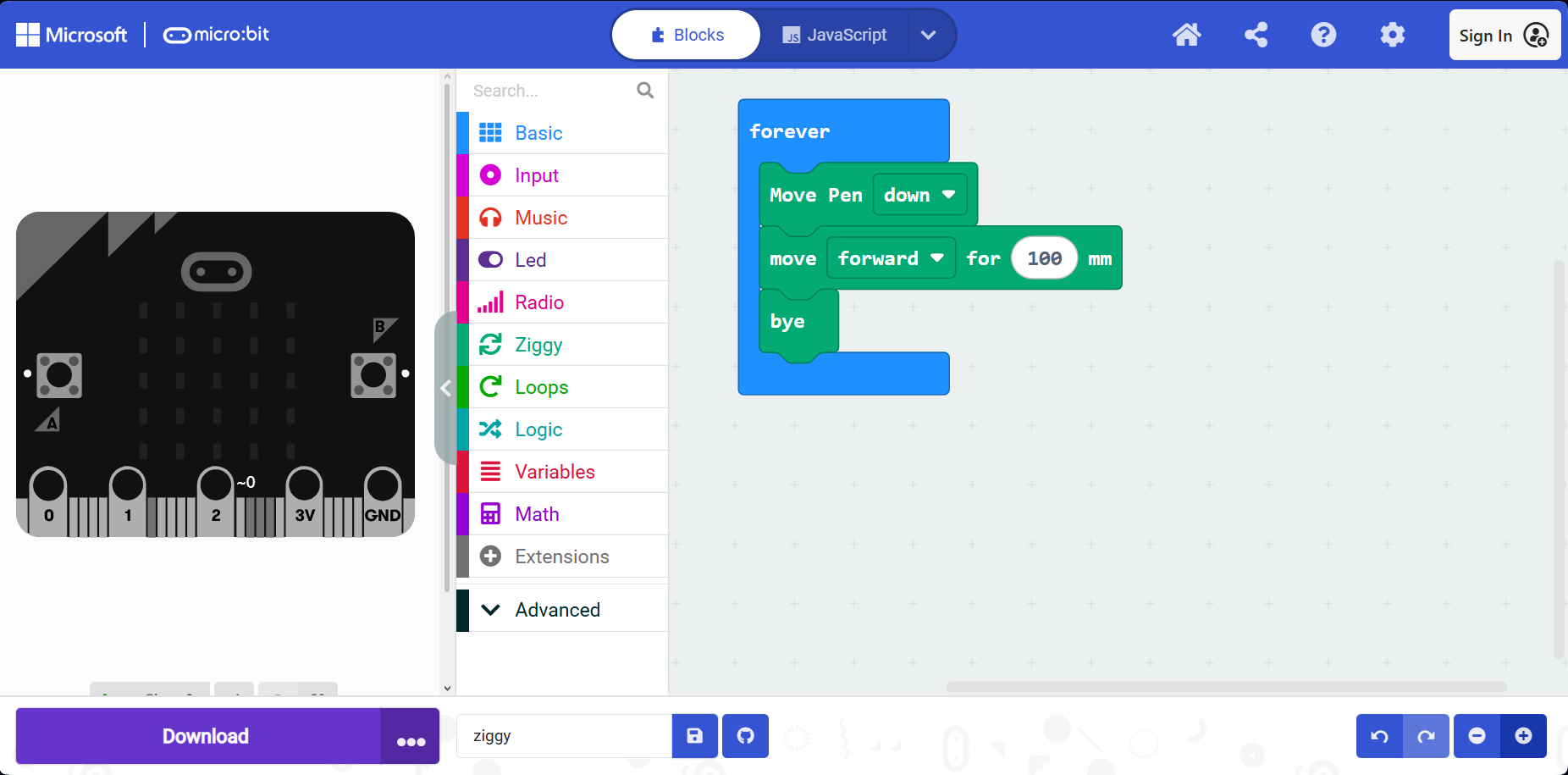
Tip: Pen Down is essential for drawing points, lines, and shapes.
Activity: Drawing with Points
Your Task:
1.
Use Ziggy to draw several points on paper
2.
Arrange the points to create a shape you like
3.
Connect the points manually to complete the shape
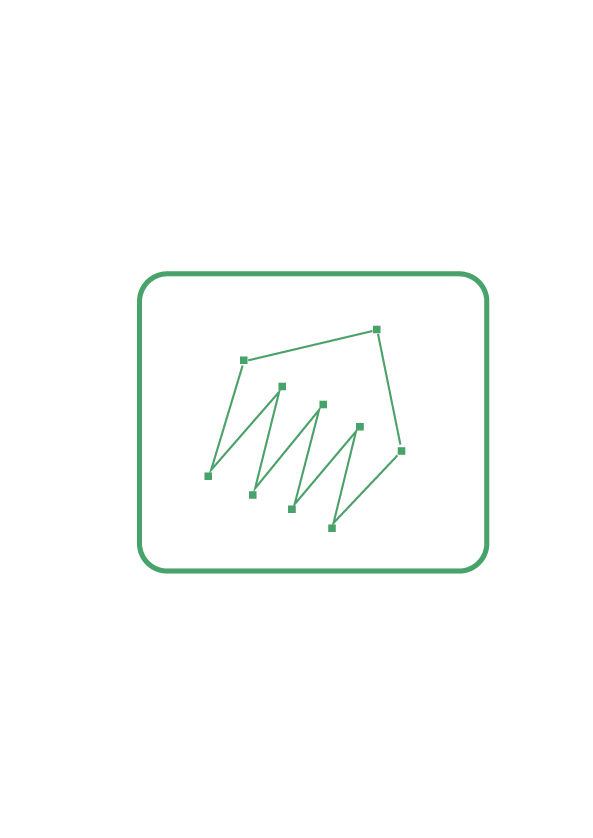
Hint:
1.
Use the on Button Pressed Block event
2.
The following code draws a point on paper or a whiteboard when button A is pressed.
3.
Use a ruler to connect the different points
4.
Make your own shape!
This activity helps students understand how points create shapes and introduces basic drawing control using Pen Up and Pen Down.